azure sql database
597 Topics
AI-assisted Query Performance Tuning comes to SSMS GitHub Copilot Agent mode (in Preview)
Hi there, and thanks for stopping by. Let me start with a question. When was the last time a single query ruined your afternoon? Maybe it was a high-CPU alert that popped up right after a release. Maybe a report that used to come back in two seconds suddenly took two minutes, or maybe you were simply staring at an execution plan, scrolling left and right across a sea of operators, trying to figure out which one was the real villain. If any of that sounds familiar, this post is for you. Let me tell you about something our team has been working on for a while, and why I'm genuinely excited that you can now try it yourself. So, what is it? GitHub Copilot in SSMS 22.12.1 Release Notes onwards can now help you understand why a query is slow or resource-intensive, and how to improve it. In Agent mode, Copilot uses query performance tuning skills to analyze your query and its execution plan, help identify likely root cause, and recommend potential fixes ordered by expected impact. Here are few things you can ask it to do: Help improve this query Suggest a rewritten version of a query that's expected to run faster Recommend any missing index that can help improve the query execution time Recommend query hints, and explain the trade-offs What a conversation actually looks like Let me walk you through how this feels in practice, and the experience that you see while this improvement is in Preview. You open a query editor in SSMS. Connect to a dev or test copy of the database where you want to analyze the query and paste the slow or high CPU query in the query editor. You open Copilot Chat in SSMS and switch to Agent mode, pick a model, and simply ask: Why is this query slow? or can you improve this query? By default, the agent starts with a quick triage and gives you a first answer: the most likely cause and potential recommendations. If that's enough, great. If you want to go deeper, just keep talking to it: Rewrite this query to make it run faster. Is there an index that would further improve the rewritten query? Do the plan analysis and identify the cause of slowness. For plan analysis, you can open the estimated or actual execution plan in the query editor in SSMS and ask the agent to analyze it. Do a full analysis of this query and its execution plan. A full analysis comes back as a report you can actually read: baseline metrics from the plan, the root cause (an anti-pattern, an implicit conversion blocking an index seek, a bad cardinality estimate and so on), ordered recommendations with their reasoning and estimated improvement. You stay in control. Always. I want to be very clear about this part, because trust matters more than speed. Copilot recommends changes, but it doesn't apply them to your database. By default, it analyzes the estimated execution plan and doesn't run the user query. If a step needs to run something, for example to collect actual runtime statistics or actual execution plan, the agent asks for your permission first. When you get a potential recommendation, you like: review the reasoning, copy the script into a query editor, test it in a dev or test database with representative data, compare duration, CPU time and logical reads, and then roll it out through your normal change management process. And please, always review scripts before you run them. AI can make mistakes, and you know your system better than any model does. Let's get you started Refer Query performance tuning in SSMS GitHub Copilot Agent mode for detailed instructions. Here's what you need at a high-level: SSMS 22.12.1 or later Release Notes for SQL Server Management Studio (SSMS) | Microsoft Learn , with the AI Assistance workload installed A GitHub account with Copilot Agent mode access Preview features turned on for the SQL tools MCP server: go to Tools > Options > Preview Features and select Turn on Preview Features for SQL tools MCP server Restart the sql-tools MCP server from the tools list in Copilot Chat (or just close and reopen SSMS) Type #improve-query-performance in the chat to confirm the skill is loaded and if the skill is visible you are ready to test this functionality A few tips from our preview participants that I'd pass on to you: Connect to the database where the problem is potentially reproducible or, so Copilot has the right context Include the full query text and describe the symptom: high CPU, long duration etc. Start with a quick analysis, then go deeper when you need to Test this functionality outside your production environment during the Preview phase. What it doesn't do In preview, the agent analyzes one query at a time, not a batch or whole workload. Estimated improvements can differ from actual results. By default, the agent analyzes the estimated execution plan, so it doesn't need to execute the user query. For more accurate results, you can prompt it to use the actual execution plan instead. Because this requires running the actual query, the agent asks for your permission first. New indexes cost storage and can slow down writes, so weigh that before creating them. Tell us what you think and how you want us to improve it We'd love to hear from you. Try it on a query that has been troubling you. Then tell us how it went. Use the thumbs-up and thumbs-down buttons in the chat, report a problem or submit new ideas here Developer Community for SQL Server Management Studio. Learn more Query performance tuning in SSMS GitHub Copilot Agent mode | Microsoft Learn Get Started - GitHub Copilot in SQL Server Management Studio | Microsoft Learn GitHub Copilot Agent Mode - GitHub Copilot in SQL Server Management Studio | Microsoft Learn Troubleshoot GitHub Copilot - GitHub Copilot in SQL Server Management Studio | Microsoft Learn Review a Database Agents performance issue (Preview) - Microsoft Fabric | Microsoft Learn161Views1like0CommentsStrengthening Ransomware Resilience with Immutable Backups in Azure SQL DB and Azure SQL MI
Ransomware attacks are becoming increasingly sophisticated. Attackers no longer focus only on encrypting or stealing production data. They also target backups, knowing that eliminating an organization's recovery options can turn a security incident into a prolonged business disruption. Imagine discovering that your database has been compromised, only to find that the backups you were counting on have also been deleted. Even with a comprehensive backup strategy, recovery becomes significantly more challenging when attackers can tamper with the very data needed to restore business operations. That's why backup immutability matters. We're continuing to strengthen data protection in Azure SQL Database and Azure SQL Managed Instance with a consistent set of backup immutability capabilities spanning both point-in-time restore (PITR) and long-term retention (LTR) backups. Whether you're protecting recent transactions, maintaining historical backups for years, or preserving data for regulatory requirements, Azure SQL provides multiple layers of protection to help ensure your recovery points remain available when you need them most. What makes immutable backups different? Traditional backup retention policies define how long backups should be kept. But retention alone doesn't necessarily prevent someone with sufficient privileges from deleting backups before they expire. Backup immutability adds another layer of defense. With immutability, protected backups cannot be modified, overwritten, or deleted during their immutability period, even by administrators with elevated privileges. This is particularly valuable when attackers gain access to privileged accounts. While compromised credentials may allow attackers to disrupt production environments, immutable backups help prevent them from destroying protected recovery points. Think of it as adding a safety barrier around your backups, one that helps preserve your ability to recover even when other defenses have been compromised. 1. Built-in protection for your recent backups, automatically One of the simplest ways to improve security is to make protection automatic. Azure SQL Database and Azure SQL Managed Instance now provide immutable protection for up to the most recent seven days of PITR backups by default. The best part? There's nothing you need to do to get started. No additional configuration. No separate storage accounts to manage. No immutability policies to create. No changes to existing backup and restore workflows. No additional charge for the default immutability protection. This capability is integrated directly into the Azure SQL managed backup service. For customers, that means an additional layer of protection is already working behind the scenes, helping safeguard recent recovery points against accidental deletion, malicious activity, and compromised administrative credentials. Whether you're running a business-critical application or a smaller operational database, this built-in protection provides a stronger starting point for your recovery strategy. 2. Need longer protection? Lock immutability to your PITR retention period Seven days of automatic protection is a great starting point, but every organization has different recovery requirements. Some businesses need additional time to detect security incidents, investigate suspicious activity, and determine when their data was last known to be healthy. For these scenarios, Azure SQL offers the option to extend immutable protection across the entire configured PITR backup retention period, up to 35 days where supported. For example, if your database is configured to retain 35 days of PITR backups, you can lock immutability to that retention period, protecting those recovery points against deletion or modification. Once enabled, the lock is permanent. The configured retention period can be increased, but it cannot be shortened. This provides an important safeguard against attempts to weaken backup protection, including those made using compromised administrative credentials. With this capability, organizations can align their backup protection with their recovery requirements, rather than relying solely on the default protection window. The experience is consistent across Azure SQL Database and Azure SQL Managed Instance, making it easier to establish a common data protection strategy across your Azure SQL environment. 3. Protect your long-term backups for years, not just days Recovering from a recent incident is only one part of a comprehensive data protection strategy. Many organizations also need to preserve historical backups for business continuity, regulatory compliance, internal governance, or audit requirements. Azure SQL long-term retention (LTR) supports retaining backups for up to 10 years. With LTR backup immutability, customers can go beyond simply retaining those backups and protect them against unauthorized modification or deletion. Time-based immutability allows organizations to specify how long backups must remain protected. Once immutability is enabled and locked, affected backups cannot be deleted until their retention period expires, even if an administrator later changes or removes the retention policy. Consider a financial services organization that needs to preserve database backups for seven years. By configuring locked time-based immutability, the organization can help ensure those backups remain protected throughout the required retention period. The same approach is valuable for healthcare organizations, enterprises with strict governance requirements, and businesses seeking additional safeguards against ransomware. With a consistent LTR immutability experience across Azure SQL Database and Azure SQL Managed Instance, customers can apply the same protection principles regardless of which service hosts their databases. 4. Preserve critical backups with legal holds Not every data preservation requirement has a predictable end date. An organization may need to retain a specific backup while responding to an audit, conducting an internal investigation, or addressing a legal matter. In these situations, a fixed retention period may not be sufficient. Azure SQL LTR backup immutability also supports legal holds, allowing customers to protect specific existing backups until the hold is explicitly removed. For example, if an organization needs to preserve a database backup associated with an ongoing investigation, it can apply a legal hold to prevent that backup from being deleted while the investigation continues. Legal holds can coexist with time-based immutability, providing flexibility for organizations that need both predictable retention policies and event-driven preservation requirements. This makes immutable backups valuable not only for ransomware resilience, but also for meeting evolving business and governance needs. 5. Consistent protection across Azure SQL Database and Azure SQL Managed Instance For organizations operating both Azure SQL Database and Azure SQL Managed Instance, consistency matters. Security and compliance teams shouldn't have to build entirely different backup protection strategies depending on where a database runs. With a consistent immutability experience across both services, customers can adopt a common approach to protecting recent and historical backups. Here's how the capabilities work together: Capability Customer benefit Default PITR immutability Automatic protection for up to seven days of recent backups Locked PITR immutability Extended protection aligned with configured PITR retention, up to 35 days Time-based LTR immutability Protect historical backups for their configured retention period, up to 10 years LTR legal holds Preserve selected backups until the hold is explicitly removed Together, these capabilities provide flexibility to address different recovery and retention requirements, from recovering a database to a recent point in time to preserving historical backups for years. And because the protection is integrated into Azure SQL's managed backup experience, customers don't need to build or maintain separate immutable backup storage infrastructure. 6. Building a stronger defense against ransomware Let's revisit a common ransomware scenario. An attacker gains access to a privileged account and attempts to disrupt business operations by modifying production data and deleting available backups. Without immutability, the attacker may be able to eliminate critical recovery options. With immutable backups, the story changes. Recent recovery points are protected: Default PITR immutability helps preserve backups from the most recent seven days. Extended recovery history can be safeguarded: Locked PITR immutability can protect a longer recovery window, giving organizations more options when investigating an incident. Historical backups remain protected: Locked LTR immutability helps prevent attackers from deleting backups that organizations need to retain for months or years. Critical records can be preserved: Legal holds provide additional protection for specific backups that must remain available during investigations or audits. While backup immutability doesn't prevent ransomware attacks or guarantee that every restore point is free from compromise, it makes it significantly harder for attackers to eliminate protected backups. That distinction is important. A strong ransomware recovery strategy isn't just about having backups. It's about being able to trust that your backups will still be there when you need them. Immutable backups complement other security and resilience practices, including identity protection, least-privilege access, monitoring, appropriate backup retention, and regular recovery testing. 7. Get started with immutable backups in Azure SQL Getting started is straightforward. If you're using a supported Azure SQL Database or Azure SQL Managed Instance database, you already benefit from default PITR backup immutability for up to seven days. From there, consider your organization's recovery and compliance needs: Review your PITR retention settings. Determine whether the default protection window meets your recovery objectives or whether you need a longer immutable retention period. Consider locked PITR immutability. For databases requiring extended protection, align immutability with your configured PITR retention. Evaluate your long-term backup requirements. Configure LTR immutability for backups that must remain protected for extended periods. Use legal holds when needed. Preserve specific historical backups for audits, investigations, or legal requirements. Test your recovery procedures. Validate that your organization can restore the right data when an incident occurs. Before applying permanent retention locks, carefully evaluate your requirements, because locked protection cannot be removed early. Also remember that backup immutability protects backups, not the database resource itself, so resource deletion protection and recovery planning remain important. Protecting your data. Preserving your ability to recover. As cyber threats continue to evolve, organizations need confidence not only that their data is protected, but also that they can recover when something goes wrong. With backup immutability spanning PITR and LTR backups across Azure SQL Database and Azure SQL Managed Instance, we're making it easier for customers to build stronger, more consistent data protection strategies. From automatic protection for recent backups to long-term immutable retention and legal holds, these capabilities help organizations safeguard critical recovery points, reduce ransomware-related risks, and strengthen their overall resilience. Because when the unexpected happens, the most important backup is the one you can still recover from. Learn more: PITR backup immutability for both Azure SQL DB and Azure SQL MI - Automatic backup immutability for Azure SQL Database and Azure SQL Managed Instance - Azure SQL | Microsoft Learn Azure SQL DB LTR backup immutability - Backup Immutability for Long-Term Retention Backups - Azure SQL Database | Microsoft Learn Azure SQL MI LTR backup immutability - LTR backup immutability - Azure SQL Managed Instance | Microsoft Learn My colleague SudhanshuKhera authored a comprehensive ransomware recovery plan for Azure SQL DB and Azure SQL MI - Overview: Recover Azure SQL Database and Azure SQL Managed Instance from a ransomware attack - Azure SQL Database | Microsoft Learn268Views0likes3CommentsGive each Azure SQL database its own identity for storage access (Preview)
Azure SQL Database can now draw that boundary at the database level. In this public preview, CREATE DATABASE SCOPED CREDENTIAL can use a managed identity that belongs to a single database, with external tables and OPENROWSET as the first features that use it. Software providers and enterprises can keep many databases on a shared logical server and still give each one its own storage permissions. A scoped credential isn’t a scoped identity Server-level managed identity already gives a database password-less access to storage. The catch is that every database on the server uses the same principal to connect to the Azure Storage, so they all share one set of permissions. A database-scoped credential lives inside one database, but the identity it selects can still be the server’s. The credential is database-scoped; the identity behind it may not be. One workaround was a dedicated logical server per customer, created solely to get a distinct identity. One identity per database Give each customer’s database its own user-assigned managed identity (UAMI), then grant each identity the Storage Blob Data Reader role on that customer’s container only. In each database, create the credential: CREATE DATABASE SCOPED CREDENTIAL CustomerStorageCredential WITH IDENTITY = 'DATABASE MANAGED IDENTITY'; The external data source references the credential. The SQL is identical in both databases, but each one resolves its own assigned identity, so there’s no stored secret and no database master key to manage. Here’s what that buys the assistant. Three independent checks sit between a question and Customer B’s files: the application decides who’s asking, SQL permissions decide what they can run, and Azure Storage decides whether this database’s identity can read this container. If the first two let something through, whether it’s a bug, an over-broad role, or a prompt that talks the app into something it shouldn’t, the third still refuses, because Customer A’s identity has no role on Customer B’s container. If you need to cut one customer off, you remove that identity’s storage role without touching anyone else’s. That’s defense in depth, and it only works as layers. It doesn’t replace SQL permissions, application authorization, or network controls. The last layer also holds only if grants are scoped per identity: reuse one identity across databases, or leave another broadly authorized path to storage, and you’ve rebuilt the shared boundary. For container-scoped grants, see Assign an Azure role for access to blob data. When the customer’s storage is in another tenant If a customer keeps storage in its own Microsoft Entra tenant, use IDENTITY = 'DATABASE FEDERATED CLIENT IDENTITY' instead. You register a multitenant application in the database’s tenant, configure it to trust the database UAMI, and set its application ID as the database’s federated client ID. The customer consents to the application and grants storage access to the application’s service principal in the storage tenant, not directly to your managed identity. No customer storage secret is stored in the database. For the setup, see Configure an application to trust a managed identity. What’s in the preview, and what isn’t Works with external tables and OPENROWSET with DATA_SOURCE against Azure Blob Storage and Azure Data Lake Storage Gen2. Each user database gets one user-assigned managed identity in the same subscription; system-assigned identities aren’t supported. It’s only available in Azure SQL Database (not in master). It doesn’t change how users and applications sign in to the database, and it doesn’t update existing credentials on its own. If you’re building AI apps, this is the line to watch: the preview covers the data your app reads from storage through SQL. REST calls, AI embeddings, auditing, and import/export aren’t included in this preview, and an assistant reading files isn’t the same as a database using this identity to call a model. If one of those matters to you, tell us which service you need to reach and what permissions it requires through Azure SQL feedback. Please leave out secrets and customer data. Already using database-level customer-managed keys? This preview reuses the identity settings from transparent data encryption. Grant storage access to the existing identity or federated application, then create a database-scoped credential that uses it. Where to start Follow Use database-level managed identity with Azure SQL Database for setup and troubleshooting. Creating a credential doesn’t prove it can reach storage, so test an allowed read and a denied read against another customer’s container before you rely on it.131Views0likes0Comments🔐 Public Preview: Backup Immutability for Azure SQL Database LTR Backups
The Ransomware Threat Landscape Ransomware attacks have become one of the most disruptive cybersecurity threats in recent years. These attacks typically follow a destructive pattern: Attackers gain unauthorized access to systems. They encrypt or delete critical data. They demand ransom in exchange for restoring access. Organizations without secure, tamper-proof backups are often left with no choice but to pay the ransom or suffer significant data loss. This is where immutable backups play a critical role in defense. 🛡️ What Is Backup Immutability? Backup immutability ensures that once a backup is created, it cannot be modified or deleted for a specified period. This guarantees: Protection against accidental or malicious deletion. Assurance that backups remain intact and trustworthy. Compliance with regulatory requirements for data retention and integrity. 🚀 Azure SQL Database LTR Backup Immutability (Public Preview) Microsoft has introduced backup immutability for Long-Term Retention (LTR) backups in Azure SQL Database, now available in public preview. This feature allows organizations to apply Write Once, Read Many (WORM) policies to LTR backups stored in Azure Blob Storage. Key Features: Time-based immutability: Locks backups for a defined duration (e.g., 30 days). Legal hold immutability: Retains backups indefinitely until a legal hold is explicitly removed. Tamper-proof storage: Backups cannot be deleted or altered, even by administrators. This ensures that LTR backups remain secure and recoverable, even in the event of a ransomware attack. 📜 Regulatory Requirements for Backup Immutability Many global regulations mandate immutable storage to ensure data integrity and auditability. Here are some key examples: Region Regulation Requirement USA SEC Rule 17a-4(f) Requires broker-dealers to store records in WORM-compliant systems. FINRA Mandates financial records be preserved in a non-rewriteable, non-erasable format. HIPAA Requires healthcare organizations to ensure the integrity and availability of electronic health records. EU GDPR Emphasizes data integrity and the ability to demonstrate compliance through audit trails. Global ISO 27001, PCI-DSS Require secure, tamper-proof data retention for audit and compliance purposes. Azure’s immutable storage capabilities help organizations meet these requirements by ensuring that backup data remains unchanged and verifiable. 🕒 Time-Based vs. Legal Hold Immutability ⏱️ Time-Based Immutability Locks data for a predefined period (e.g., 30 days). Ideal for routine compliance and operational recovery. Automatically expires after the retention period. 📌 Legal Hold Immutability Retains data indefinitely until the hold is explicitly removed. Used in legal investigations, audits, or regulatory inquiries. Overrides time-based policies to ensure data preservation. Both types can be applied to Azure SQL LTR backups, offering flexibility and compliance across different scenarios. 🧩 How Immutability Protects Against Ransomware Immutable backups are a critical component of a layered defense strategy: Tamper-proof: Even if attackers gain access, they cannot delete or encrypt immutable backups. Reliable recovery: Organizations can restore clean data from immutable backups without paying ransom. Compliance-ready: Meets regulatory requirements for data retention and integrity. By enabling immutability for Azure SQL LTR backups, organizations can significantly reduce the risk of data loss and ensure business continuity. ✅ Final Thoughts The public preview of backup immutability for Azure SQL Database LTR backups is a major step forward in ransomware resilience and regulatory compliance. With support for both time-based and legal hold immutability, Azure empowers organizations to: Protect critical data from tampering or deletion. Meet global compliance standards. Recover quickly and confidently from cyberattacks. Immutability is not just a feature—it’s a foundational pillar of modern data protection. Documentation is available at - Backup Immutability for Long-Term Retention Backups - Azure SQL Database | Microsoft Learn911Views4likes2CommentsFrom Exact Search to DiskANN: Building Practical Vector Search in Azure SQL
Storing embeddings in Azure SQL is the easy part. Add a VECTOR column, load some data, and you're done. The harder part is getting the right results quickly for the right user, while the data keeps changing underneath you. This post covers the decisions that actually matter: exact or approximate search, which distance metric to use, how filters behave, and how to check that your index is helping. Where things stand DiskANN vector indexes and VECTOR_SEARCH are now generally available in Azure SQL Database, SQL database in Microsoft Fabric, and Azure SQL Managed Instance on the Always-up-to-date update policy. In SQL Server 2025, and on Managed Instance with the SQL Server 2025 policy, they're still in preview. The real advantage isn't speed. Your vectors live in the same database as your operational data, so you can filter, join, secure and apply business logic to them with ordinary T-SQL. You don't need a separate vector store that has to be kept in sync. A simple model to work with All the examples use a synthetic, multi-tenant document table: CREATE TABLE dbo.Documents ( DocumentId INT IDENTITY PRIMARY KEY, TenantId INT NOT NULL, Category NVARCHAR(50) NOT NULL, Title NVARCHAR(200) NOT NULL, Embedding VECTOR(1536) NULL ); Exact first, approximate when you need it You don't need an index to start. If you run VECTOR_SEARCH with TOP (N) and ORDER BY distance, but without WITH APPROXIMATE, you get an exact k-nearest-neighbor search. It compares the query vector with every row: SELECT TOP (10) d.DocumentId, d.Title, r.distance FROM VECTOR_SEARCH( TABLE = dbo.Documents AS d, COLUMN = Embedding, SIMILAR_TO = @qv, METRIC = 'cosine') AS r ORDER BY r.distance; -- exact kNN For small tables, dev environments, or cases where you need perfect accuracy, that's often all you need. Exact search becomes a problem as the table grows, because every query scans everything. That's where DiskANN comes in. It's an approximate nearest-neighbor (ANN) index: you give up a little recall in exchange for much less work per query. How much recall you're willing to lose is a business decision, not a technical one. Choosing a distance metric Three metrics are supported: cosine, euclidean and dot (negative dot product). My practical advice is to use whatever your embedding model recommends. For most text-embedding models that's cosine. Whatever you choose, use the same metric in the index and in the query. If they don't match, the engine can't use the ANN index. It raises a warning and falls back to kNN, and that fallback is easy to miss. Creating the index CREATE VECTOR INDEX IX_Documents_Embedding ON dbo.Documents (Embedding) WITH (METRIC = 'cosine', TYPE = 'DiskANN'); Two things catch people out: You need at least 100 rows with non-NULL vectors. With fewer, creation fails with error 42266. Load your data first, then build the index. The query syntax changed. With the current index version, approximate search uses SELECT TOP (N) WITH APPROXIMATE. The old TOP_N parameter is deprecated, and with a new index it fails with error 42274. SELECT TOP (10) WITH APPROXIMATE d.DocumentId, d.Title, r.distance FROM VECTOR_SEARCH( TABLE = dbo.Documents AS d, COLUMN = Embedding, SIMILAR_TO = @qv, METRIC = 'cosine') AS r ORDER BY r.distance; ORDER BY must reference only the distance column, in ascending order. If you need GROUP BY, window functions, DISTINCT or a secondary sort, run the vector search in a subquery and do the rest in the outer query. Filters are where it gets interesting Real queries rarely ask only "what's similar?" They ask "what's similar for this tenant, in this category?" SELECT TOP (10) WITH APPROXIMATE d.DocumentId, d.Title, r.distance FROM VECTOR_SEARCH( TABLE = dbo.Documents AS d, COLUMN = Embedding, SIMILAR_TO = @qv, METRIC = 'cosine') AS r WHERE d.TenantId = @TenantId AND d.Category = N'Policy' ORDER BY r.distance; With current-version indexes, WHERE predicates are applied during the search, not after it. The engine keeps searching until it finds 10 qualifying rows or runs out of candidates. Earlier index versions filtered afterwards, so a selective tenant filter could return three rows, or none, even when matches existed. Add an ordinary B-tree index on the columns you filter on, such as TenantId and Category. The optimizer can use both indexes together, and that helps most when the filters are selective. The optimizer also decides for itself whether to use the DiskANN index or do an exact kNN scan. A very selective filter can make a scan the better choice. If you're benchmarking and want to force the ANN path, use the FORCE_ANN_ONLY table hint. I'd leave it out of production code unless you've measured a good reason for it. Data keeps changing, and that's fine now Current-version indexes support INSERT, UPDATE, DELETE and MERGE. You don't need to rebuild the index, and changes show up in search results as soon as the transaction commits. The changes are folded into the index itself in the background, though. Until that catches up, new rows are still searchable, but after a big load, queries can run a bit slower or return less accurate matches for a while. You can track this with the graph_catchup_pending_percent column in sys.dm_db_vector_indexes. A nonzero value just after a bulk load is normal. A value that stays high, or a failed background task, is worth looking into. The exception is a near-total refresh, such as re-embedding everything with a new model. The old index structure won't match the new data, and recall can drop. In that case, drop and recreate the index after the load. Don't rebuild just because the catch-up number is briefly above zero. Check what you actually have If an index was created a while ago, check its version: SELECT i.name, t.name AS table_name, JSON_VALUE(v.build_parameters, '$.Version') AS index_version FROM sys.vector_indexes v JOIN sys.indexes i ON v.object_id = i.object_id AND v.index_id = i.index_id JOIN sys.tables t ON v.object_id = t.object_id; Version 3 or higher is current. Anything older uses post-filtering and needs a drop and recreate. Plan that for a maintenance window, because approximate search is unavailable until the new index is built. Measure, don't assume DiskANN isn't automatically faster, and it isn't automatically the right design. Run a small benchmark against your own data: Pick 50–100 representative query vectors, with realistic filters. For each one, run the exact query (no APPROXIMATE) and save the top 10 IDs as your baseline. Run the approximate query and record its latency and IDs. Recall@10 is the share of baseline IDs the approximate query also returned. Report it next to p50 and p95 latency. Then decide. If recall is 0.95 at a fraction of the latency, that's a good deal for most retrieval-augmented generation (RAG) workloads. If your filters are so selective that the optimizer keeps choosing kNN anyway, the index may not be paying for itself. A few limits worth knowing You can't use TRUNCATE TABLE on a table with a vector index. Drop the index, truncate, reload at least 100 rows, then recreate the index. Vector indexes can't be partitioned and aren't replicated to subscribers. VECTOR_SEARCH can't be used inside a view. Deduplicate embeddings before you index. Lots of identical vectors crowd out better matches. When to look elsewhere If you need heavy full-text relevance tuning, faceted navigation, or search over content that isn't in your database, a dedicated search service may still be the better fit. But if your vectors describe rows you already store, secure and query in SQL, keeping the search there usually means fewer moving parts and one less sync job. Reference: CREATE VECTOR INDEX (Transact-SQL) - SQL Server | Microsoft Learn VECTOR_SEARCH (Transact-SQL) - SQL Server | Microsoft Learn101Views0likes0CommentsEnabling Zone Redundancy on an Existing Azure SQL Database, Without Surprises
In the portal, zone redundancy is a single Yes/No setting. In production, there's a bit more to plan for. Microsoft describes enabling it as an online operation. That's true, but online still means a short disconnect, and your application has to handle it. This post is the checklist I'd go through before making the change on a database people actually depend on. What you're actually getting With zone redundancy on, your database uses availability zones to replicate data across multiple physical locations within a single Azure region. If one datacenter in the region goes down, your database stays up. It doesn't protect you if the whole region goes down. For that you need geo-replication or failover groups. Step 1: Check that you can enable it Not every combination of tier and region supports it: Service tier Where it's supported Premium All regions with availability zones Business Critical All regions with availability zones General Purpose Selected regions with availability zones Hyperscale All AZ regions, but only at creation time (see below) Check the current regional list right before you plan the change, especially for General Purpose. Regional support changes over time. Hyperscale is different. Zone redundancy support can only be specified during database creation and can't be modified once the resource is provisioned. To move an existing Hyperscale database, you'll need to transfer the data with database copy, point-in-time restore, or geo-replica, and then point your connection strings at the new database. Plan that as a separate migration, not a settings change. Elastic pools: enabling zone redundancy support for elastic pools makes all databases within the pool zone redundant. Make sure everyone who owns a database in that pool knows about the change. Step 2: Test your retry logic before the change You can't configure this part in Azure. For Premium, Business Critical and General Purpose, enabling zone redundancy is an online operation with a brief disconnect. Microsoft's guidance is that if you have implemented retry logic for standard transient errors, you won't notice the failover. The catch is the "if." Before the change, confirm that: Your apps retry transient connection errors with bounded exponential backoff, not endless instant retries Long-running transactions and batch jobs can be restarted safely Connection pools recover on their own, without anyone restarting the app A quick way to test is to run a small client against a disposable database that you scale or update while it's connected: $maxAttempts = 5 for ($i = 1; $i -le $maxAttempts; $i++) { try { Invoke-Sqlcmd -ServerInstance "<server>.database.windows.net" -Database "<db>" ` -Query "SELECT GETUTCDATE()" -AccessToken $token -ErrorAction Stop Write-Host "Attempt $i succeeded"; break } catch { $delay = [math]::Min([math]::Pow(2, $i), 30) Write-Host "Attempt $i failed, retrying in $delay s" Start-Sleep -Seconds $delay } } If your real application wouldn't get through that kind of interruption, fix that first. Step 3: Plan the window Even though it's online: Pick a quieter period. Busy workloads and long-running transactions make the disconnect more noticeable. Don't promise exact timings. How long the operation takes depends on database size and regional conditions. Tell stakeholders to expect a brief disconnect, not "X seconds." Change one thing at a time. If you use geo-replication, plan the primary and the secondary as separate, deliberate steps, and don't combine this change with a tier change or other maintenance. Tell people. Let app owners and on-call staff know the window, even when you expect no visible impact. Step 4: Make the change In the portal, go to Compute + Storage, set Would you like to make this database zone redundant? to Yes, and select Apply. Or script it: Set-AzSqlDatabase -ResourceGroupName "<rg>" -ServerName "<server>" -DatabaseName "<db>" -ZoneRedundant az sql db update --resource-group "<rg>" --server "<server>" --name "<db>" --zone-redundant While it runs, keep watch on the operation status in the portal and on your own application's connection-error logs. Step 5: Verify it worked Don't treat the completion notification as proof. Check the property directly: az sql db show --resource-group "<rg>" --server "<server>" --name "<db>" --query zoneRedundant Then confirm from the application side that error rates are back to normal and that no jobs failed quietly during the change. Step 6: Have a rollback plan You can turn zone redundancy off again with the same setting or --zone-redundant false. Write that down in the change record anyway, along with who decides to roll back and on what criteria. A simple change-record template Item Notes Tier and region supported? Verified on [date] Retry logic tested? Test result / link Change window Date, time, duration estimate Stakeholders notified Who and when Verification steps Property check + app health Rollback trigger and owner Criteria and name The short version Turning on zone redundancy is easy. Being ready for it is the real work: confirm support, test your retries, pick a sensible window and verify the result. Do that, and most of the time nobody will notice the change. Reference: Enable zone redundancy for Azure SQL Database - Azure SQL Database | Microsoft Learn110Views0likes0CommentsMI link support for multiple databases in an Always On availability group is now generally available
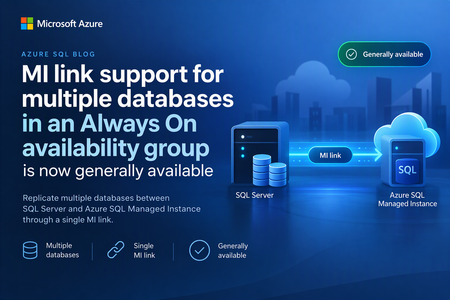
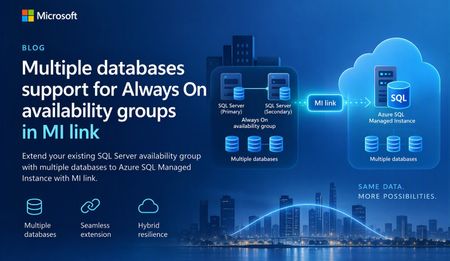
We are excited to announce the general availability of multi-database mode for MI link, which enables you to replicate multiple databases in an Always On availability group between SQL Server and Azure SQL Managed Instance through a single MI link. Managed Instance link provides near-real-time database replication between SQL Server and Azure SQL Managed Instance, helping you modernize to Azure at your own pace. Built on distributed availability group technology, MI link provides a secure and reliable connection between SQL Server and Azure SQL Managed Instance and can be used for migration, disaster recovery, and hybrid scenarios. With multi-database mode, you can extend an existing Always On availability group to Azure SQL Managed Instance and replicate all databases in that availability group through a single MI link. You can also start with standalone databases. When standalone databases are selected in SQL Server Management Studio (SSMS), the wizard creates a single-node availability group and adds the selected databases to it. With general availability, multi-database mode makes it easier to manage scenarios involving multiple databases while maintaining the flexibility and near-real-time replication provided by MI link. What’s new with general availability General availability introduces these important updates compared with the public preview: All Azure SQL Managed Instance update policies are now supported, including the SQL Server 2022 update policy, which was not supported during the public preview. You can now set up bidirectional multi-database MI link mode between SQL Server 2022 and Azure SQL Managed Instance using the SQL Server 2022 update policy. Note that SQL Server 2025 and Managed Instances using the SQL Server 2025 update policy have been supported since public preview. With SQL Server 2022 CU11 and SQL Server 2025 CU28 as a part of the general availability release, we are introducing three new stored procedures to improve supportability and troubleshooting of MI link in multi-database mode: sys.sp_milink_check - provides information about the replication health of individual databases in multi-database mode. Use this stored procedure to determine whether an individual database is stuck in seeding or replication. sys.sp_milink_reseed - restarts seeding for individual databases that are stuck in seeding in multi-database mode without requiring you to remove and re-add the database to the availability group. sys.sp_milink_repair - repairs an unhealthy replication for an individual database in multi-database mode link. Use SQL Server Management Studio (SSMS) 22.12.1 when configuring and managing MI link in multi-database mode. This version includes a number of experience improvements and bug fixes. We are also introducing better support for multiple SQL Server nodes in Always On availability groups: Multi-node availability group support in the MI link wizard (preview) enables automatic configuration of all server nodes in an Always On availability group with MI link, allowing the link to persist after an availability group failover. Instead of configuring each server node yourself, the MI link wizard can configure all server nodes for you. This SSMS feature is in preview and must be enabled by selecting Tools > Manage Preview Features in SSMS. Support for the SQL Server 2022 update policy expands the range of SQL Managed Instance environments that can take advantage of multi-database mode and provides greater flexibility when planning migrations and hybrid configurations. Multi-node availability group support in the MI link wizard (preview) eliminates the need to manually configure each server node, saving time and helping ensure that the MI link persists across local availability group failovers. How multi-database mode works With multi-database mode, MI link extends an Always On availability group between SQL Server and Azure SQL Managed Instance. A single link replicates multiple databases in the availability group to the target replica. The link uses a distributed availability group to replicate changes in near real time from the current primary replica to database copies on the secondary replica, keeping the databases synchronized. You can: Extend an existing Always On availability group to Azure SQL Managed Instance. Start with standalone SQL Server databases and let SSMS create the availability group. Add or remove databases from the availability group as your environment evolves. Fail over or cut over the availability group to Azure SQL Managed Instance when you are ready. This approach simplifies working with applications that rely on multiple databases because the databases can be managed and migrated together through a single MI link rather than through separate links for each database. Supportability Requirement Details SQL Server SQL Server 2022 with CU28 and later or SQL Server 2025 with CU11 and later. Enterprise or Developer edition. Standard edition is not supported for multi-database mode because Basic availability groups support only a single database. Azure SQL Managed Instance All service tiers, General Purpose, Next-Gen and Business Critical are supported. Use the following Azure SQL Managed Instance update policy for the following configurations: For one-way replication from SQL Server to Azure SQL Managed Instance: For one-way replication from SQL Server 2022, use Azure SQL Managed Instance with update set to SQL Server 2022, SQL Server 2025, or Always-up-to-date. For one-way replication from SQL Server 2025, use Azure SQL Managed Instance with update policy set to SQL Server 2025, or Always-up-to-date. SQL Server 2022 update policy is not supported. For two-way replication and bidirectional failover (role-reversal) between SQL Server and Azure SQL Managed Instance, the update policy must match the exact version of your SQL Server: For bidirectional replication and failover between SQL Server 2022 and Azure SQL Managed Instance, use SQL Server 2022 update policy only. Other update policies are not supported. For bidirectional replication and failover between SQL Server 2025 and Azure SQL Managed Instance, use SQL Server 2025 update policy only. Other update policies are not supported. SSMS SSMS 22.12.1 or later for the multi-database link capability. Automation Az module 16.3.0 or later and Az.Sql 7.1.0 or later, or the corresponding Azure APIs. One link for an existing multi-database availability group If you already use an Always On availability group, multi-database link mode lets you extend the complete database group to Azure SQL Managed Instance without creating a separate availability group for every database. All databases in the link move together as one managed group. Databases on the primary are read-write, while their copies on the secondary are read-only. Use of your existing Always On AG listener endpoint is supported with multi-database mode MI link, allowing the link to remain operational after a local AG failover. : A multi-database Always On availability group replicated to Azure SQL Managed Instance through one Managed Instance link. The diagram illustrates the availability group relationship rather than a specific Azure SQL Managed Instance service-tier replica count. Managed Instance link is supported across all Azure SQL Managed Instance service tiers. Run multiple links in different directions A single SQL Server instance can participate in multiple links. Each link can carry a different availability group, and supported links can replicate in different directions at the same time. In the following example, AG1 (containing DB1, DB2, and DB3) replicates from SQL Server to Azure SQL Managed Instance through MI link 1. AG2 (containing DB4, DB5, and DB6) replicates from Azure SQL Managed Instance to SQL Server through MI link 2. Both links can operate at the same time between the two instances. : Two multi-database availability groups using separate links with opposite replication directions. Important: Database names must be unique in this configuration. A database cannot be renamed on the secondary while it is participating in replication to resolve a naming conflict. Replicate one availability group to multiple managed instances Multi-database mode also supports fan-out topologies. You can replicate multiple availability groups to one managed instance, or replicate the same availability group to different managed instances. For example, separate links can target managed instances in different Azure regions. : One multi-database availability group replicated through separate links to two Azure SQL managed instances. Get started To use MI link multi-database mode, install SSMS 22.12.1 and make sure that your SQL Server and Azure SQL Managed Instance environments meet the requirements for the scenario you want to configure. To enable automatic configuration of multiple server nodes in your availability group, in SSMS select Tools > Manage Preview Features, and select "Enable multi-node availability group support in the Managed Instance link wizard." Learn more about configuring MI link with multiple databases in an Always On availability group. Share your feedback We would love to hear about your experience with multi-database mode. Please share questions, feedback, and feature suggestions through the Managed Instance link feedback form.274Views0likes0CommentsMI link support for multiple databases in an Always On availability group for SQL Server (Preview)
A simpler way to extend availability groups to Azure We are pleased to announce the preview of multi-database mode for Managed Instance link. The new mode lets you replicate multiple databases from an existing Always On availability group through a single link between SQL Server and Azure SQL Managed Instance. Update: The feature became generally available on November 17, 2026. See the multi-database mode MI link GA announcement blog post for more information. Managed Instance link uses distributed availability group technology to provide near-real-time replication between SQL Server and Azure SQL Managed Instance. It supports hybrid architectures, online migration, disaster recovery, and read-only workload offload. The link can be configured and managed through SQL Server Management Studio (SSMS), PowerShell, Azure CLI, and Azure APIs. Previously, each link supported one database. Customers with multi-database availability groups therefore had to split databases into separate availability groups and create a link for each database. Multi-database mode removes that limitation for supported SQL Server versions and editions, while the existing single-database mode remains available for earlier versions and other supported configurations. What you can do with multi-database link mode Migrate multiple databases to Azure SQL Managed Instance with minimal cutover downtime. Offload read-only workloads, including reporting and analytics, to the secondary replica. Use Azure SQL Managed Instance as a disaster recovery target for supported SQL Server versions. Start replication in either direction when the SQL Server version and Azure SQL Managed Instance update policy support that direction. Reverse primary and secondary roles through a planned failover. Build hybrid and multicloud topologies that place database groups where they are most useful. Preview requirements Requirement Details SQL Server SQL Server 2022 with CU27 and later or SQL Server 2025 with CU9 and later. Edition Enterprise or Developer edition. Standard edition is not supported for multi-database mode because Basic availability groups support only a single database. Azure SQL Managed Instance Use a compatible managed instance update policy , either SQL Server 2025, SQL Server 2022 or Always-up-to-date. Note: Managed instances with the SQL Server 2022 update policy were not supported at the initial launch of the preview. Support for these managed instances became available on November 17, 2026. SSMS SSMS 22.10.2 or later for the multi-database link capability. Update: Recommended SSMS 22.12.1 or later. Automation Az module 16.3.0 or later and Az.Sql 7.1.0 or later, or the corresponding Azure APIs. One link for an existing multi-database availability group If you already use an Always On availability group, multi-database link mode lets you extend the complete database group to Azure SQL Managed Instance without creating a separate availability group for every database. All databases in the link move together as one managed group. Databases on the primary are read-write, while their copies on the secondary are read-only. Use of your existing Always On AG listener endpoint is supported with multi-database mode MI link, allowing the link to remain operational after a local AG failover. Image 1: A multi-database Always On availability group replicated to Azure SQL Managed Instance through one Managed Instance link. The diagram illustrates the availability group relationship rather than a specific Azure SQL Managed Instance service-tier replica count. Managed Instance link is supported across all Azure SQL Managed Instance service tiers. Run multiple links in different directions A single SQL Server instance can participate in multiple links. Each link can carry a different availability group, and supported links can replicate in different directions at the same time. In the following example, AG1 (containing DB1, DB2, and DB3) replicates from SQL Server to Azure SQL Managed Instance through MI link 1. AG2 (containing DB4, DB5, and DB6) replicates from Azure SQL Managed Instance to SQL Server through MI link 2. Both links can operate at the same time between the two instances. Image 2: Two multi-database availability groups using separate links with opposite replication directions. Important: Database names must be unique in this configuration. A database cannot be renamed on the secondary while it is participating in replication to resolve a naming conflict. Replicate one availability group to multiple managed instances Multi-database mode also supports fan-out topologies. You can replicate multiple availability groups to one managed instance, or replicate the same availability group to different managed instances. For example, separate links can target managed instances in different Azure regions. Image 3: One multi-database availability group replicated through separate links to two Azure SQL managed instances. Get started To evaluate multi-database mode during preview: Confirm that the SQL Server version, edition, servicing level, and Azure SQL Managed Instance update policy meet the preview requirements. Upgrade to SSMS 22.10.2 or later, or use a supported automation interface. Enable multi-database mode before creating a multi-database link. Create the link from the existing Always On availability group and validate synchronization for every database. Review the Azure documentation for multi-database Managed Instance link configuration, limitations, monitoring, failover, and cleanup guidance. Share your feedback We would love to hear about your experience with multi-database mode. Please share questions, feedback, and feature suggestions through the Managed Instance link feedback form.564Views0likes0CommentsAzure SQL Query Editor Won't Connect? Start Here
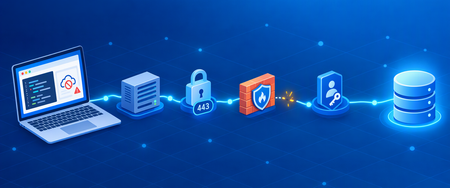
The Azure portal loads fine, you open Query Editor, and then you get "failed to fetch" or a vague connection error. It's tempting to assume the database is down, or to look for "the Query Editor IP" to add to your firewall. Usually, it's neither. Query Editor runs in your browser, so the problem can start on your laptop, your corporate proxy, the SQL firewall, your sign-in, or the database itself. The quickest fix is to work out which of those layers is failing before you change any server rules. How Query Editor actually connects There's no single Microsoft source IP to allowlist. For public connections to the query editor, you need to add your outbound IP address to the server's allowed firewall rules to access your databases. The IP that matters are the one your network presents to the internet, not an Azure address. Private Link changes this. You don't need to add your IP address to the SQL server firewall rules if you have a Private Link connection set up on the server, and you connect to the server from within the private virtual network. In that case, focus on DNS and whether you're really inside the right network. Check port 443 first Starting in March 2026, the Azure SQL query editor uses only TCP port 443. If something on your network blocks that traffic, you'll see messages about local network settings or proxy configuration. A quick test from PowerShell: Test-NetConnection <server-name>.database.windows.net -Port 443 If TcpTestSucceeded is False, the problem is on the client or network side. Keep in mind that opening 443 locally doesn't replace the SQL server firewall or Private Link setup. You still need both. Proxies and TLS inspection Corporate proxies cause more of these failures than people expect. If you see an error about the X-CSRF-Signature header, verify that your computer's clock is set to the right time and time zone, and if you're behind a proxy, make sure that the request header X-CSRF-Signature isn't being modified or dropped. A simple check: try Query Editor from a clean network, such as a phone hotspot. If it works there but not on the corporate network, talk to your network team, not the database team. Authentication and database users Being signed in to the portal doesn't give you access to the database. For Microsoft Entra sign-in, your database must be configured with Microsoft Entra authentication, and you must have a Microsoft Entra user created in the database. If you see "The server is not currently configured to accept this token," the fix is usually a contained user: CREATE USER [user@contoso.com] FROM EXTERNAL PROVIDER; Serverless databases that are paused On serverless databases, the "not currently available" message often just means your serverless database is currently paused. Selecting Continue starts the resume. Wait approximately one minute, refresh the page, and try again. Know the tool's limits Query Editor is built for quick queries, not everything. The query editor has a five-minute timeout for query execution. Also, the query editor doesn't support connecting to the logical server's master database. For either of those cases, use SSMS or VS Code with the MSSQL extension. Trying SSMS from the same machine is also a good diagnostic, because it shows whether the issue is with the browser path or with general connectivity. Symptom to layer: a quick reference What you see Likely layer First thing to try "Failed to fetch" / local network settings message Browser or client network Test-NetConnection on port 443 Works on hotspot, fails on corporate network Proxy / TLS inspection Ask network team to check header handling X-CSRF-Signature error Clock or proxy Fix system time, check proxy Firewall / client IP not allowed error SQL server firewall Add your current outbound IP only Fails from outside VNet with Private Link Private networking Check DNS resolves to the private endpoint "Not configured to accept this token" Authentication Create the contained Entra user "Database not currently available" Serverless pause Wait about a minute and retry One last word on firewall rules Please don't open wide IP ranges just to get Query Editor working. Add the specific outbound IP you need, remove it when you're done, and use Private Link for anything that needs ongoing access. Most Query Editor failures turn out to be network or identity issues, not database problems. Find the layer first and the fix is usually small. Reference: Azure Portal Query Editor - Azure SQL Database | Microsoft Learn128Views0likes0CommentsDatabase Hub in Microsoft Fabric is generally available: your entire database estate in one place
As applications grow, so does the database estate behind them. Many organizations now run hundreds or thousands of databases across cloud, hybrid and multicloud environments. The signals are already there: inventory, health, performance, security, risk and optimization. The hard part is making sense of them, knowing what needs attention and deciding what to do next. Today, we're announcing the general availability of Database Hub in Microsoft Fabric. Database Hub gives you one place to see your whole estate, monitor it at scale and investigate where attention is needed. It covers Azure SQL, Azure Database for PostgreSQL, Azure Cosmos DB, SQL Server and SQL database in Fabric. Everything in this release is built around that idea: one estate, every signal, wherever you work. Get started for free If you're new to Microsoft Fabric, you don't need to set anything up first. Open Database Hub, and you're automatically given a free Fabric license and taken straight to your estate. You only need Fabric capacity to share dashboards, create custom alerts or use Copilot. Generally available today Area What you get Overview A "what needs attention" view across security, performance and optimization, with the top issues and recent signal changes across SQL, PostgreSQL and Cosmos DB Estate inventory A single inventory of supported Azure and Fabric databases, with their issues and suggestions Performance monitoring Near real-time CPU, memory and storage trends, aggregated across the estate and per resource, plus normalized RU and throttled requests for Cosmos DB Security posture Findings such as public network access, missing private endpoints, Microsoft Entra authentication, audit logging and customer-managed keys Investigation The ability to drill from any finding into the affected resource, real-time dashboards and the tools you already use New in general availability: Bulk performance monitoring enablement Monitoring a large estate shouldn't mean configuring it one database at a time. You can now turn on performance monitoring at scale from the Estate view. Select multiple resources and enable performance monitoring data collection for all of them in one step. Start from your inventory. Turn on monitoring in the same place you review your databases, without switching to another portal or tool. Cover more of your estate, faster. Extend monitoring coverage across hundreds of databases without repeating setup for each one. Go from setup to insight. Once data collection is on, monitored resources show up in Performance Monitoring and real-time dashboards. New in general availability: Optimization insights Optimization now sits alongside security and performance in Overview and Estate. It highlights: Resources with a migration assessment ready License model opportunities, such as pay-as-you-go SQL Server instances that aren't reporting usage Now generally available: Real-time dashboards Real-time dashboards for Microsoft SQL, Azure Database for PostgreSQL and Azure Cosmos DB move from preview to general availability. Now generally available: VS Code and SSMS entry points DBAs work in SSMS, and developers work in VS Code. You can now open Database Hub from SSMS and from the Microsoft and MSSQL extensions for VS Code. You land in the same estate view, with the resources you were working on. SSMS VS Code Now generally available: Database Hub CLI skill Ask about estate inventory, health, performance and security posture from GitHub Copilot CLI, VS Code Copilot, Claude Code or Cursor. Get the Database Hub CLI skill from skills-for-fabric, or install it with one command: skills-for-fabric --skill databasehub-cli Then try asking, "How is my database estate doing?" or "Which databases need attention this week?" In preview Public preview: Investigate your estate with Copilot Ask questions about your databases in natural language and get answers grounded in Database Hub data. Explore trends, understand issues and suggestions, and follow up on specific resources. Try prompts such as: "What changed in my databases?" "Which resource should I investigate next?" "Which security findings should I address first?" Public preview: Database Agents Database Agents act as an extra set of eyes on your estate. An agent watches the databases you choose and stays quiet while they're healthy. When something needs your judgment, it raises an issue with supporting evidence and a recommendation. You stay in control: the agent brings the issue to you, and you decide what happens next. Start with the overall finding or select Analyze on a single query to get recommendations for that query. From there, keep investigating with Copilot or go deeper in SSMS. Database Hub is where you see the bigger picture. The database agent alerts you before your users notice. Public preview: Alerts for Azure SQL Database Create alerts from built-in templates or performance charts for one database or many. Alerts can send a Microsoft Teams message or start a Power Automate flow. They're powered by Fabric Activator. Preview: Performance monitoring for SQL Server on Azure VMs Review SQL Server on Azure Virtual Machines in the same Performance Monitoring experience as the rest of your estate. What's next More skills are on the way, including SQL performance monitoring, Cosmos DB performance monitoring and migration skills. Get started today Open Database Hub: https://app.fabric.microsoft.com/workloads/fdh/databaseHub/overview Learn more: https://learn.microsoft.com/en-us/fabric/database/hub Install the Database Hub CLI skill: https://github.com/microsoft/skills-for-fabric/tree/main/skills/databasehub-cli Read more about Database Hub Database Hub in Fabric: Now in Public Preview -Turn Database Signals into Guided Action | Microsoft Community Hub Public Preview: Performance monitoring for Azure SQL in Database Hub | Microsoft Community Hub A Single View of Your PostgreSQL Estate: Database Hub in Public Preview | Microsoft Community Hub Make Estate yours: Focus on the databases and issues you own in Database Hub | Microsoft Community Hub Public Preview: Alerts for Azure SQL Database in Database Hub, powered by Fabric Activator | Microsoft Community Hub Managing security with Database Hub in Fabric: From signals to action | Microsoft Community Hub Database watcher for Azure SQL is retiring: simplify your monitoring with Database Hub | Microsoft Community Hub Ask your database estate a question: Copilot in Database Hub is now in public preview | Microsoft Community Hub637Views3likes2Comments