azure openai
33 TopicsTeach ChatGPT to Answer Questions: Using Azure AI Search & Azure OpenAI (Lang Chain)
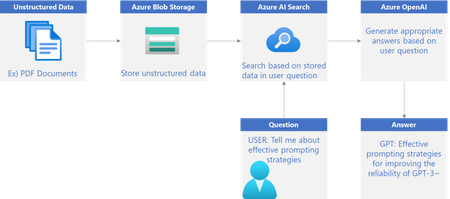
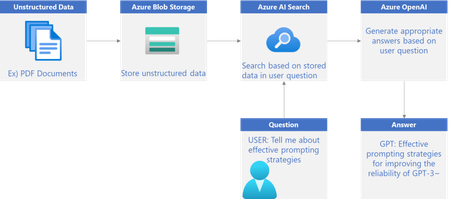
In this two-part series, we will explore how to build intelligent service using Azure. In Series 1, we'll use Azure AI Search to extract keywords from unstructured data stored in Azure Blob Storage. In Series 2, we'll Create a feature to answer questions based on PDF documents using Azure OpenAI.44KViews4likes9CommentsTeach ChatGPT to Answer Questions: Using Azure AI Search & Azure OpenAI (Semantic Kernel)
In this two-part series, we will explore how to build intelligent service using Azure. In Series 1, we'll use Azure AI Search to extract keywords from unstructured data stored in Azure Blob Storage. In Series 2, we'll Create a feature to answer questions based on PDF documents using Azure OpenAI26KViews4likes3CommentsStop Drawing Architecture Diagrams Manually: Meet the Open-Source AI Architecture Review Agents
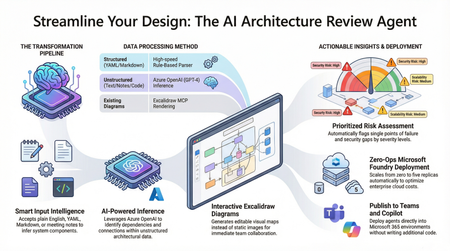
Designing and documenting software architecture is often a battle against static diagrams that become outdated the moment they are drawn. The Architecture Review Agent changes that by turning your design process into a dynamic, AI-powered workflow. In this post, we explore how to leverage Microsoft Foundry Hosted Agents, Azure OpenAI, and Excalidraw to build an open-source tool that instantly converts messy text descriptions, YAML, or README files into editable architecture diagrams. Beyond just drawing boxes, the agent acts as a technical co-pilot, delivering prioritized risk assessments, highlighting single points of failure, and mapping component dependencies. Discover how to eliminate manual diagramming, catch security flaws early, and deploy your own enterprise-grade agent with zero infrastructure overhead.18KViews7likes5CommentsIntegrating Microsoft Foundry with OpenClaw: Step by Step Model Configuration
Step 1: Deploying Models on Microsoft Foundry Let us kick things off in the Azure portal. To get our OpenClaw agent thinking like a genius, we need to deploy our models in Microsoft Foundry. For this guide, we are going to focus on deploying gpt-5.2-codex on Microsoft Foundry with OpenClaw. Navigate to your AI Hub, head over to the model catalog, choose the model you wish to use with OpenClaw and hit deploy. Once your deployment is successful, head to the endpoints section. Important: Grab your Endpoint URL and your API Keys right now and save them in a secure note. We will need these exact values to connect OpenClaw in a few minutes. Step 2: Installing and Initializing OpenClaw Next up, we need to get OpenClaw running on your machine. Open up your terminal and run the official installation script: curl -fsSL https://openclaw.ai/install.sh | bash The wizard will walk you through a few prompts. Here is exactly how to answer them to link up with our Azure setup: First Page (Model Selection): Choose "Skip for now". Second Page (Provider): Select azure-openai-responses. Model Selection: Select gpt-5.2-codex , For now only the models listed (hosted on Microsoft Foundry) in the picture below are available to be used with OpenClaw. Follow the rest of the standard prompts to finish the initial setup. Step 3: Editing the OpenClaw Configuration File Now for the fun part. We need to manually configure OpenClaw to talk to Microsoft Foundry. Open your configuration file located at ~/.openclaw/openclaw.json in your favorite text editor. Replace the contents of the models and agents sections with the following code block: { "models": { "providers": { "azure-openai-responses": { "baseUrl": "https://<YOUR_RESOURCE_NAME>.openai.azure.com/openai/v1", "apiKey": "<YOUR_AZURE_OPENAI_API_KEY>", "api": "openai-responses", "authHeader": false, "headers": { "api-key": "<YOUR_AZURE_OPENAI_API_KEY>" }, "models": [ { "id": "gpt-5.2-codex", "name": "GPT-5.2-Codex (Azure)", "reasoning": true, "input": ["text", "image"], "cost": { "input": 0, "output": 0, "cacheRead": 0, "cacheWrite": 0 }, "contextWindow": 400000, "maxTokens": 16384, "compat": { "supportsStore": false } }, { "id": "gpt-5.2", "name": "GPT-5.2 (Azure)", "reasoning": false, "input": ["text", "image"], "cost": { "input": 0, "output": 0, "cacheRead": 0, "cacheWrite": 0 }, "contextWindow": 272000, "maxTokens": 16384, "compat": { "supportsStore": false } } ] } } }, "agents": { "defaults": { "model": { "primary": "azure-openai-responses/gpt-5.2-codex" }, "models": { "azure-openai-responses/gpt-5.2-codex": {} }, "workspace": "/home/<USERNAME>/.openclaw/workspace", "compaction": { "mode": "safeguard" }, "maxConcurrent": 4, "subagents": { "maxConcurrent": 8 } } } } You will notice a few placeholders in that JSON. Here is exactly what you need to swap out: Placeholder Variable What It Is Where to Find It <YOUR_RESOURCE_NAME> The unique name of your Azure OpenAI resource. Found in your Azure Portal under the Azure OpenAI resource overview. <YOUR_AZURE_OPENAI_API_KEY> The secret key required to authenticate your requests. Found in Microsoft Foundry under your project endpoints or Azure Portal keys section. <USERNAME> Your local computer's user profile name. Open your terminal and type whoami to find this. Step 4: Restart the Gateway After saving the configuration file, you must restart the OpenClaw gateway for the new Foundry settings to take effect. Run this simple command: openclaw gateway restart Configuration Notes & Deep Dive If you are curious about why we configured the JSON that way, here is a quick breakdown of the technical details. Authentication Differences Azure OpenAI uses the api-key HTTP header for authentication. This is entirely different from the standard OpenAI Authorization: Bearer header. Our configuration file addresses this in two ways: Setting "authHeader": false completely disables the default Bearer header. Adding "headers": { "api-key": "<key>" } forces OpenClaw to send the API key via Azure's native header format. Important Note: Your API key must appear in both the apiKey field AND the headers.api-key field within the JSON for this to work correctly. The Base URL Azure OpenAI's v1-compatible endpoint follows this specific format: https://<your_resource_name>.openai.azure.com/openai/v1 The beautiful thing about this v1 endpoint is that it is largely compatible with the standard OpenAI API and does not require you to manually pass an api-version query parameter. Model Compatibility Settings "compat": { "supportsStore": false } disables the store parameter since Azure OpenAI does not currently support it. "reasoning": true enables the thinking mode for GPT-5.2-Codex. This supports low, medium, high, and xhigh levels. "reasoning": false is set for GPT-5.2 because it is a standard, non-reasoning model. Model Specifications & Cost Tracking If you want OpenClaw to accurately track your token usage costs, you can update the cost fields from 0 to the current Azure pricing. Here are the specs and costs for the models we just deployed: Model Specifications Model Context Window Max Output Tokens Image Input Reasoning gpt-5.2-codex 400,000 tokens 16,384 tokens Yes Yes gpt-5.2 272,000 tokens 16,384 tokens Yes No Current Cost (Adjust in JSON) Model Input (per 1M tokens) Output (per 1M tokens) Cached Input (per 1M tokens) gpt-5.2-codex $1.75 $14.00 $0.175 gpt-5.2 $2.00 $8.00 $0.50 Conclusion: And there you have it! You have successfully bridged the gap between the enterprise-grade infrastructure of Microsoft Foundry and the local autonomy of OpenClaw. By following these steps, you are not just running a chatbot; you are running a sophisticated agent capable of reasoning, coding, and executing tasks with the full power of GPT-5.2-codex behind it. The combination of Azure's reliability and OpenClaw's flexibility opens up a world of possibilities. Whether you are building an automated devops assistant, a research agent, or just exploring the bleeding edge of AI, you now have a robust foundation to build upon. Now it is time to let your agent loose on some real tasks. Go forth, experiment with different system prompts, and see what you can build. If you run into any interesting edge cases or come up with a unique configuration, let me know in the comments below. Happy coding!12KViews2likes2CommentsEmpowering Educators: Automated Assignment Scoring via Azure OpenAI Service ChatGPT
Are you an educator struggling to balance teaching and grading assignments? It's time to revolutionize the way you assess your students! Learn how Azure OpenAI ChatGPT can empower you to automate assignment scoring, streamline your workload, and provide valuable insights into students' learning experiences. Unlock the full potential of your teaching and focus on creating engaging educational moments for your students. Don't miss out on our groundbreaking solution for educators in Asia and beyond!9.3KViews2likes2CommentsEnhancing Student Resumes: An Innovative Approach Using Azure OpenAI ChatGPT-4o
Discover the transformative power of AI in education with our innovative approach to enhancing student resumes. Leveraging Azure OpenAI ChatGPT-4o, we’ve automated the initial review and feedback process, ensuring meticulous examination of each resume. This not only saves time for career mentors but also significantly improves the quality of student resumes. Witness an increase in employment rates and a positive impact on our course reputation. Join us as we redefine educational and career support services, demonstrating the potential of AI in shaping the future of learning and career development.8.8KViews0likes1CommentGenerating Test Data with Azure OpenAI GPT-3 in Spark:
Generating Test Data with Azure OpenAI GPT-3 in Spark: A Powerful Tool for Developers and Data Analysts. Creating test data is an important task for developers and data analysts alike. However, manually creating test data can be time-consuming and error-prone. In this video, Thomas and Stijn demonstrate how to generate test data using Azure OpenAI GPT-3 within Spark in Synapse Analytics.8.1KViews1like0Comments