azure openai
33 TopicsStop Drawing Architecture Diagrams Manually: Meet the Open-Source AI Architecture Review Agents
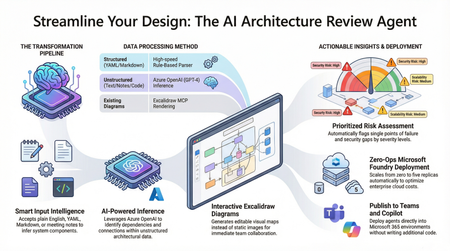
Designing and documenting software architecture is often a battle against static diagrams that become outdated the moment they are drawn. The Architecture Review Agent changes that by turning your design process into a dynamic, AI-powered workflow. In this post, we explore how to leverage Microsoft Foundry Hosted Agents, Azure OpenAI, and Excalidraw to build an open-source tool that instantly converts messy text descriptions, YAML, or README files into editable architecture diagrams. Beyond just drawing boxes, the agent acts as a technical co-pilot, delivering prioritized risk assessments, highlighting single points of failure, and mapping component dependencies. Discover how to eliminate manual diagramming, catch security flaws early, and deploy your own enterprise-grade agent with zero infrastructure overhead.18KViews7likes5CommentsTeach ChatGPT to Answer Questions: Using Azure AI Search & Azure OpenAI (Semantic Kernel)
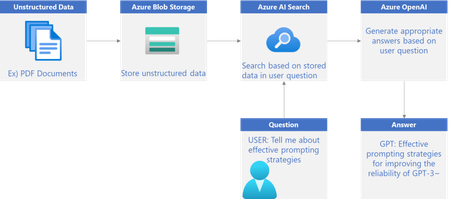
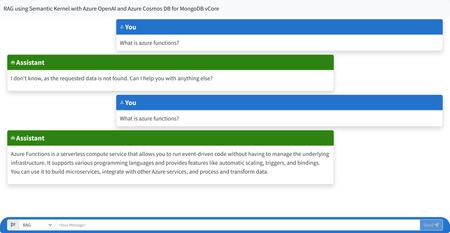
In this two-part series, we will explore how to build intelligent service using Azure. In Series 1, we'll use Azure AI Search to extract keywords from unstructured data stored in Azure Blob Storage. In Series 2, we'll Create a feature to answer questions based on PDF documents using Azure OpenAI26KViews4likes3CommentsTeach ChatGPT to Answer Questions: Using Azure AI Search & Azure OpenAI (Lang Chain)
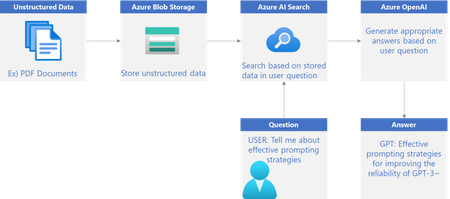
In this two-part series, we will explore how to build intelligent service using Azure. In Series 1, we'll use Azure AI Search to extract keywords from unstructured data stored in Azure Blob Storage. In Series 2, we'll Create a feature to answer questions based on PDF documents using Azure OpenAI.44KViews4likes9CommentsWhy should you migrate from OpenAI to Azure OpenAI?
As the field of AI continues to grow, developers are constantly seeking new and innovative ways to integrate it into their work. With the launch of Azure OpenAI Service, developers now have even more tools at their disposal to take advantage of this powerful technology. Azure OpenAI Service can be used to create chatbots, generate text, translate languages, and write different kinds of creative content. As the platform continues to evolve, developers will be able to use it to build even more powerful and sophisticated applications.3.4KViews3likes2CommentsA Practical Guide for Beginners: Azure OpenAI with JavaScript and TypeScript (Part 01)
In this series of three articles, you will learn how to take the first steps in using Azure OpenAI Service with JavaScript and TypeScript! In this first article, we will learn about what Responsible A.I is, understand the Azure OpenAI Service, and how to create an Azure OpenAI resource in the Azure Portal.5.1KViews3likes1CommentIntegrating Microsoft Foundry with OpenClaw: Step by Step Model Configuration
Step 1: Deploying Models on Microsoft Foundry Let us kick things off in the Azure portal. To get our OpenClaw agent thinking like a genius, we need to deploy our models in Microsoft Foundry. For this guide, we are going to focus on deploying gpt-5.2-codex on Microsoft Foundry with OpenClaw. Navigate to your AI Hub, head over to the model catalog, choose the model you wish to use with OpenClaw and hit deploy. Once your deployment is successful, head to the endpoints section. Important: Grab your Endpoint URL and your API Keys right now and save them in a secure note. We will need these exact values to connect OpenClaw in a few minutes. Step 2: Installing and Initializing OpenClaw Next up, we need to get OpenClaw running on your machine. Open up your terminal and run the official installation script: curl -fsSL https://openclaw.ai/install.sh | bash The wizard will walk you through a few prompts. Here is exactly how to answer them to link up with our Azure setup: First Page (Model Selection): Choose "Skip for now". Second Page (Provider): Select azure-openai-responses. Model Selection: Select gpt-5.2-codex , For now only the models listed (hosted on Microsoft Foundry) in the picture below are available to be used with OpenClaw. Follow the rest of the standard prompts to finish the initial setup. Step 3: Editing the OpenClaw Configuration File Now for the fun part. We need to manually configure OpenClaw to talk to Microsoft Foundry. Open your configuration file located at ~/.openclaw/openclaw.json in your favorite text editor. Replace the contents of the models and agents sections with the following code block: { "models": { "providers": { "azure-openai-responses": { "baseUrl": "https://<YOUR_RESOURCE_NAME>.openai.azure.com/openai/v1", "apiKey": "<YOUR_AZURE_OPENAI_API_KEY>", "api": "openai-responses", "authHeader": false, "headers": { "api-key": "<YOUR_AZURE_OPENAI_API_KEY>" }, "models": [ { "id": "gpt-5.2-codex", "name": "GPT-5.2-Codex (Azure)", "reasoning": true, "input": ["text", "image"], "cost": { "input": 0, "output": 0, "cacheRead": 0, "cacheWrite": 0 }, "contextWindow": 400000, "maxTokens": 16384, "compat": { "supportsStore": false } }, { "id": "gpt-5.2", "name": "GPT-5.2 (Azure)", "reasoning": false, "input": ["text", "image"], "cost": { "input": 0, "output": 0, "cacheRead": 0, "cacheWrite": 0 }, "contextWindow": 272000, "maxTokens": 16384, "compat": { "supportsStore": false } } ] } } }, "agents": { "defaults": { "model": { "primary": "azure-openai-responses/gpt-5.2-codex" }, "models": { "azure-openai-responses/gpt-5.2-codex": {} }, "workspace": "/home/<USERNAME>/.openclaw/workspace", "compaction": { "mode": "safeguard" }, "maxConcurrent": 4, "subagents": { "maxConcurrent": 8 } } } } You will notice a few placeholders in that JSON. Here is exactly what you need to swap out: Placeholder Variable What It Is Where to Find It <YOUR_RESOURCE_NAME> The unique name of your Azure OpenAI resource. Found in your Azure Portal under the Azure OpenAI resource overview. <YOUR_AZURE_OPENAI_API_KEY> The secret key required to authenticate your requests. Found in Microsoft Foundry under your project endpoints or Azure Portal keys section. <USERNAME> Your local computer's user profile name. Open your terminal and type whoami to find this. Step 4: Restart the Gateway After saving the configuration file, you must restart the OpenClaw gateway for the new Foundry settings to take effect. Run this simple command: openclaw gateway restart Configuration Notes & Deep Dive If you are curious about why we configured the JSON that way, here is a quick breakdown of the technical details. Authentication Differences Azure OpenAI uses the api-key HTTP header for authentication. This is entirely different from the standard OpenAI Authorization: Bearer header. Our configuration file addresses this in two ways: Setting "authHeader": false completely disables the default Bearer header. Adding "headers": { "api-key": "<key>" } forces OpenClaw to send the API key via Azure's native header format. Important Note: Your API key must appear in both the apiKey field AND the headers.api-key field within the JSON for this to work correctly. The Base URL Azure OpenAI's v1-compatible endpoint follows this specific format: https://<your_resource_name>.openai.azure.com/openai/v1 The beautiful thing about this v1 endpoint is that it is largely compatible with the standard OpenAI API and does not require you to manually pass an api-version query parameter. Model Compatibility Settings "compat": { "supportsStore": false } disables the store parameter since Azure OpenAI does not currently support it. "reasoning": true enables the thinking mode for GPT-5.2-Codex. This supports low, medium, high, and xhigh levels. "reasoning": false is set for GPT-5.2 because it is a standard, non-reasoning model. Model Specifications & Cost Tracking If you want OpenClaw to accurately track your token usage costs, you can update the cost fields from 0 to the current Azure pricing. Here are the specs and costs for the models we just deployed: Model Specifications Model Context Window Max Output Tokens Image Input Reasoning gpt-5.2-codex 400,000 tokens 16,384 tokens Yes Yes gpt-5.2 272,000 tokens 16,384 tokens Yes No Current Cost (Adjust in JSON) Model Input (per 1M tokens) Output (per 1M tokens) Cached Input (per 1M tokens) gpt-5.2-codex $1.75 $14.00 $0.175 gpt-5.2 $2.00 $8.00 $0.50 Conclusion: And there you have it! You have successfully bridged the gap between the enterprise-grade infrastructure of Microsoft Foundry and the local autonomy of OpenClaw. By following these steps, you are not just running a chatbot; you are running a sophisticated agent capable of reasoning, coding, and executing tasks with the full power of GPT-5.2-codex behind it. The combination of Azure's reliability and OpenClaw's flexibility opens up a world of possibilities. Whether you are building an automated devops assistant, a research agent, or just exploring the bleeding edge of AI, you now have a robust foundation to build upon. Now it is time to let your agent loose on some real tasks. Go forth, experiment with different system prompts, and see what you can build. If you run into any interesting edge cases or come up with a unique configuration, let me know in the comments below. Happy coding!12KViews2likes2CommentsBuilding a Basic Chatbot with Azure OpenAI
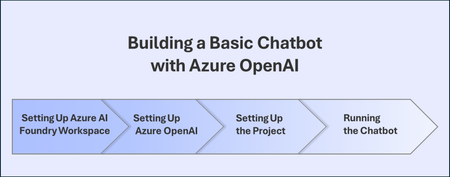
Overview In this turorial, we'll build a simple chatbot that uses Azure OpenAI to generate responses to user queries. To create a basic chatbot, we need to set up a language model resource that enables conversation capabilities. In this tutorial, we will: Set up the Azure OpenAI resource using the Azure AI Foundry portal. Retrieve the API key needed to connect the resource to your chatbot application. Once the API key is configured in your code, you will be able to integrate the language model into your chatbot and enable it to generate responses. By the end of this tutorial, you'll have a working chatbot that can generate responses using the Azure OpenAI model. Signing In and Setting Up Your Azure AI Foundry Workspace Signing In to Azure AI Foundry Open the Azure AI Foundry page in your web browser. Login to your Azure account. If you don't have an account, you can sign up. Setting Up Your Azure AI Foundry Workspace Select + Create project to create a new project. Perform the following tasks: Enter Project name. It must be a unique value. Select Hub you'd like to use (create a new one if needed). Select Create. Setting Up the Azure OpenAI Resource in Azure AI Foundry In this step, you'll learn how to set up the Azure OpenAI resource in Azure AI Foundry. Azure OpenAI is a pre-trained language model that can generate responses to user queries. We'll be using it in our chatbot. Select Models + endpoints from the left side menu. On this page, you can deploy language models and set up Azure AI resources. In this step, we will deploy the Azure OpenAI GPT-4 language model. Select + Deploy model. Select Deploy base model. In this tutorial, we will deploy the GPT-4o model. Select GPT-4o. Select Confirm. Select Deploy. The model will be deployed. Once the deployment is complete, you will see the model listed on the Models + endpoints page. Now that the model is deployed, you can retrieve the API key needed to connect the model to your chatbot application. Select the model you deployed on the Models + endpoints page. ` On the model details page, you can view information about the model, including the API key. We will come back this page later to add the required information into the environment variables. Setting Up the Project and Install the Libraries Now, you will create a folder to work in and set up a virtual environment to develop a program. Creating a Folder to Work Inside It Open a terminal window and type the following command to create a folder named basic-chatbot in the default path. mkdir basic-chatbot Type the following command inside your terminal to navigate to the basic-chatbot folder you created. cd basic-chatbot Creating a Virtual Environment Type the following command inside your terminal to create a virtual environment named .venv. python -m venv .venv Type the following command inside your terminal to activate the virtual environment. .venv\Scripts\activate.bat NOTE If it worked, you should see (.venv) before the command prompt. Installing the Required Packages Type the following commands inside your terminal to install the required packages. openai: A Python library that provides integration with the Azure OpenAI API. python-dotenv: A Python library for managing environment variables stored in an .env file. pip install openai python-dotenv Setting up the Project in Visual Studio Code To create a basic chatbot program, you will need two files: example.py: This file will contain the code to interact with Azure resources. .env: This file will store the Azure credentials and configuration details. NOTE Purpose of the .env File The .env file is essential for storing the Azure information required to connect and use the resources you created. By keeping the Azure credentials in the .env file, you can ensure a secure and organized way to manage sensitive information. Setting Up example.py File Open Visual Studio Code. Select File from the menu bar. Select Open Folder. Select the basic-chatbot folder that you created, which is located at C:\Users\yourUserName\basic-chatbot. In the left pane of Visual Studio Code, right-click and select New File to create a new file named example.py. Add the following code to the example.py file to import the required libraries. from openai import AzureOpenAI from dotenv import load_dotenv import os # Load environment variables from the .env file load_dotenv() # Retrieve environment variables AZURE_OPENAI_ENDPOINT = os.getenv("AZURE_OPENAI_ENDPOINT") AZURE_OPENAI_API_KEY = os.getenv("AZURE_OPENAI_API_KEY") AZURE_OPENAI_MODEL_NAME = os.getenv("AZURE_OPENAI_MODEL_NAME") AZURE_OPENAI_CHAT_DEPLOYMENT_NAME = os.getenv("AZURE_OPENAI_CHAT_DEPLOYMENT_NAME") AZURE_OPENAI_API_VERSION = os.getenv("AZURE_OPENAI_API_VERSION") # Initialize Azure OpenAI client client = AzureOpenAI( api_key=AZURE_OPENAI_API_KEY, api_version=AZURE_OPENAI_API_VERSION, base_url=f"{AZURE_OPENAI_ENDPOINT}/openai/deployments/{AZURE_OPENAI_CHAT_DEPLOYMENT_NAME}" ) print("Chatbot: Hello! How can I assist you today? Type 'exit' to end the conversation.") while True: user_input = input("You: ") if user_input.lower() == "exit": print("Chatbot: Ending the conversation. Have a great day!") break response = client.chat.completions.create( model=AZURE_OPENAI_MODEL_NAME, messages=[ {"role": "system", "content": "You are a helpful assistant."}, {"role": "user", "content": user_input} ], max_tokens=200 ) print("Chatbot:", response.choices[0].message.content.strip()) Setting Up .env File To set up your development environment, we will create a .env file and store the necessary credentials directly. NOTE Complete folder structure: └── YourUserName . └── basic-chatbot . ├── example.py . └── .env In the left pane of Visual Studio Code, right-click and select New File to create a new file named .env. Add the following code to the .env file to include your Azure information. AZURE_OPENAI_API_KEY=your_azure_openai_api_key AZURE_OPENAI_ENDPOINT=https://your_azure_openai_endpoint AZURE_OPENAI_MODEL_NAME=your_model_name AZURE_OPENAI_CHAT_DEPLOYMENT_NAME=your_deployment_name AZURE_OPENAI_API_VERSION=your_api_version Retrieving Environment Variables from Azure AI Foundry Now, you will retrieve the required information from Azure AI Foundry and update the .env file. Go to the Models + endpoints page and select your deployed model. On the Model Details page, copy the following information in to the .env file.: AZURE_OPENAI_API_KEY AZURE_OPENAI_ENDPOINT AZURE_OPENAI_MODEL_NAME AZURE_OPENAI_CHAT_DEPLOYMENT_NAME Paste this information into the .env file in the respective placeholders. Running the Chatbot Program Type the following command inside your terminal to run the program and see if it can answer questions. python example.py Interact with the chatbot by typing your questions or messages. The chatbot will generate responses based on the Azure OpenAI model you deployed. NOTE You can find the full example of this chatbot, including the code and .env template, in my GitHub repository: GitHub Repository3.3KViews2likes1Comment