azure networking
129 Topics
Multi-NIC Support on AKS powered by DRANET – Now in Public Preview
Kubernetes was designed around a simple networking model, every pod gets one network interface, and every pod on a node shares the same flat network. For most stateless microservices, this works well as it keeps the model simple and the platform portable. But a large class of workloads don't fit that shape. Some need network separation, with management, control, and data traffic on separate and isolated networks rather than multiplexed over one interface. Other workloads need predictable performance, a dedicated path for high-throughput or latency-sensitive traffic. Until now, meeting these requirements on Kubernetes meant adding and manually integrating multiple components, or keeping the workload on VMs. Today we're announcing the public preview of multi-NIC support for pods on AKS, powered by the AKS managed DRANET driver. You can now provision worker nodes with multiple network interfaces connected to different subnets, and attach a dedicated interface directly to a pod using standard upstream Kubernetes APIs, with no Multus, no custom CNI extensions, and no manual interface wiring. Two ways to use multi-NIC on AKS Use case 1: A dedicated NIC attached directly to a pod “As a networking engineer, I want to attach a dedicated network interface directly to a Kubernetes pod so the workload can connect to different networks and route traffic natively, without relying on host-level DPDK/VPP forwarding, custom routing rules, or gateway-based NAT.” “I also want the secondary interface on my pod to send and receive traffic on a specific, known public IP address, so that downstream partners can allow-list my traffic by IP and no NAT hop adds latency to time-sensitive streams." This is the pattern where the workload itself expects to see multiple interfaces. The pod asks for a network device the same way it would ask for any other resource, and the interface shows up inside the container alongside the standard CNI interface. No host-level forwarding layer, no NAT gateway in the middle. What you get The DRANET driver is deployed automatically. Once a node pool is configured with secondary interfaces, AKS installs and manages the driver for you; there is no add-on to install and no CRDs to author by hand. Declarative, scheduler-aware requests. Interfaces are advertised to Kubernetes as allocatable devices, so a pod that asks for one is placed on a node that can actually provide it, using standard Dynamic Resource Allocation (DRA) objects rather than vendor-specific annotations. A predictable interface lifecycle. The driver handles attach, release, and recovery as pods are rescheduled or restarted. A public IP address can be assigned directly to a secondary interface, configured at node pool creation time using IP tags. The pod's secondary interface talks to the outside world without going through the load balancer or any address translation layer. Both IPv4 and IPv6 addresses are supported on the secondary interface. What to plan around Interfaces are dedicated, not shared. When a NIC is attached to a pod, it moves into that pod's network namespace and is no longer available to the node or to any other pod. Sharing a secondary NIC across pods isn't supported in this release. Because of that, pod density on a multi-NIC node pool is bounded by the number of interfaces on the node. All interfaces must be attached to the same virtual network as the primary NIC. On a bring-your-own VNet cluster, different subnets within that VNet are supported, but different VNets are not, in this preview. On an AKS-managed VNet, secondary interfaces are currently limited to the same subnet as the primary NIC , since creating a new subnet on a managed VNet isn't supported yet. Each pod's secondary interface gets its own dedicated public IP, so plan node pool sizing around how many pods need a tagged public IP of their own. Public IP assignment is configured at node pool creation time through IP tags, so decide your IP range and tagging strategy before you provision the node pool. Kubernetes network policy is enforced on the primary interface only. Plan isolation for secondary interfaces at the subnet and NSG layer. Use Case 2: Multi-NIC nodes with your own NIC management “As a platform/networking engineer, I want to provision Kubernetes worker nodes with multiple network interfaces connected to different networks and use my own VPP, DPDK, or any custom routing logic to steer traffic at the node level, without attaching additional interfaces to pods.” This is the pattern for teams who already own their dataplane. The node is multi-homed, each interface lands on its own subnet, and your own software decides which traffic goes where. Pods keep a single CNI-assigned interface and stay unaware of the underlying topology. What you get Depending on the selected SKU size, you can configure nodes with multiple network interfaces. Full control, and full ownership of the additional nics. AKS provisions the interfaces and keeps them attached to the node. How traffic is steered across them is entirely yours to design, configure, operate, and support. That includes your routing rules, your userspace dataplane, and any troubleshooting of the forwarding path itself. The same-VNet constraint applies here too, secondary interfaces can span subnets, but not virtual networks. This applies to bring-your-own VNet clusters. On an AKS-managed VNet, secondary interfaces are restricted to the primary NIC's subnet for now. Both patterns start from the same node pool configuration. The difference is whether you stop there and manage the interfaces yourself, or let the DRANET hand them to your pods. How it works Multi-NIC on AKS starts with a single configuration step: you add secondary network interfaces to a node pool. AKS provisions the NICs on every VM in the pool and installs the DRANET driver alongside them. From there, what happens to those NICs depends on your workload. Reference a resource claim in your pod spec, and DRANET moves an interface into the pod Or Leave them on the node and steer traffic yourself with VPP, DPDK, or custom routing. Step 1: Provision the node pools with secondary NICs Secondary interfaces are declared when you create the node pool. The agent pool's network profile carries a secondaryNetworkInterfaces array, and each entry points at a subnet in the same virtual network as the primary NIC: "networkProfile": { "secondaryNetworkInterfaces": [ { "type": "Standard", "vnetSubnetId": "<VNET_SUBNET_ID>" } { "type": "Standard", "vnetSubnetId": "<VNET_SUBNET_ID>" } ] } AKS extends VMSS provisioning to attach those NICs to every VM in the pool. Add more entries for more interfaces, up to what the VM SKU allows. The array length is validated against the SKU at creation time, so a pool with mixed sizes has to be planned around the smallest one. The node is now multi-homed and the interfaces are visible on the host. If you are building for use case 2, this is where you stop. AKS provisions and keeps the interfaces attached to the node, and how traffic is steered across them, the routing rules, the userspace dataplane, the troubleshooting of the forwarding path, is yours to design, operate, and support. Step 2: Using AKS managed DRANET driver to hand an interface to the pod Once a node pool has secondary interfaces configured, and the cluster is using AKS-managed CNI (Azure CNI or Azure CNI Powered by Cilium), AKS automatically installs the DRANET driver as a DaemonSet, packaged and delivered through an AKS-managed Helm chart. There is nothing to deploy yourself and no CRDs to author by hand. If you're running a BYO CNI cluster, AKS still provisions the secondary NICs, but you're responsible for deploying DRANET (or your own driver of choice) yourself. The driver does three things: Discovers the additional interfaces present on each node. Advertises them to Kubernetes as allocatable DRA devices, published in a ResourceSlice. Manages the lifecycle: exclusive per-pod allocation, attachment, release, and recovery as pods move or restart. Inspect the DRANET deamonset, pods, and deviceclass using the following commands: kubectl get deviceclasses kubectl get daemonset -A kubectl get pods -A -o wide Now you can create a “ResourceClaimTemplate” that defines how each pod requests a device. apiVersion: resource.k8s.io/v1 kind: ResourceClaimTemplate metadata: name: nic-dev-template spec: spec: devices: requests: - name: nic exactly: deviceClassName: standard-secondary-nic allocationMode: ExactCount count: 1 Configure the pod references the template, and the scheduler places it on a node that has a matching NIC available: apiVersion: v1 kind: Pod metadata: name: multi-nic-test spec: containers: - name: multi-nic image: nicolaka/netshoot resources: claims: - name: nic resourceClaims: - name: nic resourceClaimTemplateName: nic-dev-template A pod referencing a claim comes up with its usual CNI-assigned eth0 plus the allocated secondary interface, and you can confirm both from inside the container. When DRANET attaches a secondary NIC to a pod, that interface moves into the pod's network namespace and is no longer available on the node or to any other pod. It returns to the node's pool of available devices when the pod terminates. That gives you a clean isolation boundary and deterministic performance, with the trade-off that pod density on a multi-NIC pool is bounded by interface count, not just CPU and memory. For the full walkthrough including feature flag registration, more examples visit https://aka.ms/aks/multi-nic. Try it now Multi-NIC support for pods on AKS is available now in public preview. Start with the documentation for the full walkthrough: provisioning a node pool with secondary interfaces, defining a resource claim, and validating that both interfaces appear inside the pod. Documentation: https://aka.ms/aks/multi-nic Upstream project: DRANET on GitHub Preview is when your input can actually shape the feature. If you hit a limitation or have a use case we haven’t covered, comment below and share your feedback. 463Views3likes0Comments
Proactively monitor Azure VPN Gateway tunnel disconnections
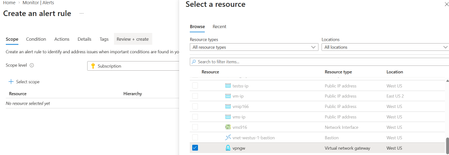
Site-to-Site (S2S) VPN connections are a critical component of hybrid connectivity between Azure and on-premises environments. A tunnel outage can impact applications, user access, and business operations. Although Azure VPN Gateway automatically attempts to re-establish a tunnel when connectivity is restored, administrators should be notified immediately when a tunnel disconnects so they can quickly investigate and mitigate the issue. In this article, you'll learn how to configure an Azure Monitor alert that automatically notifies administrators whenever an Azure VPN Gateway tunnel enters a disconnected state. Why monitor VPN tunnel status? VPN tunnels can disconnect for a variety of reasons, including: Internet connectivity issues On-premises VPN device failures IPSec/IKE negotiation issues Network maintenance activities Device reboots or software upgrades By implementing proactive monitoring, organizations can: Reduce Mean Time to Detection (MTTD) Improve network availability Receive automated notifications Step 1: Enable VPN Gateway diagnostic logs Before creating an alert rule, ensure that diagnostic logging is enabled for your VPN Gateway. Navigate to Azure Monitor in the Azure portal. Under Settings, select Diagnostic settings. Select the appropriate Subscription, Resource Group, and Resource Type, then choose your VPN Gateway resource. Click Add diagnostic setting. Provide a name for the diagnostic setting and select AllLogs (or at minimum TunnelDiagnosticLog). Choose Send to Log Analytics Workspace (or Event Hub / Storage Account, as required). Click Save to apply the diagnostic setting. Step 2: Create an alert rule After enabling diagnostics, navigate to Azure Portal > Monitor > Alerts, and select Create > Alert Rule. Scope Select Scope and click Select scope. In the resource selection pane, choose your Virtual Network Gateway (VPN Gateway) resource and click Apply. This sets the VPN Gateway as the target resource for the alert rule. Condition On the Condition tab, select Custom log search as the signal name and choose Aggregated logs as the query type. Enter the following KQL query to identify VPN tunnel disconnection events during the last 10 minutes: AzureDiagnostics | where TimeGenerated > ago(10m) | where Category == "TunnelDiagnosticLog" | where status_s == "Disconnected" | project TimeGenerated, Resource, status_s Configure the measurement settings as follows: Measure: Table rows Aggregation type: Count Aggregation granularity: 5 minutes Threshold type: Static Operator: Greater than Threshold value: 0 This configuration triggers an alert whenever one or more tunnel disconnection events are detected. Actions On the Actions tab, select Use action groups and either choose an existing action group or create a new one. Configure the action group to send notifications through email, SMS, webhook, or other supported notification channels when a VPN tunnel disconnection event is detected. You can also customize the email subject to make alert notifications easier to identify and manage. Details On the Details tab, provide a meaningful Alert Rule Name, select the appropriate Severity, and add a brief description of the alert. This information will help operations teams quickly understand the purpose and importance of the alert when it is triggered. Review + create Review all configuration settings to ensure they are correct, then select Create to deploy the alert rule. Azure Monitor will begin evaluating the configured query and automatically notify the specified recipients whenever a VPN tunnel enters a disconnected state. Summary By combining Azure VPN Gateway diagnostic logs with Azure Monitor alert rules, organizations can proactively monitor VPN tunnel health and receive near real-time notifications when a tunnel disconnects. This approach improves operational visibility, reduces troubleshooting time, and helps maintain reliable hybrid connectivity between Azure and on-premises networks.271Views2likes0CommentsAzure Retirements Livestream - Please register! Session 2 - Tracking ID: 0P59-60Z
Join our upcoming live webcast for a transparent discussion about this upcoming Azure retirement — led by our engineering teams. Network Security Group (NSG) flow logs in Azure Network Watcher Tracking ID: 0P59-60Z | Retirement Date: 30 September 2027 Same content presented in both sessions — pick the one that works best for your timezone! What to expect 📚 Understand What will happen, the timelines for the change, and how you can manage it 💬 Ask Live Q&A with our engineering experts throughout the session 🛠 Learn How to manage the change smoothly Choose your session Same content presented at both times — pick the one that works best for your timezone: Session 1 16:30 UTC Thursday, 24 Sept 2026 Register now → Session 2 04:30 UTC Friday, 25 Sept 2026 Register now → 9:30 AM US Pacific (PDT) 12:30 PM US Eastern (EDT) 5:30 PM London (BST) 12:30 AM +1 Beijing (CST) 2:30 AM +1 Sydney (AEDT) 4:30 AM +1 Auckland (NZDT) 9:30 PM -1 US Pacific (PDT) 12:30 AM US Eastern (EDT) 5:30 AM London (BST) 12:30 PM Beijing (CST) 2:30 PM Sydney (AEDT) 4:30 PM Auckland (NZDT) Our engineering leaders Chaithanya Rai Senior Product Manager Azure Network Security & Observability LinkedIn ↗ Helpful resources 🔔 Azure Service Health Alerts Get alerts for relevant incidents by setting up notifications via email, SMS, or webhook 🎥 Past Retrospective Recordings Watch recordings of previous retrospective livestreams 📄 Azure Post Incident Reviews Learn more about PIRs and the retrospective program184Views0likes0CommentsAzure Retirements Livestream - Please register! Session 1 - Tracking ID: 0P59-60Z
Join our upcoming live webcast for a transparent discussion about this upcoming Azure retirement — led by our engineering teams. Network Security Group (NSG) flow logs in Azure Network Watcher Tracking ID: 0P59-60Z | Retirement Date: 30 September 2027 Same content presented in both sessions — pick the one that works best for your timezone! What to expect 📚 Understand What will happen, the timelines for the change, and how you can manage it 💬 Ask Live Q&A with our engineering experts throughout the session 🛠 Learn How to manage the change smoothly Choose your session Same content presented at both times — pick the one that works best for your timezone: Session 1 16:30 UTC Thursday, 24 Sept 2026 Register now → Session 2 04:30 UTC Friday, 25 Sept 2026 Register now → 9:30 AM US Pacific (PDT) 12:30 PM US Eastern (EDT) 5:30 PM London (BST) 12:30 AM +1 Beijing (CST) 2:30 AM +1 Sydney (AEDT) 4:30 AM +1 Auckland (NZDT) 9:30 PM -1 US Pacific (PDT) 12:30 AM US Eastern (EDT) 5:30 AM London (BST) 12:30 PM Beijing (CST) 2:30 PM Sydney (AEDT) 4:30 PM Auckland (NZDT) Our engineering leaders Chaithanya Rai Senior Product Manager Azure Network Security & Observability LinkedIn ↗ Helpful resources 🔔 Azure Service Health Alerts Get alerts for relevant incidents by setting up notifications via email, SMS, or webhook 🎥 Past Retrospective Recordings Watch recordings of previous retrospective livestreams 📄 Azure Post Incident Reviews Learn more about PIRs and the retrospective program165Views0likes0Comments
ExpressRoute Gateway Microsoft initiated migration
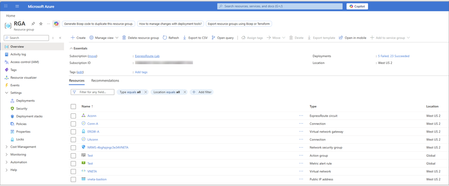
Objective The backend migration process is an automated upgrade performed by Microsoft to ensure your ExpressRoute gateways use the Standard IP SKU. This migration enhances gateway reliability and availability while maintaining service continuity. You receive notifications about scheduled maintenance windows and have options to control the migration timeline. For guidance on upgrading Basic SKU public IP addresses for other networking services, see Upgrading Basic to Standard SKU. Important: As of September 30, 2025, Basic SKU public IPs are retired. For more information, see the official announcement. You can initiate the ExpressRoute gateway migration yourself at a time that best suits your business needs, before the Microsoft team performs the migration on your behalf. This gives you control over the migration timing. Please use the ExpressRoute Gateway Migration Tool to migrate your gateway Public IP to Standard SKU. This tool provides a guided workflow in the Azure portal and PowerShell, enabling a smooth migration with minimal service disruption. Backend migration overview The backend migration is scheduled during your preferred maintenance window. During this time, the Microsoft team performs the migration with minimal disruption. You don’t need to take any actions. The process includes the following steps: Deploy new gateway: Azure provisions a second virtual network gateway in the same GatewaySubnet alongside your existing gateway. Microsoft automatically assigns a new Standard SKU public IP address to this gateway. Transfer configuration: The process copies all existing configurations (connections, settings, routes) from the old gateway. Both gateways run in parallel during the transition to minimize downtime. You may experience brief connectivity interruptions may occur. Clean up resources: After migration completes successfully and passes validation, Azure removes the old gateway and its associated connections. The new gateway includes a tag CreatedBy: GatewayMigrationByService to indicate it was created through the automated backend migration Important: To ensure a smooth backend migration, avoid making non-critical changes to your gateway resources or connected circuits during the migration process. If modifications are absolutely required, you can choose (after the Migrate stage complete) to either commit or abort the migration and make your changes. Backend process details This section provides an overview of the Azure portal experience during backend migration for an existing ExpressRoute gateway. It explains what to expect at each stage and what you see in the Azure portal as the migration progresses. To reduce risk and ensure service continuity, the process performs validation checks before and after every phase. The backend migration follows four key stages: Validate: Checks that your gateway and connected resources meet all migration requirements for the Basic to Standard public IP migration. Prepare: Deploys the new gateway with Standard IP SKU alongside your existing gateway. Migrate: Cuts over traffic from the old gateway to the new gateway with a Standard public IP. Commit or abort: Finalizes the public IP SKU migration by removing the old gateway or reverts to the old gateway if needed. These stages mirror the Gateway migration tool process, ensuring consistency across both migration approaches. The Azure resource group RGA serves as a logical container that displays all associated resources as the process updates, creates, or removes them. Before the migration begins, RGA contains the following resources: This image uses an example ExpressRoute gateway named ERGW-A with two connections (Conn-A and LAconn) in the resource group RGA. Portal walkthrough Before the backend migration starts, a banner appears in the Overview blade of the ExpressRoute gateway. It notifies you that the gateway uses the deprecated Basic IP SKU and will undergo backend migration between March 7, 2026, and April 30, 2026: Validate stage Once you start the migration, the banner in your gateway’s Overview page updates to indicate that migration is currently in progress. In this initial stage, all resources are checked to ensure they are in a Passed state. If any prerequisites aren't met, validation fails and the Azure team doesn't proceed with the migration to avoid traffic disruptions. No resources are created or modified in this stage. After the validation phase completes successfully, a notification appears indicating that validation passed and the migration can proceed to the Prepare stage. Prepare stage In this stage, the backend process provisions a new virtual network gateway in the same region and SKU type as the existing gateway. Azure automatically assigns a new public IP address and re-establishes all connections. This preparation step typically takes up to 45 minutes. To indicate that the new gateway is created by migration, the backend mechanism appends _migrate to the original gateway name. During this phase, the existing gateway is locked to prevent configuration changes, but you retain the option to abort the migration, which deletes the newly created gateway and its connections. After the Prepare stage starts, a notification appears showing that new resources are being deployed to the resource group: Deployment status In the resource group RGA, under Settings → Deployments, you can view the status of all newly deployed resources as part of the backend migration process. In the resource group RGA under the Activity Log blade, you can see events related to the Prepare stage. These events are initiated by GatewayRP, which indicates they are part of the backend process: Deployment verification After the Prepare stage completes, you can verify the deployment details in the resource group RGA under Settings > Deployments. This section lists all components created as part of the backend migration workflow. The new gateway ERGW-A_migrate is deployed successfully along with its corresponding connections: Conn-A_migrate and LAconn_migrate. Gateway tag The newly created gateway ERGW-A_migrate includes the tag CreatedBy: GatewayMigrationByService, which indicates it was provisioned by the backend migration process. Migrate stage After the Prepare stage finishes, the backend process starts the Migrate stage. During this stage, the process switches traffic from the existing gateway ERGW-A to the new gateway ERGW-A_migrate. Gateway ERGW-A_migrate: Old gateway (ERGW-A) handles traffic: After the backend team initiates the traffic migration, the process switches traffic from the old gateway to the new gateway. This step can take up to 15 minutes and might cause brief connectivity interruptions. New gateway (ERGW-A_migrate) handles traffic: Commit stage After migration, the Azure team monitors connectivity for 15 days to ensure everything is functioning as expected. The banner automatically updates to indicate completion of migration: During this validation period, you can’t modify resources associated with both the old and new gateways. To resume normal CRUD operations without waiting 15 days, you have two options: Commit: Finalize the migration and unlock resources. Abort: Revert to the old gateway, which deletes the new gateway and its connections. To initiate Commit before the 15-day window ends, type yes and select Commit in the portal. When the commit is initiated from the backend, you will see “Committing migration. The operation may take some time to complete.” The old gateway and its connections are deleted. The event shows as initiated by GatewayRP in the activity logs. After old connections are deleted, the old gateway gets deleted. Finally, the resource group RGA contains only resources only related to the migrated gateway ERGW-A_migrate: The ExpressRoute Gateway migration from Basic to Standard Public IP SKU is now complete. Frequently asked questions How long will Microsoft team wait before committing to the new gateway? The Microsoft team waits around 15 days after migration to allow you time to validate connectivity and ensure all requirements are met. You can commit at any time during this 15-day period. What is the traffic impact during migration? Is there packet loss or routing disruption? Traffic is rerouted seamlessly during migration. Under normal conditions, no packet loss or routing disruption is expected. Brief connectivity interruptions (typically less than 1 minute) might occur during the traffic cutover phase. Can we make any changes to ExpressRoute Gateway deployment during the migration? Avoid making non-critical changes to the deployment (gateway resources, connected circuits, etc.). If modifications are absolutely required, you have the option (after the Migrate stage) to either commit or abort the migration.3.4KViews1like3CommentsAdding network intelligence into a network-ready Azure migration plan
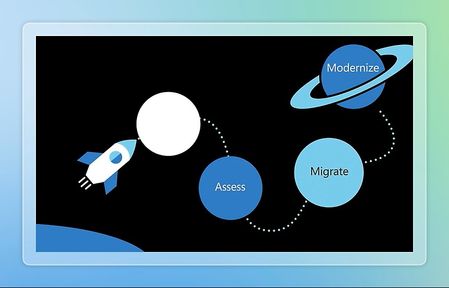
Sudha Mahajan, Partner PM Azure Networking, Vijay Mamtani, CVP Azure Networking | September 2026 Lift-and-shift succeeds when the network moves with the application For many VMware customers, the immediate migration goal is practical: move workloads to Azure quickly, preserve application behavior and connectivity, reduce execution risk, keep it secure, and build a costed plan that leaders can approve. Compute and storage sizing are necessary, but it is not the whole migration plan. Applications depend on IP prefixes, network paths, security policies, load-balancing behavior, shared services, and connections to systems that may move at different times. Azure Migrate is critical to making this work manageable. It provides the foundation for discovering the estate, assessing migration readiness, developing the business case, and translating collected evidence into a plan. With Network Planning, that foundation becomes network-aware, combining server inventory with insights into how application connectivity can be represented in Azure. Networking is the hidden critical path Network planning often begins late. A team may group and size virtual machines, then assume the target network can be designed near cutover. That approach overlooks the dependencies that determine whether an application will function after migration. The required information for networking is fragmented. Workload inventory may sit in vCenter; network constructs and flows may be reflected in NSX; policy intent may be distributed across firewalls; application delivery may depend on load balancers; address constraints may live in spreadsheets; and operational knowledge may be divided among application, infrastructure, security, and network teams. Each system provides part of the answer, but no single view naturally explains what an application needs in Azure. Common mistakes follow - planning by individual servers rather than application, missing dependencies, carrying forward rules without understanding their intent, overlooking shared services, estimating compute while omitting network costs, or designing target topology before the source environment is fully understood. These gaps create additional analysis, redesign, stakeholder review iterations, and cutover uncertainty. Networking becomes the hidden critical path - not because teams lack expertise, but because the evidence needed for decisions is incomplete and disconnected. Network planning bridges discovery and decisions Network planning is designed to close that gap within the Azure Migrate. Its purpose is to turn discovered network evidence and customer migration intent into an actionable, Azure-oriented planning view. Beginning September, Azure migrate enters public preview with network-aware assessment and networking incorporated into business-case and assessment functionality. Visualize and validate source network resources: Discovered VMware network information provides context for workload placement, connectivity, dependencies, and applicable destination constructs. Azure-native recommendations: Network Planning translates source findings into recommended Azure networking building blocks and guidance, including topology considerations (hub-and-spoke), security intent considerations (mapping on-prem firewall rules to NSG and Azure FW) and application delivery considerations (Application load balancing and WAF rules), instead of requiring customers to manually map every source construct. Readiness and issue visibility: Assessments surface network-related readiness considerations and planning issues that require attention before migration, allowing teams to separate straightforward moves from items needing design decisions or remediation. Networking in the business case: Network-cost estimates are included alongside the broader migration analysis, helping decision-makers evaluate a more complete cost picture. Security-rule planning context: Where source data supports it, translated security-rule information can help teams reason about security requirements and prepare for target policy design and validation. FROM DISCOVERY TO A NETWORK-READY MIGRATION PLAN Discover VMware estate Scope Applications Assess Readiness Recommend Azure network Plan Costs and migration What changes for customers and partners Network planning does not eliminate the need for engineering judgment or automate network design. Its value is a more structured starting point, grounded in discovered data and presented in the same Azure Migrate workflow used for assessment and business-case development. Customers can bring application, network, security, and migration stakeholders to a shared planning view. They can identify missing information sooner, connect network requirements to migration groups, review readiness before cutover planning, and include network considerations in financial discussions. Partners can use the same evidence to guide workshops, validate assumptions, focus design effort on exceptions, and produce a plan that is easier for customer teams to review. The result is a more practical migration conversation: not simply "Which virtual machines can move?" but "What does this application require, what must be addressed, what Azure is the recommended network approach , and what should be included in the costed plan?" Launch scope first, roadmap second The August preview of network planning in Azure Migrate is intentionally focused on the lift-and-shift planning path. Items such as application modernization, third-party virtual appliances, advanced topologies, infrastructure-as-code generation, and IP-retention scenarios remain future roadmap areas. Keeping that boundary clear allows customers to evaluate the preview for what it delivers now while Microsoft continues to shape later capabilities from feedback. Key takeaway For customers preparing VMware lift-and-shift migrations, begin by enabling and validating discovery in Azure Migrate, then choose a representative application or migration group. Review its workloads, dependencies, source network context, readiness findings, Azure recommendations, and estimated network costs with the teams responsible for application ownership, networking, security, and migration execution. For partners, use Network planning to anchor planning conversations in evidence rather than assumptions and to connect technical findings directly to the business case. A successful migration plan should describe more than where servers will run. It should explain how applications will remain connected, what issues must be resolved, what the target approach will require, and what it is expected to cost. Network planning brings those networks decisions into Azure Migrate - where lift-and-shift planning already begins. For further reference- you can refer to our website.788Views1like0Comments
What’s new in Azure Firewall: Recent innovations
Organizations are modernizing their networks while managing a growing mix of applications, protocols, and security requirements. Recent Azure Firewall releases strengthen this journey with simpler traffic routing, expanded protocol support, more flexible application controls, improved health visibility, and higher intrusion-detection performance. This roundup highlights five recent capabilities now available in general availability or public preview. In this update: Explicit proxy, IPv6 support, HTTP header insertion, auto-learn SNAT routes, and IDPS performance improvements. Explicit proxy is now generally available Explicit proxy enables clients and applications to send HTTP and HTTPS traffic directly to Azure Firewall by configuring the firewall as their proxy. Instead of relying only on route-based traffic steering, organizations can use familiar proxy settings to centralize outbound web access through Azure Firewall. This release provides a simpler way to use Azure Firewall as a managed forward proxy. It can help teams consolidate web egress controls, support workloads that natively understand proxy configuration, and transition from traditional proxy appliances without introducing another infrastructure layer. Direct proxy configuration: Configure supported clients and applications to use Azure Firewall for HTTP and HTTPS traffic. Centralized web controls: Apply Azure Firewall policy and application rules to proxied traffic. Operational simplicity: Use a managed Azure service instead of deploying and maintaining separate proxy infrastructure. Migration flexibility: Support environments that already use proxy-aware applications or proxy auto-configuration workflows. For more details, visit - Azure Firewall explicit proxy | Microsoft Learn IPv6 support is now in public preview As address requirements grow and organizations adopt dual-stack architectures, IPv6 support is becoming an important part of cloud network design. Azure Firewall IPv6 support, now in public preview, extends centralized traffic filtering to IPv6 scenarios and helps customers protect applications and networks as they introduce IPv6 connectivity. With this preview, teams can evolve IPv4-only environments toward dual-stack networking while continuing to use Azure Firewall as a central enforcement point. This reduces the need to maintain separate security architectures for IPv4 and IPv6 traffic and provides a more consistent policy and operational model. Secure IPv6 traffic across hybrid environments: Filter east-west and hybrid IPv6 traffic across Azure and on-premises networks. Works seamlessly with IPv6-enabled Azure services: Integrate Azure Firewall into end-to-end IPv6 architectures alongside services like ExpressRoute and Virtual Network. Prepare for the future of networking: Build and secure dual-stack environments today while accelerating your IPv6 adoption journey. For more details, visit -Deploy Azure Firewall in dual stack mode (preview) | Microsoft Learn HTTP header insertion is now generally available HTTP header insertion enables Azure Firewall to add configured headers to HTTP requests that match application rules. This gives security and network teams an additional policy control for communicating trusted context to downstream services without requiring every client or application to add the header itself. The capability can support scenarios where applications use headers to enforce organization-specific access requirements, identify traffic handled by a trusted network path, or apply downstream controls. Because configuration is centralized in Azure Firewall policy, teams can apply the behavior consistently across matching traffic and reduce application-side changes. Tenant restriction enforcement: Organizations can inject tenant restriction headers into traffic destined for Microsoft Entra ID, helping prevent users from authenticating unauthorized tenants and strengthening identity governance controls. Secure egress for AVD and enterprise workloads: Support AVD, VDI, and enterprise egress scenarios where organizations need web traffic to carry approved tenant or context headers. Security and Compliance Enforcement: Administrators can add organization-specific headers to web traffic to support security policies, compliance requirements, and backend validation workflows. This helps ensure that only approved applications, tenants, or services are accessed through corporate environments. Operational Efficiency: Customers no longer need dedicated proxy devices solely for HTTP header injection. Azure Firewall can now perform header insertion natively as part of the application rule, reducing operational complexity and infrastructure costs. For more details, visit - Azure Firewall HTTP Header Insertion Configuration | Microsoft Learn Auto-learn SNAT routes is now generally available Source network address translation behavior depends on whether Azure Firewall treats a destination as private or public. In complex enterprise and hybrid networks, manually maintaining the private address ranges that should not be source-NATed can become time-consuming and error-prone as the environment changes. Auto-learn SNAT routes simplifies this process by dynamically learning relevant routes through Azure Route Server and using them to update the firewall’s private IP range configuration. This helps Azure Firewall preserve original source addresses for traffic destined to learned private networks while reducing ongoing configuration maintenance. Reduce manual SNAT management : Automatically learn private and registered routes through Azure Route Server, eliminating the need to manually maintain large No-SNAT prefix lists. Preserve source IPs across hybrid networks : Automatically apply learned routes as No-SNAT destinations, helping maintain source IP visibility and predictable routing for internal traffic. For more details, visit- Azure Firewall SNAT private IP address ranges | Microsoft Learn IDPS performance improvements are now generally available Azure Firewall Premium includes signature-based intrusion detection and prevention to identify and block malicious network activity. The latest IDPS performance improvements increase the amount of protected traffic that Azure Firewall Premium can process, helping organizations apply advanced inspection to demanding production workloads. Azure Firewall Premium now supports up to 22 Gbps with TLS inspection and IDPS in Deny mode, and up to 600 Mbps for a single TCP connection when IDPS is enabled in Alert or Deny mode. Actual performance depends on traffic characteristics, rule configuration, enabled features, and deployment conditions. Higher aggregate throughput: Protect larger traffic volumes while using advanced inspection capabilities. Improved single-flow performance: Better support applications that rely on high-throughput TCP connections. Strong prevention posture: Use IDPS Deny mode to actively block matching malicious traffic. Premium-scale security: Apply TLS inspection and IDPS to more bandwidth-intensive enterprise workloads For more details, visit - Azure Firewall performance | Microsoft Learn Building an advanced, more capable cloud firewall Together, these releases expand how Azure Firewall can protect modern networks. Explicit proxy and HTTP header insertion provide more flexible application-layer controls; IPv6 support helps customers evolve toward dual-stack architectures; Auto-learn SNAT routes reduces operational overhead in dynamic and hybrid environments; and IDPS performance improvements extend advanced threat prevention to higher-throughput workloads. Explore these capabilities in Azure Firewall and review the applicable Azure documentation for configuration requirements, supported scenarios, regional availability, and preview terms before enabling them in production environments.1.4KViews1like1CommentAzure Firewall explicit proxy is now generally available
We are excited to announce the general availability of explicit proxy in Azure Firewall. This capability brings the familiar explicit proxy configuration model natively to Azure Firewall, enabling applications and browsers to send outbound HTTP and HTTPS traffic directly to the firewall through standard proxy settings. Customers can now gain centralized policy enforcement and visibility while reducing their dependence on self-managed forward proxy appliances. Proxy the traffic you choose—not the entire subnet Traditional route-based steering can require all traffic from a subnet to traverse a firewall. Explicit proxy offers a more targeted model: configure selected applications or browsers to use the Azure Firewall private IP and proxy port, while other traffic continues on its existing route. This application-level control can simplify migrations, reduce unnecessary routing changes, and help teams apply inspection where it matters most. What’s new for general availability A simpler single-port experience: Serve both HTTP and HTTPS destinations through one HTTP explicit proxy endpoint port, reducing client configuration complexity. More secure PAC file access: Retrieve customer-owned proxy auto-configuration files from Azure Blob Storage using a managed identity. PAC files can be up to 256 KB. A streamlined portal workflow: Enable Explicit proxy when creating a Firewall Policy, with added guidance and validation to help prevent common configuration errors. Built for real-world modernization Modernize legacy proxy infrastructure. Use Azure Firewall as the forward proxy endpoint while retaining the explicit proxy model already configured in applications and browsers. This can help organizations consolidate infrastructure and reduce operational overhead associated with self-hosted proxy appliances. Apply selective application-level steering. Direct only the workloads that require centralized inspection through Azure Firewall, without forcing every flow on a subnet through the same path. Secure Azure Arc connectivity in hybrid environments. Organizations using ExpressRoute or VPN can configure Azure Firewall as a forward proxy for Azure Arc-enabled servers, providing an inspected, policy-controlled outbound path to required Azure services without opening direct internet access from corporate networks. How it works Enable explicit proxy in the Azure Firewall Policy and choose the HTTP proxy port used for both HTTP and HTTPS destinations. Configure applications manually with the firewall’s private IP and proxy port or enable proxy auto-configuration. If you use a PAC file, store it in Azure Blob Storage and configure the required managed identity and access permissions. Create an application rule in the Firewall Policy to allow the intended outbound destinations. Get started today Ready to simplify outbound web traffic steering? Explore the Azure Firewall explicit proxy documentation for prerequisites, portal and API configuration steps, PAC file guidance, and supported scenarios. With explicit proxy now generally available, Azure Firewall gives organizations another flexible path to modernize secure egress—combining a familiar proxy model with the simplicity, scale, and centralized management of a cloud-native service.908Views1like0CommentsSimpler, private connectivity between Azure and AWS with Azure Multicloud Interconnect
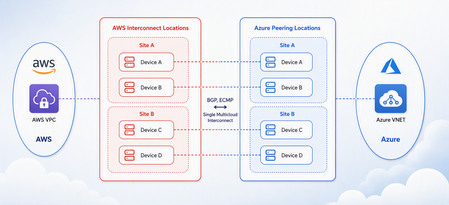
Multicloud is no longer the exception — it is how most enterprises operate. Teams run analytics in one cloud and applications in another, place workloads to meet data-residency requirements, and increasingly move large volumes of data between clouds to train and serve AI models. Yet the network that connects these environments has remained one of the hardest parts of a multicloud strategy to get right. Connecting Azure and AWS privately has traditionally meant stitching together Azure ExpressRoute, AWS Direct Connect, a connectivity provider or colocation footprint, customer-managed routers, BGP sessions, and link-layer encryption — then owning the resiliency design and day-to-day operations across all of it. The result is often slow to deliver, difficult to troubleshoot, and inconsistent in performance. Today, Microsoft and AWS are together introducing Azure Multicloud Interconnect, a jointly engineered, fully managed service that delivers private, high-throughput connectivity between Azure and AWS through a single logical resource. Both clouds coordinate provisioning, resiliency, encryption, and lifecycle operations, so the connection between your environments simply works — end to end. The challenge with connecting clouds today For most organizations, cross-cloud connectivity has been a build-it-yourself exercise. Establishing a private link between Azure and AWS typically requires provisioning an ExpressRoute circuit on one side and a Direct Connect circuit on the other, engaging a connectivity provider or securing space in a colocation facility to bridge them, and then configuring and maintaining the routers, BGP peering, and encryption that tie the two clouds together. Each of those pieces is owned by a different team or vendor, which makes the end-to-end path only as reliable as its least-managed component. When something breaks, isolating the root cause means coordinating across Microsoft, AWS, a network provider, and your own operations team — and mean time to resolution suffers as a result. Capacity planning is equally difficult: bandwidth is often provisioned for peak demand and left underused, while scaling up to meet a new AI or data initiative can take weeks. The outcome is a connectivity layer that is slow to stand up, expensive to operate, and hard to reason about — exactly the opposite of what a multicloud strategy is meant to deliver. Azure Multicloud Interconnect removes that complexity by turning cross-cloud connectivity into a managed service. What is Azure Multicloud Interconnect? Azure Multicloud Interconnect is a provider-managed, private intercloud connectivity service built on the proven foundations of Azure ExpressRoute and AWS Direct Connect. Instead of assembling and operating the underlying components yourself, you establish one interconnect resource and consume a private, dedicated path between your Azure and AWS environments. Under the covers, Microsoft and AWS coordinate the circuits, routing, and encryption on your behalf. You get the outcome you want — a reliable private connection between clouds — without becoming the systems integrator for it. Because the service builds on ExpressRoute and Direct Connect, it fits naturally into the connectivity models, tooling, and operational practices your teams already use in each cloud. One managed resource replaces a stack of circuits, routers, BGP sessions, and encryption you would otherwise build and operate yourself. Figure 1. Azure Multicloud Interconnect provides a single, managed private path between Azure and AWS, built on ExpressRoute and Direct Connect with a quad-redundant, 400G-class design and MACsec encryption. How it works Azure Multicloud Interconnect is engineered for the performance and availability that production and AI-scale workloads demand: A single logical connection. You provision and manage one interconnect resource. There are no customer-owned routers to rack, configure, or patch between the clouds. Quad-redundant, multi-site design. The data path is built across redundant devices and diverse sites — four Azure Microsoft Enterprise Edge (MSEE) routers and four AWS routers — so there is no single point of failure. High bandwidth backbone. A high-capacity LAG-based design provides the headroom needed for large-scale data movement and distributed AI traffic. Elastic bandwidth. Scale capacity up or down as demand changes, rather than provisioning for peak and paying for it year-round. Encryption by default. MACsec link-layer encryption is enabled automatically, so traffic between clouds is protected without extra configuration. Enterprise-ready networking. The service is IPv6-ready, supports APIPA addressing, and targets a 99.99% availability SLA. Routing and provisioning are coordinated by the platform, which removes the most common sources of cross-cloud connectivity errors — mismatched BGP configuration, inconsistent encryption settings, and asymmetric or fragile failover paths. A foundation you can trust Azure Multicloud Interconnect is not a new, unproven path — it extends two connectivity services that enterprises already rely on: Azure ExpressRoute and AWS Direct Connect. Both are private connectivity backbones trusted for mission-critical hybrid and cloud workloads, and the interconnect inherits their carrier-grade capacity, global edge presence, and operational maturity from day one. It also means your teams do not have to learn a separate model. The interconnect appears as a first-class resource governed by the identity, access, and monitoring controls each cloud already provides, and it can be automated with the tooling you use today. Extending trusted services, rather than introducing a parallel one, is what allows Microsoft and AWS to offer intercloud connectivity as a managed experience with confidence. Why this matters for your team Azure Multicloud Interconnect is designed to change the economics and the experience of running across clouds. Taken together, these benefits shift cross-cloud networking from a specialized, high-effort project to a repeatable, on-demand capability. Instead of dedicating senior engineers to build and babysit intercloud links, your team can direct that expertise toward the applications and data platforms that differentiate your business — while trusting that the connective tissue between clouds is reliable, secure, and ready to scale. Faster time to value. Turn up private Azure–AWS connectivity through a guided, managed workflow instead of a multi-week integration project spanning several vendors. Lower operational burden. Microsoft manages the infrastructure, resiliency, and lifecycle, so your networking team is freed from patching routers and diagnosing cross-cloud faults. Predictable, high performance. A dedicated, private path with high capacity that delivers the consistent throughput and low latency that public-internet or VPN paths cannot guarantee. Security you don’t have to assemble. Private connectivity plus default MACsec encryption keeps intercloud traffic off the public internet and protected in transit. A consistent experience in both clouds. Provision, monitor, and manage the interconnect using the native constructs and tooling your teams already rely on in Azure and AWS alike. Built for the way enterprises use multicloud “I've heard a very consistent message across many years of customer engagements - we are multi-cloud enterprise by design. With this announcement we are taking a burden on connecting clouds away from the customers." Igor Sakhnov, CVP Azure Networking Customers have told us where dedicated, managed intercloud connectivity makes the biggest difference. Azure Multicloud Interconnect is designed for scenarios such as: Distributed AI workloads. Move training data and model outputs between clouds at high throughput to feed pipelines wherever the compute lives. Large-scale data movement. Replicate datasets, back up across clouds, and support analytics that span Azure and AWS. Cross-cloud disaster recovery. Use a second cloud as a resilient recovery target over a private, reliable link. Hybrid and best-of-breed architectures. Run each application on the cloud that suits it best while keeping the connection between them private and performant. Regulated and sovereign workloads. Keep intercloud traffic on a private path to help meet data-residency and compliance requirements. Workload migration. Rehost or rebalance workloads between clouds without re-engineering connectivity for each move. Availability and what’s next Azure Multicloud Interconnect is launching first for Azure and AWS connectivity, the pairing customers ask about most often. Microsoft and AWS are starting with a preview so that you can validate the experience against your own architectures, with general availability to follow. This is the beginning of a broader journey. Building on existing multicloud connectivity capabilities, we plan to extend the managed interconnect model to additional clouds — including Google Cloud (coming soon)— so that a consistent, provider-managed experience can span your entire multicloud estate. As always, the roadmap will be guided by customer demand and real-world use. Our shared goal is simple: make the network the easiest part of your multicloud strategy, not the hardest. By delivering intercloud connectivity as a managed service, Microsoft and AWS want every organization — from a team moving its first dataset between clouds to an enterprise operating at AI scale — to connect Azure and AWS privately, securely, and with confidence, and to do it in minutes rather than months. Get started Learn more about Azure Multicloud Interconnect, Azure ExpressRoute, and AWS Direct Connect from Microsoft and AWS documentation, talk with your Microsoft or AWS account team about joining the preview, and tell us which cloud pairings and scenarios matter most for your organization. We are building this with your feedback. Azure Multicloud Interconnect is jointly delivered by Microsoft and AWS, built on Azure ExpressRoute and AWS Direct Connect. Feature availability, performance targets, and timelines may evolve as the service moves from preview to general availability.6.4KViews3likes0CommentsLessons Learned #551: Azure SQL Connection Timeouts: Three Things to Check
An application starts reporting intermittent timeouts when connecting to Azure SQL Database. Some requests succeed, others fail, and a test from a developer’s laptop works perfectly. The database appears online, no recent deployment seems related, and the natural reaction is to ask: Is Azure SQL unavailable? Is the firewall blocking the connection? Should we increase the connection timeout? Should we change the driver or scale the database? Those are reasonable questions, but they may lead the investigation in the wrong direction. The most important lesson is simple: A timeout tells us how long the application waited. It does not tell us what the application was waiting for. Not every “SQL timeout” happens inside Azure SQL From the application’s point of view, opening a database connection may involve several operations: Resolving the server name. Reaching the SQL endpoint. Obtaining a Microsoft Entra access token. Waiting for an available pooled connection. Completing the SQL login. Executing the first command. When all these operations are reported through the same application method or log entry, it can look as though Azure SQL took thirty seconds to accept the connection. In reality, only part of that time may have been spent connecting to the database. In one anonymized support scenario, the application experienced problems mainly on its first connection. Network tests were successful and no corresponding SQL connection failure was identified. The investigation eventually showed that access-token acquisition was consuming a significant part of the available time. Increasing the SQL timeout or changing the firewall would not have addressed the real delay. Check 1: Capture the complete error and the exact time A screenshot containing only “Connection Timeout Expired” is rarely enough. Capture: The complete exception and inner exception. The operation being performed. The driver and version. The authentication method. The exact timestamp in UTC. Whether the issue affects every connection or only some of them. The wording around the timeout matters. For example, a timeout while obtaining a connection from the pool points toward the application’s pooling and concurrency behavior. A pre-login or TLS error belongs to a different investigation. A command timeout after the connection was established is usually a query-performance problem rather than a connection problem. Check 2: Measure the application timeline The application should record important operations separately. A simple timeline can completely change the investigation: 10:14:20.100 Token acquisition started 10:14:28.400 Token acquired 10:14:28.405 SQL connection started 10:14:29.050 SQL connection established The complete operation took almost nine seconds, but Azure SQL connection establishment took less than one second. Useful measurements include: Token-acquisition duration. Time waiting for a pooled connection. SQL connection-open duration. SQL command duration. Number of retry attempts. Applications using Microsoft Entra authentication must obtain an access token before authenticating to Azure SQL. Measuring that operation separately helps distinguish an identity delay from a database connectivity problem. This is particularly useful when the issue appears: On the first connection after startup. After a token expires. Only with Managed Identity or Workload Identity. Intermittently, while SQL authentication connections remain unaffected. Check 3: Test from the application environment A successful connection from a laptop does not validate the path used by an application running in: Azure App Service. Azure Functions. Azure Kubernetes Service. A virtual machine. An on-premises application server. A container or integration runtime. The laptop and the application may use different DNS servers, routes, firewalls, proxies and identities. Connectivity and DNS tests should therefore be performed from the environment that is actually failing. This becomes especially important when Private Endpoint is used. The application should continue connecting with: <server>.database.windows.net It should not use the Private Endpoint IP address or the privatelink.database.windows.net hostname directly. Direct login attempts using the private IP or the private-link FQDN fail; the normal logical-server FQDN must remain in the connection string. From the affected environment, confirm that: The expected DNS server answers the request. The server FQDN resolves to the expected private IP. The Private Endpoint connection is approved. The Private DNS zone is linked correctly. The resolved address is reachable through the intended route. A test from an unrelated machine is still useful for comparison, but it does not prove that the application path is healthy. Observed symptom Likely investigation area Timeout while obtaining a connection from the pool Application connection pooling Server name cannot be resolved DNS TCP connection to the endpoint cannot be established Network path, firewall or routing Error during the pre-login handshake TLS, driver, network interruption or pre-login processing Authentication or access-token error Microsoft Entra authentication, identity or token acquisition Timeout during the post-login phase Login completion, session initialization or server-side processing Execution or command timeout after connecting Query execution and database performance Avoid changing several things at once During a production incident, it is tempting to: Increase the timeout. Add firewall rules. Change the connection policy. Upgrade the driver. Restart the application. Clear connection pools. Applying several changes together makes it difficult to determine which one helped, and some may only hide the symptom. A better approach is to define one hypothesis: We believe DNS in the application environment is resolving the public endpoint instead of the Private Endpoint. Then define: The evidence supporting the hypothesis. One controlled change. The expected result. How the result will be measured. How the change will be reverted. Azure SQL supports Proxy and Redirect connection policies, which determine how traffic flows after reaching the Azure SQL gateway. The policy is configured for the logical server, so it should be verified before making firewall assumptions or changes. What should we collect before opening a support request? A small but precise evidence package can avoid several rounds of questions: Complete error and inner exception. Exact UTC timestamps. Application platform and location. Public or Private Endpoint. Server FQDN used by the application. Driver and version. Authentication method. Token, pool, connection and command durations. DNS result from the affected environment. Whether the issue is constant, intermittent or limited to the first connection. Recent application, network, identity or configuration changes.458Views0likes0Comments