app
49 Topics
license to access Planner Premium from Power Apps
We want to create a Power Apps that connect to those main sources:- 1) SharePoint 2) Premium Planner now i know that connects Power Apps to Premium Planner will make the Power Apps as premium app, and users will need premium power apps license to access it. and also accessing Premium Planner will need atleast Planner Plan1. so what is the minimum license for those 3 groups of users:- 1) normal users will be accessing SharePoint lists only through the Power Apps 2) Admin users will be accessing SharePoint lists and Premium Planner through the Power Apps + Premium Planner through the Premium Planner UI. 3) Senior user will be accessing SharePoint lists and Premium Planner through the Power Apps only. does Planner Plan1 is enough for Senior user? and does Power Apps Premium is enough for admins? Thanks419Views0likes1Comment
Is using Planner for tracking OKRs a good idea?
So our team has been trying to use Planner to track OKRs. We set up buckets for each objective and tasks for key results. It kinda works for a small team but now that leadership wants to roll it out company wide, its getting messy. Theres no way to show progress rollups from team-level OKRs to company-level ones, no percentage tracking on key results, and managers cant see a consolidated view across teams. Has anyone found a decent way to make Planner work for OKR tracking at scale?490Views1like3Comments
[BUG] msdyn_project silently renamed from "Plan/Plans" to "Project/Projects" in new environments
We need clarification from Microsoft on whether this is a bug or an intentional breaking change. Overnight and without any announcement, the msdyn_project table now ships with display name Project / Projects in newly provisioned environments. Dev and UAT environments provisioned a few months ago have Plan / Plans out of the box. All environments are running the exact same PSCore version: 1.0.163.730. The entity is as expected, marked non-renameable — read-only in the maker portal — so there is no way to align environments manually. Solution import from an existing environment (where msdyn_project = "Plan") into a newly provisioned Production environment fails with: 0x8004023B: Entity 44286cce-2389-4532-ac04-7a18a2818e9a is not a renamable entity. Hence Entity Display Name cannot be modified The only workaround — and why it is not acceptable It is technically possible to manually edit customizations.xml inside the solution ZIP before importing, removing the <DisplayName> node for msdyn_project. The import will then succeed, but Production will permanently show "Project" while Dev and UAT show "Plan" — a broken inconsistency across environments. More importantly, this is not how ALM is supposed to work. Developers should never have to manually patch solution artifacts to work around a platform-level inconsistency introduced silently by Microsoft. This is incompatible with automated CI/CD pipelines and unsustainable for any team managing multiple environments. The question for Microsoft Is this a bug or a planned change? If it is a bug: when will it be fixed, and is there a supported workaround in the meantime? If it is a planned change: why was it not communicated, and what is the supported migration path for teams with existing environments and solutions? [UPDATE]: After 3 attempts of resetting and reprovisioning the Production environment, msdyn_project finally came up with Plan / Plans — same process, same PSCore version each time. The behavior is non-deterministic. The only workaround currently available is to keep resetting your environment until you get lucky, which is not an acceptable answer for any type of deployment.247Views1like0Comments
2026.02.20 - Planner UI update is worse
The UI changes to Planner within the latest Teams desktop app update (version 26032.208.4399.5) has regressed in its functionality and is worse than before. Previously, all of the contents of an item in the Planner were visible at the same time. Now I have to tab between Task Details, Attachments and Checklist, and am unable to view these at once, which has become a critical workflow for me. It is extremely irritating, as I've developed a workflow around how Planner was presented (which was that everything within a task was visible at once), and now it has been compartmentalised. Please unwind this - it is a regressive update and provides less information and requires more interaction to work through the detail of a task.4.2KViews31likes22Comments
Easily assign person(s) to subtasks
Hi all, I'm wondering if there's an option to easily assign person(s) to all subtasks of a summary task at one go. In our situation, we would like to assign all these subtasks of a summary task to the same person(s). However, at the moment is seems you have to assign the subtasks individually, which is quite labour intensive. Does anyone of you know a good workaround? Thanks in advance for your response, Jasper64Views0likes0Comments
Can GUESTS access t Premium Plan in Teams?
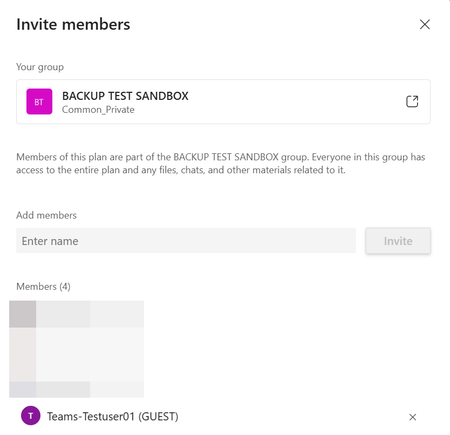
I created a Teams Team and want to manage a premium plan project therein. I have the Planner-Plan 1 license. One external supplier is a guest in my Team but he cannot see the Premium plan. Is this by design or is there any wrong setting in my system? I could not find any information on this in the Microsoft documentation. Facts The guest user is part of the team370Views1like3Comments