ai
44 TopicsBuild Your AI Email Agent with Microsoft Copilot Studio
In this tutorial, you'll learn how to create an AI agent that can send emails on your behalf. We'll use Microsoft Copilot Studio and the robust infrastructure of Azure Communication Services to create the AI agent that can be published on M365 Copilot, Teams, the web and many more. You can view the video tutorial for creating your AI agent below: Prerequisites: Microsoft Copilot Studio Access: You will need a license to use the platform. Azure Subscription: An active Azure account is required to set up the email sending service. Step 1: Create Your First Agent in Copilot Studio First, we'll create the basic framework for our AI assistant. Navigate to Copilot Studio: Open your web browser and go to copilotstudio.microsoft.com. Describe Your Agent: On the homepage, you'll see a prompt that says, "Describe your agent to create it." In the text box, type a simple description of what you want your agent to do. For this tutorial, use: "I want to create an agent that can send out emails using Azure communication services." Configure the Agent: Copilot Studio will generate a basic agent for you. You'll be taken to a configuration page. Give your agent a descriptive name, such as "AI Email Agent." Review the auto-generated description and instructions. You can modify these later if needed. Create the Agent: Click the Create button. Copilot Studio will now set up your agent's environment. Step 2: Set Up Your Email Service in Azure To give your agent the ability to send emails, we need to configure a backend service in Microsoft Azure. Go to the Azure Portal: Log in to your account at portal.azure.com. Create Resources: You will need to create two services: Communication Services: Search for "Communication Services" in the marketplace and create a new resource. This will serve as the main hub. More details can be found here: Create a communication service resource. Email Communication Services: Search for "Email Communication Services" and create this resource. This service is specifically for adding email capabilities. More details can be found here: Send email via azure communication services email Get Your Sender Address: Once these resources are created, you will have a sender address (e.g., DoNotReply@...). This is the email address your AI agent will use. Step 3: Connect Your Services with an Azure Function We need a way for Copilot Studio to communicate with Azure Communication Services to send the email. An Azure Function is the perfect tool to act as this bridge. Create a Function App: In the Azure portal, create a new Function App. This app will host our code. When setting it up, select Python as the runtime stack. Develop the Function: You'll write a simple Python script that acts as a web API. This script will: Receive data (recipient, subject, body) from Copilot Studio. Connect to your Azure Communication Services resource. Send the emai The code for the Azure Function app can be found on our Github page Deploy the Function: Once your code is ready, deploy it to the Function App you created. After deployment, make sure to get the Function URL, as you'll need it in the next step. In the Azure portal head over to your Function App. Go to Settings > Environment Variables, click Add. Add the following: Name: ACS_CONNECTION_STRING Value: <insert your connection string> Name: ACS_SENDER_EMAIL Value: <insert your send email address> (e.g. “DoNotReply@...) Make sure to click Apply, so your settings are applied. Note: For this tutorial, you can use Visual Studio Code with the "Azure Functions" and "Azure Resources" extensions installed to write and deploy your code efficiently. Step 4: Design the Conversation Flow in Copilot Studio Now, let's teach our agent how to interact with users to gather the necessary email details. We'll do this using a "Topic." Go to the Topics Tab: In your Copilot Studio agent, navigate to the Topics tab on the menu. Create a New Topic: Click + Add a topic and select From blank. You can ask Copilot to create a topic for you but for this tutorial we are going to create from scratch. Set the Trigger: The first node is the Trigger. This is what starts the conversation. Click on it and under "Phrases," add phrases like "send an email." This means whenever a user types this phrase, this topic will activate. Ask for the Recipient: Click the + icon below the trigger and select Ask a question. In the text box, type: "What's the recipient email?" Under "Identify," choose User's entire response. Save the response in a new variable called varRecipient. Ask for Subject and Body: Repeat the process above to ask for the Subject and Message body. Save the responses in variables named varSubject and varBody, respectively. Ask for Personalization (Optional): You can also ask for the Recipient's name for a personalized greeting and save it in a variable called varName. Step 5: Call the Azure Function to Send the Email With all the information gathered, it's time to send it to our Azure Function. Add an HTTP Request Node: Click the + icon below your last question. Go to Advanced > Send HTTP request. Configure the Request: URL: Paste the Function URL you copied from your Azure Function. Method: Select POST. Headers and body: Click Edit. For the body, select JSON content and use the formula editor to structure your data, mapping your topic variables (e.g., Topic.varSubject, Topic.varBody) to the JSON fields your function expects. Save the Response: The result from the Azure Function can be saved to a variable, such as varSendResult. This allows you to check if the email was sent successfully. Step 6: Test and Publish Your Agent Your AI email assistant is now fully configured! Let's test it out. Open the Test Panel: On the right side of the screen, open the Test your agent panel. Start a Conversation: Type your trigger phrase, "send an email," and press Enter. Follow the Prompts: The agent will ask you for the recipient, subject, and body. Provide the information as requested. Check Your Inbox: The agent will process the request and send the email. Check the recipient's inbox to confirm it has arrived! Publish: Once you are satisfied with the agent's performance, click the Publish button at the top of the page. You can then go to the Channels tab to deploy your agent to various platforms like Microsoft Teams, a demo website, or even Facebook. Congratulations! You have successfully built and deployed a functional AI email agent. Debugging and Troubleshooting Agent asking unnecessary information: If you want the agent to only ask the question that you have input and to not add anything extra. In your agent settings in Copilot Studio, turn off generative AI orchestration. This will force the AI agent to only asks questions Agent stuck in a loop: If, after sending, the agent jumps back to “What’s the recipient email?”, explicitly end the topic. Add + → Topic management → End current topic immediately after your success message. If you want branching, remember the HTTP Request action has no built-in success check, you can save the response (e.g., varSendResult), add a Condition that tests varSendResult.ok == true, and on success send a confirmation and End current topic to prevent loops.Building a WhatsApp AI bot for customer support
In this blog post, we’ll explore how to build a customer support application that integrates with WhatsApp using Azure Communication Services and Azure OpenAI. This app enables users to interact with a self-service bot to resolve common customer queries, such as troubleshooting errors or checking order status.Teams Phone extensibility powered by Azure Communication Services
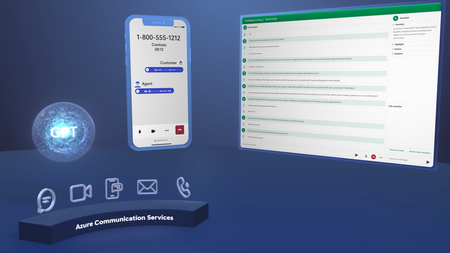
Today, CCaaS providers are using Gen AI to improve customer experience by advising human agents and automating workflows. However, interactions are split between UCaaS like Teams and CCaaS systems, limiting Gen AI's potential. Brands want integrated solutions that unify telephony infrastructure for a complete view of customer interactions and robust data handling. Customizability is crucial for integration. On March 17th, 2025, we proudly announce the launch of Teams Phone extensibility powered by Azure Communication Services at Enterprise Connect, allowing CCaaS vendors to seamlessly integrate with Teams Phone to meet brand needs. Teams Phone with Azure Communication Services Azure Communication Services Call Automation and Calling SDK now enable CCaaS developers to extend Teams Phone capabilities into their application. Key benefits of Teams Phone extensibility include: Consolidate Telephony for UCaaS and CCaaS: Simplified setup with no need to configure and administer separate phone systems. Customers can leverage their Teams phone telephony investment for contact center deployments. Gen AI Integration:Utilize AI to streamline processes and empower customer service agents with automation capabilities, with direct access to Azure AI technology. Extend UCaaS Capabilities to CCaaS: Take advantage of Teams Phone enterprise features, including emergency calling, dial plan policies, wide geographic availability of Public Switched Telephone Network (PSTN) connectivity options and much more. Agent Notification handling: Allow data segregation between CCaaS persona and UCaaS persona with the choice of ringing either the Teams standard client or a CCaaS application. Cost Efficiency: Enable ISVs to build cost-effective solutions using existing Teams Phone plans, without adding Azure Communication Services numbers or Direct Routing. Key Features Provisioning for Seamless Integration:Our provisioning capabilities empower CCaaS providers to connect their ACS deployments with customers' Teams tenants, enabling the use of Teams telephony features for a cohesive and efficient communication experience. Emergency Calling: With Azure Communication Services Calling SDK, we bring enhanced emergency calling support for agents who can dial emergency services, provide their location, and receive callbacks from public safety answering points. Leverage Call Automation: Azure Communication Services Call Automation APIs enable CCaaS providers to build server-based and intelligent call flows. Call Routing and Mid-Call Controls: The solution includes advanced call routing capabilities, which enable more efficient call management and escalation to agents. Mid-call controls enable adding participants, redirecting calls, and transferring calls seamlessly. Convenience Recording: Azure Communication Services enables developers to integrate call recording capabilities into Microsoft Teams for CCaaS scenarios, allowing for customized recording processes controlled by CCaaS admins. Get to know more about Azure Communication Services Call Recording here. Conversational AI Integration: Developers can use Call Automation APIs to leverage AI-powered tools, play personalized greeting messages, recognize conversational voice inputs, and use sentiment analysis to improve customer service. Get started today with this QuickStart. ISV Ecosystem At launch, Teams Phone extensibility will be supported by a diverse range of ISV solutions, including Anywhere365, AudioCodes, ComputerTalk, Enghouse, IP Dynamics, Landis, and Luware. These partners expand the reach and functionality of Teams Phone, allowing you to select the best solution for your unique requirements. This flexibility means businesses can improve their telephony setup while experiencing the full power of Teams Phone and Azure Communication Services. Learn more Teams Phone extensibility will be in public preview and available for customers to try soon. To learn more about Teams Phone extensibility and how to develop your own solutions using Azure Communication Services, stay tuned for more resources and announcements at Build 2025 in May. Developers may join the Azure Communication Services TAP program with the following form: Azure Communication Services Technology Adoption Program Registration. We look forward to seeing how our partners and customers leverage these new capabilities to improve their contact center operations. Follow Sean Keegan on LinkedIn for more news about Azure Communication Services!6.5KViews3likes0CommentsWipro and Microsoft combine forces to transform B2C communications in the enterprise
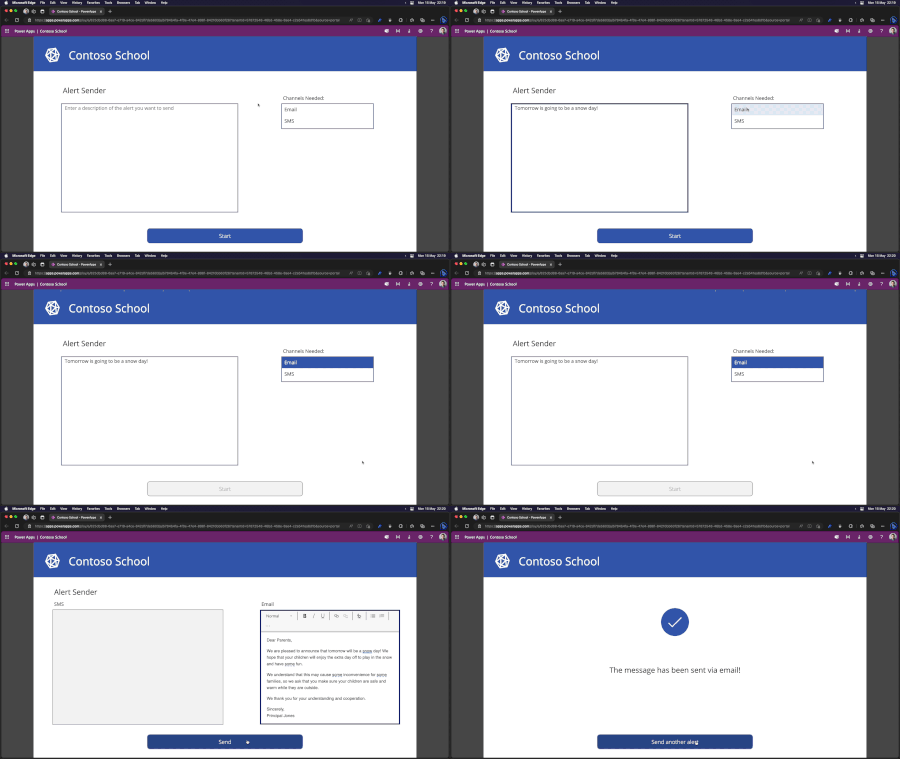
As we round out 2023, it is with great excitement to share that Wipro Limited and Microsoft are working together to help enterprises propel their success in the digital era with intelligent B2C communication solutions. We are enabling a trifecta with industry leaders, Wipro Limited and Microsoft to build formidable customer and communication experiences in financial services, energy and resources, and retail.Accelerate customer outcomes with Azure AI Services and Azure Communication Services
Learn how Azure Communication Services and Azure AI, and Azure Cognitive Search can be used to automate and transform your customer interactions with faster and informed human-centric responses across any communication channel.Build your own real-time voice agent - Announcing preview of bidirectional audio streaming APIs
We are pleased to announce the public preview of bidirectional audio streaming, enhancing the capabilities of voice based conversational AI. During Satya Nadella’s keynote at Ignite, Seth Juarez demonstrated a voice agent engaging in a live phone conversation with a customer. You can now create similar experiences using Azure Communication Services bidirectional audio streaming APIs and GPT 4o model. In our recent Ignite blog post, we announced the upcoming preview of our audio streaming APIs. Now that it is publicly available, this blog describes how to use the bidirectional audio streaming APIs available in Azure Communication Services Call Automation SDK to build low-latency voice agents powered by GPT 4o Realtime API. How does the bi-directional audio streaming API enhance the quality of voice-driven agent experiences? AI-powered agents facilitate seamless, human-like interactions and can engage with users through various channels such as chat or voice. In the context of voice communication, low latency in conversational responses is crucial as delays can cause users to perceive a lack of response and disrupt the flow of conversation. Gone are the days when building a voice bot required stitching together multiple models for transcription, inference, and text-to-speech conversion. Developers can now stream live audio from an ongoing call (VoIP or telephony) to their backend server logic using the bi-directional audio streaming APIs, leverage GPT 4o to process audio input, and deliver responses back with minimal latency for the caller/user. Building Your Own Real-Time Voice Agent In this section, we walk you through a QuickStart for using Call Automation’s audio streaming APIs for building a voice agent. Before you begin, ensure you have the following: Active Azure Subscription: Create an account for free. Azure Communication Resource: Create an Azure Communication Resource and record your resource connection string for later use. Azure Communication Services Phone Number: A calling-enabled phone number. You can buy a new phone number or use a free trial number. Azure Dev Tunnels CLI: For details, see Enable dev tunnel. Azure OpenAI Resource: Set up an Azure OpenAI resource by following the instructions in Create and deploy an Azure OpenAI Service resource. Azure OpenAI Service Model: To use this sample, you must have the GPT-4o-Realtime-Preview model deployed. Follow the instructions at GPT-4o Realtime API for speech and audio (Preview) to set it up. Development Environment: Familiarity with .NET and basic asynchronous programming. Clone the quick start sample application: You can find the quick start at Azure Communication Services Call Automation and Azure OpenAI Service. git clone https://github.com/Azure-Samples/communication-services-dotnet-quickstarts.git After completing the prerequisites, open the cloned project and follow these setup steps. Environment Setup Before running this sample, you need to set up the previously mentioned resources with the following configuration updates: Setup and host your Azure dev tunnel Azure Dev tunnels is an Azure service that enables you to expose locally hosted web services to the internet. Use the following commands to connect your local development environment to the public internet. This creates a tunnel with a persistent endpoint URL and enables anonymous access. We use this endpoint to notify your application of calling events from the Azure Communication Services Call Automation service. devtunnel create --allow-anonymous devtunnel port create -p 5165 devtunnel host 2. Navigate to the quick start CallAutomation_AzOpenAI_Voice from the project you cloned. 3. Add the required API keys and endpoints Open the appsettings.json file and add values for the following settings: DevTunnelUri: Your dev tunnel endpoint AcsConnectionString: Azure Communication Services resource connection string AzureOpenAIServiceKey: OpenAI Service Key AzureOpenAIServiceEndpoint: OpenAI Service Endpoint AzureOpenAIDeploymentModelName: OpenAI Model name Run the Application Ensure your AzureDevTunnel URI is active and points to the correct port of your localhost application. Run the command dotnet run to build and run the sample application. Register an Event Grid Webhook for the IncomingCall Event that points to your DevTunnel URI (https://<your-devtunnel-uri/api/incomingCall>). For more information, see Incoming call concepts. Test the app Once the application is running: Call your Azure Communication Services number: Dial the number set up in your Azure Communication Services resource. A voice agent answer, enabling you to converse naturally. View the transcription: See a live transcription in the console window. QuickStart Walkthrough Now that the app is running and testable, let’s explore the quick start code snippet and how to use the new APIs. Within the program.cs file, the endpoint /api/incomingCall, handles inbound calls. app.MapPost("/api/incomingCall", async ( [FromBody] EventGridEvent[] eventGridEvents, ILogger<Program> logger) => { foreach (var eventGridEvent in eventGridEvents) { Console.WriteLine($"Incoming Call event received."); // Handle system events if (eventGridEvent.TryGetSystemEventData(out object eventData)) { // Handle the subscription validation event. if (eventData is SubscriptionValidationEventData subscriptionValidationEventData) { var responseData = new SubscriptionValidationResponse { ValidationResponse = subscriptionValidationEventData.ValidationCode }; return Results.Ok(responseData); } } var jsonObject = Helper.GetJsonObject(eventGridEvent.Data); var callerId = Helper.GetCallerId(jsonObject); var incomingCallContext = Helper.GetIncomingCallContext(jsonObject); var callbackUri = new Uri(new Uri(appBaseUrl), $"/api/callbacks/{Guid.NewGuid()}?callerId={callerId}"); logger.LogInformation($"Callback Url: {callbackUri}"); var websocketUri = appBaseUrl.Replace("https", "wss") + "/ws"; logger.LogInformation($"WebSocket Url: {callbackUri}"); var mediaStreamingOptions = new MediaStreamingOptions( new Uri(websocketUri), MediaStreamingContent.Audio, MediaStreamingAudioChannel.Mixed, startMediaStreaming: true ) { EnableBidirectional = true, AudioFormat = AudioFormat.Pcm24KMono }; var options = new AnswerCallOptions(incomingCallContext, callbackUri) { MediaStreamingOptions = mediaStreamingOptions, }; AnswerCallResult answerCallResult = await client.AnswerCallAsync(options); logger.LogInformation($"Answered call for connection id: {answerCallResult.CallConnection.CallConnectionId}"); } return Results.Ok(); }); In the preceding code, MediaStreamingOptions encapsulates all the configurations for bidirectional streaming. WebSocketUri: We use the dev tunnel URI with the WebSocket protocol, appending the path /ws. This path manages the WebSocket messages. MediaStreamingContent: The current version of the API supports only audio. Audio Channel: Supported formats include: Mixed: Contains the combined audio streams of all participants on the call, flattened into one stream. Unmixed: Contains a single audio stream per participant per channel, with support for up to four channels for the most dominant speakers at any given time. You also get a participantRawID to identify the speaker. StartMediaStreaming: This flag, when set to true, enables the bidirectional stream automatically once the call is established. EnableBidirectional: This enables audio sending and receiving. By default, it only receives audio data from Azure Communication Services to your application. AudioFormat: This can be either 16k pulse code modulation (PCM) mono or 24k PCM mono. Once you configure all these settings, you need to pass them to AnswerCallOptions. Now that the call is established, let's dive into the part for handling WebSocket messages. This code snippet handles the audio data received over the WebSocket. The WebSocket's path is specified as /ws, which corresponds to the WebSocketUri provided in the configuration. app.Use(async (context, next) => { if (context.Request.Path == "/ws") { if (context.WebSockets.IsWebSocketRequest) { try { var webSocket = await context.WebSockets.AcceptWebSocketAsync(); var mediaService = new AcsMediaStreamingHandler(webSocket, builder.Configuration); // Set the single WebSocket connection await mediaService.ProcessWebSocketAsync(); } catch (Exception ex) { Console.WriteLine($"Exception received {ex}"); } } else { context.Response.StatusCode = StatusCodes.Status400BadRequest; } } else { await next(context); } }); The method await mediaService.ProcessWebSocketAsync() processesg all incoming messages. The method establishes a connection with OpenAI, initiates a conversation session, and waits for a response from OpenAI. This method ensures seamless communication between the application and OpenAI, enabling real-time audio data processing and interaction. // Method to receive messages from WebSocket public async Task ProcessWebSocketAsync() { if (m_webSocket == null) { return; } // Start forwarder to AI model m_aiServiceHandler = new AzureOpenAIService(this, m_configuration); try { m_aiServiceHandler.StartConversation(); await StartReceivingFromAcsMediaWebSocket(); } catch (Exception ex) { Console.WriteLine($"Exception -> {ex}"); } finally { m_aiServiceHandler.Close(); this.Close(); } } Once the application receives data from Azure Communication Services, it parses the incoming JSON payload to extract the audio data segment. The application then forwards the segment to OpenAI for further processing. The parsing ensures data integrity ibefore sending it to OpenAI for analysis. // Receive messages from WebSocket private async Task StartReceivingFromAcsMediaWebSocket() { if (m_webSocket == null) { return; } try { while (m_webSocket.State == WebSocketState.Open || m_webSocket.State == WebSocketState.Closed) { byte[] receiveBuffer = new byte; WebSocketReceiveResult receiveResult = await m_webSocket.ReceiveAsync(new ArraySegment(receiveBuffer), m_cts.Token); if (receiveResult.MessageType != WebSocketMessageType.Close) { string data = Encoding.UTF8.GetString(receiveBuffer).TrimEnd('\0'); await WriteToAzOpenAIServiceInputStream(data); } } } catch (Exception ex) { Console.WriteLine($"Exception -> {ex}"); } } Here is how the application parses and forwards the data segment to OpenAI using the established session: private async Task WriteToAzOpenAIServiceInputStream(string data) { var input = StreamingData.Parse(data); if (input is AudioData audioData) { using (var ms = new MemoryStream(audioData.Data)) { await m_aiServiceHandler.SendAudioToExternalAI(ms); } } } Once the application receives the response from OpenAI, it formats the data to be forwarded to Azure Communication Services and relays the response in the call. If the application detects voice activity while OpenAI is talking, it sends a barge-in message to Azure Communication Services to manage the voice playing in the call. // Loop and wait for the AI response private async Task GetOpenAiStreamResponseAsync() { try { await m_aiSession.StartResponseAsync(); await foreach (ConversationUpdate update in m_aiSession.ReceiveUpdatesAsync(m_cts.Token)) { if (update is ConversationSessionStartedUpdate sessionStartedUpdate) { Console.WriteLine($"<<< Session started. ID: {sessionStartedUpdate.SessionId}"); Console.WriteLine(); } if (update is ConversationInputSpeechStartedUpdate speechStartedUpdate) { Console.WriteLine($" -- Voice activity detection started at {speechStartedUpdate.AudioStartTime} ms"); // Barge-in, send stop audio var jsonString = OutStreamingData.GetStopAudioForOutbound(); await m_mediaStreaming.SendMessageAsync(jsonString); } if (update is ConversationInputSpeechFinishedUpdate speechFinishedUpdate) { Console.WriteLine($" -- Voice activity detection ended at {speechFinishedUpdate.AudioEndTime} ms"); } if (update is ConversationItemStreamingStartedUpdate itemStartedUpdate) { Console.WriteLine($" -- Begin streaming of new item"); } // Audio transcript updates contain the incremental text matching the generated output audio. if (update is ConversationItemStreamingAudioTranscriptionFinishedUpdate outputTranscriptDeltaUpdate) { Console.Write(outputTranscriptDeltaUpdate.Transcript); } // Audio delta updates contain the incremental binary audio data of the generated output audio // matching the output audio format configured for the session. if (update is ConversationItemStreamingPartDeltaUpdate deltaUpdate) { if (deltaUpdate.AudioBytes != null) { var jsonString = OutStreamingData.GetAudioDataForOutbound(deltaUpdate.AudioBytes.ToArray()); await m_mediaStreaming.SendMessageAsync(jsonString); } } if (update is ConversationItemStreamingTextFinishedUpdate itemFinishedUpdate) { Console.WriteLine(); Console.WriteLine($" -- Item streaming finished, response_id={itemFinishedUpdate.ResponseId}"); } if (update is ConversationInputTranscriptionFinishedUpdate transcriptionCompletedUpdate) { Console.WriteLine(); Console.WriteLine($" -- User audio transcript: {transcriptionCompletedUpdate.Transcript}"); Console.WriteLine(); } if (update is ConversationResponseFinishedUpdate turnFinishedUpdate) { Console.WriteLine($" -- Model turn generation finished. Status: {turnFinishedUpdate.Status}"); } if (update is ConversationErrorUpdate errorUpdate) { Console.WriteLine(); Console.WriteLine($"ERROR: {errorUpdate.Message}"); break; } } } catch (OperationCanceledException e) { Console.WriteLine($"{nameof(OperationCanceledException)} thrown with message: {e.Message}"); } catch (Exception ex) { Console.WriteLine($"Exception during AI streaming -> {ex}"); } } Once the data is prepared for Azure Communication Services, the application sends the data over the WebSocket: public async Task SendMessageAsync(string message) { if (m_webSocket?.State == WebSocketState.Open) { byte[] jsonBytes = Encoding.UTF8.GetBytes(message); // Send the PCM audio chunk over WebSocket await m_webSocket.SendAsync(new ArraySegment<byte>(jsonBytes), WebSocketMessageType.Text, endOfMessage: true, CancellationToken.None); } } This wraps up our QuickStart overview. We hope you create outstanding voice agents with the new audio streaming APIs. Happy coding! For more information about Azure Communication Services bidirectional audio streaming APIs , check out: GPT-4o Realtime API for speech and audio (Preview) Audio streaming overview - audio subscription Quickstart - Server-side Audio Streaming5.3KViews2likes0Comments