ai
91 TopicsLogic Apps Aviators Newsletter - September 2026
In this issue: Ace Aviator of the Month News from our product group News from our community Ace Aviator of the Month September 2026's Ace Aviator: Parth Talaviya What's your role and title? What are your responsibilities? AI-Powered Azure/.NET Solution Architect I work as an Azure/.NET Solution Architect, combining technical leadership with building a Microsoft-focused boutique company. My work mainly revolves around application modernization and migration, cloud architecture, integrations, and team leadership. I also stay hands-on with development, architecture reviews, production troubleshooting, and mentoring developers. Can you give us some insights into your day-to-day activities and what a typical day in your role looks like? My day usually starts with thinking about how we can add more value to our clients' businesses. It includes reviewing project priorities, solving technical challenges, discussing architecture, supporting developers, and collaborating with stakeholders. I mainly work across .NET, Azure, APIs, integrations, DevOps, and AI automation, so every day brings something new to learn and solve. What motivates and inspires you to be an active member of the Aviators/Microsoft community? What really motivates me is how active and supportive the Microsoft community is. People are genuinely willing to help each other, share experiences, and solve problems together. Being able to use my own experience to help someone overcome a challenge genuinely makes my day, while learning from others keeps me motivated to continuously improve. Looking back, what advice do you wish you had been given earlier that you'd now share with those looking to get into STEM/technology? You don’t have to do everything alone. In technology, especially when you are stuck on a very specific problem, it can sometimes feel that way. Asking questions, learning from the community, and collaborating with others can make a huge difference. I would also say: embrace AI early, but use it wisely. Don’t use AI only to generate code. Use it to understand concepts, challenge your thinking, explore better approaches, review your work, and become a better problem-solver. What has helped you grow professionally? Continuous learning and solving real-world challenges have helped me grow the most. Working on legacy modernization, cloud architecture, large-scale data systems, automation, and AI has taught me to think beyond writing code and understand the broader business impact. Being part of a strong technical community has also helped significantly. Whenever you are stuck, there is often someone who has faced a similar challenge and is willing to share their experience. If you had a magic wand that could create a feature in Logic Apps, what would it be and why? I would create an AI-powered Copilot troubleshooting and self-healing assistant for Logic Apps. It could analyze failed workflows, understand the execution context, identify the likely root cause, suggest a fix, and provide safe recovery options. For complex integrations, this could save significant troubleshooting time and allow developers to focus more on building solutions rather than spending hours finding where something went wrong. News from our product group Use connectors with Managed Identity in the Logic Apps Standard extension Managed Identity is Azure's built-in way to authenticate to Microsoft Entra-protected resources without storing credentials, secrets, or connection strings. Deployed Logic Apps have supported it for some time, and this post explains connector support in the Logic Apps Standard extension. Introducing dependency telemetry in Application Insights for Azure API Management policies Running API platforms at scale requires both handling load and understanding where inefficiencies occur. This post introduces dependency telemetry in Application Insights for Azure API Management policies to help teams identify performance bottlenecks. Power Azure SRE Agent with the tools it needs Azure SRE Agent is an AI-powered service designed to reduce operational toil. Teams can use it to investigate incidents, identify probable causes, and automate health-related operational work using connected tools. Give your Copilot agents real tools, without hand-wiring MCP GitHub Copilot coding agents can work independently on branches, but some tasks require access to external systems. This post shows how to equip agents with real tools without manually wiring Model Context Protocol integrations. Zonal redundancy in API management Standard v2 APIs power modern mobile experiences, microservices, AI-driven applications, and business-critical integrations. This post explains zonal redundancy in Azure API Management Standard v2 for improving resilience as customers modernize their API platforms. BizTalk Server 2020 End-of-Sale Announcement Microsoft announces that BizTalk Server 2020 and Host Integration Server 2020 sales are expected to end on March 31, 2027. Existing licensed deployments can continue to be used, while mainstream support for BizTalk Server 2020 is scheduled through April 12, 2028. An optional paid extended-mainstream support offering is planned for eligible customers through April 10, 2030, with final terms to be published later. The post recommends beginning migration planning now, evaluating Azure Logic Apps Standard or Azure Logic Apps Hybrid, inventorying dependencies, and using the Logic Apps Migration Agent to assess and convert supported workloads. Logic App Storage Inspector Logic App Storage Inspector is a read-only Kudu site extension for examining storage used by an Azure Logic App Standard application. It supports searching workflow action and trigger history by workflow, date, or text, with results exportable as CSV or JSON. Users can browse and compare workflow-definition versions, review table and queue information, and monitor health indicators and refresh status. The extension isolates access to the current Logic App site, uses asynchronous paged operations for large storage accounts, and can be installed from Kudu Site Extensions. News from our community Azure Logic Apps Automation – A Practical Infrastructure Lab with Agentic Remediation Post by João Paulo Costa João Paulo Costa tests Azure Logic Apps Automation through an after-hours virtual-machine remediation lab. The workflow uses an agent to inspect VM metadata, tags, and runtime state, then apply guardrails before deciding whether to deallocate the resource, leave it unchanged, or request review. The article contrasts agentic decision-making with deterministic workflows, documents tool and connector choices, and examines preview limitations such as runtime-state retrieval and managed-identity support. It also emphasizes constrained permissions, explicit policies, verification after actions, and negative testing for production, exemptions, missing ownership, and disabled remediation. Agentic Integration: Non-Deterministic Experience, Solid Core Post by Massimo Crippa Massimo Crippa examines whether agentic capabilities make enterprise integration non-deterministic. He separates an agent’s variable decision-making from the predictable integration layer that executes selected capabilities. The article highlights durable messaging, reliable contracts, idempotency, transactional boundaries, retries, compensation, governance, and observability as continuing requirements. It presents tools as the boundary between reasoning and execution: agents determine what should happen, while integration platforms control how operations are performed safely. Azure Logic Apps is positioned as both a deterministic integration foundation and a platform that can expose governed capabilities to emerging agentic experiences. Build AI Agents in Azure Logic Apps (Conversational + Autonomous) Video by Rafsan Huseynov Rafsan Huseynov presents a video on building conversational and autonomous AI agents with Azure Logic Apps. The session describes Logic Apps as more than a background integration layer, covering orchestration, managed identities, agent loops, and the use of workflows as MCP tools. Demonstrations explore connections with Document Intelligence, Blob Storage, Microsoft Foundry, and Copilot Studio workflows, alongside conversational and autonomous agent patterns. The video also introduces a separate low-code automation experience with scoped permissions, while noting that the demonstrations use synthetic data and that the experience remains in preview. BizTalk to Logic Apps migration (three things, everyone gets wrong) Post by Brajesh Sinha Brajesh Sinha explains why simple counts of BizTalk orchestrations and maps produce unreliable Logic Apps migration estimates. One orchestration can fan out into several Azure resources, supposedly simple maps may hide substantial transformation complexity, and operational requirements are often omitted from statements of work. The article highlights the architecture, mapping, and production-readiness effort that teams frequently underestimate. It encourages migration planners to assess actual behavior and dependencies rather than relying on inventory totals, helping create more realistic timelines, scope, and delivery expectations. Hybrid Logic Apps on RKE2: a self-managed cluster with MetalLB Post by Sonny Gillissen Sonny Gillissen demonstrates how to run Azure Logic Apps Hybrid on a self-managed RKE2 Kubernetes cluster. Because RKE2 does not include a native load balancer, the walkthrough uses MetalLB to assign the ingress IP required by the deployment. It covers creating the cluster, configuring networking, connecting the environment to Azure Arc, and handling the platform-specific details needed for Logic Apps. The article provides a practical alternative for teams evaluating hybrid integration workloads outside managed Kubernetes services, extending earlier guidance for OpenShift environments. An Introduction to Logic Apps Standard SDK Video by Marcel Medina Marcel Medina shares a Coding Night ANZ recording introducing the Logic Apps Standard SDK. The session shows how the SDK brings a modern, code-first .NET development experience to Azure Logic Apps while retaining the platform’s connectors, triggers, monitoring, and managed runtime. It is aimed at developers who want familiar tooling and stronger source-driven workflow development without giving up managed integration capabilities. The post also thanks the community for its questions and participation and provides the complete session recording for anyone who missed the live event. Managed Identity in Logic Apps Standard: A Zero Trust Read Post by Steef-Jan Wiggers Steef-Jan Wiggers examines new Managed Identity support for connectors in the Logic Apps Standard local development experience. Developers can now use a consistent authentication model from development through production instead of swapping connection strings before deployment, removing a common source of unmanaged secrets. The article frames this improvement through Zero Trust while stressing that authentication alone does not replace disciplined RBAC. A working azd sample demonstrates the setup and highlights a critical application setting whose absence causes the otherwise correctly configured connection, access policy, and role assignment to fail.437Views0likes0CommentsAI Gateway tier of Azure API Management — August 2026 updates
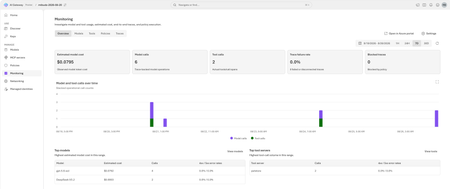
The August 2026 update for the AI Gateway tier (preview) of Azure API Management introduces new capabilities for observing AI workloads and governing model spend. Release highlights Richer OpenTelemetry observability: AI Gateway can now emit logs, distributed traces, token metrics, and estimated cost metrics through the OpenTelemetry Protocol. The built-in monitoring experience helps teams investigate model and MCP tool activity, policy execution, latency, errors, token consumption, and individual traces. Model cost monitoring and budget enforcement: Teams can review estimated model spend by API key and model, then use cost limit policies to set calendar-based budgets and block requests when configured limits are reached. The release also streamlines Microsoft Foundry model imports, refines provider onboarding, improves portal reliability and error guidance, expands Anthropic Messages compatibility, and adds an in-product What's new experience. For configuration guidance, important upgrade information, and the complete list of changes, read the full August 2026 release notes in the AI Gateway portal. Try the latest capabilities in the AI Gateway portal.538Views0likes0Comments
Introducing APIOps CLI
APIOps CLI helps teams extract, version, review, preview, and publish Azure API Management configuration through source-controlled DevOps workflows. Today, we're excited to announce APIOps CLI, a new command-line experience designed to help organizations manage Azure API Management (APIM) using modern configuration-as-code and GitOps practices. As APIs become increasingly central to digital transformation, organizations need a reliable way to manage API definitions, policies, products, diagnostics, and gateway configuration across multiple environments. APIOps CLI provides a streamlined, developer-friendly approach to extract, version, review, and publish API Management configuration through familiar DevOps workflows. Why APIOps CLI? Traditional API management processes often rely on manual configuration changes, environment-specific customizations, and limited visibility into what changed and why. As API estates grow, these approaches become difficult to scale, audit, and govern. APIOps CLI addresses these challenges by enabling teams to manage API Management configuration as source-controlled artifacts. Every change can be reviewed through pull requests, tracked through Git history, and promoted consistently across development, test, and production environments. The result is improved governance, greater reliability, better collaboration between API developers and platform operators, and a simpler path toward enterprise-scale API operations. What APIOps CLI Enables APIOps CLI provides capabilities that help organizations adopt a true APIOps model: Extract API Management configuration into local artifact files Store and version configuration in Git repositories Review changes through standard pull request workflows Publish approved artifacts back into API Management environments Promote configuration consistently across environments Scaffold GitHub Actions and Azure DevOps pipelines Support automated CI/CD deployment patterns Enable auditable, repeatable API configuration management By treating API Management configuration as code, organizations gain the same operational excellence practices that software development teams have relied on for years. A Modern GitOps Workflow for APIs The APIOps CLI workflow follows a simple yet powerful pattern: Extract configuration from an existing API Management instance. Store the generated artifacts in source control. Review and approve changes through pull requests. Run automated validation and deployment pipelines. Publish approved configuration back to target API Management environments. This approach creates a clear separation between authoring, review, approval, and deployment while maintaining a complete audit trail of API platform changes. For organizations already practicing GitOps, APIOps CLI integrates naturally into existing development workflows and governance processes. Built for Real-World Enterprise Scenarios APIOps CLI is designed to support customers operating at enterprise scale. Common use cases include: Migrating away from manual API Management administration Standardizing deployments across multiple environments Establishing controlled promotion paths from development to production Implementing governance and compliance requirements Supporting platform engineering and API platform teams Managing large inventories of APIs, products, policies, and configurations Enabling self-service API development with centralized governance Whether you're operating a single API Management instance or managing a large multi-team API platform, APIOps CLI provides a foundation for consistent and repeatable operations. Integrated with Your Existing Toolchain APIOps CLI works alongside the tools teams already use: GitHub Azure DevOps Azure Pipelines GitHub Actions Azure CLI Existing Git repositories and branching strategies The tool can generate CI/CD scaffolding to accelerate adoption, helping teams move from manual operations to automated deployments with less effort. Open Source and Community Driven APIOps CLI is available as an open-source project under the Azure GitHub organization. The repository includes source code, architecture guidance, command documentation, CI/CD examples, walkthroughs, troubleshooting guidance, and reference material. By making the project open and community-driven, we are enabling customers, partners, and contributors to participate directly in the evolution of Azure API Management DevOps practices. Getting Started Getting started is straightforward: Install the APIOps CLI package. Authenticate with Azure. Extract an existing API Management instance into local artifacts. Commit those artifacts to a Git repository. Review and approve changes through pull requests. Publish approved changes back to Azure API Management. We recommend beginning with a non-production environment to establish your workflow, validate governance processes, and familiarize teams with the configuration-as-code model. Looking Ahead APIs have become a strategic asset for every organization. As API estates continue to expand, successful teams will increasingly adopt automation, governance, and GitOps practices to maintain speed without sacrificing control. APIOps CLI is an important step in that journey. It provides a modern foundation for managing Azure API Management configurations with the same rigor, automation, and reliability that organizations expect from modern software delivery practices. We invite you to explore APIOps CLI, try it in your environment, share feedback, and join us in shaping the future of API operations on Azure. Resources APIOps CLI GitHub repository: https://github.com/Azure/apiops-cli/tree/main Microsoft Learn: Manage API Management configuration with APIOps CLIModernize Any Integration Platform to Azure Logic Apps Standard with the Logic Apps Migration Agent
Explore the open-source Logic Apps Migration Agent Enterprise integration is entering a new era Enterprise integration platforms have powered business-critical processes for decades. They connect applications, data, partners, devices, and industries, often carrying transactions that an organization cannot afford to interrupt. Expectations have changed. Organizations want cloud-native architectures, AI-assisted automation, stronger governance, improved developer productivity, and faster response to business change. Yet many integration estates contain years of accumulated dependencies, custom code, transformations, operational procedures, and platform-specific knowledge. The challenge is not simply moving an orchestration or flow from one runtime to another. This is not lift and shift. It is a refactoring exercise that preserves business intent and expected behavior while translating source-platform constructs into cloud-ready workflows, connectors, code, operational patterns, and deployment practices for Azure Logic Apps Standard. That is why we created the Logic Apps Migration Agent. Introducing the Logic Apps Migration Agent: An Open-source project to provide an AI End-to-End Modernization Experience The Logic Apps Migration Agent is an open-source Visual Studio Code extension that provides an AI-assisted, end-to-end modernization experience. It uses GitHub Copilot and the Visual Studio Code Language Model API to guide teams through a structured five-stage workflow, while keeping people in control at every stage. Rather than treating modernization as a single conversion step, the agent helps teams discover what they have, understand dependencies, design an appropriate target, generate baseline implementation artifacts, validate expected behavior, and prepare the solution for deployment to Azure Logic Apps Standard. Refactor the implementation, preserve the business intent Lift and shift attempts to reproduce the source platform as closely as possible in a new environment. That approach can carry forward legacy topology, operational assumptions, platform-specific patterns, and technical debt. The Migration Agent supports a different outcome. It uses the source implementation as evidence of the required business behavior, then helps teams design and generate an appropriate Logic Apps Standard implementation. Some components may map directly, while others require restructuring, consolidation, decomposition, replacement, or custom implementation. The objective is functional and semantic continuity, not structural duplication. A successful migration should preserve contracts, transformations, routing rules, ordering requirements, error behavior, and essential business outcomes while allowing the target solution to adopt Azure-native identity, connectivity, observability, resiliency, deployment, and operating practices. Preserve what the integration must do. Refactor how it does it. Start by understanding what you have For many organizations, discovery is one of the most difficult parts of modernization. Documentation may be incomplete, original developers may no longer be available, and relationships between applications, endpoints, schemas, maps, pipelines, and custom components may be difficult to reconstruct. The Migration Agent scans the source project, catalogs supported artifacts, organizes related components into flow groups, and identifies dependencies and migration gaps. It can also generate architecture and message-flow visualizations for review before conversion begins. This discovery output becomes the foundation for migration sequencing, refactoring decisions, effort discussions, and risk management. Use AI to accelerate the work, not remove accountability The Migration Agent uses specialized GitHub Copilot agents for analysis, planning, and conversion. AI helps interpret source artifacts, propose mappings, create task plans, and generate baseline Logic Apps artifacts. Enterprise integration, however, requires more than plausible code generation. Human-in-the-loop checkpoints let teams review discovered flows, resolve missing dependencies, reshape the proposed architecture, approve conversion plans, and validate generated behavior before progressing. This combines the speed of AI assistance with the governance and technical review required for mission-critical integration. Modernize incrementally and reduce migration risk Large integration estates do not need a single big-bang program. The Migration Agent organizes work into logical flow groups so teams can refactor one business capability or integration path at a time. Prioritize workloads by business value, risk, complexity, or platform urgency. Validate target architecture and operating patterns with a representative first migration. Run phased cutovers and coexistence strategies when required. Apply reusable refactoring patterns, templates, and engineering standards to subsequent waves. A phased approach helps teams build experience with Azure Logic Apps while reducing migration risk and preserving delivery momentum. Bring your own tests and validate continuously Migration confidence depends on behavior, not structural similarity. The agent supports validation using source specifications, sample files, test cases, and customer-provided black-box tests. This helps compare expected inputs and outputs and identify semantic differences earlier. Generated artifacts are a baseline. Domain-specific transformations, error-handling behavior, performance characteristics, security controls, and edge cases still require customer and partner expertise. Built for BizTalk today and extensible for other platforms BizTalk Server 2016 and BizTalk Server 2020 are the first fully implemented source platforms. MuleSoft Anypoint support is represented as an in-progress built-in parser. The architecture is open and extensible so contributors can add parsers and platform-specific migration capabilities for other integration technologies. That extensibility is central to the vision. A common modernization workflow can help teams apply consistent governance, target patterns, refactoring practices, and validation across mixed integration estates. Why Azure Logic Apps Standard? Azure Logic Apps Standard provides a modern destination with a local project structure, Visual Studio Code development experience, source-control alignment, CI/CD support, stateful and stateless workflows, enterprise connectivity, and Azure and hybrid deployment options. Modernization is not about reproducing a legacy topology component by component. The target design should be optimized for Logic Apps Standard rather than constrained by the source architecture. The migration preserves valuable business logic while refactoring the implementation around modern practices for identity, networking, observability, reliability, deployment, and operations. What your team should still own The Migration Agent accelerates repeatable work, but it does not replace the decisions that define a production-ready integration platform. Responsibility Refactoring focus Target architecture Refactor application and workflow boundaries for Logic Apps Standard. Select reliability, networking, deployment, and supporting Azure patterns rather than copying the source topology. Semantic equivalence Validate contracts, mappings, transformations, business rules, error behavior, ordering, retries, and edge cases. Capability gaps Redesign source capabilities without direct equivalents using connectors, custom code, local functions, API Management, Service Bus, or other appropriate Azure patterns. Production hardening Implement identity, secrets management, security policies, monitoring, cost controls, performance testing, resiliency, and operational ownership. Cutover and coexistence Plan backlog reconciliation, dual-run periods, data consistency, partner coordination, rollback, and decommissioning. More mission critical features for Logic Apps Standard and Hybrid We are weeks away from shipping the following features, aimed at any customers in the Enterprise Application Integration space: HL7 In-App operations in general availability. MLLP Receive/Send In-App connector in Public Preview. Rules Engine In-App operation for XML facts in Public Preview. MSMQ In-App connector in Public Preview. Oracle DB In-App connector in Public Preview. Flat File generation In-App operations in Public Preview. Integration accounts support (Hybrid On premises). NMS In-App connector in Public Preview. Improvements to our EDI capabilities. BizTalk Mapper to Data Mapper Migration path What about other integration platforms? Yes—the Logic Apps Migration Agent is designed to be customizable so you can migrate from any integration platform to Logic Apps (not just BizTalk). The open architecture lets you plug in new discovery, analysis, and conversion skills for the source product you’re modernizing, while keeping the same stage-gated workflow and human-in-the-loop checkpoints. We provide guidance and examples to help you extend the agent for other platforms than BizTalk —so you can tailor mappings, transformation rules, and validation to your customer’s standards and target patterns in Logic Apps. Benefits Faster time to value with a guided process: A structured discovery→planning→conversion workflow reduces uncertainty and helps teams move from assessment to execution with clear checkpoints. Higher confidence migrations: Human-in-the-loop validation, artifacts generation, and black-box testing support mission‑critical correctness and governance. Customizable for your source platform and standards: Extend the agent with product-specific discovery and conversion steps, tailor mappings and transformation rules, and align outputs with your target Logic Apps patterns and engineering conventions. Open-source transparency and control: Review how the tool works end-to-end, validate what it produces, and adopt changes at your pace without waiting for a closed release cycle. Community-driven innovation: Benefit from contributions across Microsoft, partners, and customers—new adapters, mapping packs, and best practices can be shared and reused. Lower total migration cost: Automating repeatable tasks reduces manual effort while preserving the ability to invest partner expertise where it matters most (architecture, governance, reliability, and operations). Reusable accelerators for partners: Partners can create differentiated offerings by packaging templates, validation suites, CI/CD pipelines, and domain-specific patterns on top of the agent. An accelerator for customers and partners For customers, the Migration Agent provides a practical starting point and a consistent process for moving from assessment to a refactored implementation. For professional services organizations and system integrators, the agent augments delivery rather than replacing it. Automating inventory, analysis, baseline generation, and validation scaffolding allows experts to focus on architecture, governance, security, reliability, domain-specific transformation, DevOps, performance, cutover, and operating-model change. Because the project is open source, partners can contribute parsers or package reusable templates, mapping packs, test suites, CI/CD assets, and industry-specific modernization patterns. Review our public documentation here: https://learn.microsoft.com/en-us/azure/logic-apps/migration/migration-agent-overview How to get started Download VSCode and install the Logic Apps Migration Agent extension. Organize source projects and dependencies in a clear directory structure. Include project files, bindings, schemas, maps, pipelines, orchestrations, custom code, configuration, certificates or certificate references, and available documentation. Once you have all your artifacts ready, point the Migration Agent to the directory with all the artifacts. Review every migration stage. Confirm the discovered architecture, resolve missing dependencies, and refine the target design before authorizing conversion. Prepare a representative test environment. The workstation running Visual Studio Code must be able to reach the systems needed for local or end-to-end validation. Bring known inputs, expected outputs, specifications, and existing test cases whenever possible. These materials improve validation and reduce ambiguity. Treat the first migration as a reusable foundation. Capture architecture patterns, naming standards, deployment templates, observability practices, and lessons that can accelerate subsequent waves. Use Claude Opus 4.8 or higher. Make sure you increase the Maximum number of requests for the Copilot Chat as follows (we recommend changing the value from 60 to 1000) Check the following video for a demonstration on how the Agent works and let us know if you have any questions in the comments.2.1KViews1like0CommentsZonal redundancy in API management Standard v2
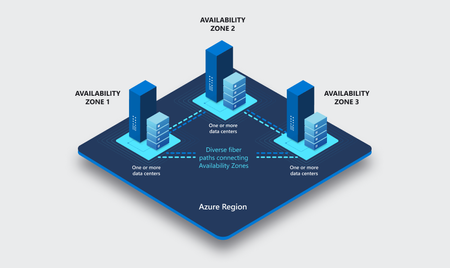
APIs are the backbone of modern applications, powering everything from mobile experiences and microservices to AI-driven applications and business-critical integrations. As customers continue to modernize their platforms on Azure, they increasingly expect their API infrastructure to remain available even in the face of datacenter-level disruptions. With zone redundancy in Standard v2, Azure API Management now enables customers to increase resilience against Availability Zone failures while continuing to benefit from the simplicity, performance, and cost efficiency of the v2 platform. Why Zone Redundancy Matters Azure Availability Zones are physically separate locations within an Azure region, each with independent power, cooling, and networking infrastructure. By distributing API Management resources across multiple zones, organizations can reduce the impact of a single datacenter failure and improve service continuity for their APIs. Until now, customers who required built-in zone-level resiliency often needed to evaluate higher-end deployment options. With this enhancement, Standard v2 customers can now deploy API gateways across Availability Zones and benefit from improved reliability while maintaining the streamlined operational model of the v2 platform. What’s New Zone Redundancy for Standard v2 extends the platform's resiliency by distributing service capacity across multiple Availability Zones within a supported Azure region. Key benefits include: Higher Availability: API traffic continues to flow even if a single Availability Zone experiences an outage. Built-in Resiliency: Redundancy is provided at the platform layer, reducing the need for customers to design and manage complex intra-region failover solutions. Production-Ready Reliability: Customers can confidently run critical API workloads on Standard v2 with stronger availability guarantees. Operational Simplicity: The service automatically manages capacity distribution, health monitoring, and recovery behavior across zones. Cost-Effective Resilience: Customers gain zone-level protection without requiring an enterprise-tier deployment model. Built on the Modern v2 Platform The v2 platform was designed from the ground up to provide a faster, more reliable, and more scalable API Management experience. Standard v2 already delivers capabilities such as rapid deployment, simplified networking, workspace support, and flexible scaling. Zone Redundancy further strengthens the platform by expanding its reliability story for production workloads. This announcement builds on our broader investment in making Azure API Management more accessible to a wider range of organizations, from digital-native startups to large enterprises modernizing their application estates. Ideal Scenarios Zone Redundancy in Standard v2 is particularly valuable for customers who: Run business-critical APIs that must remain available during datacenter incidents. Consolidate multiple application workloads behind a single API gateway. Expose APIs consumed by mobile, partner, and customer-facing applications. Support AI applications and agent-based architectures that depend on highly available API endpoints. For organizations adopting modern cloud and AI native architectures, this capability helps ensure that API infrastructure remains aligned with broader application resiliency strategies. A Foundation for Reliable AI and API Platforms As AI-powered applications continue to proliferate, APIs increasingly become the critical connection layer between models, agents, business systems, and data platforms. Downtime at the API layer can have a direct impact on application availability, customer experience, and business operations. By bringing zone redundancy to Standard v2, we are making it easier for organizations to build highly resilient API platforms that can serve as the foundation for next-generation AI and digital transformation initiatives. Getting Started Zone Redundancy for Standard v2 can be enabled in supported Azure regions, allowing customers to deploy API Management with built-in protection against Availability Zone failures. We recommend reviewing your application's overall resiliency architecture, including backend redundancy, traffic management, and disaster recovery requirements, to maximize the benefits of zone-resilient API infrastructure. Enable Zone Redundancy in the Azure Portal Getting started with Zone Redundancy in Azure API Management Standard v2 is straightforward and can be configured during service creation. Create a New Standard v2 Instance with Zone Redundancy Sign in to the Azure portal. Select Create a Resource and search for Azure API Management. Choose Standard v2 as the service tier. Select a region that supports Availability Zones. In the Availability Zones section, enable Zone Redundancy. Review and create the service. After deployment, Azure API Management automatically distributes service capacity across multiple Availability Zones within the selected region, helping maintain API availability during a zone-level outage. Looking Ahead This release represents another step in our ongoing investment in the Azure API Management v2 platform. We remain committed to delivering the reliability, scalability, security, and developer experiences that organizations expect from a modern API management service. We are excited to see what our customers build with a more resilient Standard v2 platform and look forward to your feedback as you continue modernizing and scaling your API ecosystems on Azure. Learn more by visiting the Azure API Management documentation and exploring the latest reliability guidance for API Management deployments.Give your Copilot agents real tools, without hand-wiring MCP
You’re running agents in the GitHub Copilot app - maybe three at once, each on its own branch, each working a task while you steer. It’s a good way to work, right up until an agent needs to reach outside your repo. It needs to read a SharePoint library, file a Salesforce record, or check an Outlook calendar, and suddenly it’s blind. An agent is only as capable as the tools you hand it. The usual way to hand it one of those tools is to wire up a Model Context Protocol (MCP) server by hand: find the endpoint, paste it into config, add an auth header, keep the token alive, and hope you got the casing right. Then your teammate does the same thing on their machine, and the next person after that. The MCP Connectors canvas removes the hand-wiring. It’s a plugin for the GitHub Copilot app: it lists the hosted MCP servers already published in your Azure Connector Namespace, and you connect one to Copilot by selecting it - no URL, no header, no local proxy. Where the servers come from Connector Namespace is the managed Azure service on the other end. It provides a list of curated MCP Servers that you can use to quickly create and manage MCPs connections. It also does the work you’d rather not: it stores and rotates the credentials, applies retry and throttling policies, and scales the server. Your machine never holds a raw secret related to the end systems that MCP touches, and access is governed by access policies, allowing fine grained control on who can use the MCP servers. So, when you connect a server from the canvas, you’re not standing up infrastructure. The server already exists, already authenticated, already managed. You’re pointing Copilot at it. Prerequisites GitHub Copilot app with canvas extension support. An Azure subscription with permission to cerate and view the namespace and to create connections and hosted managed MCP server configurations. Connector Namespace is in preview, and availability varies by region. Install From the GitHub Copilot app, add the following prompt. Install connector-namespaces v1.2.0 for my user account, reload it, verify it is running, then open the MCP Connectors canvas. Open the Connector Namespace canvas in a new session Once you install if you need to open the Connector Namespace in a new session, just request it in a prompt: Open the MCP Connectors canvas. Connect an MCP server Open the MCP Connectors canvas. Select Sign in to Azure, then choose a subscription and Connector Namespace. Browse or search the MCP servers grouped under Microsoft and Partners. Select Connect and complete the connector’s separate authentication or consent flow. Confirm the server appears under My MCPs. Restart GitHub Copilot so a new session loads the added tools. ℹ️Note That last step matters more than it look. Copilot loads an agent’s tools when a session starts, so a server you add mid-session shows up in the next one, not the one you’re in. Manage connected servers My MCPs shows the servers connected to Copilot. Sandbox opens a connected server in the Connector Namespace playground, so you can try a tool call yourself before you let an agent lean on it. Disconnect removes the MCP registration from your MCP configuration. The MCP is still available in Connector namespace to be added again later. Also if you are sharing the connector namespace with other developers, this only remove the your local configuration. Connect adds configured MCP connectors that are not registered locally yet to your local MCP configuration. Delete from namespace… removes the MCP registration from your MCP configuration and deletes the MCP connection from your connector namespace. If you are sharing the connector namespace with other developers this will affect any developer using this MCP connector – be careful when using this. Switch namespace switches the active subscription or namespace - useful when you keep dev and production connections apart. How it works and security The extension registers each server directly in Copilot’s user-scoped MCP configuration. There’s no local MCP proxy sitting in the tool path between the agent and the server. The canvas itself runs on loopback. Your Azure tokens stay in process memory, the selected namespace coordinates may be cached locally, and gateway credentials are sent only to the server’s configured HTTPS endpoints. The connector’s own secrets never reach your machine. That’s the namespace’s job, which is also why an admin can rotate or revoke a connection in one place instead of chasing down every developer’s config. Where can I use my connected MCP servers You manage the servers from the canvas, but they don’t only work there. The canvas writes to Copilot’s user-scoped MCP configuration at ~/.copilot/mcp-config.json, and the GitHub Copilot app is built on GitHub Copilot CLI. Connect a server once and it’s available to both. Agent sessions in the app. Any session on your machine picks the server up, whatever repository or branch it’s working on, because the config is user-scoped rather than per-project. Copilot CLI. The same server shows up in the terminal. Run copilot mcp list to confirm it, or /mcp show SERVER-NAME in an interactive session to see the tools it exposes. Two things to know: Tools load when a session starts, so connect first and start the session second. A project-level .mcp.json or .github/mcp.json takes precedence over your user config when the names collide, which is what you want if a repository pins its own version of a server. VS Code is the exception. Copilot Chat there reads .vscode/mcp.json, a separate file the CLI doesn’t use, so a server you connect in the canvas won’t appear in VS Code until you configure it there too. Where this all sits today The GitHub Copilot app went generally available in June 2026, and canvases shipped with it, so neither is a preview feature. The MCP Connectors canvas is a published extension you install at personal scope. You get the version we ship and tested, not one an agent generates on the fly from a prompt. Two caveats. GitHub doesn't publish a compatibility guarantee for the canvas extension format, so an app update may need a matching update from us. Re-run the install commands above to pick it up if you see any issues. On the Azure side, Connector Namespace is still in preview. Check the documentation for more details on this service outside the GitHub Copilot App support. If you're on Copilot Business or Enterprise, check with your admin that the GitHub Copilot app policy is enabled. It's on by default, and it's separate from the Copilot CLI policy. Try it Install the plugin, point it at a namespace, and connect one server your agents keep reaching for: the SharePoint library, the CRM, whatever it is. Then watch an agent actually use it in the next session. Tell me where the canvas saved you a config headache and where it got in your way. That’s the feedback we act on before general availability.665Views2likes2CommentsAI Gateway tier of API Management now in public preview
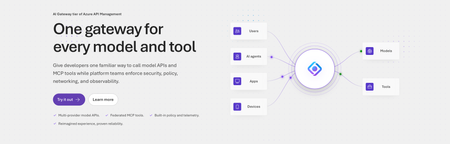
Today, we are introducing the AI Gateway tier of Azure API Management, now in public preview. It gives platform teams a purpose-built experience built specifically for AI workloads - publishing and governing models and MCP servers. Controls are configured through policy cards rather than XML and expressions, and the portal experience and control plane are structured around models, MCP servers, and tools rather than APIs. (For brevity, we refer to the AI Gateway tier as AI Gateway throughout the rest of this article.) AI Gateway is built on Azure API Management, bringing proven operational capabilities to AI workloads. The resource runs in your subscription, uses your Entra tenant, and sends telemetry to destinations you control. The operating model will be familiar to existing API Management customers, but the interface is built around AI workloads. The AI Gateway tier is intended for teams that want this focused experience; other API Management tiers remain the right choice when organizations also need general-purpose API management or capabilities not included in the AI Gateway experience. A practical model for platform teams The AI Gateway gives platform teams a shared place to manage models, MCP servers, policies, and observability destinations, with access controlled through Azure RBAC. For example, a central platform group can connect a set of approved models and tools and publish them for application teams. The application teams can test those assets in the test console and build against them without routing every change through the central group. The platform group still owns the shared guardrails and can see how the assets are being used. After an asset is published, developers can create a named runtime key and begin calling the gateway immediately. Bring the models and tools you already use Most organizations don't standardize on a single model provider. Different models are selected based on quality, latency, cost, geography, or specialized capabilities. The preview supports models from Microsoft Foundry including OpenAI, Anthropic, Mistral, and other Foundry hosted models, as well as models hosted in AWS Bedrock, Google Vertex AI, OpenAI, and Anthropic. A guided wizard simplifies importing models from Microsoft Foundry. Other providers can be added by configuring a connection, with backend authentication configured as part of that connection. All published models are available under the same stable endpoint. Applications continue to use supported API formats such as OpenAI Chat Completions and Responses or Anthropic Messages directly or via SDKs. The AI Gateway extends governance beyond models to the MCP servers and tools agents use to interact with enterprise systems. You can expose an existing MCP server over SSE or Streamable HTTP, turn all or selected operations from a REST API into an MCP server by uploading its OpenAPI specification, or use more than 1,400 connector-backed tools from the Power Platform and Logic Apps library. You can also federate multiple MCP servers behind a single server, so an agent connects once and sees the tools across those servers. Backend authentication supports an API key, OAuth client credentials, managed identity, or mTLS. Governance that's built in Organizations need consistent governance across models and MCP servers without requiring every application team to implement those capabilities independently. The AI Gateway portal presents governance policies through an intuitive card-based experience rather than requiring policy XML. The same policies are expressed as JSON properties, making them easy to manage as infrastructure as code and to audit and enforce across a fleet with Azure Policy. In the public preview, those cards cover request and token rate limits, token quotas, Azure AI Content Safety, and fallback to a secondary model. Policies are applied per asset, making it clear which controls protect each model or MCP server. OpenTelemetry-based token metrics The AI Gateway emits token-usage metrics through OpenTelemetry, with attributes following GenAI and cloud semantic conventions. Metrics can be sent to Application Insights, Datadog, Splunk, Grafana Cloud, or another OTLP endpoint. The portal provides a monitoring view over Application Insights data. Better together: Microsoft Foundry and AI Gateway With AI Gateway, teams can extend the same governance controls, for example token rate limits and quotas, across models hosted in Microsoft Foundry and models hosted elsewhere. Foundry and non-Foundry models are published through gateway-managed endpoints, giving applications and agents a consistent way to access governed models regardless of where they are hosted. Foundry-hosted agents can consume curated sets of tools from Foundry toolboxes, with access to the underlying MCP servers and APIs governed through AI Gateway. Together, Microsoft Foundry and AI Gateway cover the enterprise application lifecycle: Foundry for building and running AI applications, and AI Gateway for publishing, governing, and observing models, tools, and MCP servers across your AI estate. The new AI Gateway tier will soon be available through the gateway experience in Microsoft Foundry portal. We are working toward a seamless, integrated AI Gateway experience within Foundry portal and will share more about that work separately. Available today in public preview The AI Gateway tier is available today at no cost in public preview in East US 2 and Sweden Central. Pricing will be shared separately. To provision a resource, add a model or MCP server, and make a first call click this to go to the AI Gateway tier portal and try it. If you prefer to start from code, use a sample to deploy all the required resources for a Foundry-hosted agent configured to access its model and tools through AI Gateway. We look forward to your feedback as we continue to rapidly evolve AI Gateway.7.4KViews5likes10CommentsPower Azure SRE Agent with the tools it needs
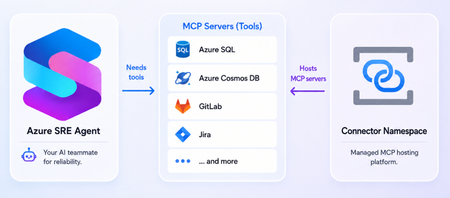
What is the Azure SRE Agent Azure SRE Agent is an AI-powered service designed to reduce operational toil. Teams can use it to: Investigate incidents and identify probable causes. Automate health checks, compliance reviews, and other scheduled work. Answer questions such as “What changed before this service became degraded?” Propose remediations while allowing teams to require human approval. An effective investigation rarely depends on one source of information. An alert might originate in Azure Monitor, while deployment history lives in source control, telemetry stored in another observability platform, and incident records in a service-management tool. Without access to those systems, you must retrieve and transfer the information manually, adding context switching and slowing diagnosis. MCP servers can give SRE Agent tools to query telemetry, inspect deployments, retrieve database records, look up incidents, etc. SRE Agent provides native connection for some servers such as GitHub, Datadog, New Relic, and Splunk. Connector Namespace makes it easier to host additional remote MCP servers you want the agent to use. Removing remote MCP server hosting burden Connecting SRE Agent to an existing remote endpoint is straightforward. Hosting that endpoint yourself is not. You must deploy the server, provide secure HTTPS infrastructure, configure authentication, manage downstream credentials, scale the runtime, monitor its health, recover failed instances, and maintain it over time. These responsibilities are necessary, but the value is in the server’s tools not in operating another service. Azure Connector Namespace is a fully managed service for hosting connectors and MCP servers. You select the server you need and let the namespace handles the operational and maintenance tasks. The offering is currently in preview. See documentation for supported regions and other preview considerations. You’ll find a wide variety of servers in the Connector Namespace’s catalog. Some examples of useful servers for the SRE agent include: Database servers such as Azure SQL and Azure Cosmos DB Source control and CI/CD servers like GitLab Incident management servers like Jira and PagerDuty A note on what's currently in development: We're building “bring-your-own” server support, allowing you to supply your own server image while the namespace handles hosting and operations. Please keep an eye out for the blog post about this! Deploy server and connect it to SRE Agent The following example deploys the SQL MCP server in Connector Namespace and connects it to Azure SRE Agent. 1. Server deployment Prerequisite: Install the Azure Developer CLI (azd). Clone the sql-server-samples repo: git clone https://github.com/microsoft/sql-server-samples.git Navigate to the azure-sql-mcp sample cd sql-server-samples/samples/applications/azure-sql-mcp From the azure-sql-mcp folder, run the following to log into your Azure subscription and then deploy the server and related resources: azd auth login azd up The last command will prompt for the following before deployment: Prompt Suggested value Explanation Enter a unique environment name mcp-dev This name added as prefix to Azure resources created Select an Azure Subscription Pick your subscription Resources will deploy under this subscription Enter value for connectorNamespaceIdentityType UserAssigned User assigned identity is recommended as it’s not tied to resource lifecycle Enter value for deployerLoginName Enter your Azure subscription login email To give your identity access to the MCP server Enter value for the location Pick a supported region Supported regions: West Central US, Central US, East Asia, North Europe Once deployment finishes, copy the MCP endpoint for use later. It looks similar to: https://<app-name>.<region>.logic.azure.com/api/connectorGateways/123abc456defg7890/mcpServerConfigs/sql-mcp/mcp (Optional) Test deployed server in Visual Studio Code GitHub Copilot: Open command palette > search MCP: Add server > pick HTTP > enter MCP endpoint and server name > pick Local Workspace. Inside .vscode/mcp.json, click Start above server name, then allow authentication with Microsoft in the popup and log into Azure subscription account. 2. Configure MCP connector in SRE Agent Connector Namespace does not create the connection in SRE Agent. Add the server endpoint through SRE Agent’s existing MCP connection experience. Open the Azure SRE Agent portal On the left menu, go to Builder > Connectors, and select + Add connector Under Choose a connector, select the MCP tab, choose MCP server, and select Next Configure the connector: Field Value Name A descriptive name for the server Connection type Streamable-HTTP URI The hosted server endpoint from Connector Namespace Authentication method Managed identity (Selecting managed identity automatically creates an identity for the connector.) Azure AD token scope https://apihub.azure.com/.default Select Next. Before testing the connection, grant the managed identity access to the MCP server. 3. Authorize the managed identity Open the Azure portal, search for the managed identity by name. In the identity’s Overview page, click JSON View (top right) and copy the tenantId and principalId. The principal ID is also called the object ID. Open Connector Namespace portal and search for the deployed namespace. Inside the namespace, navigate to the MCP Connectors tab on the left, then select the SQL MCP server. Inside the MCP server, click Access Policies, then select Add Access Policy. Enter the tenant ID and principal ID, then select Create. 4. Test and finish the connection Return to Azure SRE Agent portal and select Test connection. After the test succeeds, select the server tools the agent should use. Select Add connector. Establishing the connection can take a minute. Select Refresh at the top of the connectors page until its status changes to Connected. The agent can now use the selected server tools in chat threads. The azd deployment from previous created and seeded a SQL database with sample blog post data, so you can ask something like: What are the top blog posts? For more details, see MCP connectors and tools in Azure SRE Agent. Focus on the server, not its infrastructure MCP servers can give Azure SRE Agent access to the additional systems it needs to investigate incidents and perform operational work effectively. However, operating every remote server yourself introduces infrastructure, security, and maintenance responsibilities that distract from that goal. Connector Namespace removes much of that friction. Your primary question becomes “Which MCP server do I want to host?” rather than “How will I deploy, secure, scale, monitor, and maintain it?” Once deployed, the hosted endpoint can be added to Azure SRE Agent through its existing MCP connection experience. That gives teams a straightforward path to extending the agent with more operational tools, without turning MCP server hosting into another platform they must build and run. Try Connector Namespace with Azure SRE Agent and share your feedback! Resources Azure SRE Agent Overview Set up an MCP connector in Azure SRE Agent Connector Namespace Overview Hosted MCP servers in Connector Namespace538Views0likes0Comments📢 Announcing Built-In Knowledge for Azure Logic Apps
Now in Public Preview Turn your documents into a ready-to-use knowledge base without custom RAG pipelines. Today at Microsoft Build 2026, we are announcing the Public Preview of built-in Knowledge for Azure Logic Apps. It is a managed knowledge layer that transforms your documents into a ready-to-use knowledge base, removing the need to build custom Retrieval-Augmented Generation (RAG) pipeline, operate a vector store, or maintain retrieval logic. The result is grounded, accurate answers for the agents and workflows you are building today. Most organizations hold a significant amount of institutional knowledge such as HR policies, product manuals, support runbooks, contracts, and specifications distributed across documents, spreadsheets, and internal systems. The challenge has rarely been the availability of content. It has been making that content reliably and accurately retrievable by AI agents and workflows. Until now, addressing this challenge required building a RAG pipeline in-house. As any team that has implemented one can attest, a production-grade RAG pipeline involves substantial engineering effort and ongoing operational overhead. The complexity of building RAG in-house A production-grade RAG pipeline is not a single component. It is a set of interdependent systems that must be designed, integrated, and maintained: Ingestion: parsing multiple file formats, chunking content appropriately, summarizing, and generating embeddings. Storage: provisioning a vector database, defining indexing policies, and tuning for cost and performance. Retrieval: rewriting queries, vectorizing them, executing semantic search, and returning the most relevant chunks to the model. Operations: monitoring upload status, handling failures, managing credentials, and maintaining security. Each component represents a meaningful engineering investment. Together, they constitute a platform — one that diverts engineering capacity away from the business problems teams set out to solve. Introducing built-in Knowledge capability Built-in Knowledge in Logic Apps is a managed knowledge layer built into Azure Logic Apps that turns your documents into a ready-to-use knowledge base, without requiring you to build or operate a RAG pipeline. You provide the documents, and the platform manages the remainder of the process, both ingestion and retrieval, end to end. Built directly into Logic Apps, KBaaS provides an abstraction over the underlying vector store and AI models, enabling your workflows to consume structured, semantically searchable knowledge through a single connection. A knowledge base is a logical container that organizes related sources for a given domain. For example, an "HR Policies" knowledge base might hold all relevant HR documents. You create the knowledge base, upload your files, and attach it as a tool that your agent can call. How it works Managed Knowledge experience is built around two managed pipelines. Ingestion pipeline. When you upload a knowledge source, the service automatically parses, chunks, summarizes, and vectorizes the content, then stores the results, with no manual preprocessing required. The current preview supports a broad range of formats out of the box: DOC, DOCX, HTML, MD, PDF, PPT, PPTX, TXT, XLS, and XLSX. Each upload provides a progress status and a clear Completed or Failed result. Retrieval pipeline. When your agent queries the knowledge base, the service rewrites the query where beneficial, generates a vector representation, executes a semantic search, and returns the most relevant chunks to the language model for response generation. Query planning, vector search, and ranking are all handled by the service. The outcome is that your agents receive accurate, context-rich answers grounded in your own content, without requiring you to author retrieval logic. Built for agentic workflows Knowledge is available in Azure Logic Apps Standard, where it integrates directly with agentic workflows. Once a knowledge base has been created, it appears as a capability that can be attached to an agent loop. From there, the agent automatically queries the knowledge base to retrieve semantically relevant information from your uploaded documents at the point it is needed, as part of completing a task. Getting started involves three steps: Create the knowledge base connection - associate your vector store and your completions and embeddings models. Add knowledge sources - upload files into a knowledge base, optionally organized into groups. Add the knowledge base as a context - select it from the agent node so your agent can begin retrieving. The platform provisions and manages the required databases, containers, and indexing policies on your behalf, removing the burden of operating the underlying storage and search infrastructure. Two SKUs to consume it - Standard or Automation This feature is available across Logic Apps SKUs, with some differences in how you setup and manage them. Logic Apps Standard — bring your own resources. On Standard SKU, the model operates on your own Cosmos DB vector store and AI models, KBaaS integrates with them directly. You connect your existing resources, and the platform manages the complete ingestion and retrieval pipeline on top of them. This approach retains full control over your data and models while removing the need to build and maintain the RAG pipeline. Logic Apps Automation SKU — bring only your documents. On the Automation SKU, this feature operates on a hosted-on-behalf-of model, in which the platform provisions and manages both the underlying vector store and the AI models. There is no Cosmos DB to provision, no embeddings or completions model to deploy, and no connections to configure. You upload your documents and attach the knowledge base to your agent, and the entire knowledge layer, including the supporting infrastructure is fully managed for you. This delivers the same managed knowledge experience with the maximum degree of abstraction, providing the most direct path from source documents to a working, agent-ready knowledge base. Secure by design KBaaS supports authentication through Microsoft Entra ID using either a managed identity or an API key. We recommend managed identity wherever possible. It is the most secure option and eliminates the need to manually provision and rotate credentials, secrets, or access keys. Available today in Public Preview This initial release focuses on the most common starting point: uploading unstructured documents. Additional capabilities are planned, including support for more knowledge sources, richer ingestion (such as image parsing, semantic chunking, and multimodal embeddings), configurable retrieval settings, access checks during retrieval, and more. Built-in Knowledge in Logic Apps is available now in Public Preview. Provide your documents and give your agents a knowledge base that is ready to use, without building or operating a RAG pipeline. Read the MS Learn docs to get started Check out the demo below7.5KViews1like0Comments🎉 Automation just became a team sport. Meet Azure Logic Apps Automation.
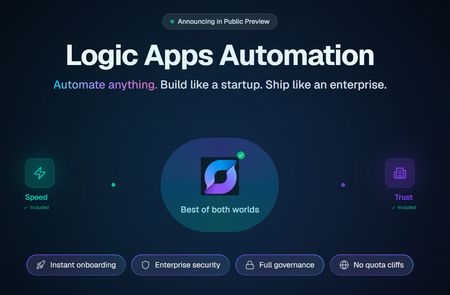
Low barrier to entry. Built for production. Now in Public Preview There's a moment that plays out in almost every organization right now. Someone closest a business problem - a retail ops lead, a finance analyst, a security analyst looks at a repetitive process and thinks, this should just run itself. For most of computing history, turning that idea into reality required specialized skills, significant setup, and engineering resources that were often focused elsewhere. AI is changing that. Today, people can describe what they want in natural language and watch working solutions take shape. The bottleneck is no longer generating an idea for automation. It's turning that idea into something secure, governed, and reliable enough to run in production. The demos are everywhere. The question organizations are increasingly asking is the harder one: which of these can we actually run in production? That's exactly the shift we built for. Today at Microsoft Build we're introducing Azure Logic Apps Automation, a new Logic Apps SKU that delivers the experience of a modern SaaS product for creating and running workflow automations. It makes it easier for teams to get started quickly while preserving the security, governance, reliability, and scale organizations expect from Azure. It's open to builders of every kind, available now in public preview at https://auto.azure.com. New experience, same enterprise engine The goal was straightforward: simplify the experience of building and running automations without compromising the enterprise foundation underneath. Logic Apps Automation provides a managed experience where compute, model endpoints, knowledge services, and execution environments are available out of the box. Teams can focus on solving business problems rather than assembling infrastructure and services. We also introduced a dedicated SaaS experience designed around productivity and collaboration. Administrators establish governance and policies, while builders can quickly begin creating workflows without requiring deep Azure expertise. "The redesigned experience lets me build AI-based solutions in record time. This platform will serve as the glue in most modern solutions.", Mick Badran, Founder & Director at SolveIT.Today [LA Automation Early Adopter] What we kept is just as important. Logic Apps Automation is built on the same Azure Logic Apps platform organizations trust today. The reliability, scale, security, governance, and operational maturity remain the foundation. The experience is simpler, but the platform underneath is the same proven technology customers rely on every day. Low barrier to entry. Built for production. We mean both halves of that sentence. Build like a startup, ship like an enterprise Building an automation is only part of the full application journey. As solutions move from experimentation to production, along with simple experience, organizations need security, governance, networking, identity, and operational controls to ensure those automations can be trusted at scale.Logic Apps Automation is designed for both realities. On the build side, it's fast to get started. Login and start building workflows; stay on a single canvas throughout the experience: use AI assisted workflow development, use visual workflows when they’re the right fit, and drop into code the moment you need additional control. No switching tools, no handoffs, no separate infrastructure to manage. On the production side, organizations get the capabilities they expect from an enterprise platform, on day-0: isolated compute, virtual network integration and private endpoints, identity, role-based access, audit logging, and governance policies. For many automation tools, becoming "enterprise-ready" is something that happens later. With Logic Apps Automation , production-readiness is part of the foundation. Built for how teams actually work Making automation easier for builders shouldn't create additional complexity for administrators. Organizations already have established governance boundaries, ownership models, and operational processes. Logic Apps Automation is designed to align with those realities through a simple two-level hierarchy of Projects and Applications. Project sits at the top and act as your security and governance boundary; inside each project you run one or more Applications. Admins and project owners set networking policies, connector policies, sandbox configuration, and approved AI models once, at the project scope and every application inherits them. Builders get a wide-open space to create. Admins get a firm line around it. Nobody has to choose between the two. Flexible permission management for individuals and teams The permission model is also designed to match how teams collaborate: A private space for an individual. To give a single user a place to run their own automations with a privacy boundary around personal resources such as their email account - create an application that only that individual can access. A shared space for a team. To support an automation that several people co-develop and operate together, add multiple users to the application so they can build, run, and maintain it collectively. The same model accommodates both access patterns, giving builders clear control over the scope of each application and who can work within it. AI-native, not AI-retrofitted Logic Apps Automation is designed for a new generation of business processes that combine workflows, AI agents, enterprise systems, and human decision-making. It starts with how you build. A built-in AI Assistant turns plain language into working automation. You describe what you want and it drafts the workflow, configures actions, writes expressions, and generates inline code, then helps you edit the same way. You can author at the level of a single step or an entire end-to-end flow. This is the thing that opens the platform to *every* developer: the person closest to the problem can describe it and get something real, while pros stay in control and drop to code whenever they want. "With the power of AI, automations just got on steroids! Simply tell it what you need, explain the intent, et voilà! Love it.", Sonny Gillissen, Integration Architect at Rubicon Cloud Advisor [LA Automation Early Adopter] Agents are first-class Agents are first-class, and we meet you where you are with three ways to integrate them: Agent-loop orchestration. If you're already using Logic Apps actions as tools inside an agent loop, that pattern carries forward. Your actions are callable tools the agent can invoke, so you keep orchestrating the way you always have. Foundry agents. Connect to an existing Microsoft Foundry Hosted or Prompt Agent or create a new one right from the canvas. The platform handles the wiring, and your workflow calls the agent, gets results back, and keeps moving. Managed sandbox for agent harnesses. Bring a well-known agent harness, like GitHub Copilot and run it in a managed, isolated sandbox. We take care of the compute, the isolation, native shell access, and your GitHub repos as first-class context; you just define the business logic. Then orchestrate all of these inside a larger workflow, right next to traditional rule-based actions, on a single canvas. Deterministic and agentic, in one place. A few capabilities that make this especially powerful: Sandboxed agent harnesses. Run agent harnesses such as GitHub Copilot in a managed, isolated sandbox with shell execution, skills, and GitHub repos as first-class context, without operating any of that infrastructure yourself. Tools and MCP. Turn any of the 1400+ connectors into a tool or expose any workflow as an MCP server that any compatible agent can call. No code required. Knowledge as a Service. Drop in your documents and the platform handles ingestion, chunking, embeddings, and retrieval. No RAG pipeline to build, no vector store to operate; just grounded answers. Any model, anywhere. Plug in whatever fits the job: frontier, open-source, fine-tuned, or local. You're never locked in. "Azure Automation closes the gap between integration and intelligence with agents as first-class workflow actions, grounded in your own data, executing in isolated sandboxes, all within the same canvas where your triggers and connectors live. Excited to see the evolution.", Sagar Sharma, Enterprise Solution Architect at i8c NL [LA Automation Early Adopter] What's new in this release Logic Apps Automation introduces several new capabilities designed to help teams build, deploy, and govern AI-powered automations: Zero-friction onboarding. Get from Sign-in to first workflow in minutes, with managed infrastructure and enterprise capabilities available from the start. A new designer. Modern designer with single pane experience to build and monitor workflows, draft-mode for workflows for easy iterations, instant code-to-workflow synchronization when you want to work in code-view, run history you can stream live, and so much more Natural language authoring. Describe workflows in plain language to create and edit them, with AI assistance in the designer. More powerful agents. Three ways to bring agents into a workflow; agent-loop orchestration, Foundry Hosted Agents, and well-known harnesses like GitHub Copilot running in a managed, isolated sandbox with shell access and GitHub repos as context. Knowledge as a Service. A managed knowledge layer that turns your documents into a ready-to-use knowledge base; no RAG pipeline required. JavaScript expressions. Write inline JavaScript to transform data and express logic without leaving the designer; no domain-specific language to learn. Projects and applications. A two-level governance hierarchy that gives admins a clear boundary and builders room to create. A permission management model that accommodates different level of access patterns, giving builders clear control over the scope of each application and who can work within it. Elastic scale, including to zero. Workflows scale up automatically when load arrives and scale all the way down to zero when there's no work to do. You pay only for the vCPU-seconds you actually use. Built to scale Logic Apps Automation scales automatically with demand, from idle workloads to business-critical processes. Customers pay only for the resources they use, without per-seat licensing requirements or infrastructure management overhead. When workflows aren't running, you're not paying for compute. When demand increases, the platform scales with you. Pricing Logic Apps Automation uses a consumption-based pricing model, so you pay only for what you use. Pricing is based on a small managed-environment fee, workflow execution, and optional services such as AI model usage, knowledge, sandboxes, connector calls. There is no annual commitment, no per-seat license, no quota cliff. When your workflows sit idle, you pay nothing for compute. More details to follow soon. What's available, and what's next Logic Apps Automation is available today in public preview, with an intial set of regions today, with more rolling out over the coming weeks. Here is the list of regions its available today: East Asia Sweden Central Australia East North Central US UK South Southeast Asia West US Coming Soon We're continuing to expand the platform with additional AI and enterprise capabilities, including: Foundry Hosted Agents. Create or Invoke Foundry Hosted Agents directly inside your workflows. Foundry Prompt Agents. Create/Invoke Foundry prompt directly inside your workflows. Hosted Models. Managed model endpoints provided for you; no keys or infrastructure to bring. Inline Python. Write inline Python alongside JavaScript when you need it. Bring your own container image. Run your own code in sandboxes; for example, orchestrate a Python ETL job from within a Logic Apps workflow. VNet support and private endpoints. Custom connectors and more Automation templates. Build custom connectors, start from a growing library of templates, and set project-level policies on connectors and more. Get started Whether you're automating a business process, orchestrating AI agents, integrating enterprise systems, or building entirely new AI-powered experiences, Logic Apps Automation provides a simpler path from idea to production. Start building today at https://auto.azure.com Read the docs at http://auto.azure.com/docs Watch the announcement session at Microsoft Build 2026. See it live at the Integrate conference, June 8–9.6.4KViews2likes7Comments