agent builder
37 Topics
Understand the Copilot Studio app-building harness
The first important distinction is that building an app is different from building a conversational agent. An app provides an interactive user interface. An agent reasons about a request and may use tools to accomplish a task. A workflow executes defined business logic. You can combine all three in a business solution. Component Responsibility Example Copilot Studio Apps User interface and application experience An employee service dashboard GitHub Copilot harness AI-powered building and orchestration runtime Planning multi-step tasks and generating app components Agent Reasoning and task execution Investigating a service request Workflow Repeatable business process Routing an approved request Data layer Stores and retrieves business information Requests, users, approvals, and status Connectors and APIs Integrates enterprise systems SharePoint, Microsoft Graph, or ServiceNow The GitHub Copilot harness in Copilot Studio is not the same thing as using the GitHub Copilot service. It is a Copilot Studio runtime for advanced reasoning and orchestration. Microsoft's documentation states that the normal Copilot Studio security, privacy, compliance, and data residency commitments continue to apply. 2. Before building: define the application properly One of the biggest mistakes is asking the builder to create an app with a vague prompt. For example: Weak prompt "Build an employee management app." This leaves too many decisions to the AI. It might generate an attractive interface but miss important business requirements. Instead, define these eight elements before generating the application. Element What to specify Business problem What problem does the application solve? Target users Who will use it? User journeys What tasks must users complete? Data model What entities, fields, and relationships are needed? UI requirements What screens, components, filters, and interactions are required? Business rules What validations and conditions must be enforced? Integrations What APIs, data sources, and systems are involved? Security Who can view, create, edit, approve, or delete records? Also define the acceptance criteria before generation. For example: Users can search requests by ID, owner, status, and date. Selecting a request opens its detailed view. Users can update permitted fields. Invalid status transitions are rejected. Loading, empty, and error states are handled. Changes are persisted to the intended data source. My recommendation: Write the requirements first, then build the app. Don't use repeated prompts to discover the business requirements while simultaneously generating the UI. 3. Step-by-step guide to building an app Step 1: Open the app-building experience Open copilot studio Step 2: Start with a complete application specification Let's use an example: an Enterprise AI Operations Dashboard. The app will help employees and administrators monitor AI automation requests, investigate failures, track processing time, and manage remediation. Start with a structured prompt. Master app-generation prompt You can adapt this prompt for your first build. Build a professional enterprise application called Enterprise AI Operations Dashboard. BUSINESS OBJECTIVE Create a centralized interface for monitoring AI automation requests, execution outcomes, failures, processing time, and remediation activities. TARGET USERS Operations analysts who monitor executions. Administrators who investigate failures. Managers who review operational performance. APPLICATION STRUCTURE Create the following pages: Overview Dashboard Total executions Successful executions Failed executions Success rate Average processing time Execution trend over time Recent failures Status distribution Execution Explorer Search by execution ID Filter by status, application, owner, and date Sort by execution time and duration Paginated or appropriately limited results Select an execution to open its details Execution Details Execution ID Application name Initiated by Start time and end time Duration Status Error summary Diagnostic information, when available Remediation history Remediation Center Display unresolved failures Allow authorized users to assign an owner Add investigation notes Update remediation status Record timestamps for changes Settings Configurable filters and display preferences Clear explanation of administrative permissions No destructive administrative actions without confirmation DATA MODEL Create a logical data model containing: Execution: ExecutionId ApplicationName InitiatedBy StartTime EndTime DurationSeconds Status ErrorSummary Environment RemediationStatus Remediation: RemediationId ExecutionId AssignedTo Notes Status CreatedAt UpdatedAt Define a relationship between Execution and Remediation. If a persistent data source is not configured, use clearly identified sample data. Do not present sample data as live production data. UI AND DESIGN Use a clean, modern enterprise dashboard with: Clear visual hierarchy Readable typography Consistent spacing Responsive layouts Accessible contrast Reusable UI components Summary cards Appropriate charts Searchable and filterable tables Clear loading, empty, success, and error states FUNCTIONAL REQUIREMENTS Search and filters must work. Dashboard metrics must be calculated from the underlying dataset. Selecting a row must display the corresponding execution details. Form inputs must be validated. Status changes must update the intended data source. Display clear error messages when operations fail. Prevent duplicate submissions where appropriate. Confirm potentially destructive actions. Preserve filters when navigating between related screens where feasible. SECURITY Respect the signed-in user's permissions. Do not expose secrets, access tokens, or sensitive diagnostic information. Do not rely on hiding a UI button as the only authorization control. Enforce authorization at the data source or API. Do not create external integrations without explicitly identifying their requirements. IMPLEMENTATION PROCESS First, summarize the proposed architecture, data entities, pages, and assumptions. Ask clarifying questions if a critical requirement is ambiguous. Then generate the first functional version of the application. After generation, test the primary user journeys and identify incomplete functionality. Clearly distinguish implemented features, simulated features, and integrations that still require configuration. This is a starting specification, not a guarantee that every requested capability will be generated correctly. Inspect the resulting application and verify its actual behavior. Step 3: Review the generated application Once the app preview appears, don't immediately ask for more features. First, inspect the application against the specification. Check: Does the navigation work? Are the pages connected logically? Do the tables display consistent data? Do the filters actually change the results? Are dashboard metrics calculated correctly? Does selecting a record open the correct details? Do forms validate required fields? Does saving actually persist the changes? Are the displayed integrations real or simulated? This distinction is essential: a functional-looking interface is not proof of a working backend. Microsoft's app-building experience provides an interactive preview and lets you refine the app through conversation. It also exposes the underlying code for inspection. 4. Technical prompting techniques for better apps This is where you can significantly improve the quality of generated applications. Technique 1: Build in controlled iterations Avoid asking the builder to implement every feature, integration, chart, and workflow in one enormous request. Use a sequence of targeted changes. Iteration 1: Application foundation "Review the generated application and identify missing requirements. Fix the navigation structure, page layout, data model, and core interactions before adding new features." Iteration 2: Data integrity "Review the application data model. Ensure each execution has a unique identifier, remediation records reference valid executions, and dashboard metrics are calculated from the underlying records. Identify any assumptions that require confirmation." Iteration 3: UI quality "Improve the visual hierarchy, spacing, typography, responsive behavior, table readability, and empty states. Preserve existing functionality and data relationships." Iteration 4: Functional behavior "Test search, filtering, sorting, record selection, form validation, and save operations. Fix broken interactions. Do not replace functional data operations with hardcoded sample results." Iteration 5: Error handling "Add appropriate handling for failed API requests, unavailable data, validation errors, empty results, and repeated submissions. Provide useful user-facing messages without exposing secrets or internal stack traces." Iteration 6: Final verification "Compare the application against the original requirements. List each requirement as implemented, partially implemented, or not implemented. Identify any feature that uses mock data or still needs external configuration." This approach makes failures easier to isolate and reduces the risk of breaking working functionality during a large rewrite. Technique 2: Specify behavior, not just appearance A prompt such as: "Add a modern search bar." defines appearance, not behavior. A better instruction is: "Add a search field above the execution table. Search across ExecutionId and ApplicationName. Apply the search when the user submits or after a short debounce. Combine the search with existing status and date filters. Show an empty state when no records match. Provide a clear-search action and preserve the selected sort order." The second instruction describes expected behavior, interaction, and edge cases. Technique 3: Define invariants An invariant is a condition that must remain true throughout the application. Examples: Every remediation record must reference an existing execution. Execution IDs must be unique. Failed executions must not be marked successful merely because a remediation note was added. A user cannot approve their own request if the business policy prohibits it. Dashboard metrics must use the same filtering rules as the displayed data. Failed writes must not display a false success notification. Add important invariants to the application specification and ask the builder to preserve them during modifications. Technique 4: Request minimal changes When fixing a specific problem, avoid asking the builder to regenerate the entire application. Instead, use an instruction such as: "Fix the execution table's date filter. Preserve the existing navigation, data model, styling, and other filters. Change only the logic needed to make the date filter work. Verify that it works independently and in combination with the status filter." This helps reduce unintended changes and makes troubleshooting easier. Technique 5: Ask for evidence of completion Don't accept a statement that a feature is complete without testing it. Ask: "Identify the implementation for this requirement, test the relevant user journey in the preview, and report any remaining limitation. If the functionality depends on an unconfigured API or connector, identify that dependency explicitly." Where the preview does not allow a test to be performed, request a clear statement of what remains unverified. 5. Underlying code: what to inspect Copilot Studio's app authoring experience includes a way to switch between the interactive preview and the underlying code. Use that capability to inspect the implementation rather than treating the generated UI as a black box. A. Component structure Look for whether the application separates responsibilities into logical components, such as: Navigation Dashboard cards Charts Data tables Search and filter controls Detail views Forms Notifications Loading and error states A large application that puts everything into one component can become difficult to maintain. Prompt: "Review the application structure and identify opportunities to separate repeated UI patterns into reusable components. Refactor only where the current authoring environment supports it, and preserve the existing behavior." B. State management Check how the app manages: Selected records Active filters Search terms Form values Loading states API errors Unsaved changes For example, changing the status filter should not unexpectedly clear the search term or cause the selected record to display stale data. Prompt: "Review state management for the search, filter, table, and detail views. Prevent stale selections, inconsistent filters, and UI updates that occur before a save operation succeeds." C. Data access Identify whether each data source is: Hardcoded sample data Local application state A configured connector A REST API A persistent business data source For production applications, ensure the data access layer has clear responsibilities and that failures are handled consistently. Prompt: "Identify every data source used by the application. Classify each as sample data, local state, or a live integration. Do not imply that data is persisted if it exists only in memory." D. Security Inspect the implementation for: Sensitive values embedded in client-side code Authorization implemented only through UI visibility Excessive data exposure Missing validation Unrestricted destructive operations Unclear handling of user identity Never place API secrets or privileged credentials in browser-accessible code. For sensitive operations, authorization must be enforced by the relevant backend or data source, not just by the interface. Important: Access to the app and access to its underlying data are separate concerns. Microsoft's documentation explains that apps use the signed-in user's identity when connecting to organizational data, and sharing an app does not automatically grant access to data the recipient otherwise cannot access. 6. Connecting the app to enterprise systems For a Microsoft enterprise scenario, you might need to connect the app to SharePoint, Dataverse, Microsoft Graph, Power Automate, or an internal API. The appropriate integration depends on the operation and the capabilities supported by the app-building environment. Requirement Possible integration Technical consideration Store business records Dataverse Define tables, relationships, permissions, and validation Read or update SharePoint items SharePoint connector or API Respect site and item permissions Retrieve Microsoft 365 information Microsoft Graph Configure authentication, consent, and least-privilege permissions Execute deterministic business logic Power Automate or an appropriate workflow Handle failures, retries, and duplicate requests Integrate a custom enterprise system REST API or supported connector Define authentication, schemas, and error contracts Use agent reasoning Copilot Studio agent Restrict tools and define clear instructions These are architecture options, not a claim that every integration is automatically configured by the app builder. Recommended architecture For an enterprise application, consider the following logical design: User ↓ Copilot Studio app and UI ↓ Approved application actions ↓ Connector, workflow, or API ↓ Business data source Where reasoning is required, the app can also invoke an appropriately configured agent. Keep responsibilities separate: UI: Collect input and display results. Business logic: Enforce validation and business rules. Agent: Handle tasks that benefit from reasoning. Workflow: Execute predictable, repeatable steps. Data source: Persist records and enforce applicable access controls. For example, an AI-generated remediation recommendation can be presented in the UI, but changing a production system should require an authorized action and the appropriate validation. 7. App testing: use a structured checklist Before publishing, test the main user journeys, not just the visual design. Test category Example test Functional Can the user create, view, and update a record? Validation Does the app reject a missing required field? Data integrity Does a remediation reference the correct execution? Filtering Do search and status filters work together? Error handling What happens when the API returns an error? Persistence Does the update remain after refreshing or reopening the app? Authorization Can an unauthorized user perform a restricted action? Accessibility Are controls labelled and keyboard-accessible? Responsive design Does the layout remain usable at narrower widths? Performance Does the interface remain responsive with realistic data volumes? Security Are secrets excluded from client-side code? Data integrity under failure Does a failed write avoid displaying a false success message? For each critical requirement, define an expected result and test it. For an application that modifies business data, also test repeated submissions, concurrent updates, and partial failures where applicable. 8. Optimize Copilot Credits and iteration time App creation, previewing, testing, and refinement can consume Copilot Credits. Microsoft documents usage-based billing for the app-building experience. These practices can help reduce unnecessary iterations. Write a complete specification first. Resolve critical questions about users, data, and business behavior before generation. Generate a minimum viable application. Start with the core pages and one complete user journey. Fix related problems together. Instead of making five separate requests for spacing, typography, card alignment, and table readability, group those visual changes into one clearly scoped request. Avoid unnecessary full rewrites. Ask for a targeted fix and explicitly preserve unrelated functionality. Separate requirements from optional enhancements. Finish the core user journey before adding animations, elaborate charts, and secondary features. Reuse a master specification. Keep the requirements, data model, and acceptance criteria in a reusable document so you don't need to reconstruct them for every iteration. Verify before requesting another change. Test the current result first. Otherwise, you may spend credits fixing an issue that no longer exists or introduce a new issue while fixing an old one. These are practical optimization strategies, not a guarantee of a particular percentage reduction in credit consumption. 9. Publishing and sharing the application Once the app has passed its tests: Review the final UI and application behavior. Confirm that sample data is clearly distinguished from live data. Verify configured connections and permissions. Test the intended user experience. Use the available publish action to publish the app. Share it with the intended users or groups. Verify access with an appropriately authorized test account. Document known limitations and outstanding integrations. The preview status matters. Microsoft explicitly notes that Apps in Copilot Studio is a preview feature, which may have restricted functionality and is not intended for production use. Therefore, don't assume that a successful preview or publishing action alone makes the application suitable for production. Confirm the current feature terms, organizational approval, and production-readiness requirements before deploying it for business-critical use. My final recommendation For your work with Copilot Studio, Power Platform, Cowork, MCP integrations, and enterprise automation, I would develop a reusable App Builder Playbook with five parts: A requirements template. A master app-generation prompt. A reusable set of UI and data-model refinement prompts. A testing and security checklist. A credit-optimization and publishing checklist. That gives you a repeatable engineering process instead of relying on trial-and-error prompting for every new app. The most important principle is this: use natural language to accelerate implementation, but use engineering discipline to verify the result.85Views1like0Comments
Help building an Agent Flow to access specific folders in Sharepoint
Hi all, I am building an agent that needs to access specific subfolders (based on folder identifier) and then analyse this folder against the instructions for the agent. The planned flow is: User enters folder identifier (e.g. Vehicle registration number) The CoPilot Studio Agent uses an Agent Flow to find the Registration number folder within the SharePoint repository (which contains many folders for different cars). The Agent Flow helps the agent access the specific car's folder. The agent runs the instructions for this specific car, analysing the subfolders (e.g. Insurance documents, fuel expense history) to return to the user the outcome of the analysis for each subfolder within that registration's folder. My issue is getting the SharePoint access Agent Flow to work. I have tried using CoPilot chat to assist, but it gives a million different ways to accomplish the same thing. I understand that I need to trigger the flow, using "CarReg" as the input. Then I can use Get Files (Properties Only) to return and filter by folders to find the car registration. But now I only have the folder names, and not the underlying files for my agent to use. Also, once I perform the filter to get the relevant folder, I have many options of passing this back to the agent, such as via HTML tables or Compose. Is there a preferred method? Thanks, H777124Views0likes1Comment
Agent Credit Limits and Alerts - Copilot Studio
Hi everyone, We're evaluating the use of Agent Credit Limits and alert notifications in the Power Platform Admin Center as a way to control unexpected Copilot Credit consumption. Recently, we had an agent consume 668k Copilot Credits in just 3 days, which raised concerns about how quickly usage can grow before administrators become aware of it. My questions are: How frequently is Copilot Credit consumption evaluated against an agent's credit limit? Are alert notifications generated in near real-time, or are they dependent on the same reporting pipeline used by the consumption reports? If an agent reaches its configured credit limit, is it automatically turned off or blocked from further consumption? Given that consumption reports often appear to refresh hours later (or even the next day), can alerts also be delayed? If there is a reporting delay, is there a risk that an agent could significantly exceed the intended limit before administrators receive a notification? What is the recommended approach for preventing large unexpected consumption spikes in production? Has anyone successfully implemented a governance model that provides more immediate protection against runaway usage, or are the current credit limits and alerts primarily intended for retrospective monitoring? Thanks in advance for any guidance.356Views0likes4Comments
Using Dynamics 365 ERP MCP Server from a Standalone Copilot Studio Environment
We have a Copilot Studio environment that is not connected to Dataverse and is not linked to any Dynamics 365 Finance & Operations environment. We would like to use the Dynamics 365 ERP MCP Server from an agent in this Copilot Studio environment to retrieve data from F&O. Is this configuration supported? If so: What connection and authentication setup is required between Copilot Studio and the Dynamics 365 ERP MCP Server? Does the Copilot Studio environment need to be linked to the target F&O environment or Dataverse environment? Can the ERP MCP Server connect directly to F&O independently of the Copilot Studio environment? How is user authentication handled when the agent invokes MCP tools? Does the MCP connection use the authenticated user's F&O permissions, a service principal, or the connection owner's credentials? Are there any prerequisites, limitations, or recommended architectures for using the ERP MCP Server from a standalone Copilot Studio environment?129Views0likes0CommentsCreate agents fast with Agent Builder in Copilot
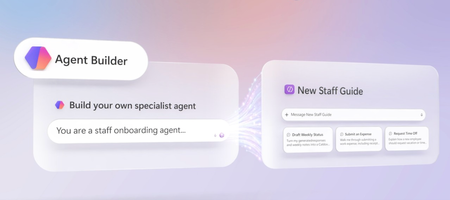
Describe what you want in one prompt, and Copilot Agent Builder generates the name, instructions, skills, and knowledge setup for you — grounded only in the SharePoint sites, files, and Copilot Connectors you choose. Teach your agent a Skill to handle recurring work, like drafting weekly status emails from your own template, then test it in Preview before you publish. Share it with people or groups and set exact permissions, track real usage in the new Monitor tab, and push your best agents into your org’s Agent Store catalog. Ned Friend, Group Product Manager for Copilot Agent Builder shares how to turn an agent into a tool your whole team can run, measure, and trust. One prompt. A fully configured agent. Agent Builder in Copilot auto-generates the name, instructions, skills, and knowledge grounding from your description. See how it works. No code. Just a prompt and a template. Agent Builder in Copilot turns that into a Skill your agent runs to generate standardized outputs, like status emails or reports, on demand. Check it out. Pin your agent to trusted sources only. Add SharePoint files, Outlook mail, Teams meetings, or connect business systems, so that it only uses information you give it, nothing else. See how it works. 👥 Who it’s for: Team leads and managers who want trusted, repeatable answers for their team, plus IT admins and Microsoft 365 power users building specialist Copilot agents without code. ⏱️ Chapters: 0:00 Build specialist agents inside Copilot 0:34 Ground agents in trusted org knowledge 1:31 Create a new hire onboarding agent 2:15 Natural-language agent creation 2:41 Ground answers in SharePoint knowledge 4:13 Skills for repeatable tasks 4:53 Precise knowledge grounding 6:37 Preview and test before publishing 7:03 Share your agent with set permissions 7:39 See the new hire’s agent view 8:22 Usage monitoring 8:41 Publish agents to your org catalog Copilot Agent Builder lets you create a specialist agent by describing what you want it to do in plain language. Agent Builder interprets that prompt and automatically generates the agent’s name, description, instructions, skills, knowledge sources, and suggested prompts, which you can review and edit directly. Ground every answer in the exact knowledge you choose: SharePoint and OneDrive files, Outlook email and calendar, Microsoft Teams chats and meetings, or external business systems connected through Copilot Connectors. Turn on web search only when you want the agent to research beyond your organization, like competitor or customer research. Add Skills to teach the agent repeatable, multi-step work — in this video, a weekly status update email built from a real template, matching its tone, sections, and formatting automatically. Preview and test the agent before publishing, then share it with people or groups and set whether they can use it or edit it. Once your agent is live, the Monitor tab tracks total sessions, daily active users, average messages per session, average duration, and which knowledge sources get used most. For agents with strong adoption, publish them to the Built by your org section of the Agent Store for wider use across your organization. Try Copilot Agent Builder for yourself — it’s included with Copilot. Subscribe to Microsoft Mechanics for more videos like this. Unfamiliar with Microsoft Mechanics? Microsoft’s Official Video Series for IT — Subscribe https://www.youtube.com/c/MicrosoftMechanicsSeries — Microsoft Tech Community: https://techcommunity.microsoft.com/t5/microsoft-mechanics-blog/bg-p/MicrosoftMechanicsBlog — Podcast: https://microsoftmechanics.libsyn.com/podcast Join us on social: — https://twitter.com/MSFTMechanics — https://www.linkedin.com/company/microsoft-mechanics/ — https://www.instagram.com/msftmechanics/ — https://www.tiktok.com/@msftmechanics Video Transcript: -You’re probably used to working with Copilot across Microsoft 365 for everyday tasks, but did you know that you can create your own specialist agents in minutes to provide informed, authoritative answers and produce consistent, standardized content for specific business scenarios? Think about the work you do every day. Maybe it’s reviewing content for compliance, creating customer or internal-focused communications, or answering work-related policy questions. While Copilot can help with these tasks using broadly available information, Agent Builder, on the other hand, which is included in Copilot, lets you build and use agents with a specific purpose, grounded in trusted organizational knowledge. Think of it as the difference between hiring a general contractor to remodel your home and bringing in a licensed electrician to design an electrical plan to rewire the house. -Both skill sets are valuable, but the specialist brings focused expertise, follows established standards, and is trusted for a specific type of work. Similarly, a specialist agent can be created to serve a specific purpose and configured to provide custom expert answers by only using the information sources you choose to ground them with. Specialist agents can generate standardized deliverables based on specific skills that follow your organizational guidelines, and creating one is as simple as describing what you want it to do and letting Agent Builder build it for you. -So let’s make this real. As a manager, instead of repeatedly walking new hires through team processes, resources, and responsibilities, I can create a new hire onboarding agent that provides trusted answers and consistent deliverables. It helps new employees get productive faster and deliver work aligned with our organization’s guidelines from day one. Here I’m in Copilot. I have a growing team with lots of new members, and agents are the best way to make team knowledge accessible. Before you build anything, it’s a good idea to check out the Agent Store for the agents you can already choose from, including ones shared with you by people on your team. And if nothing fits the bill, you can easily create your own custom agents from scratch. -So let’s start building. I’ll scroll back up and select create agent, and I’m taken to the Agent Builder experience, where I just need to describe what I want our agent to do. I’ll type, “You are a new staff onboarding agent to help answer questions about business processes, how to perform common tasks, and provide answers to product or service questions. Answer using information in these locations and files.” I want to give the agent access to the specific knowledge to inform its responses. I can either hit the plus sign or use a forward slash to reference content for this agent to use as it answers questions. So I’ll use the forward slash and use this SharePoint site where we already store official documents and files. -Now I’ll use the plus sign to add more content, such as files, meetings, chats, and more. This time I’ll choose a specific process document. Now the site and file will be the only information used for the agent’s responses. And when I hit send, this will take a moment to run, but what’s impressive is Agent Builder interprets my intent and it automatically generates an agent name, description, and detailed instructions for how the agent should behave. It also added skills, knowledge, and suggested prompts that I’ll cover in a minute. I can review everything and make edits directly here if I want to. -So right now, the agent can answer questions in chat with defined and approved expert knowledge. I want to go further. I want our agent to be able to author standardized weekly status emails. Skills are perfect for that, or any time that I want an agent to complete a repeatable task consistently following defined steps. I just need to describe the skill using natural language. Under its instructions, you can see skills. Based on our initial prompt, it’s generated a new staff onboarding skill automatically. I can also create or add my own skills to extend what the agent can do. -Here, I’ll write another prompt to create a weekly status update email skill based on generated responses and use this email as a template. And again, I’ll add a forward slash with the name of the file. This will teach the agent how to author the update using the right tone, altitude, sections, and formatting. And behind the scenes, it’s doing all the coding and configurations for me. And when it’s done, it will appear under the Skills section here. -As another option, if you’re already using skills from other places, you can also upload those files here. So my initial prompt updated the knowledge and now I’ll configure that further to make my agent even more of a specialist. Knowledge is the heart of an agent. Here you can see the sources that I specified in my prompt earlier. The quality of the agent depends on the quality of the knowledge you provide. If I wanted to, I could add additional sources, such as cloud files from SharePoint or OneDrive, the user’s Outlook email and calendar, as well as Microsoft Teams chats, channels, and recorded meetings. -I also have the option to connect to specific business systems using Copilot connectors. These could be enterprise intranet sites, SaaS apps like ticketing systems that we’re connected to, and more. This way, the agent will be able to find relevant information exactly where it’s stored. Optionally, I can select web search for when it makes sense for the agent to look up information on the internet, for example, things like competitor and customer research. In this case, I won’t do that because I only want the agent to use internal knowledge. -Additionally, I could manually add attachments from my local device if they are not already in the cloud. So I did all of that manually, but I could also ask the chat experience on the left to do more or click suggest improvements to trigger that, and the same applies to instructions. This last section contains suggested prompts that were generated automatically based on my initial prompt. These help new users learn how to use the agent and give existing users a shortcut to repeat the most common prompts for the agent. These are also editable. I want my users to build on these first three suggestions as well as use their own questions, so I’ll delete the rest. -At this point, in just a few minutes, I’ve defined and scoped my agent experience using the knowledge available to my team, and I can test it out before finalizing or sharing it. Clicking into the preview tab shows me what the agent will look like once it’s published. I’ll test it using a prompt. “What do I need to do to schedule my upcoming vacation time?” And it responds with the standard process. This preview shows how it will appear for people using the agent. If you don’t like how it responds or how it looks, like the icon, description, or the suggested prompts, you can just go back to the configure tab and make changes. -Now that our agent is tested and ready, I can create it and share it with my team. To do that, I just need to hit create. And in the background, that is going to register it as a private agent for my own personal use when I’m using Copilot Chat. Then, to share this agent with others in my organization, I can select share, and it’s just like sharing a file. I just need to add people or group names and I can control whether the people I share with can simply use the agent or also make edits to the agent. -From there, I just need to confirm and our agent is shared over email and in the Agent Store. With the agent shared, let me show you what a new hire would see. Here I’m signed in as that new hire, Katri, where I got an email with a link to the agent we just shared, so I’ll open it. I can see the suggested prompts that we added previously. In this case, I’ll ask it, “Summarize my previous week using my meetings and emails to help build a status report.” It reasons over the knowledge sources and reference email we added earlier and generates a standardized response with accomplishments, meetings attended, risks, and issues under review, as well as next steps and more. Once my agent has been in production for a while, I can see how much people are using it to know that it’s working as expected. -The new monitor tab in Agent Builder gives you visibility into how your agents are being used, including total sessions, daily active users, average messages per session, and average duration. And you can see how people are engaging over time and the knowledge sources used in conversations. For agents that get significant usage, you might want to publish it into the built by your org section of the Agent Store. That’s as easy as opening the agent menu and clicking submit to your org catalog. Here you can specify additional information like the terms of use and customize your developer name to be something more official. With that, it will go to my admin to approve and then get discovered and used by my organization for even more impact. -With Agent Builder in Copilot, it’s easy to create your own specialist agents in minutes that provide informed, authoritative answers and produce consistent, standardized content for specific business scenarios. It’s included with Copilot, so try it for yourself today, and subscribe to Microsoft Mechanics if you haven’t already. Thank you for watching.708Views0likes0CommentsMCP (Model Context Protocol)
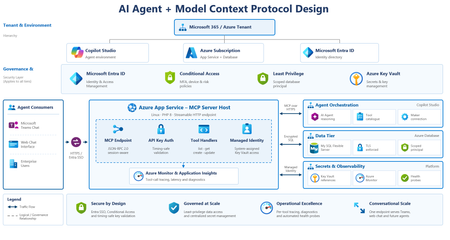
gave an AI agent write access to a production system. Not a demo. A real internal tool people depend on. It can now read, create, and update records - in plain language, from a chat window. Four things I learned building it with MCP (Model Context Protocol): 1. The tool description IS the interface. The agent doesn't read your code. It reads one sentence describing each tool, and decides from that alone whether to call it. Write "internal API test" → ignored forever. Write "creates and updates support tickets" → fires correctly. We spent 15 years designing UIs for humans. The design surface is now a sentence a model reads. 2. Agents can't click "Sign in." Any auth flow expecting a browser redirect silently breaks an agent connection. Machine access and human access need separate doors into the same house. 3. MCP errors don't mean what you think. My server returned success on every request -and the agent still failed. A "404" in MCP means session expired, not wrong URL. New protocol, new error vocabulary. 4. Least privilege stops being optional the moment an agent can write. A human with too many permissions makes occasional mistakes. An agent makes them at machine speed, confidently, while explaining why it was right. Why this matters: MCP turns "integrate AI into our systems" from a bespoke project into a standard interface. Expose capabilities, describe them clearly, and any compliant agent can use them. Same shift APIs caused 20 years ago - except the consumer isn't a program following rigid contracts. It's a model deciding at runtime what to call and why. The interfaces we built for humans aren't going away. They're just no longer the only way in. Activate to view larger image,110Views1like0Comments
Copilot Licensing questions
NOTE: I selected the CP Studio category here since it is involved in this question, but not exclusively. My question is about licensing requirements for: creating sharing using Copilot "custom" agents. I am guessing that the answers will be different depending on whether we are talking about declarative agents or agents from Copilot Studio (remembering that there also might be different answers for the pro-code developer level with the Agents Toolkit). So now I have three questions for each of three levels of agents! So let's do this. What licensing is required for each of these? Agent type Creation Sharing Using declarative agents Copilot Studio agents agents from the Studio Toolkit I also read one place where it suggested that sharing of some agents requires my organization to have the Copilot Studio tenant license to do the sharing, but it was not very clear. This is a big question! I hope someone can answer this. I have looked high and low and even asked Copilot a few times, but unfortunately, I received different answers. At least I am not asking about pricing! 😮 Thank you in advance for the answer.Solved340Views0likes3Comments
Custom Agent can’t read scanned PDF/Image received from Flows
I'm trying to build a Flow in Copilot Studio that triggers when a PDF/image is uploaded to SharePoint/OneDrive, passes it to a Custom Agent, which is able to extract text from the PDF/image to generate a standardized filename. The Custom Agent works well standalone (drag-and-dropping scanned PDF/image directly into the Copilot chat box works fine!) But passing the file to the Custom Agent via Flow fails. What I tried Approach A (Base64): Used Get file content, converted it to Base64 via base64(...), and sent a JSON payload (fileName, mimeType, documentBase64) to the Agent. Approach B (SharePoint Link): Used Create share link and passed the file's webUrl to the Agent instead of raw file content The issues Issue with Base64: The Agent receives the payload, but fails on scanned/image-based PDFs, replying: "The uploaded file content is a base64 stream for a PDF and contains no extractable text... requires manual verification." Issue with SharePoint Link: The Agent can't open/read the link, replying: "Since I cannot read SharePoint content directly from just the path, please upload the PDF file here." (even after added a SharePoint MCP tool for the Agent). Questions How can I pass a scanned PDF/Image via Flow so the Custom Agent can read & extract the text (just like it does on direct chat upload)? Thanks for any help!151Views0likes0Commentshow to create a globally Shared ServiceNow Connector Connection in Copilot Studio
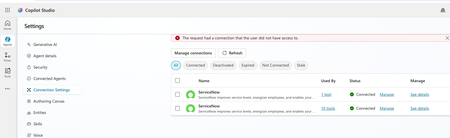
Hello, I have configured Microsoft entra ID oauth using certificate and shared this connection with everyone in my company since this is the only shared connection on the platform. https://learn.microsoft.com/en-us/connectors/service-now/#microsoft-entra-id-oauth-using-certificate. But, whey user's ( end users, agent maker, environment maker basically any user in copilot environment) are trying to use any servicenow tools ( e.g create record) which is using this shared connection in copilot studio/ teams, they are getting below error. https://learn.microsoft.com/en-us/connectors/service-now/ How to create a shared connection which can be shared across all enterprise users in my org for copilot AI agents which are using servicenow connector? Regards, Sachin123Views0likes0CommentsError Connecting Whatsapp Number (Copilot Studio to Azure ACS)
Please help. I created an AI Agent in Copilot Studio for connecting to WhatsApp. I created an Azure Communication Services (ACS) and connected my personal Facebook page to it. I created a WhatsApp Business number, I got the code, and it connected. However, when I return to Copilot studio to connect using my Azure Subscription and Resource, it says- Error connecting to WhatsApp phone number. Please try again. How do I resolve this?112Views0likes0Comments