admin
3 Topics
Sensitivity Labels Are Coming to Viva Engage Communities Here's What You Need to Know
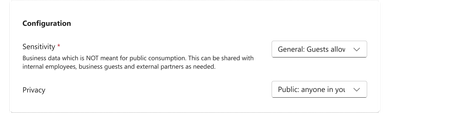
If you've seen MC1250283 in your Message Center and have questions, you're not alone. In the past few weeks we've heard from customers across industries — financial services, manufacturing, healthcare, government — all asking variations of the same questions. This post is our attempt to answer them all in one place. You can find out more via this article Sensitivity labels in Viva Engage. | Microsoft Learn What's changing Starting March 31, 2026 sensitivity labels will be available in Viva Engage community creation. When someone creates a new community, they'll see a sensitivity label picker, the same kind of label selector that already exists in Microsoft Teams and SharePoint. This is Engage joining the rest of Microsoft 365. Sensitivity labels for groups and sites have been supported in Teams, SharePoint, and M365 Groups for years. Engage communities, which are built on top of M365 Groups and SharePoint sites, are now part of that ecosystem. How it works Labels come from Purview, not Engage. There is no new admin setting in the Viva Engage admin center to turn this on or off. Your sensitivity labels are configured and published in Microsoft Purview, and those settings now apply to Engage communities the same way they apply to Teams and SharePoint. Labels are synced across all three surfaces. An Engage community's sensitivity label is shared with its linked M365 Group and SharePoint site. When a label is applied to one, it synchronizes across all three. This means your label governance is consistent — not fragmented. Existing communities are not automatically labeled. Communities created before this rollout will remain in an unlabeled state. They won't have a label auto-assigned. Admins can apply labels to existing communities in bulk using existing PowerShell scripts against the linked M365 Groups or SharePoint sites, no new tooling is needed. Applying a label via those surfaces will trigger the sync to Engage. Labeling can be mandatory or optional. Whether users must pick a label when creating a community is controlled by your Purview label policy. In the label policy publishing flow, under "Groups and sites > Settings," there's a checkbox to make site labeling mandatory. If you check it, users will be required to select a label when creating a community. If you don't, the label picker appears but community creation is still allowed without a selection. Default labels are set in Purview. If mandatory labeling is enabled and a user hasn't picked a label, the creation flow pre-populates a default. That default is determined by your label policy settings in Purview — Purview suggests the lowest-priority label with the right scope, but you can configure a different one. On Day 1, before an Engage-specific default is configured, the existing site default label (if set) will pre-populate. Community admins and owners can change labels after creation. This isn't locked to tenant admins. Community admins and owners will be able to update the label via community settings in Viva Engage or through the M365 admin center group listings. ttings. Programmatic community creation still works. If you create communities via the Graph API's /community endpoint, the label won't be set through that call — there's no Graph API support for setting labels directly on communities in this release. However, after creation, you can apply the label via PowerShell targeting the linked M365 Group or SharePoint site, which will sync to Engage. Your existing automation flows won't break; they just need a label-setting step added if you need one. The governance tension we've heard The most substantive concern we've received, and it's a legitimate one, comes from organizations that have configured their Purview label policies to enforce private-only labels for groups and sites. These organizations allowed public Engage communities precisely because Engage wasn't subject to sensitivity label governance. When Engage joins that ecosystem, their Purview policy will apply — and if their policy only permits private-supporting labels, new Engage communities will only be creatable as private communities. We want to be direct about this: Purview sensitivity label policies are tenant-wide and can't be scoped to individual workloads. There is no way to say "apply this policy to Teams and SharePoint but not Engage." Engage communities are built on M365 Groups and SharePoint sites, and they share the same label scope in order to stay in sync. If your organization has strict private-only governance and you need to continue creating public Engage communities, the practical path is: Create a public-supporting sensitivity label (e.g., "General - Internal Communications") Publish it to admins only — not your entire user base — so it doesn't accidentally appear in Teams or SharePoint creation flows for end users Apply this label to Engage communities via the admin center or PowerShell scripts Optionally, publish the label to your entire user base and use automated scripts to monitor Groups and Sites for misuse of that public label and correct them This is a workaround, not an ideal solution. We've heard the feedback clearly: Engage's use case — broad internal communication and knowledge sharing, is fundamentally different from SharePoint or Teams collaboration, and a one-size-fits-all label scope creates real tension. We're tracking this as a design consideration and have raised it with the Purview team. If you want to formally register this feedback, submit a Design Change Request (DCR) with your Microsoft Account team asking for per-workload label scoping support. What sensitivity labels do NOT change Community discoverability. All Engage communities remain discoverable to all users regardless of sensitivity label. Labels don't create "hidden" communities. A private community is visible in search — users just can't read the content without being a member. What users can see in search. Search results are governed by access control lists (ACLs), not sensitivity labels. Users will only see content they have permission to access. Your custom label taxonomy. Labels like "Confidential" or "Highly Confidential" are defined by your organization in Purview. There's no universal label structure — your configuration is yours. Frequently asked questions Can I test this in a staging tenant before it hits production? This rolls out to production tenants starting March 31. There isn't a separate staging path for this feature. We recommend using this window before rollout to review your Purview label policies, identify any communities where label assignment may create issues, and prepare admin and end user documentation. What happens if we have no sensitivity labels configured in Purview at all? If you don't use sensitivity labels for groups and sites, this change will have no impact. Community creation will support the privacy picker as it always has. Will this affect Copilot? Yes, and this is worth thinking through. Verified answers and content in private communities are scoped to members of that community. If your governance pushes more communities to private, that content becomes less accessible to Copilot for org-wide knowledge retrieval. If broad knowledge sharing is a goal, this is a factor to weigh in your label policy decisions. Will there be any visual change for end users? Users creating communities will see a sensitivity label dropdown in the creation flow. If your organization has labels published to users, they'll be able to select from those labels. If mandatory labeling is not enabled, they can leave it blank. If a community has a label, it will be visible in the community header. What to do before March 31 Review your Purview label policies. Specifically check whether you have mandatory labeling enabled for groups and sites, and what default label is configured. This will determine what your users see in community creation. Check for existing communities with label mismatches. If your linked Groups or SharePoint sites already have labels applied, confirm that those labels are ones that make sense for public community use. Prepare your community admins. Let them know the label picker is coming and what they should (or shouldn't) select. Prepare end user guidance if needed. For most organizations this will be low-friction. But if you have a complex label taxonomy or strict governance, proactive communication helps.915Views0likes0CommentsIntroducing Viva Engage Masterclass: Your Guide to the Viva Engage Essentials
Are you ready to transform the way your team collaborates and communicates with Viva Engage? Monday Masterclass: Your Guide to Viva Engage Essentials, is a comprehensive series designed to introduce new customers to the powerful features of Viva Engage. This masterclass is your gateway to unlocking the full potential of your organization's communication and collaboration tools. Why Attend the Viva Engage Masterclass? The Masterclass is specifically tailored for customers who are eager to explore the capabilities of Viva Engage or to go beyond what they are experiencing today. During these 6 sessions, you'll gain valuable insights into how Viva Engage can enhance your organization's employee engagement. Here are some key benefits of attending: Comprehensive Overview: Get an in-depth look at the core capabilities for all roles who will be using Viva Engage, including admin and governance, moderations to how to create and manage communities, start and participate in conversations, and organize virtual events. Expert Guidance: Learn from Microsoft experts who will share best practices and tips for maximizing the use of Viva Engage in your organization. Interactive Q&A: Have your questions answered in real-time by our product group experts, ensuring you leave the session with a clear understanding of how to leverage Viva Engage in your organization. Hands-On Experience: Participate in live demonstrations and interactive activities that will help you get comfortable with the platform's functionalities. What to Expect These Masterclass sessions are designed to be an engaging and informative experience. With expert guidance, interactive sessions, and hands-on experiences, you'll leave the masterclass equipped with the knowledge and resources needed to launch Viva Engage. Each session has a blog post with dedicated resources and information including the recording. You can choose to view all 6 separate sessions or just watch the sessions that interest you! Mastering Admin and Governance in Viva Engage Enhance your administrative and governance skills with our comprehensive Monday Masterclass. This session will cover the essential aspects of administration and governance, providing you with the knowledge and tools to effectively manage and oversee your organization's Viva Engage network. Learn best practices, strategies, and practical tips to ensure smooth and efficient governance. Whether you're a new admin or looking to refine your skills, this masterclass will equip you with the expertise you need to excel. Monday Masterclass: Week 1 | Viva Engage Admin and Governance Watch session: Mastering admin and governance in Viva Engage (Customer Hub) – Microsoft Adoption Community Management Overview in Viva Engage Join us for an in-depth workshop on community management within Viva Engage. This session is designed to equip you with comprehensive strategies and tools to build, manage, and sustain vibrant communities that foster collaboration, enhance employee engagement, and support diversity and inclusion. Monday Masterclass: Week 2 | Community Management Watch session: Community management overview in Viva Engage (Customer Hub) – Microsoft Adoption Corporate Communications, Campaigns, and Leadership Engagement Elevate your communication strategies with our comprehensive Monday Masterclass. This session will delve into the essentials of effective corporate communications, impactful campaigns, and leadership engagement with Microsoft. Gain insights into best practices and innovative approaches to enhance your communication efforts. Whether you're looking to refine your skills or explore new strategies and new technology, this masterclass will provide you with the tools and knowledge to succeed. Monday Masterclass: Week 3 | Corporate Communications Watch session: Corporate communications, campaigns, and leadership engagement (Customer Hub) – Microsoft Adoption Effective Training and Adoption Strategies to launch Viva Engage Kickstart your Viva Engage journey with our focused session on training and adoption strategies. Learn how to effectively implement and promote Viva Engage within your organization, ensuring a smooth transition and high user engagement. This masterclass will provide you with practical tips and proven methods to drive successful adoption. Monday Masterclass: Week 4 Training and Adoption | Microsoft Community Hub Watch session: Effective training and adoption strategies to launch Viva Engage (Customer Hub) – Microsoft Adoption Create Captivating Events with Viva Engage Discover the secrets to hosting engaging events with our Monday Masterclass. This session will guide you through the essentials of planning, executing, and enhancing events to captivate your audience. Learn best practices, innovative techniques, and practical tips to make your events stand out. Whether you're new to event planning or looking to re-ignite your community with events, this masterclass will provide you with the tools and knowledge to create impactful and engaging events. Monday Masterclass Week 5: Mastering Live Events and AMAs in Viva Engage Watch session: Create captivating events with Viva Engage (Customer Hub) – Microsoft Adoption Data and Analytics Deep Dive Unlock the power of data and analytics in Viva Engage! This session will provide you with an in-depth overview of how to leverage data to drive engagement and make informed decisions. Whether you're new to data & analytics or looking to enhance your skills, this masterclass will equip you with practical examples and working sessions to help you master the essentials. Monday Masterclass: Week 6 Analytics in Viva Engage Watch session: Data and analytics deep dive (Customer Hub) – Microsoft Adoption Recordings and resources! Watch the Masterclass: Your Guide to Viva Engage Essentials and take the first step towards a more connected and engaged workforce. With expert guidance, interactive sessions, and hands-on experience, you'll leave the masterclass equipped with the knowledge and skills needed to transform your organization's communication and collaboration landscape. Thank you for your participation at the masterclass! Stay tuned for what's next!6.7KViews7likes3CommentsManage Yammer users across their life cycle from Office 365
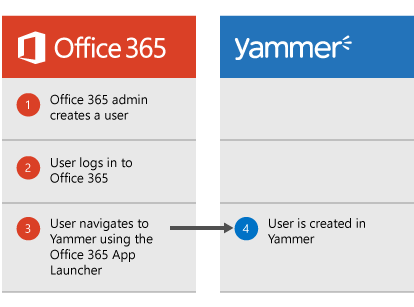
After Yammer is activated on your Office 365 tenant, you, as the Office 365 administrator, can control the life cycle for Yammer users from Office 365. When you create users in Office 365, they can log on to Yammer with their Office 365 credentials. When a user is deleted from Office 365, they are automatically deactivated or suspended in Yammer. When a user is restored in Office 365, they are reactivated in Yammer. Also, the user's profile properties (such as name and department) from Azure Active Directory will be automatically populated in the user's Yammer profile, and any changes to the profile properties in Azure Active Directory will be reflected in Yammer as well. Learn more on how to manage, add, block, and delete users here.3.1KViews4likes4Comments