accessibility
5 TopicsAccess begins rollout of Big Forms for Modern Monitors feature
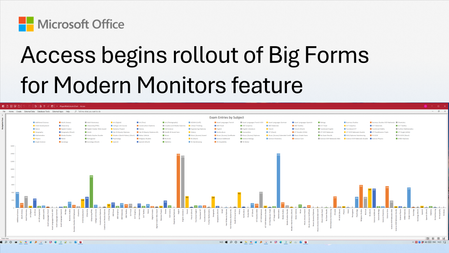
We're excited to announce that support for large-sized forms is now available in Beta for Microsoft Access. This long-requested feature removes the longstanding 22-inch form size limitation and lays the foundation for a more modern, scalable, and accessible form experience. It's one of the most highly requested enhancements from the Access community and a top-voted request on the Access feedback forum. This feature is in Beta now and expected to be in the Current Channel preview by July 21st, 2026. Why we're making this change When Access was originally designed, form dimensions were constrained by underlying technology that effectively limited forms to approximately 22 inches in width or height. As monitor resolutions increased and ultrawide displays became common, that limitation became increasingly restrictive. Developers were forced to design for the lowest common denominator screen size, even when their users had significantly more screen real estate available. The result? Complex business applications often required excessive scrolling, crowded interfaces, or compromises in design. With this Beta release, Access developers can now create forms that take full advantage of today's larger monitors and higher resolutions. What's changing The 22-inch limit is gone. The primary enhancement is simple but powerful: Forms can now exceed the previous 22-inch size limitation. Controls can be placed beyond the historical boundary. Form sections can be designed at much larger dimensions. Developers can create richer and more detailed business applications. For customers building dashboards, operational workspaces, inventory systems, CRM solutions, or other complex applications, this means more content can be displayed simultaneously without forcing users to navigate between multiple forms. Designed for modern workspaces Large monitors have transformed the way people work. Many customers now use: Dual-monitor setups Ultrawide displays High-resolution 4K monitors Vertical monitors for specialized workflows This feature allows Access applications to better leverage those environments. Developers are no longer forced to design around constraints that originated more than 20 years ago. As a result, users can: View more information at once Reduce unnecessary scrolling Create more sophisticated layouts Improve efficiency during data entry and review tasks Accessibility benefits Although the primary audience for this feature is Access developers and users working with larger displays, removing the size limitation also delivers important accessibility benefits. Larger form designs allow more flexibility in presenting information, increasing spacing between controls, displaying larger text, and reducing visual clutter. These improvements can make applications easier to use for customers with low vision and others who benefit from magnified content. We hope you enjoy this improvement and as always, look forward to your comments. (Thank you to MVP Colin Riddington for the thumbnail image.)1.3KViews6likes2CommentsZoom in or out of forms, tables, and queries when in Form View or Datasheet View
Access now lets you zoom in and out when you’re working with forms, tables, and queries in Form View or Datasheet View. Zoom in for a closer look at your data or zoom out to see more on screen at once. You can adjust the zoom level using the Zoom button on the ribbon, the zoom slider on the status bar, or keyboard shortcuts. Zoom is also available in Print Preview for reports. Zoom isn’t supported in Report View or Design View. This feature is available in Access for Microsoft 365, version 2605 and later. Choose a magnification setting from the ribbon On the Home tab, select Zoom and choose one of the following options: 50%, 75%, 125%, 150%, 175%, 200%, or 500%. To return the view to 100% zoom, click Zoom 100%. If you prefer to use the keyboard, you can press Ctrl + Alt + 0 (zero). Use the zoom slider to quickly zoom in or out On the status bar in the lower right-hand corner of Access, select the zoom slider. Slide to the percentage zoom setting that you want. Press – or + to zoom in gradual increments. Use zoom keyboard shortcuts or mousewheel To zoom in, press Ctrl + Alt + Plus (+). To zoom out, press Ctrl + Alt + Minus (-). To return to 100% magnification, press Ctrl + Alt + 0 (zero). To use the mousewheel and scroll to zoom in or out, press Ctrl + mousewheel. Change your default zoom percentage Access doesn't save zoom settings on closing and reopening a form. Instead, it opens your form using the default zoom setting. To set your zoom default percentage, choose File > Options > Current Database > Application Options and choose the Default Zoom setting. Note Content inside of ActiveX controls, such as the text in a TreeView control, doesn't resize when zoomed. Zooming in Access only affects Access-native controls. If a form uses ActiveX controls, consider replacing them with native Access controls so they scale with the rest of the form.1.2KViews4likes10Comments