access
1966 TopicsBuild bigger forms in Microsoft Access
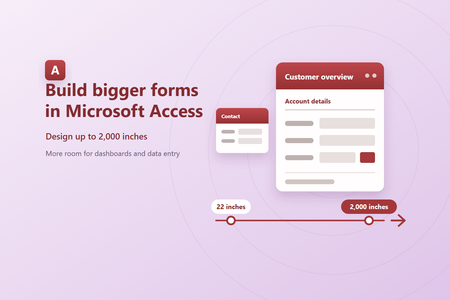
For many years, Microsoft Access forms were limited to 22 inches in width and in the height of an individual section. That size works well for many solutions, but it can become restrictive when you are building a wide dashboard, arranging many controls, designing for a large display, or creating a detailed data entry workflow. With Big Forms, a form can be up to 2,000 inches wide, and each individual vertical dimension can be up to 2,000 inches. The combined height of all sections and their Design View section headers can be up to 2,100 inches. Continue using the familiar Access design surface, property sheet, rulers, and scrollbars, with substantially more space available when your solution needs it. More room for the solutions you already build Wider layouts Extend forms up to 2,000 inches wide for dashboards with more fields, controls, and content displayed next to each other. Taller sections Use up to 2,000 inches for an individual vertical dimension and up to 2,100 inches across all sections. Familiar design tools Enter dimensions in the property sheet or resize controls directly on the design surface as you do today. How to create a bigger form Open your object in Design View. Open an existing form, or create a new one. Resize the design surface or a section. Drag an edge beyond 22 inches, or enter a Width or Height value of up to 2,000 inches in the property sheet. Position and size your controls. Move controls into the expanded area or set larger Left, Top, Width, and Height values. Save and reopen as usual. Access preserves the expanded dimensions when you save the form. No conversion required You do not need to recreate existing forms. Open the form in a supported version of Access and extend the layout only when you need additional space. Use Big Forms from VBA You can read and set expanded dimensions through the existing VBA Properties collection. Values are expressed in twips, with 1,440 twips in one inch. The 2,000 inch maximum is 2,880,000 twips. Public Sub ResizeCustomerOverview() Const TwipsPerInch As Long = 1440 DoCmd.OpenForm "CustomerOverview", acDesign With Forms("CustomerOverview") .Properties("Width").Value = 100 * TwipsPerInch .Section(acDetail).Properties("Height").Value = 50 * TwipsPerInch .Controls("Notes").Properties("Left").Value = 24 * TwipsPerInch .Controls("Notes").Properties("Width").Value = 60 * TwipsPerInch End With DoCmd.Save acForm, "CustomerOverview" End Sub No new property names are required. Use Properties("Left") , Properties("Top") , Properties("Width") , and Properties("Height") to work with the new larger limits. Why use the Properties collection? Typed VBA members such as Control.Left retain their legacy 16 bit contract for compatibility with existing code. On an expanded form, those typed members return a value limited to the 16 bit range. The Properties collection reads and writes the complete Big Forms value. Designed with compatibility in mind Backward compatibility is determined for each form. Access only uses the new saved form format when a form actually exceeds a legacy limit. Forms that remain within the previous limits continue to use the existing format, even when they are saved by a version of Access that supports Big Forms. When a form uses the expanded range, Access saves its full values in wider properties and marks that specific form as requiring Big Forms support. An earlier version of Access can still open the database and work with its other compatible objects. If someone tries to open the expanded form, Access displays a message explaining that the form requires a newer version. Compatibility without silent data loss Earlier versions do not truncate or reinterpret an expanded form. They stop before loading that form and show a clear compatibility message, while the rest of the database remains available. Sharing a database? Make sure everyone who needs to open an expanded form is using a supported Access build. This is especially important for shared front end databases and packaged Access applications. Availability Big Forms is rolling out on Current Channel, beginning with version 16.0.20430.20146. It is enabled for some customers now and is expected to reach everyone on Current Channel early next week. If you are on that build and do not yet see the expanded limits, check again in a few days. Availability Rolling out on Current Channel Version 16.0.20430.20146 or later Platform Microsoft Access for Windows To check your version, open Access and select File > Account > About Access. Try Big Forms and tell us what you think Use the expanded design surface with your forms, then share what works well and where you would like to see improvements. Share feedback about Access Feature availability and release timing can vary by update channel.248Views5likes2Comments
Erro de Limite de memoria
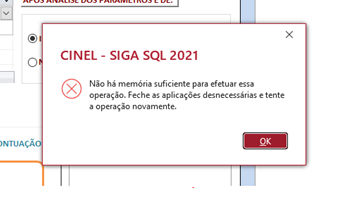
Boa tarde Sem ter sido feito qualquer alteração de programação começou a aparecer em muitos relatórios este aviso "Não há memoria suficiente. feche todas aplicações desnecessárias e tente a operação de novo" Dá ideia que este aviso não corresponde à verdade..... Podem ajudar ? Good afternoon Without any programming changes being made, this warning has started appearing in many reports: "Not enough memory. Close all unnecessary applications and try the operation again." It seems that this warning is not true... Can you help?Solved97Views0likes1Comment
Help Desk Sent Me Here...Help!
I'm getting the msg in a ribbon at the top of my excel files as follows: COULDN'T VERIFY SUBSCRIPTION Excel couldn't verify your Microsoft 365 subscription. Please make sure that you're connected to the Internet. ( I am ). we've rebooted several times, uninstalled, reinstalled etc. I can open all my excel files, but can't edit or save them. All dropdowns are "grayed" out. Microsoft Help Desk sent me here.93Views0likes2Comments
Microsoft Account Access Blocked Due to an Old Encoded Full Name
Hello, I am experiencing a serious issue with my Microsoft account. When I sign in, Microsoft still shows my old email address and old phone number as security information, even though I have already added a new phone number, a new Outlook email address, and updated recovery information. After signing in, many Microsoft pages do not work correctly. The page often becomes blank, reloads continuously, or signs me out and back in repeatedly. When I click on "Account" or "Your Info", I get a white screen and the page enters an endless loop. Because of this, I cannot access the account settings page. I believe the issue is related to an old encoded full name that I set on the account years ago. I need to change my full name and remove the encoded text, but I cannot access the profile page to do it myself. I am not requesting account recovery. I can still access the account, but I need a Microsoft support agent to manually review my profile and help correct or reset the full name information so I can access my account settings again. Thank you for your assistance.247Views0likes3CommentsFixes in Microsoft Access - Version 2609 (Build 16.0.20430.20092)
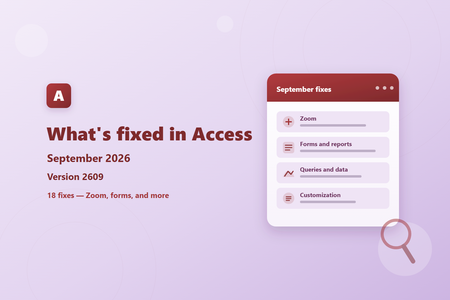
Zoom Issue Fix Label captions could be truncated after using Size To Fit Labels sized to fit their captions could clip the final character at some zoom levels. Access now allows for font-size rounding so the entire caption remains visible. VBA could return the wrong form's Zoom value Reading the Zoom property of a named form could return the zoom level of the active window instead. VBA now returns the value for the form referenced by the expression. The Edit List Items button appeared in the wrong location At zoom levels other than 100%, the Edit List Items button for a value-list control could appear offset from the control. It now remains aligned with the lower-left corner of the list. Captions could become misaligned on very wide forms* On wide forms, controls positioned far from the left edge could drift away from their captions at zoom levels such as 110%, 120%, 130%, or 140%. Captions and controls now remain aligned throughout the supported zoom range. A combo-box selection in a new sub-datasheet record could be discarded The first value selected from a combo box in a new sub-datasheet record could be cleared, requiring a second selection. The initial selection is now retained. The active editor in a sub-datasheet did not move when zoom changed Changing zoom while editing a sub-datasheet cell could leave the editor at its old position. The editor now moves with the cell and remains correctly aligned. Tiled background images did not fill forms below 100% zoom At lower zoom levels, a tiled background picture could cover only part of the form window. The picture now tiles across the entire visible area. Horizontal scrolling did not scale with zoom Line and page scrolling could move a zoomed form by the wrong distance. Horizontal scrolling now moves by a consistent relative amount at every zoom level. Controls could paint or align incorrectly after scrolling a zoomed form Controls now remain aligned and repaint in the correct location when a zoomed form is scrolled, preventing shifted controls and display artifacts at zoom levels other than 100%. Disabling Zoom could retain a non-default zoom level When built-in Zoom is disabled for a database, the default zoom is now reset to 100% so the form window and its contents remain consistently sized. A rich-text editor could disappear while zooming Changing zoom while a rich-text field had focus could make its editor disappear at some zoom levels. The editor now remains visible and correctly positioned. Forms and reports Issue Fix Text boxes left artifacts while scrolling over a tiled background Scrolling a form with a tiled background picture could leave lines or remnants where text boxes had been displayed. The background and controls now repaint cleanly. The Property Sheet icon disappeared after sorting properties Sorting the Property Sheet could cause its icon to disappear. The icon now remains visible after switching the property order. Line breaks were removed from ControlTip text ControlTip text containing line breaks could be displayed as a single line. Access now preserves the intended line breaks in the tooltip. The Option Group Wizard displayed its values grid on the wrong page* The grid for assigning numeric values could appear on the following page and cover the options for storing the selected value. The grid now appears on the correct wizard page, leaving the next step usable. * This fix is not included in the initial Version 2609 release, Build 16.0.20430.20092. It is scheduled for the September 29, 2026 update. Queries and data Issue Fix The Query Design splitter could draw outside the Access window While dragging the divider between the query panes, the tracking line could appear over other applications or on another monitor. The divider is now clipped to the Query Design window. Customization Issue Fix Access options now accept non-standard font sizes The font-size settings for the Property Sheet, Query Design, and default datasheet font are now editable, allowing values from 1 through 127 points instead of only the listed sizes. Font-size boxes could truncate three-digit values The font-size boxes in Access Options were too narrow to show the full value for sizes such as 127 points. They are now wide enough to display three-digit values fully.663Views1like0Comments
Preview report out of memory error with Access Version 2609 (Build 20430.20092)
We have multiple customers reporting issues with latest Access version 2609 Build 20430.20092 when previewing reports. (2004) There isn't enough memory to perform this operation. Close unneeded programs and try the operation again. This error seems to occur right when we preview a report and the report will not open. At the moment, we have been rolling Office back to version 2608 to resolve the issue.941Views1like10CommentsCreate cascading combo boxes and list boxes in Access - without VBA
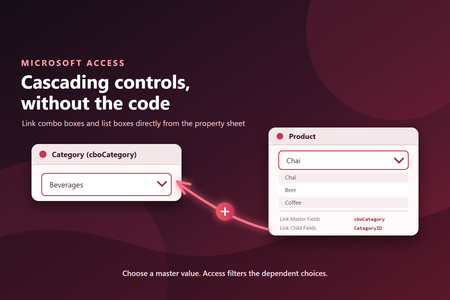
A simpler way to filter related choices The two properties define how values on the form relate to fields in the control's row source: Link Master Fields identifies the field or control on the form that supplies the value. Link Child Fields identifies the matching field in the combo box or list box row source. When the master value changes, Access automatically refreshes the dependent control and filters its row source to matching records. You no longer need an AfterUpdate event procedure simply to requery the control. Example: Filter products by category Suppose an order form contains: cboCategory, where the user selects a product category. cboProduct, where the user selects a product. The product combo box uses a row source such as: SELECT ProductID, ProductName, CategoryID FROM Products ORDER BY ProductName; Set these properties on cboProduct: Property Value Row Source The product query shown above Link Master Fields cboCategory Link Child Fields CategoryID After the user selects a category, cboProduct shows only products whose CategoryID matches cboCategory. The child field does not have to be visible in the dropdown. It only needs to be included in the row source so Access can use it for filtering. Use the same approach with list boxes The properties work the same way for list boxes. This makes it easier to build: Category and product selectors. Country, region, and city pickers. Customer and order lists. Project and task selectors. Any form where one set of choices depends on another. Linked combo boxes and list boxes also work on continuous forms. Each visible record receives choices filtered using that record's master value. Link more than one field For relationships that use multiple fields, enter comma-separated field or control names in both properties. The fields are matched by position: Link Master Fields: CompanyID, LocationID Link Child Fields: CompanyID, LocationID The two lists must contain the same number of entries, and corresponding fields must use compatible data types. Why this is useful Using built-in linking instead of event code has several advantages: Less code: No AfterUpdate handler is required for routine cascading behavior. Clearer design: The relationship is visible in the property sheet. Better reuse: Controls carry their linking configuration with them. Consistent behavior: Access manages refreshing and filtering as records change. Continuous-form support: Dependent combo boxes and list boxes can filter independently for each visible record. Existing VBA-based cascading controls continue to work. The new properties provide a declarative alternative when all you need is to filter one control from values already available on the form. Try it Open a form in Design View, select a combo box or list box, and look on the Data tab of the property sheet for Link Master Fields and Link Child Fields. Start with a simple one-field relationship, make sure the child field is included in the dependent control's row source, and let Access handle the filtering. Availability This feature is included in Microsoft Access Version 2609 (Build 20430.20092), now available in Current Channel. The build and the feature are both rolling out gradually, so you may not see them immediately. You can select Update Now to install the latest Current Channel build sooner; after updating, the feature may still take additional time to become available as its rollout expands.410Views4likes0Comments
Wiederherstellung der Sicherheitsinformationen. Was tun, wenn die 30 Tage rum sind?
Ich habe eine neue Mailadresse angegeben. Was muss ich tun, wenn die 30 Tage Wartezeit in ein paar Tagen vorbei sind? Was ist, wenn ich dann mein altes Passwort nicht mehr habe? Wie läuft das alles genau ab? Werde ich über den Ablauf der 30 Tage informiert? Warum bekomme ich nicht direkt von Microsoft Informationen, wie das abläuft? Besten Dank für kompetente und verständnisvolle Hilfe.164Views0likes1Comment