access
1955 Topics
Locked out of Microsoft 365 Business Tenant
I am the sole global admin for my Microsoft 365 Business tenant and I have been completely locked out due to an MFA issue. I cannot access the admin portal, cannot reset MFA, and cannot verify my identity through the automated system. When I call Microsoft support, the automated system incorrectly states that I am not a global admin and immediately disconnects. All UK support numbers (0800 026 0329, 0344 800 6006, etc.) hang up instantly before reaching an agent. No callbacks have been received despite multiple requests. I now have an open case with the Data Protection team: Microsoft 365 Data Protection – TrackingID#2609030040002192 This situation has caused: Business disruption Financial loss Inability to manage users or services Customer service impact Complete loss of administrative control over our tenant I urgently need escalation to the Data Protection team for identity verification and MFA reset. The normal support channels are not functioning, and I cannot reach a human through any published phone number. Any assistance or escalation from Microsoft moderators or engineers would be greatly appreciated. Thank you.89Views0likes1Comment
Explore and edit Microsoft Access databases (.accdb / .mdb) directly from VS Code.
Hi everyone, I'm looking for a way to move away from the native Access VBE and start using Visual Studio Code as my primary text editor. I mostly want to leverage its modern features like Dark Mode, multi-cursors, and better shortcuts. During my research, I came across the "Access Explorer" extension, which claims to let you "Explore and edit Microsoft Access databases (.accdb / .mdb) directly from VS Code". Before I risk running this on any live database, I wanted to ask the community: How stable is it? Does it work well for daily development? Is there any risk of database corruption when it saves and injects the edited code back into the .accdb file? How does it handle form/report class modules (Form_FormName), or is it only reliable for standard modules (.bas)? If you have used this extension or have a smooth alternative workflow to read/write code directly between VS Code and Access without manual copy-pasting, I would love to hear your thoughts!193Views0likes4Comments
Microsoft Access and Outlook
Hi there, I have just updated my laptop (with a view for a faster laptop!) However, Access was working fine and now i can't send emails from access through outlook like before. I get a message to say a program is trying to send an email message on your behalf. I'm not sure how to get rid of this warning! Please help.... Thank you in advance312Views0likes7CommentsRecommended: Excellent MS Access TreeView Control by Marcus Dieterle
Hi everyone, I just wanted to share an amazing resource I found for anyone looking to modernise their MS Access applications. The TreeView control developed by Marcus Dieterle (DIETERLE programmierung) is absolutely top-tier! If you are tired of dealing with the constant compatibility headaches, crashes, and bitness issues (32-bit vs 64-bit) of the traditional Microsoft ActiveX TreeView, this is the ultimate alternative. It looks modern, runs incredibly smooth, and is beautifully documented.Highly recommended for anyone trying to take their Access GUI to the next level. Publisher: DIETERLE programmierung Website: dieterle-programmierung.de Support: email address removed for privacy reasons91Views0likes0CommentsFixes in Microsoft Access – Version 2608 (Build 16.0.20326.20100)
Important update: A regression introduced by an earlier security update could cause labels, text boxes, combo boxes, and other controls to lose their fonts, colors, or styles after printing or previewing reports that contain embedded images or OLE objects. It could also contribute to crashes during printing or PDF export. This issue is fixed in Version 2608 Build 16.0.20326.20132, released September 1. We recommend updating to this build or later. Zoom Issue Fix VBA Zoom did not work reliably with popup forms Setting or reading a popup form's Zoom property through VBA could use the currently active document window instead of the form named in the expression. VBA now applies the Zoom property to the intended popup form. Zoom set during Form_Open was replaced by the default zoom When Form_Open code set the form's Zoom property, the default zoom-on-open logic could immediately overwrite it. Access now preserves the zoom level selected by the form's VBA code. Combo boxes could show blank rows or reject selections at some zoom levels At some zoom levels, a combo box could leave blank rows in its drop-down. At very low zoom levels, some values also could not be selected directly. Combo boxes now size and respond correctly as the zoom level changes. Zooming out a large report could leave display residue At low zoom levels, a large report could leave stale content at the bottom of the Report View window. The report now repaints the full window correctly after zooming out. Control borders became too thick below 100% zoom Borders could appear disproportionately thick when a form or report was zoomed below 100%. Border rendering now remains visually consistent at lower zoom levels. Drag selection in a zoomed datasheet could use the wrong coordinates When selecting a rectangular range by dragging in a datasheet at a zoom level other than 100%, Access could mix screen and document coordinates and hit-test the wrong cells. Drag selection now uses the correct coordinates at every zoom level. The 25% Zoom keyboard shortcut was difficult to use The keyboard shortcut for 25% zoom now uses the 2 key instead of requiring the percent-sign key combination. Existing applications needed a way to disable built-in Zoom A database-level option is now available to disable built-in Zoom when an application already provides its own zoom commands or keyboard shortcuts. The screen-reader Zoom announcement was not localized The announcement of the current zoom percentage used a hardcoded English phrase. It now uses localized text and word order for the selected Office language. Forms and reports Issue Fix The date picker appeared for locked or read-only controls The date-picker icon could appear for a locked or read-only text box even though its value could not be edited. The icon is now hidden when the control cannot accept a date selection. Tab and Shift+Tab could change control stacking order in Design View Using Tab or Shift+Tab to move between controls in Form Design View could unexpectedly change their front-to-back order. Keyboard navigation now leaves the control stacking order unchanged. Horizontal report lines disappeared in some Version 2608 preview builds Some customers who received early preview builds of Version 2608 found that horizontal Line controls with a height of zero appeared in Report View but disappeared in Print Preview, printed output, and exports. This was corrected before the general Current Channel release, and these separator lines render correctly in all report views and output formats. Queries and data Issue Fix The modern SQL editor could show an incorrect insufficient-memory error Executing a query in the modern SQL editor could display "Insufficient memory to perform this operation," typically on the first execution in an Access session. Queries now run without this spurious memory error. The query No Format setting could disagree with Object Properties For some query types, including crosstab and delete queries, the No Format value shown in the property sheet could differ from the value stored in Object Properties. Both locations now display and save the same setting. Calculated SharePoint columns displayed #Error in linked tables Calculated columns from a linked SharePoint list could display #Error instead of their calculated values. Access now displays the values correctly. Customization Issue Fix Property Sheet font size can now be adjusted Access Options now includes a setting for changing the font size used in the Property Sheet, making its text easier to read on high-resolution displays and for users who prefer larger text.552Views2likes0CommentsControlTipText no longer supports multiline text / wrapping in Access 2608
I’ve noticed what appears to be a recent regression in Access concerning the ControlTipText property. Previously, embedded line breaks such as: .ControlTipText = "Line 1" & vbCrLf & "Line 2" & vbCrLf & "Line 3" displayed as a multiline tooltip. In current builds, the vbCrLf is still present in the property value but is ignored when the tooltip is displayed, so the text appears on a single line. I also tested automatic wrapping with: .ControlTipText = String(70, "A") & " " & _ String(70, "B") & " " & _ String(70, "C") and the tooltip does not wrap at all; it simply continues horizontally off the right-hand side of the screen. I confirmed that the line-break characters are still stored by using Replace(ControlTipText, vbCrLf, "<CRLF>"), which finds and replaces them correctly. I also tried vbLf and Chr(13) & Chr(10) with the same result. The issue is present in: Microsoft Access for Microsoft 365 Version 2608 Build 16.0.20326.20132 64-bit It was also present before updating to this build. This looks as though the tooltip itself is no longer being configured for multiline/wrapped display, rather than Access altering the contents of the ControlTipText property. Has anyone else seen this, or can Microsoft confirm whether it is a known issue?Solved247Views0likes4CommentsZoom further in more Microsoft Access views
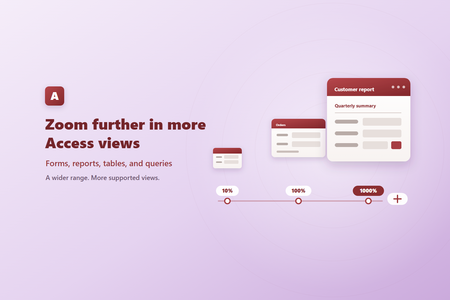
Zoom from 10% to 1000% Supported Access views can now be zoomed anywhere from 10% to 1000%, expanding the previous range of 50% to 500%. New 10%, 25%, and 1000% choices are available in the Zoom menu, and the status bar slider supports the full range. The expanded range is also available when configuring the default zoom level for a database. Zoom more types of forms Zoom is now supported in both continuous forms and popup forms. In a continuous form, zoom scales the repeating records and their controls together, making it easier to read individual records or see more records at once. Embedded continuous forms also scale with their parent form, keeping nested content visually consistent. Popup forms can be zoomed without changing their underlying design. Because popup forms do not use the standard status bar zoom control, you can zoom them with Ctrl+mouse wheel or the zoom keyboard shortcuts. Zoom reports in Report View Zoom is now available for reports in Report View, bringing reports in line with forms, tables, and queries. You can enlarge a report to inspect individual values or zoom out for a broader view of its layout and data. Reports displayed inside forms also scale with their parent, providing a more consistent experience for databases with nested forms and reports. Choose how you zoom Depending on the type of object you’re viewing, you can: Select a percentage from the Zoom menu on the ribbon. Drag the zoom slider on the status bar. Hold Ctrl and scroll the mouse wheel. Press Ctrl+Alt+Plus or Ctrl+Alt+Minus to zoom in or out. Press Ctrl+Alt+0 to return to 100%. With a wider range and support for reports, popup forms, continuous forms, and nested content, it’s now easier to tailor your Access workspace to the task at hand—whether that means focusing on the details or taking in the bigger picture.430Views4likes1Comment
Blocked out of my email
Cannot sign in to email after travelling. I have sent off over 10 account recovery forms with no replies back. My old mobile number is linked to the account so I cannot get a text verification, I also rang the old number and they are not willing to help. And it is so hard to speak to a real person from Microsoft to fix this, I managed to get an agent once and they tell me to fill out another form which clearly is getting me nowhere.253Views0likes3Comments