workaround
5 Topics
Teams status ignores duration and resets status
I set myself to "Appear offline" with duration through "This week". But every time I step away from my computer and come back, my status resets to Available. Scheduled meetings on my calendar also reset my status (from 'Offline' to 'Busy'.) I deleted the Team app entirely and only use it on web now: That's slightly better, but I still show as "Available" first thing every morning. Is there a workaround for this? Is Microsoft aware of bug? I've seen this behavior reported before (last year) but it's only started happening for me as of the most recent update. I didn't see anything about it in the release notes and the documentation doesn't account for this behavior, so I have to assume it's not an intentional change.56Views0likes0Comments
Workaround Enabling Purview Data Quality & Profiling for Cross-Tenant Microsoft Fabric Assets
The Challenge: Cross-Tenant Data Quality Blockers Like many of you, I have been managing a complex architecture where Microsoft Purview sits in Tenant A and Microsoft Fabric resides in Tenant B. While we can achieve basic metadata scanning (with some configuration), I hit a hard wall when trying to enable Data Quality (DQ) scanning. Purview's native Data Quality scan for Fabric currently faces limitations in cross-tenant scenarios, preventing us from running Profiling or applying DQ Rules directly on the remote Delta tables. The Experiment: "Governance Staging" Architecture rather than waiting for a native API fix, I conducted an experiment to bridge this gap using a "Data Staging" approach. The goal was to bring the data's "physicality" into the same tenant as Purview to unlock the full DQ engine. The Solution Steps: Data Movement (Tenant B to Tenant A): Inside the Fabric Workspace (Tenant B), I created a Fabric Data Pipeline. I used this to export the critical Delta Tables as Parquet files to an ADLS Gen2 account located in Tenant A (the same tenant as Purview). Note: You can schedule this to run daily to keep the "Governance Copy" fresh. Native Scanning (Tenant A): I registered this ADLS Gen2 account as a source in Purview. Because both Purview and the ADLS account are in the same tenant, the scan was seamless, instantaneous, and required no complex authentication hurdles. Activating Data Quality: Once the Parquet files were scanned, I attached these assets to a Data Product in the Purview Data Governance portal. The Results: The results were immediate and successful. Because the data now resides on a fully supported, same-tenant ADLS Gen2 surface: ✅ Data Profiling: I could instantly see column statistics, null distributions, and value patterns. ✅ DQ Rules: I was able to apply custom logic and business rules to the data. ✅ Scans: The DQ scan ran successfully, generating a Data Quality Score for our Fabric data. Conclusion: While we await native cross-tenant "Live View" support for DQ in Fabric, this workaround works today. It allows you to leverage the full power of Microsoft Purview's Data Quality engine immediately. If you are blocked by tenant boundaries, I highly recommend setting up a lightweight "Governance Staging" container in your primary tenant. Has anyone else experimented with similar staging patterns for Governance? Let's discuss below.Solved239Views2likes3Comments
How to - Bypass Stop Inherit Permissions for Sites with over 100.000 Items
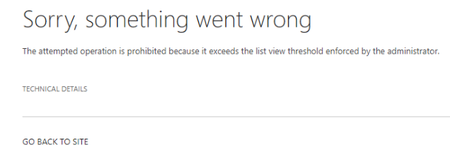
Hello everyone, I would like to start by letting you know that this is my first guide that I am writing, so bear with me. I migrated a file server that we had running on-premises to SharePoint. After some time, I decided to restructure the permissions a bit and encountered a problem: I couldn't stop permission inheritance for a folder. The issue is related to the "view threshold limitation," which is set at 100,000 items in a Document Library. Microsoft Article: https://learn.microsoft.com/en-us/office365/servicedescriptions/sharepoint-online-service-description/sharepoint-online-limits I tried several PowerShell scripts, but unfortunately, I couldn't manage to break the inheritance. I came across a workaround from Fromelard , but, at least in my case, it was time-consuming. I noticed that the limitation applied to each document library, not the entire site, and that gave me an idea. My solution: Create a new Document Library inside the same SharePoint site where you want to stop permission inheritance. You can name it whatever you like, let's say "Temporary." Warning: It's essential to create the new library within the same SharePoint site otherwise, this process will take a long time. Examine your Document Library to identify folders with a large number of items. Choose a few of them and move them to the newly created Document Library. Afterward, go back to the Library settings and check how many items are in the Library. If it still has over 100,000 items, repeat the second step until you have fewer than 100,000 items in your Library. Now that you have fewer than 100,000 items in that library, you can stop permission inheritance. Finally, go to the library you created in the beginning and move the folders back to their original place. After that you can delete the temporarly created library. Tip: Sometimes, you might encounter a visual bug where the folder appears to still be in the process of moving to the other library. You can test this by checking under Library settings if the item count has change after 1 Minute. If not then you can refresh the page and continue.5.2KViews0likes1CommentHint: Use Microsoft ToDo for private and business tasks with "business" Outlook
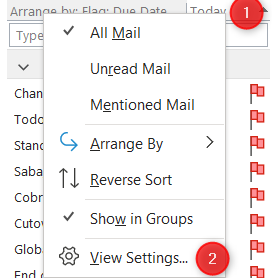
Hi, i came across the issue that a list that i shared with others to organize a wedding shows up in my business Outlook. As there are many tasks to do for a wedding it blows up my tasks bar. There is an uservoice about this LINK - but not so much voters. I found this workaround and want to share it: Go to Outlook - perform a right click on the bar above the Todos and select "View settings": h Then go to the tab Advanced and add the filter for "in folder" Select "does not contain" and enter the name (or a part) of your list - let the all start with "PTasks" then you only need one filter. (Don't know what happens if you rename afterwards though) and - bam - the tasks from your list is gone. best regards Stephan5.2KViews0likes0Comments[FIXED] [WorkAround] for YouTube BUG effecting Edge insider Canary users - Version 80.0.315.0
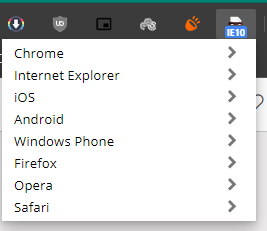
It's a nasty bug coming from Chromium source and shall be fixed soon, But meanwhile, here is the workaround Simply change your browser user-agent to Internet-explorer (confirmed to be working) or any other compatible ones that suits you to do so, install an extension like this: https://chrome.google.com/webstore/detail/user-agent-switcher-for-c/djflhoibgkdhkhhcedjiklpkjnoahfmg5.8KViews5likes13Comments