word
665 Topics
Word - Same Line Page Breaks Visibly Change Formatting
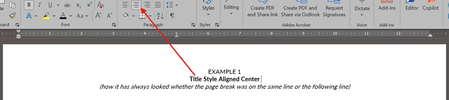
Within the last week or so, Word suddenly has started changing the formatting of visible text when a page break is used on the same line. How can this be corrected? (To be clear, yes, a page break could moved to the next line or deleted if there is not room for the extra line, but this impacts dozens of templates I have been using for years and I just want to set the formatting back to how it has worked in the past, where a page break inserted at the end of a line with centered text did not change the formatting of the visible text in said line.) Example 1 below is how it always used to appear whether the page break was on the same line as the centered title text or not. Example 2 below is how it looks now when the page break is on the same line.158Views1like5Comments
Search and replace can't seem to delete \o or \t in URLs
I am trying to delete specific text that has been added to all of the URLs in a Word document. The added text follows a specific format: "random characters" \t "_blank" \o protect" Using search and replace (with wildcards) and show field codes (so I can see the URLs) hasn't been successful. This approach -- searching for "random*protect" and replacing it with [blank] -- does nothing. Trying to delete just the \t and \o entries by surrounding them with parentheses deletes all the t's and o's in the document. Any help getting rid of these additions would be greatly appreciated. pjsSolved38Views0likes2CommentsSearch a specific string in URLs across multiple Word documents
I would like to search for a specific string ("urldefense") in URLs across multiple Word documents that are all in the same folder. (I use Word on a Windows 11 desktop.) If it's possible to do this, I'd be grateful for directions. pjs121Views0likes7Comments
Word for Mac: markup turned on by default
I've recently had problems when saving Word docs as PDFs on my Mac (using the Word process, not the built-in Mac process): the PDFs have included the comments markup in a column on the right. After a big of digging around it seems that Word now turns on the mark-up by default in some recent Mac builds. Even after I amended the Normal.dotm template so that markup was turned off, new documents still have the markup enabled. Has anybody else come across this? It means that whenever we export to PDF, 3 extra mouseclicks are required if we want to ensure that the comments pane isn't included. And even after we've done this, if we re-open the same document, mark-up has been turned back on. There doesn't seem to be any way of changing this behaviour.24Views0likes1Comment
PAGE BREAK 365 WORD DOC doesn't work
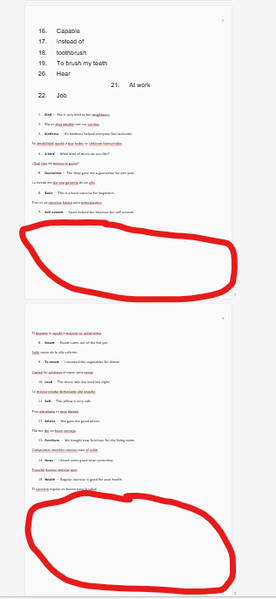
Hello The page break on 365 word docs don't work properly. The create an enormous space between one page and the following, making it very difficult to work with for presentation, taking into account that the company only allows these type of docs to work with. In the attach image you can see how large these breaks are with the circles in red. I've tried all options in paragraph options but it doesn't word. I've tried help with the assistance of an AI but it has given up saying there might be some limitations to these type of pages. Anyone know what I can do to avoid these large page breaks in 364 Word docs? Thank you very much in advance Alberto27Views0likes3CommentsWord document is displayed different on different systems
Hi, I've a word document that, when I open it on my local Mac with Office365, has 17 pages. When I export it to a pdf (electronic version) it suddenly become 16 pages as the document is more compressed, which is a strange behaviour. So I tested it on two other platforms, one Windows PC and another Macbook Air, and there the document has also 16 pages and looks like the exported pdf. The same applies for a colleague who also has 16 pages when open it. So the problem seems to be related with my local configuration. In addition to this strange behaviour, my word version don't open the printing dialog and also exporting a pdf as printable version leads to an error. Excel, for example, opens the printer dialog. Anything I can do to fix this issue? It's really annoying and a NO GO that the same document looks different. I'm using a Macbook Pro M1 with Tahoe 26.2 and Word Version 16.105.3 (26020123)89Views0likes1Comment
Word- insert picture from device not working
I have inserted pictures without problem for years. Now ‘insert picture from this device’ produces nothing. There are no error messages. I can copy and paste the same picture into the document no problem. Also it will insert pictures from the internet. I have followed many suggestions without result. I have repaired the prog and also reinstalled it.90Views0likes1Comment