IT Pro
191 Topics
New Teams - Backgrounds Folder
Recently, Microsoft released the new version of Teams for businesses, allowing the option to move end users to the new version or keep them on classic mode. However, one thing we've noticed is that the "Backgrounds" folder is no longer present in %appdata%\Microsoft\Teams. Does anyone know where this folder went?Solved286KViews4likes24CommentsMigrating or Moving a Channel from one Team to another Team
Hello! We're actively looking for a solution to migrate a Teams Channel from one Team to another. The scenario: we have a single Org-Wide Team used for various communications/resources going to ALL employees (about 4,700 users). We have a growing collection of important resources/tools we'd like to build within their own Channels --- but development of these Channels will take time and testing, which of course we DON'T want to do "live and in production" within the Org-Wide Team. The "rock and a hard place" conundrum: A Channel's TYPE can't be changed - so we can't create a Private channel within the Org-Wide Team, do the development, and then convert it to a Standard channel that all employees can access. A Channel can't be MIGRATED from one Team to another - so we can't develop the content within a different Team, and then migrate the Channel to the Org-Wide Team. There appear to be a few third-party tools that say they can "migrate a Channel from one Team to another Team" - but there are multiple limitations about some content types. Does anyone know of a way to **successfully** migrate a Channel from one Team to another Team?63KViews1like5CommentsTeams not finding Rooms (resource mailboxes) when scheduling within Teams.
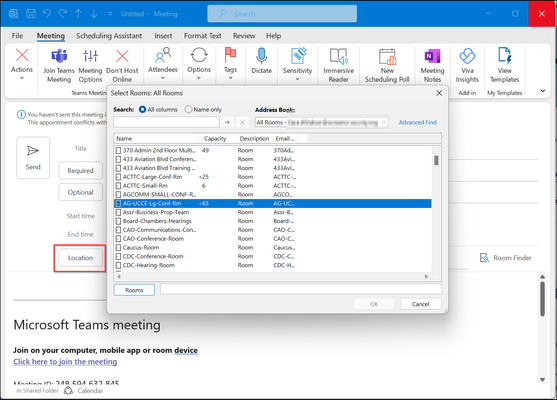
My org has hundreds of Room resource mailboxes; they're not "Teams Rooms" - simply Room Resources that have been around for some time, some of which are used for hybrid meetings. If I schedule the Teams meeting from within the Outlook desktop app, the LOCATION option finds all of the Room Resources and I can choose the appropriate location: However, if I try to schedule the Teams meeting from within the Teams app (either on my own calendar or a channel calendar), the Room Resources don't appear as location options: Is there a configuration/setting within EXO [or elsewhere?] to make Room Resources (that **are not** configured as "Teams Rooms") to be LOCATION options, when scheduling Teams meetings from a calendar within Teams?42KViews0likes2CommentsMicrosoft Teams Rooms Technical Solutions Professional Exam and Training
For those working on Microsoft Teams Rooms, Microsoft has recently released a specific exam for Microsoft Teams Rooms Technical Solutions Professionals, aimed at technical roles in Partners working with Microsoft Teams Rooms. This follows the Microsoft Teams Rooms Solution Sales Professional Exam The exam (or “Mission” as they are called) is on Microsoft Expertzone . It’s free to take and you can sign in with your Microsoft 365 account and the training is available on the Microsoft Partner Readiness hub Links to exam and resources here on my blog if you are interested: https://tomtalks.blog/microsoft-teams-rooms-technical-solutions-professional-exam-training/ Have you taken it yet? Got any thoughts? Tom36KViews4likes4Comments
New Teams - Cannot tick "auto-start teams"
Hello I have a windows 10 22h2 with the new teams version 24033.811.2738.2546. Teams is not lauching at startup and when i check in the settings, i cannot tick the box "Auto Start Teams" when i click on it, nothing happens. i also tried to set teams to "enabled" in the task manager startup menu, but it changed back to "disable" after 10-15secs. Any idea on why ? I tried to check for logs but i'm kinda lost on to where to look I already uninstall & reinstall the new teams I checked the regedit key Ordinateur\HKEY_CURRENT_USER\Software\Classes\Local Settings\Software\Microsoft\Windows\CurrentVersion\AppModel\SystemAppData\MSTeams_8wekyb3d8bbwe\TeamsTfwStartupTask and it seems good (compare to other pc) thanks for your help 😉26KViews0likes6Comments
Disabling Microsoft Teams Room Noise Suppression permanently
Microsoft Teams App Version https://4.12.139.0/ Logitech Tap/Intel NUC Long story short... we had an issue where the audio for a conference room was cutting in and out, and we determined that it was the noise cancellation that is built into teams conflicting with the noise cancellation built into the Bose DSP. You do have the ability to turn noise cancellation from OFF, AUTO, LOW, HIGH during a MS Teams call.. however when you drop the call, it will revert back to AUTO. I have been trying to set this to be OFF by default in a particular room by modifying the SkypeSettings.xml file which is used to configure the settings every time the Microsoft Teams Room reboots. I followed the instructions on the Microsoft page but the setting still is not sticking for me. If I change the value in the SkypeSettings.XML file for noise suppression from: <NoiseSuppressionDefault>1</NoiseSuppressionDefault> to <NoiseSuppressionDefault>0</NoiseSuppressionDefault> Controls noise suppression levels in Teams. 0 Off. Use OEM-provided noise suppression only. 1 Auto (default). Teams decides on the best level of noise suppression based on local noise. 2 Low. Suppresses low levels of persistent background noise, such as a computer fan or air conditioner. 3 High. Suppresses all background sound that isn't speech. and save the file nothing happens. I verified in the file permissions that the local accounts are able to read/write/etc for the file and still not luck. I also noticed that when following the path for where the file should be located, I am running into some issues. The file should be located under: C:\Users\Skype\AppData\Local\Packages\Microsoft.SkypeRoomSystem_8wekyb3d8bbwe\LocalState but when I go to C:\Users\Skype I see the following: If I manually type in C:\Users\Skype\AppData\Local\Packages\Microsoft.SkypeRoomSystem_8wekyb3d8bbwe\LocalState I can get to the proper folder but I do not see the SkypeSettings.xml file. Has something in this process changed or am I making a simple mistake?25KViews0likes4CommentsHow to create an RSS Status Pages Command Center in Microsoft Teams
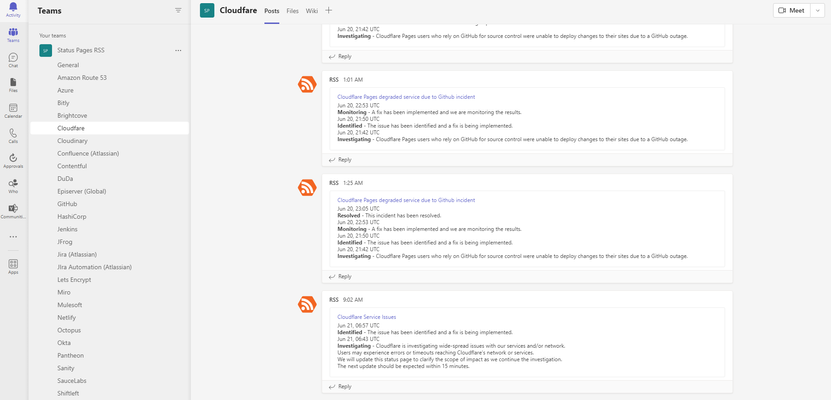
Most of us have different ways to stay updated and on top of things when it comes to status feeds from various service providers (Okta, Atlassian, Amazon, Miro, etc...). Some of us use email notifications and other text messages. I am about to illustrate the ability to centralize, govern and deliver quickly an operation center linked to all those incident management feeds within your organization. So if you like the idea, stay tuned, grab a good cup of coffee, and follow the guide below. 1 - Create a Microsoft Teams and name it "Status Pages RSS". 2 - Create as many product channels as long as they have RSS feeds. 3 - Pick one of the channels you just created (it could be Bitly or Amazon, for instance). 4 - Right-click on the selected channel and click on "Connectors". 5 - We will use the "RSS" connector, so click on "Configure" to land on the following screen. 6 - You will need to name your connector, add the RSS feed and choose a refresh frequency. I will use some dummy examples for you to see and usually go for the lowest frequency. Name: Bitly Address of the RSS feed: https://status.bitly.com/history.rss Frequency: every 15 minutes. 7 - Once saved, your connector will probably pull some of the latest recent updates published by this company. You will realize that it requires an action we will document below. 8 - As you just most probably experienced a couple of notifications, we will make sure that in the future, this does not happen anymore for this new hub internally to get adopted. We will turn off the notifications on all channels to reduce the noise and avoid spamming half of your team. The last thing you want here is people leaving this new team on the first day because it keeps ringing. 9 - You are all set and should have constructed something like this. Please keep in mind that this article is only a proposal, and you might have found other ways to do this that I am very curious to discover. So please, feel free to comment and join the discussion below. Thanks17KViews0likes3CommentsAdministrative template files (ADMX/ADML) for the new version of Microsoft Teams
Hi, I’m trying to see if administrative template files exist for the new version of Teams yet. Does anyone know if they exist? I want to disable the new version of Teams from auto-startup globally. I have the policy applied on the old version of Teams, but have not been able to locate the policy for the new version. I was able to find the registry entry and disable auto-startup from there, but would like to have the ADMX/ADML for the group policy's.15KViews0likes5Comments