Exchange Server
2591 Topics
Linking cloud only shared mailbox with onpremise object
Hi all, We currently have a cloud only shared mailbox in exchange online that we need to exist in onprem exchange for a smtp relay that is setup in a hybrid config. Is it possible to create onprem and match these objects onprem/cloud - or will the mailbox need to be recreated onprem and then it will sync to cloud6Views0likes0CommentsTop 3 Myths about Exchange Server Subscription Edition
Over the last few months, several myths about Exchange Server Subscription Edition (SE) have been circulating online. From what I have seen, the top 3 myths are: Exchange Server SE RTM includes new features. Exchange Server SE will be updated like the Cloud. Exchange Server 2016 customers must move to Exchange Server 2019 to upgrade to Exchange Server SE. None of these things are true, but unfortunately, they keep being repeated. Let's dive into each of them. Myth #1: Exchange Server SE RTM includes new features The first myth is that Exchange Server SE includes new features. This is not true, and Microsoft's https://learn.microsoft.com/exchange/new-features/new-features makes this clear. In fact, it was always our plan to intentionally not include any features in the RTM release of Exchange Server SE. In my https://www.amazon.com/dp/B0FR5GGL75/ and my talks about it at the https://www.exchange-summit.de/ and https://www.ntk.si/en/schedule/237 last year, I provided insight into the RTM release of Exchange Server SE, so I won't go into that here. But I will explain why Exchange Server SE RTM doesn't include new features (or any other substantive code changes). When we decided to move the release of Exchange Server SE RTM to the second half of 2025, we knew we were significantly reducing the overlap between supported versions to about 106 days. We also knew that even with in-place upgrade capabilities, customers still needed time to validate the release. To help make that validation as quick and easy as possible, our plan was to make the RTM release code equivalent to the last released update for Exchange Server 2019, with only necessary branding and licensing changes. Last released update meant the last Cumulative Update (CU) for Exchange Server 2019 plus any Security Updates (SUs) or Hotfix Updates (HUs) released after the last CU but before the SE RTM release. Internally, we described the SE RTM release as a "soft CU for Exchange Server 2019" to help business, engineering, support, and community stakeholders better understand what we were doing. Eventually, senior leadership approved our plan, which the engineering team then executed flawlessly. As a side note, because Exchange Server and https://aka.ms/sfbb are developed and released by the same engineering team, Skype for Business Server SE took the same approach with their RTM plans and release. In the end, we committed to the SE RTM release being the same exact code as Exchange Server 2019 CU15, plus the two post-CU15 updates released before SE RTM (namely, the April 2025 and May 2025 HUs). This meant that customers running Exchange Server 2019 with the May 2025 HU experienced only: A name change from Exchange Server 2019 to Exchange Server Subscription Edition; A new License Agreement file (License.RTF), which is shown only during the GUI version of Setup; and A new build number that was incremented using the Exchange Server 2019 numbering scheme. Aside from that, when compared to Exchange Server 2019 CU15 plus the May 2025 HU, there are no changes in Exchange Server SE. Despite making this clear in numerous blog posts and documentation, some authors have posted articles that list "new" features in Exchange Server SE, citing support for Windows Server 2025, TLS 1.3, and OAuth 2.0 (aka Modern Auth), and new certificate management capabilities. These "new" features were all available in Exchange Server 2019, and other cited features were available in Exchange Server 2016 and earlier versions. That said, there are only two other changes that apply to Exchange Server SE: Lifecycle Policy and Support Policy. Both are outside the product and they are related. Lifecycle Policy changes Previous versions of Exchange Server were covered under Microsoft's https://learn.microsoft.com/lifecycle/policies/fixed, which has phases such as Mainstream Support and Extended Support as well as published (and fixed) dates for end of support (the Beyond End of Support phase aka End of Life). Exchange Server SE is covered under Microsoft's https://learn.microsoft.com/lifecycle/policies/modern, which does not have any support phases or published end of support dates. Exchange Server SE will have at least a 10½-year lifecycle because Microsoft has https://learn.microsoft.com/lifecycle/additional-support-server-modern-lifecycle-policy to supporting Exchange Server SE (as well as SharePoint Server SE and Skype for Business Server SE) until at least December 31, 2035, a few months shy of the 40th anniversary of Exchange Server! Under the Modern Lifecycle Policy, Microsoft also commits to provide a minimum of 12 months' notice before ending support for Exchange Server SE (and it would not surprise me to see the Office Servers eventually added to list of products on the https://learn.microsoft.com/lifecycle/policies/3-year-subset). Support Policy changes Historically, Microsoft's support stance has been based on where a product is in its lifecycle. For example, when Exchange Server 2013 was in Mainstream Support, Microsoft supported N-1, where N is the latest CU and -1 is the immediately previous CU. When Exchange Server 2013 moved into Extended Support, only the latest CU was supported. Exchange Hybrid environments have always been an exception to this, as Microsoft supports only the current CU in Hybrid environments. The change from the Fixed Lifecycle Policy to the Modern Lifecycle Policy means that Microsoft's support stance is more fluid. The Modern Lifecycle Policy says: "Customers must stay current as per the servicing and system requirements published for the product or service." This means that Microsoft can change the support requirements for Exchange Server SE as needed, but you should not expect them to pull the rug out from under you. Rather, you should expect their changes to be to your benefit, as previously demonstrated by their support for both CU15 and CU14 while Exchange Server 2019 was in Extended Support. So, if Microsoft releases a CU that contains a large payload or other significant changes, they may opt to take an N-1 support stance to give customers plenty of time to test and deploy it. Conversely, it's also possible that Microsoft could require customers to deploy an update immediately to fix a critical security issue or a significant bug (for example, a bug known to cause data loss). Regardless of the changes to Microsoft's support stance, my general advice is to evaluate and deploy all updates (especially SUs) as quickly as possible. Don't skip testing or validation, but do make installing updates, keeping Windows and Exchange current, and monitoring your Exchange servers a top priority. Myth #2: Exchange Server will be updated like the Cloud The second myth has to do with how Exchange Server will be serviced by the engineering team (and updated by customers). The move to the Modern Lifecycle Policy includes some language that may be helping to perpetuate this myth: "The Modern Lifecycle Policy covers products and services that are serviced and supported continuously." Servicing generally means updating the code and providing release packages for customers to install. Serviced and supported continuously refers to the evergreen type of model now used by Exchange Server (and other Microsoft products) which simply means instead of major releases and version upgrades, Microsoft will simply service the product via periodic updates. In the past, Microsoft released a new major version of Exchange Server roughly every 2-4 years. With the release of Exchange Server SE, there are no more major version releases. Instead, Exchange Server will be maintained in an evergreen fashion. Code updates for Exchange Server include the following package types: CU - a full-product package containing a specific build (e.g., RTM, CU1, CU2, etc.). SU - a recommended security-related hotfix package HU - an optional non-security hotfix package IU - a customer-specific fix packaged as an Interim Update CUs, SUs, and HUs, are cumulative, so you need only install the latest package. HUs are optional updates, but I recommend always reviewing HU release articles to see if they might introduce features or fixes that might benefit your organization. When Microsoft releases one of these packages, they will announce it on the https://aka.ms/EHLO and provide download links, and update the https://learn.microsoft.com/exchange/new-features/build-numbers-and-release-dates of build numbers and release dates for Exchange Server. I think the use of the word continuously in Modern Lifecycle Policy is causing confusion. The reality is that Exchange Server SE uses the same servicing model that Exchange Server 2019, Exchange Server 2016, and Exchange Server 2013 have used since April 2022, and no changes to this model have been made (or are expected). Microsoft has already announced the general plan for the first two CUs for Exchange Server SE that will both release in 2026 (in H1 and H2, respectively). Security work always takes precedence over non-security work, and there have been many times when Microsoft has released only one Exchange Server CU per year (including in 2024, 2023, and 2022). So, no, Exchange Server SE won't be updated by Microsoft like the cloud (nor will it get most cloud features). Myth #3: Exchange Server 2016 customers must move to Exchange Server 2019 to upgrade to Exchange Server SE The third myth is about upgrading to Exchange Server SE from Exchange Server 2016. This myth is concerning but understandable. Concerning, because it might cause (and might have caused) some customers to waste time and money. Understandable, because in the past it was guidance from Microsoft; but that guidance is now out-of-date and no longer applies. Some background and detail will help explain why. Exchange Server 2019 reached general availability on October 22, 2018. Despite the many improvements and benefits, Exchange Server 2019 was not well-adopted, likely because at the time Microsoft was leaning heavily into a cloud-first world. In fact, you could make an argument that when Exchange Server 2019 was released, Microsoft did everything it could to make sure no one used it. If you look at the https://web.archive.org/web/20181120140237/https:/products.office.com/en-us/exchange/email?rtc=1, it didn't even mention Exchange Server 2019. This led a lot of customers to think that our goal was to kill Exchange Server, or at the very least, ignore it to death. In the aftermath of the Hafnium attacks against Exchange servers, we learned that there were hundreds of thousands of servers around the world running unsupported builds, or supported but old and vulnerable builds, and that a very small percentage (~5%) were running Exchange Server 2019. Of the supported versions, patching levels were all over the place, with literally every build we had released still in use somewhere, including RTM builds of each major version. After Hafnium, we spent more than a year figuring out what to do with the next version of Exchange Server, and it was during that time that an entirely new plan for Exchange Server SE was developed (along with a new codename: Quantum Lobster). During planning, we intentionally went radio silent on the next version of Exchange Server (aka Quantum Lobster), making https://youtu.be/Q5iwvrrqQpA in September 2020, the last that anyone outside of Microsoft heard about the next version of Exchange Server for almost 2 years. During those 2 years, we continued telling customers that wanted to run Exchange Server to move to Exchange Server 2019. Not because it was the latest version, but because that's where we were still investing in security and features (such as custom configuration backup and support for Windows Server 2025 and TLS 1.3). Eventually, on June 2, 2022, we broke radio silence on the next version of Exchange Server, and among other things, we repeated our multi-year call-to-action to move to Exchange Server 2019, telling customers that once on Exchange Server 2019 they would be able to do a quick and easy in-place upgrade to Exchange Server SE RTM. In other words, Microsoft had been telling customers for years to move to Exchange Server 2019 to enable a quick and low-risk in-place upgrade to Exchange Server SE RTM when it releases. This message was further refined to focus on Exchange Server 2016 customers for two reasons: Exchange Server 2013 reached end of support, and as an Awareness Action, we changed Setup in CU15 to prevent installation if Exchange Server 2013 was present in the organization; and Exchange Server 2016 had a notable (and for a brief time, the largest) percentage of the visible install base. Circling back to the What's New article I mentioned earlier, this https://learn.microsoft.com/exchange/new-features/new-features#whats-new-when-upgrading-from-exchange-2016-to-exchange-se has an Important note about upgrading that says: "In-place upgrades from versions of Exchange Server earlier than Exchange Server 2019 are not supported. You must first perform a legacy upgrade to Exchange Server 2019 CU14 or CU15 before upgrading to Exchange Server Subscription Edition (SE). Alternatively, a legacy upgrade to Exchange Server SE is also supported." It seems that some may have read the first two sentences in the note and ignored the rest, as there are a lot of articles and posts that state that to move from Exchange Server 2016 to Exchange Server SE, you must first do a legacy upgrade from Exchange Server 2016 to Exchange Server 2019, and then do an in-place upgrade to Exchange Server SE. But that guidance was rendered obsolete with the SE RTM release and should no longer be followed. There is absolutely no reason to do two upgrades (legacy + in-place) when a single upgrade (legacy) from Exchange Server 2016 to Exchange Server SE can be done. In fact, the legacy upgrade process from Exchange Server 2016 to Exchange Server 2019 or Exchange Server SE is exactly the same! The https://m365accelerator.microsoft.com/exchange (aka the https://aka.ms/ExDeploy) are helpful when performing a legacy upgrade from Exchange Server 2016 to Exchange Server SE. If you're still running Exchange Server 2019 or earlier, I encourage you to remediate that as quickly as possible (even if you are in the Extended Security Update program) by upgrading to Exchange Server SE or by moving to Exchange Online. Conclusion Hopefully, you now understand the truth behind the top three Exchange Server SE myths discussed in this article and why they are myths. But as I said in the beginning, these aren't the only myths being perpetuated. What else have you seen/read? What other myths would you like busted? Drop a comment and let me know!44Views0likes0Comments
Microsoft Exchange refers to an older certificate that no longer exists, ID 12023.
We have one Microsoft Exchange 2013 server. The Windows Application log periodically displays the ID 12023 entry, which states that Microsoft Exchange could not load the certificate with the thumbprint 3E8XXXXXXXXXXXXXXXXXXXXXXXXXXXX from the local computer's personal certificate store. This certificate was deleted because it expired, and a new self-signed Auth certificate was created. Now, when running the Get-AuthConfig | Format-List CurrentCertificateThumbprint, PreviousCertificateThumbprint, NextCertificateThumbprint command, only the current certificate is displayed. The Microsoft Exchange 2013 server is running. The question is, what should I do to remove the ID 12023 entry from the Windows Application log?92Views0likes2Comments
Hybrid Configuration Wizard fails to run – manifest download error on all machines
Hello, I am unable to run the Exchange Hybrid Configuration Wizard (HCW) for our Exchange 2016 environment. The issue occurs on multiple machines and networks, so it does not appear to be a local configuration problem. Environment: Exchange Server: 2016 CU23 Windows versions tested: Windows Server 2016, Windows 10 (all fully updated) .NET Framework: 4.8 (Release 528040 / 4.8.03761) TLS: TLS 1.2 enabled, SSL 3.0/TLS 1.0/1.1 disabled Network: No proxy, firewall, or other network restrictions; internet access available Problem: When attempting to run HCW via https://aka.ms/HybridWizard, the wizard fails to start. I have also tried to run HCW offline by downloading Microsoft.Online.CSE.Hybrid.Client.application, but it immediately fails. The error log shows the following repeated messages: Downloading file:///C:/Users/.../Application Files/Microsoft.Online.CSE.Hybrid.Client_17_1_3902_0/Microsoft.Online.CSE.Hybrid.Client.exe.manifest did not succeed. Could not find a part of the path 'C:\Users\...\Application Files\Microsoft.Online.CSE.Hybrid.Client_17_1_3902_0\Microsoft.Online.CSE.Hybrid.Client.exe.manifest' This occurs on all tested machines (three PCs across three different networks). ClickOnce cache has been cleared, root certificates are up-to-date, .NET is 4.8, and TLS 1.2 is active. Attempts to resolve: Ensured TLS 1.2 is enabled and default in .NET and OS Verified .NET 4.8 installation Cleared ClickOnce cache (rundll32 dfshim CleanOnlineAppCache) Updated root certificates Tried multiple machines and networks Tried to run offline using .application file and local copy of Application Files Result: HCW fails immediately with DeploymentDownloadException / DirectoryNotFoundException for the manifest. The issue is reproducible on all tested machines. Request: Please advise if there is an official offline installation method for HCW or a way to obtain a working manifest. If this is a temporary issue with the hosted distribution, please confirm expected resolution or workaround. Thank you for your assistance.98Views0likes2Comments
Exchange Online Mailbox cannot see Unsynchronized On-Premises mailbox Free/Busy info and vice versa
Hello Everyone! I originally posted an issue on Microsoft Learn https://learn.microsoft.com/en-us/answers/questions/5651848/free-busy-not-viewable-from-on-premises-mailbox-to?comment=answer-12418292&page=1#comment-2404594 regarding Free/Busy issues with our On Premises Exchange Server which is running the latest version of Exchange SE and Exchange Online which is on our Microsoft 365 Tenant. At first, it would fail the Test-OAuthConnectivity, but that now seems to be fixed with renewing the OAuth Certificate and in addition, enabling the Dedicated Exchange Hybrid App as per https://learn.microsoft.com/en-us/exchange/hybrid-deployment/deploy-dedicated-hybrid-app . On initial deployment, we could not see Free/Busy between EXO and On-Prem Exchange but after 2 hours, it started working but only between On-Premises Synchronized to Microsoft 365 Mailboxes and EXO Mailboxes Our final problem is the viewing of Free/Busy information of On-Premises 'NON-Synchronized to Microsoft 365' mailboxes and EXO Mailboxes. Running the Free/Busy Troubleshooter on ExRCA just gives me a warning during the Determining where the target mailbox is hosted. Also using 'Test-OAuthConnectivity -Service EWS -TargetUri https://outlook.office365.com/EWS/Exchange.asmx -Mailbox<onpremnonsynchedmailbox>@domain.com -verbose | fl ' on our On-Prem EMS leads to the following error System.Net.WebException: The remote server returned an error: (500) Internal Server Error. at System.Net.HttpWebRequest.GetResponse() at Microsoft.Exchange.Monitoring.TestOAuthConnectivityHelper.SendExchangeOAuthRequest(ADUser user, String orgDomain, Uri targetUri, String& diagnosticMessage, Boolean appOnly, Boolean useCachedToken, Boolean reloadConfig) ResultType : Error Identity : Microsoft.Exchange.Security.OAuth.ValidationResultNodeId IsValid : True ObjectState : New Please advise on how we can fix this error.32Views0likes1Comment
new Exchange Installation Autodiscover
Hi I have had a lab environment and suspended this to get experience with a new setup. Old setup had a ADFS server in place. New lab setup is based on Windows Server 2025, 1 DC, 1 Exchange server SE. Installation is ok. Client is a Windows 11 machine with Outlook 2019. DC is synching to EntraID. All based on German language. GPO for autodiscover is set. As well the DNS records. Post installation is the part where I am have an issue at. At least in the part of the autodiscover. Adding the primary mail address is always leading in pointing to the company authentification page adfs.xy.com which was in the old lab in place. I cant see any DNS entry neither on my external DNS provider nor internal (brand new setup) and have no clou where to search further. Wensearch did also not lead me to any solution. And a workaround to disable autodiscover is not my goal. Therefore I am happy to get any idea where to look at to get read of the adfs link. Appreciate your support. THY mameSolved320Views0likes6Comments
Exchange 2019 SMTP random delays of 1 minute when sending email
Hello, We recently moved from a 3 server Exchange 2016 DAG to a single Exchange 2019 server. We are in a hybrid set up, all mailboxes in Exchange Online, mainly using the on-prem Exchange Server for SMTP and user management. When we had the DAG, we also had a load balancer in the setup. We've since taken that out and changed all DNS to point to the IP of the new 2019 Exchange Server. Everything seems to be running fine except we have a lot of on-prem apps and printers that use SMTP to send email. We are facing an issue where most emails have a delay of 1 minute and a few seconds, which causes the page where a user submits the email to wait for a response and just sits there for that minute. In some instances, our SQL jobs see this as a failure and retry, but then we get duplicate emails for those task notifications. Sometimes it is working fine, I can send 10 emails from a printer in a row with no delay then the 11th has the delay. I've worked with Microsoft to check settings and logs and they are indicating it is related to a networking problem but the delay is on the server itself when I analyze the message header of a delayed message as seen in the image (blacked out hostname of Exchange server). Next step in the message analyzer is from our public IP to Exchange Online which has no delays. Any guidance would be appreciated.2KViews0likes6CommentsEWS Autodiscover Process in Hybrid with "internal" Exchange Servers
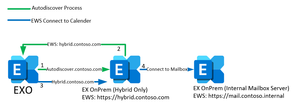
Hi everyone, i really need help about the EWS Autodiscover process in a specific hybrid Environment. Customer is starting to use Exchange Online. For Full Hybrid configuration there is a seperate new Exchange SE with a valid certificate, NAT for IP Ranges from M365 and public available URLs for Autodiscover,EWS,... There are internal Exchange Servers which are used only for internal access. Those are the servers with all mailboxes. All URLs are configured for internal use (mail.contoso.internal) Migration is working, access to own calender is working, mailfllow is working. But there are problems to access other users calender. If a user which is migrated to Exchange Online (or via Teams) try to access another calender which is onPrem, there is no access. So i tried to use connectivity analyzer for teams integration to find out whats the problem. Result: Autodiscover resolves, connects to Hybrid and gets EWS URL as answer. But it gets the internal EWS URL from the internal Exchange Servers, not from the public available URLs which are configured at the hybrid server. I visualised the two scenarios. Number1: Thats how i thought it would work Autodiscover to autodiscover.contoso.com Hybrid answers with EWS URL: hybrid.contoso.com Connect from EXO to hybrid EWS URL Proxy to Internal Exchange Number2 : Thats what really happens Autodiscover to autodiscover.contoso.com Hybrid relays request to internal Exchange (Mailbox Server) Server answers with internal EWS URL: mail.contoso.internal Connect from EXO to internal EWS URL (which is obviously not working) So as you can see, the autodiscover process asks the internal Exchange for its EWS URLs and not as i expected the hybrid server's URLs. I always thought, the hybrid server works as a sort of proxy for every external connection from EXO. But it seems that the hybrid just relays the autodiscover request to the server which holds the mailbox. And this servers in this scenario cannot change their EWS URLs to a public resolvable FQDN. So my question is: Is this correct? Does the process always works like this or did i do anything wrong in the configuration? I hope you understand my explanation. Thanks in advance!!!190Views1like5CommentsRemoving Retention Holds from Exchange Mailboxes
A new Exchange Online feature allows administrators to remove multiple types of holds from mailboxes (usually inactive mailboxes). It’s a great way to release holds that might be keeping inactive mailboxes lingering in a tenant. The feature doesn’t remove holds used to retain items required for eDiscovery or other compliance purposes. Even so, this is definitely a feature that needs to be carefully tested. https://office365itpros.com/2025/12/18/remove-retention-holds/37Views0likes0Comments