excel
44817 Topics
Formula for Complex Matrices
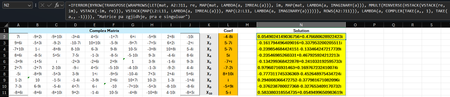
Hi Microsoft Community Hub, I am excited to share a new method I have developed for solving matrices with complex numbers. As many of you know, handling complex matrix operations in environments like Excel or during manual computation often requires separating real and imaginary parts, which increases complexity and the margin for error. I have conceptualized the formula which streamlines this process by providing a more direct approach. This is a dynamic formula and this formula works for any dimension of matrix (see the screenshot below). =IFERROR( BYROW(TRANSPOSE(WRAPROWS(LET( mat, A2:J11, coef, L2:L11, re, MAP(mat, LAMBDA(a, IMREAL(a))), im, MAP(mat, LAMBDA(a, IMAGINARY(a))), MMULT(MINVERSE(HSTACK(VSTACK(re, im), VSTACK(-im, re))), VSTACK(MAP(coef, LAMBDA(a, IMREAL(a))), MAP(coef, LAMBDA(a, IMAGINARY(a)))))), ROWS(A2:J11))), LAMBDA(a, COMPLEX(TAKE(a,, 1), TAKE(a,, -1)))), "Singular Matrix") Linkedin GitHub I hope this solution helps someone. Best regards, IlirU87Views0likes4Comments
Excel Pivot Table shows all records but one row is displaying blanks for some columns
Hello, My Excel pivot table returns all rows that should be returned according to filters applied directly to column filters in the pivot table itself, or via some Slicers that I've created off of this pivot table. For 2 particular Business Units, there is one row (again, that is properly returned as a row in the filtered pivot table - i.e., no 'missing' records) that shows values in the first 4 columns of the pivot table, but does not display the values in the subsequent 9 columns, despite the fact that the data is fully populated in the Source data. The one source field I've added to the 'Values' section of the pivot table (Report Count) does display values as expected. Troubleshooting tried so far: I've ensured that my Named Range data source is properly capturing the entire source dataset - i.e., no dataset rows or columns left off I've refreshed my pivot table numerous times after changing filters directly in the pivot table itself, as well as changing the filters in Slicers built off of that pivot table. In the Pivot Table Options, on the 'Data' tab: the 'Number of items to retain per field' is set to 'None'. And the 'Save source data with file' check box is not checked off. I've deleted/re-added the source data for the problematic, 'invisible' pivot table columns (not showing the data as expected) and refreshed the pivot table, but that did not correct the issue. I inserted a blank row adjacent to 1 of the 2 problematic records in the source data and copied the data from the problematic record into it, and deleted the original record and refreshed my pivot table, which also did not remediate the problem. I've also built another pivot table in the same workbook on a different Excel worksheet (using the same Named Range data source) and added all the same fields for one of the problematic records and they are all displaying normally. The only error message of any kind that is generated is when I go to one of the problematic records in the pivot table itself, select one of the cells in that row that is displaying a blank and then try to click on the Formula bar - the error message is, 'We can't change this part of the pivot table'. But, I believe this is a normal message if Excel senses that you're trying to update data in a pivot table. There are no error other messages or difficulty refreshing to report. Other relevant points: All told, I have 239 total rows in my source data, and all rows appear normally in the pivot table with the exception of these 2 problem records. There have been no other performance/display issues of concern outside of this one. This Excel workbook is mainly utilized on SharePoint by multiple Users, but for more complex updates/troubleshooting, I am easily able to bring it down to work in Excel Desktop as needed - and this problematic display with these 2 records is present regardless of whether I'm working with the file on SharePoint or with Desktop Excel. I can't think of what else to try at the moment - I've never seen anything like this in my 25+ years of working with Excel. I hope I'm missing something simple - any troubleshooting suggestions are greatly appreciated!27Views0likes1Comment
I want to record a VBA macro. The Record Macro button only records OfficeScript. How?
I saw another post drawing the disctinction between the Automate toolbar tab and the Developer tab, but that distinction doesn't seem to work anymore. The Record Macro button only produces script. Is there another way to get VBA recording?20Views1like1CommentI am Facing Microsoft form related issue
I am Facing Microsoft form related issue, I can see when I am downloading a Excel copy some columns are blank. This is my survey form, and I cannot add manually however this will reflect manipulation in data, as this is technical glitch need assistant from your side on urgent basis14Views0likes0CommentsHovering Over Notes No Longer Working
Sometime over the past week or so, none of my Excel 365 Notes will display when I hover my mouse over a cell with a Note. This issue occurs in every workbook I open or create. My guess is that it's due to one of my recent updates for the Office Insider program. Please advise.Solved31KViews0likes27Comments
Excel rewrites my hyperlinks to sharepoint
Hi, I transfered all my work files to OneDrive and encountered an issue. I use excel spreadsheets for worklist, where I use hyperlinks for pics, drawings etc for each workpiece we are currently working on. With my previous cloud service, everything was working fine. Hyperlinks used relative path, so no matter which PC I used, it all opened nicely. Now with everything being on OneDrive, excel automatically rewrote all of my hyperlinks (about 2000 of them) to sharepoint. Everything now opens with browser. Filetypes that can't be opened want to be downloaded even though I have them stored offline localy. Is there a way to stop these hyperlink changes? Excel Options > Trust Center > Trust Center Settings > External Content > "Disable automatic update of Workbook Links" is checked. When I copy the hyperlinks from the original file, they get automatically changed in the new one. When I re-link in the new file to the local file, it opens the local file and works fine. When I close Excel, open it, link is changed again to sharepoint. This is so frustrating.45KViews2likes29CommentsCreating weekly calendar template that has overlapping positions
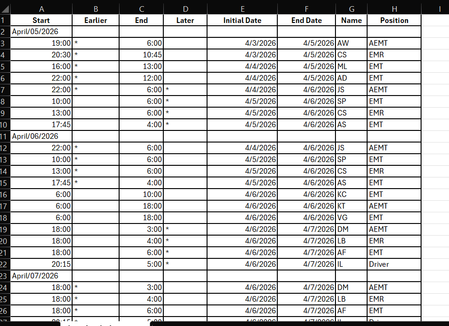
Hi, I have a software for individuals to sign up for shifts, but it is visually hard to see where there are open areas that need to be filled. I need help creating a calendar from this software download that I can update each week. It would have to be much like an hourly scheduler view to easily see when someone is coming on and off shift. But also laid out from Sun-Saturday. There is 3-4 "slots" for each day. It would be great if they could be color coded as well. Slot 1 needs to be anyone that is "AEMT" in the position column, Slot 2 can be anyone listed as "EMT" or "EMR" (caveat to this would be that slot 2 could also be AEMT if there is already an AEMT in slot 1 for the same time slot. Slot 3 is for driver or ride along (or the other 3 positions if there is one listed in the other slots), and possibly 4th slot would just be overflow in case there were 4 people signed up which does not happen very often. Is there anyone who can help me with designing this? Below is what the software generates when converting to excel31Views0likes0CommentsControl data conversions in Excel
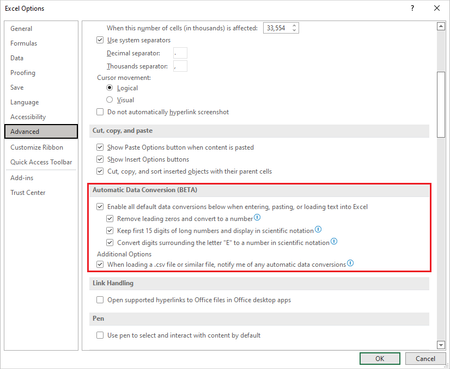
(Originally published on July 5, 2022 by Chirag Fifadra) Hi, Insiders. My name is Chirag Fifadra, and I'm a Product Manager on the Excel team. I'm excited to share with you an improvement to Excel for Windows that will give you more control over data conversions. More specifically, you can now control how and whether the data you enter is automatically converted to specific formats. Control data conversions We have consistently heard from customers over the years (and likely from some of you!) that they're frustrated by the fact that Excel automatically converts data to specific formats. They have expressed a desire for more control over data conversions. We are now giving you the ability to change Excel’s default behavior and disable specific types of automatic data conversions as needed. This way, you won’t need to worry about your data being converted to a format that you didn't want and weren't expecting. How it works To disable specific automatic data conversions, select File > Options > Advanced > Automatic Data Conversion. Then choose the conversion(s) that you'd like to disable. Currently, you can enable or disable the following options: Remove leading zeros from numerical text and convert to a number. Truncate numerical data to 15 digits of precision and convert to a number that may be displayed in scientific notation, if needed. Convert numerical data surrounding the letter "E" to a number displayed in scientific notation. NOTE: You can also select the When loading a .csv file or similar file, notify me of any automatic number conversions check box. By doing so, Excel will display a warning message when it detects that at least one of the optional automatic data conversions is enabled and about to occur when opening a .csv or .txt file. The message gives the ability to do a "one-time load" of the file without converting the data. Scenarios to try Based on the settings you chose above, try some or all of the scenarios below to test the increased control over data conversions. Type directly into a cell. Copy and paste from external sources (e.g., a web page). Open a .csv or .txt file. Find and replace operations. Select Data > Text to Columns, and then use the Convert Text to Columns Wizard. NOTE: Since the feature works by saving the entered data as text, you might see a green triangle with a Number stored as text error. This is expected. You can dismiss the error by selecting Ignore error in the context menu. Also, you may not be able to use that data in mathematical operations. Known issues Support for disabling these conversions during macro execution is planned but not yet available. Support for automatic conversion to dates is planned but not yet available. Availability This feature is available to Office Insiders running Version 2207 (Build 15427.20000) or later on Windows. We are working to bring the same options to Mac soon. Features are enabled gradually over a period of time so that we can ensure things are working smoothly. Even though we've announced this feature, it might not yet be available to you. Sometimes we remove elements to further improve them, based on your feedback. Though this is rare, we also reserve the option to pull a feature entirely out of the product, even if you, as an Insider, have had the opportunity to try it. Feedback We want to hear from you! Please click Help > Feedback, in Excel and select one of the Feedback options. Enter #automaticdataconversions in the text box along with your comments, and then click the Submit button. Learn about the Microsoft 365 Insider program and sign up for the Microsoft 365 Insider newsletter to get the latest information about Insider features in your inbox once a month!5.7KViews2likes3CommentsSTOCKHISTORY and Stock Data not working
Is it only me? Or everyone else having the same problem? My Excel 365 cannot use STOCKHISTORY Function anymore. It shows #connect! Error. Also, I cannot use the stock data anymore. (The other data types are not functioning as well.) (The error message says "Sorry, we are having a temporary server error. We are trying to fix this problem.") Is it only me? Or everyone else is having this problem?Solved1.1KViews14likes29Comments
Excel editing Conditional Formating rules cursor issue
Hi, using Excel Office365, when I want to edit a conditional formatting rule (I had created, minutes ago) , when right clicking on the specific part of the rule to edit with the mouse, the edit cursor does not positioned where is the mouse cursor .In fact the cursor is blicking on the right side of the rule, and if I move the mouse to the very left at the beginning of the rule, the edit cursor eventually is positioned at the end of the word contracted and(left($AP4,10)<>"Contracted"),$AV4<4) I feel like there is a glitch between the movement of the mouse, and the movement of the cursor. Weird and only happen with this edition of rule, no where else. The only way is to completely scrap the rule and rewrite it. Boring Any idea welcome5.6KViews3likes7Comments