document library
3263 Topics
Users unable to determine who has access to document library due to security groups
Greetings, Maybe I went about this the wrong way. Looking for advice on either the proper way we should be moving forward on this or any other comments or insight we should be considering. This is for SharePoint online via Microsoft 365 Business license. Scenario: 1. SharePoint Document Library per department (Each Document Library exists in its own SharePoint site), essentially being used as a company drive. 2. Some users should only officially have access to specific folders in some of the document library. 3. If say a person in accounting has access to some specific folders, and either they are replaced or a new accounting user comes in.... should be able to reference the access the existing person has in order to give the same access to the new user. 4. Common Request: Give UserB the same folder access as UserA. 5. Some users should have access to the entire document libraries while other users only have access to specific subfolders. Current Implementation: 1. In Entra, created Security Groups that tied to specific folders. -- For Example for the accounting folder, only management has access to the entire folder but the accounting staff only have access to specific folders. So like there is a FiscalYear2024 folder, so I created a security group called sec-Accounting-FiscalYear2024 and assigned the members that should only have access to that folder and not the rest of the library. -- My thought behind this was if a new user was replacing the existing user or joining the department, I can just reference the existing user security group membership and copy it to the new user. 2. In the SharePoint document Library, I create a shareLink that is assigned to the security group I made for that access. Then I give that link to the users I assigned the membership to. Current Issue: 1. Aside from the official document sharing/access that is being done from the security groups above. There are occasions where users of a sharepoint need to share specific files or folders to other users. 2. However, they are all panicking and confused because aside from themselves they are unsure who has access to the existing folders/files in the document library. 3. When going to manage permissions of a file/folder, it only shows the group assigned to it but not the members of the group. 4. So since users can't see the members of the group assigned to a folder, they have no idea who has access to that folder and are getting confused. If this was an NTFS drive, it would be super easy for users to see who has access and etc by looking at the properties but I'm stuck behind some limitations of sharepoint I didn't realize existed until I tried to implement certain workflows. Any advice here would be greatly appreciated, as my implementation has turned into a point of frustration for end users. Thank you in advance!199Views1like4CommentsWhat is the maximum length of a Check-In Comment in a SharePoint document library?
We are using SharePoint document libraries with versioning enabled and users provide comments when checking in documents. Is there a maximum number of characters allowed in the Check-In Comment field, and is this limit documented by Microsoft?Solved56Views0likes1Comment
Dynamic Mandatory Fields
In a SharePoint library, I have folders which are = a. Admin b. Events c. Furniture and Moves d. Janitorial and Maintenance e. Parking and Transportation f. Shipping and Receiving g. Supplies and Equipment h. Waste and Recycling I have Meta data across the library whose data type are all choices and are: a. Document Type = Contract, Financial, planning b. Building = Gym, Garage, Heating c. Asset Category = Office, Playground d. Fiscal Year = FY23, FY24, FY25, FY26, FY27 e. Vendor = Maple Leaf, Canadian Tire, Home Depot f. Status = Active, Pending, Not Active g. Retention Label = 3 years, 5 years h. Service Type = Admin, Events, Furniture and Moves, Janitorial and Maintenance, Parking and Transportation, Shipping and Receiving, Supplies and Equipment, Waste and Recycling Service Type and Retention Label are mandatory fields, with the Rule below for all the files in the various folders: IF Folder Name = Admin, then Service Type = Admin and Retention Label = 5 years; the mandatory fields should be Document Type, Status and Fiscal Year IF Folder Name = Events, then Service Type = Events and Retention Label = 3 years; the mandatory fields should be Document Type, Status and Fiscal Year, Building and Vendor IF Folder Name = Furniture and Moves, then Service Type = Furniture and Moves and Retention Label = 3 years; the mandatory fields should be Document Type, Status and Building IF Folder Name = Janitorial and Maintenance, then Service Type = Janitorial and Maintenance and Retention Label = 3 years; the mandatory fields should be Document Type, Status and Fiscal Year IF Folder Name = Parking and Transportation, then Service Type = Parking and Transportation and Retention Label = 3 years; the mandatory fields should be Document Type, Status and Fiscal Year IF Folder Name = Shipping and Receiving, then Service Type = Shipping and Receiving and Retention Label = 3 years; the mandatory fields should be Document Type, Status IF Folder Name = Supplies and Equipment, then Service Type = Supplies and Equipment and Retention Label = 3 years; the mandatory fields should be Document Type, Status and Fiscal Year IF Folder Name = Waste and Recycling, then Service Type = Waste and Recycling and Retention Label = 3 years; the mandatory fields should be Document Type, Status and Vendor I have used Column Default Value Settings for SharePoint to display Auto-Display the Service Type and Retention Label, but I cannot seem to perform the conditional mandatory fields using Validations setting for the other requirements. Please help73Views0likes1Comment
"labels" in the left navigation pane
Hi, Can anyone advise me if it is possible to add labels in bulk to libraries? What I am asking badly is....I have over a hundred libraries on a site and they need labels adding to them so they are "grouped" in categories. Some of the labels need applying to several libraries. I have been doing smaller sites manually but the bigger ones will be very tedious and time consuming. I hope that makes sense?44Views0likes1Comment
How to map permission of Dynamics 365 to SharePoint Online ?
How to replicate permission from Dynamics 365 to SharePoint Online ? Is there any out of box approach/custom solution like Power Automate/Azure Functions available to meet this requirement ? And, what kind of limitations may occur in longer run when data grows?54Views0likes1CommentRecycle Bin and Site Content Hidden for Site Members and Site Visitors
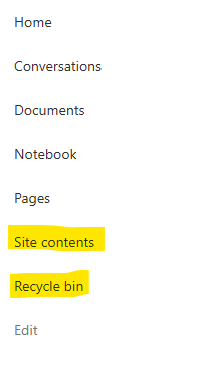
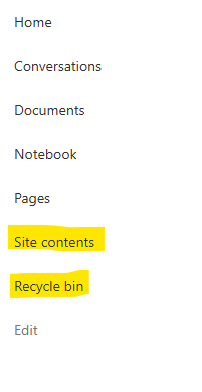
I have a requirement that the Recycle bin and Site Contents should not be be hidden from the Site Members and Site Visitors. Please how can I achieve this because the Server Infrastructure activation is not working for me. Any workarounds? Please help74Views0likes2CommentsRecycle Bin and Site Content Hidden for Site Members and Site Visitors
I posted this before but made a mistake with my write up, so I am reposting. I have a requirement that the Recycle bin and Site Contents should be be hidden from the Site Members and Site Visitors. Please how can I achieve this because the Server Infrastructure activation is not working for me. Any workarounds? Please help22Views0likes0CommentsThe uploaded documents are not shown on page reload for document library web part
We observe a very strange behavior with all of document library web parts on all tenants where we tested. Problem Definition Newly added document disappears after page refresh. If you refresh second time the file appears. Steps to Reproduce 1. We have a document library web part with modern experiences. 2. A user uploads a document - the document is immediately visible in the UI. 3. The user reloads a page 4. The uploaded document disappears. You can use drag-n-drop upload, or upload button, it doesn't matter. Sometimes you need a few refreshes until file appears in the UI. It doesn't matter how many time you wait after the initial upload - for example you can upload a file, wait 5 minutes, then refresh - the file will disappear, then refresh again - it will appear. This is the video demonstrating the problem (uploaded on github): Video Expected Behavior: The recently uploaded document should not disappear after the page refresh. Additional Information: Browser: Chrome 149.0.7827.104 (Official Build) (64-bit) Anybody has the same problem?98Views1like1Comment
Automations and AI Skills
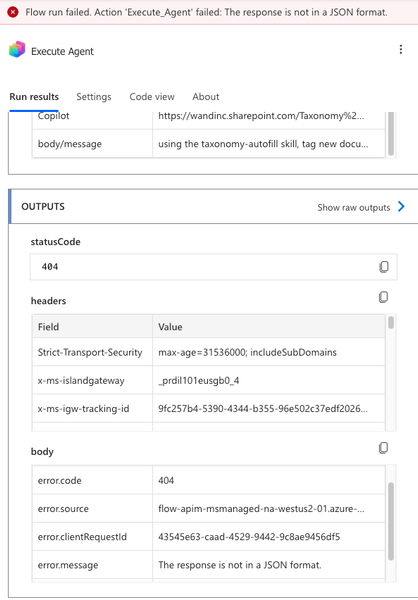
I am attempting to set up one of my AI Skills to automatically activate when a new document is added to my library. From what I can tell, the best way to do this is through SharePoint Workflows and customize via Power Automate. I am not very familiar with Power Automate, but I cannot find a good way to link my AI Skill to the automation! I have tried the "Execute Agent" action, but I am getting a 404 error (response is not in a JSON format) when I try to run it. Has anyone been able to successfully link AI Skills to automations? Is Power Automate the right tool to be using? How do I troubleshoot my 404 error?110Views0likes1CommentList rules
Hi everyone, since the legacy list alerts have been retired and rules came in, users with read permissions are not able to create rules without leveraging the power automate service. in my opinion read inly users should be able to create alerts based on a separate role action. at the same time, alert related action are still active under permissions level options. is there anyone else trying to provide rule action to read only users and is so how did you proceed? Kind regards, George Stylianou100Views0likes2Comments