copilot
1013 TopicsWhat’s New in Microsoft EDU, Bett Edition January 2026
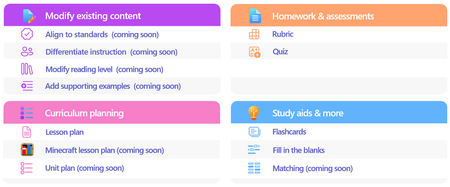
Welcome to our update for Microsoft Education and our special Bett 2026 edition! The Bett conference takes place in London during the week of January 21st - January 23rd, and Microsoft Education has 18 exciting updates to share! Check out the official Bett News blog here, and for our full Bett schedule and session times, be sure to check out our Microsoft EDU Bett 2026 guide. January 2026 topics: Microsoft 365 Updates for Educators Microsoft Learning Zone Microsoft 365 Updates for Students Teams EDU and OneNote EDU Updates Microsoft 365 LTI Updates Minecraft EDU 1. New Educator tools coming to the Teach Module in Microsoft 365 Unit Plans Soon educators will be able to create unit plans in Teach. Using a familiar interface, educators will be able to describe their unit, ground in existing content and educational standards, and attach any existing lesson plans. Unit plans will be created as Microsoft Word documents to facilitate easy edits and sharing. When: Preview in Spring 2026 Minecraft Lesson Plans Minecraft Education prepares students for the future workplace by helping build skills like collaboration, creative problem-solving, communication, and computational thinking. Coming soon, you will be able to create lesson plans in Teach that are fully teachable in Minecraft Education. And if you’re new to Minecraft Education, the lesson plan includes step-by-step instructions to get started. Just like the existing lesson plan tool in Teach, Minecraft Lessons can be grounded on your class details, existing content, and educational standards from 35+ countries. When: Preview in February 2026 Modify Content When: In Preview now Teach supports educators in modifying their existing teaching materials using AI-powered tools that save time and help meet the diverse needs of learners. With Modify existing content, educators can quickly adapt lessons they already use—without starting from scratch—by aligning materials to standards, differentiating instructions, adjusting reading levels, and enhancing text with supporting examples. Each modification tool accepts direct text input or file uploads from cloud storage, making it easy to transform current curriculum resources. These tools help educators maintain instructional intent while ensuring content is accessible, standards aligned, and effective for all learners. Align materials to standards Aligning instructional content to educational standards helps ensure lessons clearly support required learning goals and set the right expectations for learners. The Align to Standards tool rewrites existing lesson instructions so they reflect the intent of the selected standard—focusing on what learners should understand or be able to do—without copying the standard’s wording. Scenario: An educator has a lesson instruction for a reading activity on ecosystems. After selecting a state science standard, the educator uses Align to Standards to produce a revised instruction that emphasizes system interactions and evidence-based explanations while preserving the lesson’s original purpose. This allows the educator to strengthen alignment quickly without rewriting the lesson from scratch. Differentiate instructions Differentiation helps ensure every learner—regardless of readiness, background knowledge, or support needs—can access and engage with instructional tasks. The Differentiate Instructions tool adapts existing instructions based on specific supports an educator selects, such as adjusting reading level, including a single type of scaffold, or targeting a desired length. Because this tool is designed for single shot use, it produces a clear, accurate adaptation that adheres directly to the selected inputs. Scenario: A secondary biology educator has lab instructions written for general education learners but needs versions for learners requiring additional scaffolding. Using Differentiate Instructions, the educator quickly generates modified instructions that include step-by-step breakdowns, sentence starters, or graphic organizers—making the lab more accessible without changing the learning goal. Modify reading level Adjusting the reading level helps ensure instructional content remains accessible while preserving essential vocabulary and core concepts. The Modify reading level tool rewrites text to match a specified grade level, simplifying or increasing complexity as needed while maintaining meaning. Educators can also choose to generate a glossary with clear, age-appropriate definitions of key terms. Scenario: A social studies educator wants students to work with a primary source written at a university reading level. Using Modify reading level, the educator creates a version that maintains the document’s key ideas and important historical terms while simplifying sentence structure for lower secondary learners. By adding a glossary, students can access learner friendly definitions alongside the adapted text. Add supporting examples Concrete examples strengthen understanding by connecting abstract ideas to real world applications. The Add Supporting Examples tool enhances existing instructional content by appending relevant, accurate, and age-appropriate examples—without altering the original paragraph. Scenario: An educator teaching thermal energy transfer has a paragraph explaining that heat moves from warmer objects to cooler ones, but the concept feels abstract. Using Add Supporting Examples, the educator adds real world examples—such as a metal spoon warming in hot soup or an ice cube melting on a countertop—to help learners visualize how heat transfer works. These examples reinforce understanding and make the concept more accessible for secondary learners. Fill in the Blanks, Matching and Quizzing New Learning Activities are coming soon! We’re excited to introduce three new Learning Activities designed to make classroom experiences more dynamic and personalized: Fill in the Blanks, Matching, and Quizzes. Whether it’s completing paragraphs to strengthen comprehension, pairing terms with definitions in a timed matching game, or testing knowledge through quick self-assessments, these activities bring variety and fun to learning. Fill in the blanks creates paragraphs where learners can check their understanding by filling in missing terms. Matching is a game where learners can match terms and definitions while racing against the clock, aiming for fast completion and accuracy. And Quizzes allows students to quiz themselves and assess their comprehension. Learning Activities are available across our education products, in a standalone web app, in the Teach Module, in Teams for Education, in the Study and Learn agent and Study Guides. When: Spring 2026 Teach Module updates in Teams Classwork In Teams Classwork, you can already use Copilot to create Lesson Plans, Flashcards, and Fill in the Blank Activities. Coming this Spring, you will see the ability to create and modify more content, better matching the capabilities of Teach in the Microsoft 365 Copilot App. This includes modifying content with AI, Minecraft Lessons, and more! When: Coming soon Teach Module and Class Notebook integration We're bringing Copilot-powered creation tools directly into OneNote Class Notebook. Teachers will be able to generate Learning Activities and quizzes or modify existing content (like adjusting reading level or adding supporting examples) without leaving the page where they're already planning. When: Coming soon 2. Spark classroom engagement with Microsoft Learning Zone Educators worldwide are always looking for innovative ways to engage students, personalize learning, and support individual growth, yet limited time and resources often stand in their way. Microsoft Learning Zone, a new Windows app, empowers educators to transform any idea or resource into an interactive, personalized lesson using AI on Copilot+ PCs. The app also provides actionable insights to guide instruction and support every student’s progress. Learning Zone is now available to download from the Windows app store and included at no additional cost with all Microsoft Education licenses. Just in time for Bett 2026, Learning Zone has earned the prestigious ISTE Seal of Alignment - a recognized mark of quality, accessibility, and inclusive design. This recognition reflects our commitment to delivering meaningful, inclusive, and research-backed digital learning experiences for every learner. As noted by ISTE reviewers: "Microsoft Learning Zone saves educators valuable time while delivering personalized instruction that addresses individual learning needs." Getting started with Microsoft Learning Zone is simple. Educators begin by defining their lesson goals and preferences and can also choose to reference their teaching materials or trusted in-app resources by OpenStax. From there, AI does the heavy-lifting, generating a complete, interactive lesson with engaging content slides and a variety of practice activities. Educators can also quickly create Kahoot! quizzes using AI, bringing live classroom gamification into their lessons with just a few clicks. Learning Zone is more than content creation; it provides a full classroom-ready solution: from assignment to actionable insights. Once a lesson is created and reviewed, educators can assign it to students. Students complete lessons at their own pace, on any device, while the lesson flow adapts to their responses, helping reinforce understanding, revisit missed concepts, and build confidence over time. Educators, in turn, gain clear, actionable insights into student progress and mastery, enabling them to personalize instruction and better support every learner’s growth. Learning Zone is a classroom ready solution including management and actionable insights Learning Zone also includes an extensive library of ready-to-learn lessons developed in collaboration with leading global organizations, including the Nobel Peace Center, PBS NewsHour, the World Wildlife Fund (WWF), NASA, OpenStax, Figma, and Minecraft Education. Ready-to-learn lessons are available to educators and students on any Windows device and are a great way to inspire curiosity and bring meaningful learning of different subjects into the classroom. Ready-to-learn library in partnership with trusted global organizations Learning Zone is available today: Visit https://learningzone.microsoft.com to learn more and download the app. 3. New AI-powered tools for student learning in Microsoft 365 Study and Learn Agent Bring the interactive, conversational Study and Learn Agent in the Microsoft 365 Copilot App to your students. Available to all Microsoft EDU customers, the agent does not require an additional Copilot license. It is going into preview now, in January 2026. Join the Microsoft Education Insiders community at https://aka.ms/joinEIP and get information about getting access to the Preview. Study and Learn helps learners understand concepts, practice skills with activities like flashcards, and prepare for tests with study guides and quizzes. Additional activities including fill-in-the-blanks, matching, and others that will continue to be added. Purpose-built for learning in collaboration with learning science experts, Study and Learn aims to help foster reflective and critical thinking. Over time, it will provide a more personalized, adaptive, inclusive experience to make learning relevant and bolster motivation. When: January 2026 Preview Learning Activities app The Learning Activities Web App is now here! This web-based experience brings all your favorite activities together in one place, making it easier than ever to create, customize, and share engaging content. Whether you’re an educator designing lessons or a student building study sets, the web app offers a streamlined interface for finding or creating Flashcards and Fill in the Blanks with Matching, and Quizzes coming soon. You can easily access all your activities that you have created in other products from the web app, too. When: Available now! 4. Updates for your favorite teaching tools - Teams EDU and OneNote EDU Set AI Guidelines in Teams To help bring clarity to AI use in the classroom, AI Guidelines in Assignments allow educators to set clear expectations for when and how students can use AI—directly within the assignment experience. Educators start with a set of default, standardized AI use levels, and can apply them at the class or assignment level, with the ability to customize descriptions to reflect their school or district guidelines. These guidelines are clearly visible to students, reducing confusion and supporting responsible, transparent AI use, while also encouraging learners to use secure, education-ready Copilot. When: In Preview Q1 Add Learning Activities to Teams Assignments Learning Activities are coming to Teams Assignments and supported LMS platforms in preview, helping educators integrate interactive practice into the assignment workflows they already use. Educators can add activities such as Flashcards, Fill in the blanks, and Matching, and share resource documents that enable students to create their own learning activities within an assignment or the Classwork module. Students complete activities seamlessly within Assignments or their LMS, with progress captured as part of the assignment experience—supporting active, student driven learning while keeping setup, instruction and review in one familiar place. Students can create their own learning activities from educator-shared resources within an assignment or Classwork. When: In Preview Q1 New information literacy features in Search Progress in Teams Assignments Now students don't just gather sources—they investigate them. Four new research prompts (Source Reputation, Factual Importance, Cross-check, Source Purpose) make their thinking visible as they research. Read more about these new features in the preview blog here, and stay tuned for Microsoft Learn course updates to come. When: Available now Add Learning Zone lessons to Teams Assignments and LMS Learning Zone lessons are coming to Teams Assignments and Microsoft 365 LTI for LMS platforms in preview, allowing educators to bring interactive lessons directly into the assignments and grading workflows they already use. Educators can attach Learning Zone lessons during assignment creation, while students complete them fully embedded within Assignments or their LMS, with progress and scores automatically synchronized for review. This preview helps educators save time, reduce manual setup and grading steps, and confidently deliver interactive learning experiences—while keeping assignment creation, student work, and review all in one place. When: Preview in February Embed Learning Activities in OneNote You asked, we're building it. Soon, learners and educators alike will be able to copy a Learning Activity link, paste it into any OneNote classic page, and have it render inline – all to help folks engage without leaving the page. When: NH Spring 2026 5. Create with Copilot in your LMS In addition to supporting the new Learning Zone lessons in assignments, we are adding exciting new Create with Copilot options in Microsoft 365 LTI which bring the AI-powered capabilities of the Teach Module directly into LMS content creation workflows. From within their course, educators can use Copilot to draft lesson materials and other instructional content which is seamlessly published to the course using familiar Microsoft 365 tools. Create with Copilot is also available in LMS content editors to help educators compose content, discussion posts, and more. This includes the ability to modify existing content, if supported by the LMS platform. By embedding the creation experience where courses are designed and managed, Microsoft 365 LTI helps educators preserve instructional intent, reduce context switching, and move more quickly from planning to teaching. Microsoft 365 LTI is available to any Microsoft Education customer without additional licensing. LMS administrators can deploy the integration to an LTI 1.3 compatible LMS like Canvas, Blackboard, PowerSchool Schoology Learning, D2L/Brightspace and Moodle to get started! When: Preview in February 6. Dedicated servers coming to Minecraft Education Minecraft Education is launching a new feature that enables IT administrators and educators to run dedicated servers to host persistent worlds for use in classrooms and after-school programs, similar to Minecraft Bedrock’s dedicated servers (for the consumer version of the game). Dedicated servers enable cross-tenant gameplay, which is a gamechanger for expanding multiplayer experiences in the classroom or running Minecraft esports programs with other schools. This feature is currently in Beta to release in February for general availability for all Minecraft Education users. (Minecraft Education is available in Microsoft A3 and A5 software subscriptions for schools.) ___________________________________________________________________________________ And finally, just to recap all the news we have for you this month, here’s a quick review of all the features that are generally available or are rolling out soon: Teach Module Microsoft 365 Updates for Educators • Unit Plans – available in spring • Minecraft Lesson plans – preview in February • Modify content – align to standards. Private preview now • Modify content – modify reading level. Private preview now • Modify content – add supporting examples Private preview now • Modify content – differentiate instructions. Private preview now • Teach Module integration into OneNote Class Notebooks – preview in spring Microsoft Learning Zone • Available to download from the Windows store, at no additional cost • Provide full classroom ready solution including lesson management and insights • Teach Module, Teams Assignments and LMS integration in March Microsoft 365 Updates for Students • Study and Learn Agent – preview in late January • Learning Activities – Fill in the Blanks generally available • Learning Activities – Matching Activities in private preview now • Learning Activities – Self-quizzing available in private preview in February Teams and OneNote EDU Updates • Set expected AI use in Assignments – private preview end of January • Add Flashcards to Assignments – private preview in February • New information literacy features in Search Progress • Embed Learning Activities in OneNote – private preview in spring Copilot in your Learning Management System Dedicated Minecraft EDU servers Have any feedback to share with us? As always, we'd love to hear it! Mike Tholfsen Group Product Manager Microsoft Education522Views1like0Comments
SharePoint at 25: The knowledge platform for Copilot and agents
Join us for a global digital event to celebrate the 25th birthday of SharePoint! Gear up for an exciting look at SharePoint’s historic moments along with an exclusive look ahead to the next chapter of SharePoint’s AI future! You will discover how SharePoint’s new content AI capabilities and intelligent experiences will transform the way people create, manage, and collaborate. Be sure to stick around after for our live Ask Microsoft Anything (AMA), where you can ask your questions about the exciting new SharePoint features directly to the product team! 🛠️ Don’t miss the SharePoint Hackathon in March 2026 Design, create, share! We are excited to invite you to a hackathon dedicated to crafting exceptional employee experiences using AI and the latest SharePoint features. More details coming soon.1.1KViews10likes3Comments
Microsoft Copilot
Is anyone else having issues today? I was using copilot today like I have been for months. Using the same prompts I have been using for months when I started getting this response "I'd really like to help, but it seems this topic is off-limits for me. sorry about that!" I was trying to discuss with the AI what the issue was and tried showing the prompt when all of a sudden it said I was suspended for an hour. I tried to talk with support but they were no help.37Views0likes2Comments
## Advanced Copilot Prompt for High‑Fidelity Teams Meeting Analysis (v1.5)
## Advanced Copilot Prompt for High‑Fidelity Teams Meeting Analysis (v1.5) I’ve been working on a structured Copilot prompt designed to dramatically improve the quality of meeting analysis inside **Microsoft Teams**, especially when the default Intelligent Recap doesn’t capture enough nuance, decisions, or actionable follow‑ups. This prompt produces a detailed, repeatable output that includes: - TL;DR executive summary - Meeting quality assessment - Prioritized action items table - Confirmed vs. tentative decisions - Open questions & risks - Mind‑map style outline - Timeline of key moments - Confidence & source citations - Tech jargon glossary - Planner‑ready task export It’s now at **version 1.5**, and I’m sharing it publicly for anyone who wants deeper meeting insights or more reliable task handoff into Planner. --- ### Why I Built This In many engineering, security, and cross‑functional meetings, clarity is everything. The default recap is helpful, but sometimes too generic. I wanted something that: - Reduces ambiguity - Surfaces decisions clearly - Highlights risks and open questions - Produces actionable, Planner‑ready tasks - Works consistently across different meeting types - Enforces strict inference rules to avoid hallucinations If your team relies heavily on Teams + Copilot, this can significantly improve meeting outcomes. --- ### What’s Included The full prompt includes: - Strict ordering rules - Anti‑hallucination constraints - Fallback rules for missing data - TL;DR section - Speaker‑labeling rules - Timestamp restrictions - Bullet‑length limits - Planner task title constraints - Deduplication rules - Tone consistency - Signal‑to‑noise filtering I’ve included the complete prompt below for anyone who wants to use or adapt it. --- ### How to Use It 1. Open the **Recap** tab of any Teams meeting with transcription enabled. 2. Click **Open Copilot**. 3. Paste the entire prompt into the Copilot compose box. 4. Wait for the structured output (usually 30–120 seconds). 5. Copy the Planner tasks section directly into Planner or Copilot for Planner. --- ### Looking for Feedback If you try this prompt, I’d love to hear: - What worked well - What didn’t - What you’d like added in v1.6 - Any edge cases or meeting types where it struggled I’m planning to maintain this as a community resource, so suggestions are welcome. Thanks to everyone experimenting with Copilot in Teams — the creativity in this community is incredible. --- ### Full Prompt (v1.5) ````markdown ```markdown # ============================================================ # PROMPT NAME: Advanced Teams Meeting Analyst (Copilot Enhancement) # ============================================================ # Version: 1.5 # Author: Scott M # Last Updated: 2026-01-14 # # Goal: # Use Microsoft Copilot in Teams (Recap tab or live meeting) to generate a highly structured, # high-signal meeting analysis that goes far beyond the default Intelligent Recap output. # Produce executive summary with TL;DR, prioritized action items table, confirmed/tentative decisions, # risks/open questions, mind-map outline, timeline, quality assessment, confidence/sources, # tech jargon glossary, and Planner-ready task export—all derived strictly from the transcript, # shared screens, chat, and attachments. # # Why This Is Superior to Default Teams/Copilot Processing: # - Default Recap: Basic chapters, highlights, simple tasks, attendance—often generic and misses nuance. # - This custom prompt: Forces strict inference rules (no hallucinations), adds confidence labeling, # decision status, risks section, mind-map structure, quality flags, source citations, # jargon glossary, and direct Planner integration for seamless task handoff. # Delivers scannable, professional-grade notes + actionable tasks for tech/engineering teams. # # Audience: # Microsoft 365 Copilot users in Teams-heavy environments who want deeper analysis # and direct bridge to Planner for follow-up execution. # # Non-Goals: # - This is NOT a replacement for legal/compliance-grade minutes. # - This is NOT verbatim transcription (use the native transcript for that). # - Relies on Teams transcription quality (enable Intelligent Speakers if available). # # Usage Instructions: # 1. Prerequisites: # - Ensure the meeting had transcription enabled (Meeting options → Record & transcribe → Allow transcription). # - For best speaker attribution: Enable Intelligent Speakers (if your org supports it) or have participants use their names clearly. # - Copilot license required (M365 Copilot or Teams Premium for full Recap features). # # 2. Post-Meeting (Recommended – Recap Tab): # - Go to the Teams meeting chat → Click the Recap tab (appears after meeting ends and processing finishes). # - Click Open Copilot (or the Copilot icon in the top-right of Recap). # - In the Copilot pane compose box, paste this ENTIRE prompt and press Enter/Send. # - Wait 30–120 seconds (longer for 60+ min meetings) for the full structured output. # # 3. During Live Meeting (Quick Catch-Up): # - While the meeting is active → Click the Copilot icon in the meeting controls. # - Paste the prompt (or a shortened version if time-sensitive) and ask for real-time summary/actions so far. # # 4. After Output Appears: # - Review the markdown sections—copy any part (e.g., Action Items table, Planner tasks) directly. # - For Planner handoff: # - Copy the entire "10. Planner Integration" section. # - Open Planner (in Teams app or planner.microsoft.com). # - Option A: Manually create tasks by pasting titles/descriptions. # - Option B: In Planner's Copilot pane (if available): Paste the tasks list and say "Create these tasks in my [plan name] plan". # - Save/export: Copy full output to OneNote, Word, or email for sharing. # # 5. Refinement & Follow-Ups (Highly Recommended): # - In the same Copilot pane, type targeted follow-ups like: # - "Expand the Risks section with mitigation ideas" # - "Draft a professional follow-up email to attendees including the summary and action table" # - "Create these tasks in Planner plan 'Engineering Syncs'" # - "Explain [specific jargon term] in more detail" # - "Prioritize the action items by impact" # - Iterate until satisfied—Copilot remembers context in the session. # # 6. Tips & Troubleshooting: # - If output is incomplete: Re-paste the prompt or say "Regenerate full analysis". # - Short meetings (<15 min): Output may be concise—ask for more detail if needed. # - No Recap tab? Ensure recording/transcription was on; wait 5–10 min post-meeting. # - Sensitive meetings: Redaction is automatic per rules, but double-check output. # # Changelog: # v1.0 - Initial release # v1.1 - Added confidence/sources + follow-up suggestions # v1.2 - Added Tech Jargon Glossary # v1.3 - Added Planner Integration section # v1.4 - Expanded Usage Instructions into detailed, step-by-step guide with prerequisites, live/post options, refinement examples, and troubleshooting # v1.5 - Added strict ordering rules, anti-hallucination constraints, fallback rules for missing data, TL;DR section, speaker-labeling rules, timestamp restrictions, bullet-length limits, Planner title constraints, deduplication rules, tone consistency, and signal-to-noise filtering # # ============================================================ # CRITICAL INSTRUCTIONS (STRICT) # ============================================================ - Do NOT summarize, restate, or comment on this prompt. Produce only the meeting analysis. - Follow the numbered sections in the exact order shown. Do not omit, reorder, merge, or rename sections. - If any section lacks sufficient evidence, include the header and write: **“No reliable data found.”** - Derive ALL content ONLY from the Teams transcript, shared content, chat, and attachments. - NEVER invent details. If unclear, mark as “Unclear” or “TBD.” - Use neutral labels (Speaker A, Speaker B, etc.) if speaker names are not confidently identified. - Assign deterministic speaker labels based on first appearance. - Redact sensitive info as [REDACTED] and flag in Risks. - Include inline citations [Transcript HH:MM, Slide X] where possible. - Keep bullet points ≤ 20 words unless quoting transcript evidence. - Exclude small talk, greetings, jokes, or irrelevant chatter unless they directly impact decisions or tasks. - Only include timestamps if explicitly present in the transcript. Never estimate or invent them. - Deduplicate action items, decisions, and risks before final output. - Maintain a professional, concise, cross-functional technical PM tone. - Planner task titles must be ≤ 10 words and start with a verb. # ============================================================ # OUTPUT FORMAT (USE EXACTLY) # ============================================================ **TL;DR (1–2 sentences)** A concise, high-level summary of why the team met and what was resolved. --- 1. **Meeting Quality Assessment** - Clarity: [Good | Fair | Poor — brief explanation] - Speaker overlap / noise: [Low | Medium | High] - Estimated accuracy: [High | Medium | Low — justification] 2. **Executive Summary** Start with 1–2 sentence overview. Then provide 5–8 bullets covering: - Purpose - Attendees (names or count if unclear) - Key topics - Outcomes - Next steps 3. **Action Items** | Priority | Owner | Task Description | Due Date | Timestamp | Dependencies | Status | Notes | |----------|-------|------------------|----------|-----------|--------------|--------|-------| **Rules:** - Sort by Priority (High → Medium → Low), then Due Date. - Infer owners/dates ONLY if explicitly stated or clearly volunteered. - Default Priority: Medium; Status: Open. - Titles ≤ 10 words, start with a verb. - Deduplicate similar tasks. 4. **Key Decisions** - **DECISION:** [What was decided] - Status: [Confirmed | Tentative | Disputed] - Confidence: [High/Medium/Low — reason] - Rationale: [Why] - Impacted: [Who] - Evidence: [Transcript HH:MM or Slide reference] 5. **Open Questions & Risks** **Open Questions** - [Unresolved or unclear items] **Risks** - [Ambiguity, missing owners, conflicting views, scope creep, technical risks, etc.] 6. **Mind Map Outline (Hierarchical Outline)** - Main Topic 1 - Subtopic A - Action / Decision / Fact - Subtopic B **Rules:** - Max 5 main topics - Max 3 levels deep - ≤ 8 words per node - Prune low-signal branches 7. **Timeline of Key Moments** - HH:MM – [Brief one-line description] - HH:MM – [etc.] *Only include if timestamps exist; otherwise write “No reliable data found.”* 8. **Confidence & Sources Summary** - Overall confidence: XX/100 - Key sources: [Transcript HH:MM, Slide X, Chat message, etc.] 9. **Tech Jargon Glossary** - TERM: Definition (1–2 sentences) *Include only if relevant terms appear.* 10. **Planner Integration: Ready-to-Create Tasks** Numbered list, each formatted as: 1. **Task Title:** [≤10 words, verb-led] - Assigned to: [Owner or TBD] - Due: [Date or TBD] - Priority: [High/Medium/Low] - Description: [Brief details + dependencies/notes] - Labels/Buckets: [Suggested grouping] **Rules:** - Only include items with clear action/owner potential. - Group related tasks under consistent buckets. - Deduplicate tasks. --- **Follow-Up Prompts (suggest 3–5)** - “Create these tasks in Planner plan ‘X’.” - “Expand the Risks section with mitigation strategies.” - “Draft a follow-up email summarizing this meeting.” - “Prioritize action items by impact and urgency.” - “Clarify ambiguous decisions and propose next steps.”36Views0likes0CommentsJoin us for the SharePoint at 25 Birthday Event
For nearly 25 years, SharePoint has powered how organizations connect, collaborate, and manage knowledge at scale. Today, more than a billion people rely on SharePoint every month to store content, share ideas, and turn information into impact. As SharePoint celebrates its 25th birthday, we’re marking the occasion with a global digital event that reflects on this journey and looks ahead to what’s next. Join global leaders, innovators, and the SharePoint product team for a premier digital event that honors SharePoint’s evolution and its role as the knowledge platform for Copilot and agents, marking both a celebration and a look ahead at the future. Tune in to celebrate and participate. During the event, we’ll spotlight SharePoint’s most defining innovations while sharing a forward-looking view of the platform’s next chapter. One shaped by AI, Copilot, and agentic experiences designed for modern knowledge work. Tune in live to hear what’s new, what’s coming next, and how you can be part of where SharePoint goes from here, including details on how to participate in this year’s SharePoint Hackathon. What you can expect: Explore new content AI capabilities that help structure and enrich information to improve Copilot responses. Discover what’s changing in the way teams create, manage, and collaborate on content in SharePoint. Understand how SharePoint continues to serve as the knowledge platform for Copilot and agents, and what that means for organizations adopting AI at scale. Understand how the community of enthusiasts play a pivotal role in SharePoint’s history and future. After the broadcast, stick around for a live Ask Microsoft Anything (AMA) with the SharePoint product team to dig deeper, ask questions, and help shape the future of the product. Early information about the 2026 SharePoint Hackathon Get ready for the SharePoint Hackathon Following the SharePoint at 25 celebration, we’ll also be hosting a SharePoint Hackathon! A hands-on opportunity to build modern employee experiences using SharePoint, Copilot, and the latest AI capabilities. Whether you’re an end user, designer, maker, developer, or intranet leader, the Hackathon invites you to experiment, build, and share ideas that shape the future of work. Kickoff: During the SharePoint at 25 live event Dates: March 2 – March 16, 2026 What to expect: Additional Microsoft‑led live streams, guidance from product teams, and opportunities to showcase your ideas This 2-week hackathon event is open for anyone to join with some great awards ready for the participants. Learn more about participation and submission categories at: aka.ms/SharePoint/Hackathon Register today Registration is open so claim your spot now! Event Details Date: March 2, 2026 Time: 9:00 AM PT Format: Global Digital Event One registration gives you access to: The full SharePoint 25th birthday broadcast Exclusive previews of new AI and Copilot powered capabilities A live AMA with the SharePoint product team For those engineers, customers, and administrators that like myself, have been here since the beginning of SharePoint- I am so proud of what we've delivered to millions around the world for decades. And the best is yet to come. Stay connected Learn more about SharePoint’s 25th birthday: aka.ms/SPat25 Stay connected with monthly product updates: aka.ms/SharePointShowcase Explore the global SharePoint community: aka.ms/SPCommunity Get ready for SharePoint Hackathon 2026: aka.ms/SharePoint/Hackathon1.2KViews4likes0CommentsMicrosoft Education Solutions Guide - available for all IT Admins, partners and schools
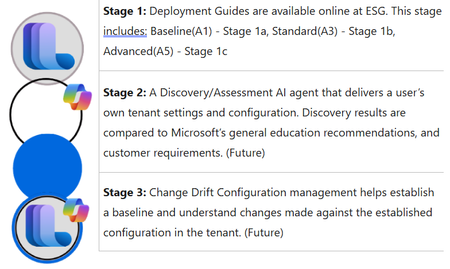
What is ESG- Education Solutions Guide The Microsoft Education Solution Guide (ESG) was developed to simplify and enhance understanding of the license features and products that you have available to you in a Microsoft 365 tenant. Initial focus and intent were to create better tools to understand the tenant setup and configuration to enhance security and compliance. Link to full guide is here. It consists of three stages: Goals and Objectives for ESG Goals Develop prescriptive deployment guides that provide a centralized resource with education-specific scenarios to assist organizations in defining, managing, and organizing their tenant and appropriate applications. Reduce the overall complexity of tenant and service deployment. Establish baseline recommended pathways to facilitate a common and agreed-upon configuration based on subject-matter experts. Utilize AI technology to uncover and compare recommended settings against user requirements based on documented configurations. Implement phased configurations to aid customers and partners in understanding what they may not know or should consider during discovery to meet customer expectations. Highlight unused features and products to ensure customers fully leverage the potential and benefits of their purchased product licenses. Identify opportunities for partner participation in achieving customer goals and expectations based on customer requirements and ESG findings. Create an easy pathway for customer change management to enhance control, security, compliance, and privacy of tenants. Develop custom assessments to evaluate product entry for items such as Copilot, Defender, Purview, Intune, Zero-Trust, and Microsoft Entra ID. Objectives Deliver information for features available (used/unused) to users based on license model. Prescriptive recommendations based on education scenarios. - Present upgrade license opportunities from A1 to A3 to A5. Security analysis exposing gaps and issues proactively to allow modifications before it's too late. Promote partner access to customers that have defined gaps based on assessments and are requesting partner assistance. Better discovery and assessment analysis with new tools. Designed to be more self-serving customer and partner access management. Speed up user adoption for educators and IT Admins alike. Recommended Roles for Implementation IT Admin Identity Admin Security Admin Compliance Admin OneDrive Admin SharePoint Admin Exchange Online Admin Teams Admin Navigation ESG has seven main sections in the navigations. ESG – Microsoft Solutions Guide overall, Microsoft Education license (A1-A3-A5), and Microsoft addons licenses. Baseline Phase – Overview, Products and Features, Licenses. All five sections (Setup, Identity, Applications, Security and Compliance, and Devices) Standard Phase - Overview, Products and Features, Licenses All five sections (Setup, Identity, Applications, Security and Compliance, and Devices. Advanced Phase - Overview, Products and Features, Licenses. Three sections (Identity, Applications, and Security and Compliance) Addons – Any addon products and when/where they can be added to your current license configuration. Windows – Education specific Windows based products and features. References – Any process or configuration that is not outlined in the three license phases will be included here. Phases Deployment Sequence The Baseline phase is the first step in the three-phase approach: Baseline (A1) → Standard (A3) → Advanced (A5) The Baseline phase is the foundational first phase in the Microsoft Education Solution Guide deployment sequence, aligned with the Microsoft 365 A1 education license. Standard Phase - The Standard phase is the second phase in the Microsoft Education Solution Guide deployment sequence, aligned with the Microsoft 365 A3 education license. The Advanced phase is the third and most comprehensive phase in the Microsoft Education Solution Guide deployment sequence, aligned with the Microsoft 365 A5 education license. Sections Setup Tenant setup is key to establishing a secure and valid tenant. Setup goes through domain assignments, administration, and service management. Identity Establishing an identity via Microsoft Entra ID and establishing authentication methods, Single Sign-On, and user procurement methodologies. Applications Applications like Microsoft Teams, SharePoint, OneDrive, Exchange Online is the core to a Microsoft tenant. Getting these applications setup are essential to allow users in education to access services and apps like Learning Accelerators. Security and Compliance Security via each phase is essential to maintain order and blocking access for bad actors. Along with security compliance/privacy considerations that are established to adhere to a multitude of local and government requirements worldwide. Devices Managed and unmanaged devices are another key to helping secure the network and potential cyber-security considerations that enter the network via these devices. How do you use ESG? ESG uses deployment guidelines for content that contain education scenario specifics. These prescriptive “Purple Boxes” allow education organizations the ability to see prescriptive guidelines and recommendations based on an edu scenario. ESG has a linked path for each modules based on the phase (Baseline,Standard,Advanced). Users can follow the deployment content to establish or redefine the tenant configuration in order to enable additional services and products. What’s Next Go to https://aka.ms/esg to access Microsoft Education Solutions Guide. Stage 2 – A custom agent to discover the tenant configuration settings and allow customers and partners the ability to qualify what is set to standard recommendation. This agent will also have the ability to access partner content and internal Microsoft resources. Using an AI Agent to discover tenant settings based on Graph API calls and Microsoft MCP Server for Enterprise to evaluate against known Microsoft recommended settings. Part 3 – Change management from discovery data baselines to access and deliver any updates/changes/modifications, daily/weekly/monthly.478Views0likes0Comments
I haven't seen anyone talking about this online store
There is this office and windows key store called esd codes and they sell office keys. They seem legit since they're affiliated with Microsoft and they have mostly positive reviews but I the description of every office key and I mean every has a note stating "if office (literally every single one) version is not available, you will receive the Professional Plus version at the same price" which they are trying to make it look like an upgrade but from what I searched the professional plus versions are bought in bulk by big companies and organizations and after they stop being updated they are being sold for cheap probably by employees. I have found multiple for less than 2 or even 1 buck and I feel they are scamming people.48Views0likes1CommentSharePoint Site Administrators Can Now Control Restricted Content Discovery
Restricted Content Discovery (RCD) is a feature that blocks access by Microsoft 365 Copilot and agents to the files stored in a SharePoint Online site. Instead of relying on tenant administrators, site administrators can now enable or disable RCD. It’s a natural evolution of what is an essential feature to keep sensitive and confidential information being leaked inadvertently by AI. https://office365itpros.com/2026/01/13/rcd-site-level/32Views0likes0Comments