Forum Discussion

How to Mirror Android to Windows 11 Computer with USB Cable ?
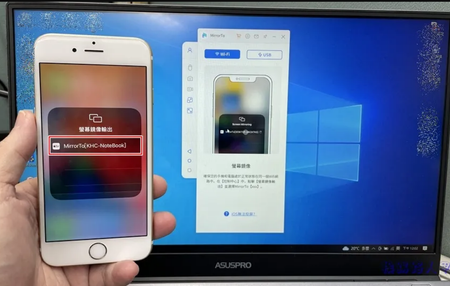

Hi DimondH,
thanks for your update.
I can try to guide you through the process of mirroring your Android device to your Windows 11 PC using a USB cable without the need for command-line tools as scrcpy.
Here are the steps:
- Download and Install ApowerMirror on Your Devices
- Download and install the ApowerMirror app on your Android smartphone or tablet and on your Windows 11 PC.
- Enable USB Debugging on Your Android Device
- You will need to enable USB debugging on your Android device. This is usually found in the Developer Options menu in your device’s settings.
- Connect Your Android Device to Your PC
- Connect your Android device to your PC using a USB cable.
- Start the ApowerMirror App
- Open the ApowerMirror app on both your Android device and your PC.
- Start Mirroring
- On your Android device, tap “START NOW” on the permission to capture screen1.
Your Android device’s screen should now be mirrored on your Windows 11 PC.
Your experience may vary slightly depending on the make and model of your Android device.
Here are some useful links:
www.tenorshare.com
fossbytes.com
techwiser.com
www.guidingtech.com
Please click Mark as Best Response & Like if my post helped you to solve your issue.
This will help others to find the correct solution easily. It also closes the item.
If the post was useful in other ways, please consider giving it Like.
Kindest regards,
Leon Pavesic
(LinkedIn)

LeonPavesic aPowerMirror has many poor reviews and appears to cost $70 to remove watermarks and a 10-minute cast limit. Is there any better app you'd suggest? I used to use Samsung SideSync, but it hasn't been updated since 2019 and no longer works.