User Profile

LeoMaverick
Iron Contributor
Joined Nov 01, 2024


User Widgets
Recent Discussions
Re: Safe and easy way to generate a qr code free for website link or file?
Microsoft Edge features a native QR code generator that is built directly into the browser’s architecture. This tool is designed for high-speed sharing, allowing you to bridge the gap between your Windows 11 desktop and mobile devices in seconds. Because it is integrated into the address bar, it eliminates the need for third-party websites that often clutter your screen with ads or require "premium" subscriptions just to download a simple image. Beyond just viewing the code on your screen, this method provides a clean, high-resolution PNG file that is perfect for professional use. Whether you are a student wanting to move a research article to your tablet or a business owner creating a quick scan-to-pay link for a customer, the Edge generator is remarkably reliable. It’s also a "static" generator, meaning the code doesn't expire and isn't tracked by an outside company, offering a layer of privacy that many web-based tools lack. How to generate a qr code for free Step 1: Open Microsoft Edge and go to the specific website or URL you want to convert into a QR code. Step 2: Right-click on any empty space on the webpage and select "Create QR code for this page" from the context menu. Step 3: A pop-up window will appear displaying the generated QR code. If you need to change the link, you can actually type a different URL directly into the text box below the code, and it will update in real-time. Step 4: Click the Download button to save the QR code as a PNG image to your "Downloads" folder. You can now insert this image into Word documents, emails, or PowerPoint presentations. This is a native way to gen a qr code without online tool.32Views0likes0CommentsRe: Windows 10 Screen Recording Crashes After a Few Minutes
Many recording tools depend on system-level features. Ensure these are correctly configured: Enable and Update Xbox Game Bar: Go to Settings > Gaming > Xbox Game Bar and ensure it is set to On. Open the Microsoft Store, click the Library icon, and check for any pending updates for "Xbox Game Bar" to ensure you have the latest version.17Views0likes0CommentsWindows 10's extended support ends in eight months
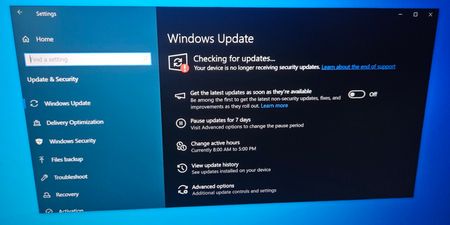
Windows 10’s extended support ends in eight months, but users are still rejecting Windows 11, at least in Germany. Windows 10 support officially ended on October 14, 2025, unless you signed up for Extended Security Updates (ESU). With ESU, you can still get security updates and minor fixes or improvements, but the catch is that extended support ends on October 13, 2026. After October 13, 2026, you need to either ditch your PC or upgrade to Windows 11.40Views0likes0CommentsRe: What is the best clean up app for Windows 10/11 PC?
I vote for Microsoft PC Manager, a free official optimization and cleanup app from Microsoft designed to help keep Windows 10 PCs tidy and running smoothly. It brings together a bunch of maintenance tasks, like clearing temporary and unused files, managing storage space, and offering quick access to performance-related settings; all from a single dashboard instead of having to hunt through different parts of Windows. The best free Windows 11 PC cleanup tool also includes a boost feature that frees up RAM and removes clutter, and integrates with core Windows services so you can manage updates and basic protection features in one place. Pros Official and free: It’s developed by Microsoft and available at no cost, with no bundled third-party ads or software. Centralized tools: Combines several system maintenance functions. Storage cleanup, app and process overview, and quick access to Windows security and updates in one place. User-friendly: Simplifies common cleanup tasks for non-technical users and provides visual feedback on space used and memory freed. Cons Modest cleanup impact: The “boost” and cleanup features provide only small, incremental gains over Windows’ built-in tools like Storage Sense or Disk Cleanup. Limited advanced options: It lacks deeper customization and powerful cleanup options that more experienced users might expect from dedicated optimizers. If you want a simple, Windows 11/10 cleanup app for PC that’s safer than third-party alternatives and easier to use than hunting through built-in tools, PC Manager is worth trying, especially on Windows 10/11 OS that need occasional housekeeping without complexity.472Views0likes0CommentsRe: Look for youtube music downloading suggestion in 2026?
Yes. Many of the youtube music downloaders are not working anymore. You can now try youtube premium first. It is the official and legal way for downloading music from youtube. YouTube Premium is YouTube's paid subscription service that enhances the core YouTube experience by removing ads, enabling background and offline playback, and providing access to the YouTube Music streaming service. It's the official, legal way to get many of the benefits people often seek from third-party downloaders. Best for: Convenience, legality, and supporting creators method for youtube music download. How it works: This is YouTube's paid subscription service. Its key feature for music is "YouTube Music" and the download function within the official app. Process: Simply tap the download button below any video or song within the YouTube or YouTube Music app. Downloads are stored within the app for offline playback. Pros: Completely legal and ad-free. High, reliable audio quality. Supports the artists and creators. Seamless integration with the app. Cons: Monthly subscription fee. Downloads are locked within the app and cannot be transferred as standard audio files (e.g., .mp3).28Views0likes0CommentsRe: Wat is de beste manier om HEIC om te zetten naar JPG?
heictojpg.com is een gratis online tool die speciaal ontworpen is om HEIC‑bestanden eenvoudig om te zetten naar het meer gangbare JPG‑formaat. Het platform richt zich op gebruiksgemak: je hoeft geen software te installeren en kunt direct in je browser bestanden converteren. Dit maakt het ideaal voor gebruikers die snel en zonder technische kennis hun foto’s toegankelijk willen maken op alle apparaten en programma’s. Hoe HEIC naar jpg converteren in Windows Stap 1: Ga naar heictojpg.com. Stap 2: Klik op Upload HEIC files of sleep je bestanden naar het venster. Stap 3: Wacht tot de conversie automatisch start. Stap 4: Download de geconverteerde JPG‑bestanden (individueel of als zip‑bestand). heictojpg.com biedt een snelle, gratis en gebruiksvriendelijke oplossing voor het omzetten van HEIC naar JPG. Het is bijzonder geschikt voor incidenteel gebruik en voor mensen die geen extra software willen installeren. Voor grote aantallen bestanden of geavanceerde instellingen zijn offline tools .336Views0likes0CommentsRe: Hoe kan ik Spotify naar MP3 downloaden?
Online Spotify converters zijn webgebaseerde tools waarmee je Spotify-nummers of afspeellijsten direct via je browser kunt omzetten naar MP3. Je hoeft geen software te installeren: het enige wat je doet is een Spotify-link plakken, waarna de dienst het bestand verwerkt en een downloadbare MP3 aanbiedt. Dit maakt het een laagdrempelige en snelle oplossing, vooral voor incidenteel gebruik. Hoe Spotify naar mp3 converteren 1. Open een betrouwbare online converter. 2. Kopieer de Spotify-link van het nummer, album of afspeellijst dat je wilt downloaden. 3. Plak de link in het invoerveld op de website. 4. Kies het uitvoerformaat (meestal MP3, soms ook AAC of FLAC). 5. Klik op “Convert” of “Download” en wacht tot de verwerking klaar is. 6. Download het MP3-bestand naar je computer of mobiel. Online converters zijn ideaal voor snelle, incidentele downloads van Spotify naar MP3. Ze zijn gebruiksvriendelijk en werken zonder installatie, maar wie regelmatig en in hoge kwaliteit muziek wil opslaan, kiest beter voor desktopsoftware zoals.406Views0likes0CommentsRe: Can I upgrade to Windows 11 Pro from Windows 10 Home without reinstalling?
The official way is using a Windows 11 Pro product key. How it works: Windows will use the Pro key to unlock the "Pro" features already present in your system files. It will then download the necessary Pro-specific components from Windows Update and reconfigure your system, all without touching your personal files, apps, or settings. Steps for upgrading to Windows 11 pro from Windows 10 Purchase a legitimate Windows 11 Pro product key from the Microsoft Store or an authorized retailer. On your Windows 10 Home PC, go to Settings > Update & Security > Activation. Click on "Change product key". Enter your new Windows 11 Pro product key and click Next. The system will verify the key. You may be prompted to accept the Pro license terms. Your PC will begin the upgrade process. It will download necessary files, restart several times, and configure features. This can take 10-30 minutes. Once complete, you will be logged back into your desktop, which will now be Windows 11 Pro. All your apps, files, and settings will remain intact. This is the easiest, most direct and fully official way to upgrade to Windows 11 Pro from Windows 10 Home without reinstalling. No extra tools needed.214Views0likes0CommentsRe: I want to install and setup windows 11 with a local account for 25H2
Unfortunate, the Home version of Windows 11 doesn't provide a built-in local account option. It requires you to sign in with a Microsoft account during the out-of-box setup (OOBE). However, there is a hidden method that allows you to bypass the internet requirement and create a local account instead. This trick uses a simple command to restart the setup in a special mode where you can skip connecting to the internet. To set up windows 11 without Microsoft account, boot from your Windows 11 USB or DVD installer, choose your language and keyboard layout, and click Next → Install now. Proceed until "Let’s connect you to a network" appears This is the screen where Windows normally forces you to connect to Wi-Fi or Ethernet. Don't connect yet. Press Shift + F10 on your keyboard to open a Command Prompt window. Type the following command exactly and press Enter: OOBE\BYPASSNRO After a few seconds, the computer will restart. Once it returns to the setup screen, you'll now see a "I don't have internet" option. This allows you to continue by installing Windows 11 with local account. Enter a username, optionally a password, and answer the security questions if prompted. Continue through the privacy and device settings screens until the installation finishes. You'll log into Windows 11 using a local account.5.5KViews1like0CommentsHow to keep my laptop from waking while the lid is closed?
I suppose the title is pretty much all there is to it. I have a Windows 11 laptop, and my only issue with it is that it will still wake from sleep while it's closed, and it's quiet enough that I don't notice for a while if there's any other sound in the room, so it just sits there heating itself with the lid shut. Is there any hidden setting or something that'll make it never wake while closed no matter what? Thanks!2.5KViews1like6CommentsRe: Can I download tiktok to mp3 audio on Windows 11?
If you want to download and convert TikTok to MP3. I have a good way to do it and that is Windows Recorder. It's built in software on Windows and works well no need to download third party apps I think it's going to be a good recipe this is how I use it see my steps to download and convert TikTok to MP3. Step 1: Press Windows Key + S, search for Voice Recorder and open the app. Step 2: Open TikTok app or website (tiktok.com), find the video I want to convert. Step 3: Click the red Record button and then switch to the TikTok video immediately. Step 4: After the video is finished playing, click the stop button and the recording will be saved as .m4a file automatically. Step 5: The file will be saved in the Recordings directory under Documents folder by default, and you can play it using Windows' own player! This is a very simple way to download TikTok to MP3 audio. Common Problems and Solutions Recording without sound: Windows users select Record system sound to enable stereo mixing in the sound settings The file is too big or can not be played: clip the recording with the system's own tool Windows Video Editor to convert to MP3. TikTok videos can not be played in the browser: Make sure you are logged into the web version of TikTok, or try another device/network.67Views0likes0CommentsRe: How can I download reddit video with audio on my computer?
If you want to download Reddit videos you can choose Viddit.red as it is a completely free online tool, no need to install software, you can download videos directly from Reddit. It supports downloading high quality videos without complicated settings, suitable for users who need to download Reddit videos with audio easily and quickly! Step 1: Visit the website Step 2: Open your browser, visit Reddit and find the video you want to download. Step 3: Right-click on the video or video page and select Copy Link Address. You can also copy the link directly from the address bar of your browser Step 4: Once you visit the website, find the input box on the homepage. Paste the copied Reddit video link into the input box on the Viddit.red website. Step 5: Click the 'Download' button and this free reddit video downloader will start analyzing the video link. Step 6: Once the analysis is complete, Viddit reddit video downloader will provide several download options. Just select mp4 for format and 1080p for video quality. Choose the quality you need. Step 7: After you have chosen the video quality, click the 'Download' button to start downloading reddit video with audio.91Views0likes0CommentsRe: Microsoft Word stopped displaying pictures
1. Check the image format and file integrity: Make sure the image file is not corrupted. Try to open the picture in another application (Paint or Photo Viewer) If the picture is corrupted, try to recapture the picture from the original source. 2. Check Word's settings for displaying pictures: Open Microsoft Word and click File > Options > Advanced. In the “Show document content” section, make sure the “Show picture boxes” option is unchecked. Make sure that the “Show graphics and text boxes on screen” option is checked. 3. Update Microsoft Word: Open Microsoft Word and click File > Accounts. Under Product Information, click Update Options > Update Now. Make sure Word is up to date. 4. Repair Office installation: Open Control Panel > Programs and Features. Find Microsoft Office, right-click and select Change. Select the “Repair” option and wait for the repair process to complete. 5. 5. Check the document view mode: Make sure the document is not in Draft view mode. Click on the View tab and select either Print Layout or Page Layout. 6. Disable hardware graphics acceleration: Open Microsoft Word and click File > Options > Advanced. In the “Display” section, check “Disable hardware graphics acceleration”. Restart Word and check if the images are displayed. 7. 7. Check file links: If the picture is linked to an external file, make sure the link is not broken. Right-click on the undisplayed image and select “Edit Link” to check if the link path is correct. 8. Clear Word Cache: Close Microsoft Word. Press Win + R, type %appdata%\Microsoft\Word and press Enter. Delete all files in the folder restart Word and open the document. 9. Check add-ins: Some Word add-ins may interfere with the display of pictures. Open Word and click File > Options > Add-ins. Select “COM Add-ons” in the “Manage” drop-down menu and click “Go”. Disable all add-ons and try opening the document again. 10. 10. Try opening the document on another device: If the problem only occurs on the current device, try opening the same document on another device and check if the images are displayed.642Views0likes0CommentsRe: ms-word:ofe|u cannot open pdf documents in windows
1. Check the file format and integrity: Make sure the PDF file is not damaged. Try to open the file in another PDF reader (Adobe Acrobat Reader). If the file is corrupted, try to re-download or obtain the file from the original source. 2. Update Microsoft Word: Open Microsoft Word and click File > Accounts. Under Product Information, click Update Options > Update Now. Make sure Word is the latest version. 3. Check PDF support features: Word requires specific feature support to open PDF files. Make sure your version of Word supports the PDF conversion feature. Try to open other PDF files to confirm whether it is a file-specific problem. 4. Repair Office installation: Open Control Panel > Programs and Features. Find Microsoft Office, right-click and select Change. Select the “Repair” option and wait for the repair process to complete. 5. 5. Use other tools to open PDF: If Word can not open PDF, you can try to use other tools (Adobe Acrobat Reader or online PDF converter) will be converted to PDF Word format (.docx), and then open Word. 6. Check system permissions: Make sure you have permission to access PDF files. Right-click on the PDF file and select “Properties” to check whether the file is locked or restricted. Try to copy the file to another location (such as the desktop) and then open it with Word. 7. Disable add-ons: Some Word add-ons may interfere with the opening of PDF files. Open Word, click “File” > “Options” > “Add-ons”. In the “Manage” drop-down menu, select “COM Add-ons” and click “Go”. Disable all add-ons, and then try to re-open the PDF file. 8. Check the default program settings: Ensure that the default open program for PDF files is not Word. Right-click on the PDF file, select “Open as” > “Choose another application”. Select another PDF reader (Adobe Acrobat Reader) and check “Always use this application to open .pdf files”. 9. Reinstall PDF support: If the problem still exists, you can try to reinstall PDF support. Open Settings > Applications > Applications and Features. Find Microsoft Office, click “Modify” and select “Add or Remove Features”. Make sure PDF support is enabled. 10. Contact Microsoft Support: If none of the above methods work, it is recommended to contact the Microsoft Support team and provide detailed error messages and screenshots for further assistance.129Views0likes0Comments
Recent Blog Articles
No content to show