User Profile

AndreThiemannMS
MCT
Joined Aug 23, 2021


User Widgets
Recent Discussions
Re: Migrating DLP Policies from one tenant to other
I must say, I never tried it before myselfe but it is on my list. Thist would be the Microsoft way to do it professional and save: Manage Microsoft 365 Tenant Configuration with Azure DevOps - Azure Architecture Center | Microsoft Learn97Views1like0CommentsRe: Copilot Missing from M365 Portal
siastolf this sounds like an issue with the update channel. Go to https://config.office.com/officeSettings and on the inventar menu check if the devices are in the correct update channel. And than there is the configuration in the M365 Admin Center to pin Copilot in all apps for all users.Re: Microsoft 365 Copilot + SharePoint
Short answer: Yes—Microsoft is working to expand what Copilot can handle Combining outputs across files is possible today There isn’t a single, official MB limit published across all Copilot surfaces. In practice, chat uploads do throw size errors (like the 150 MB message you saw). Microsoft’s public stance is to watch content length (e.g., up to ~300 pages / ~1.5 M words for full‑document summarization) and they’ll raise limits over time—just no date yet. Practical ways to get what you need today 1) One combined summary for a handful of files (fast) In OneDrive on the web, select up to 5 files → Copilot ▸ Summarize for a single, consolidated summary panel you can iterate on (“compare positions,” “list contradictions with citations,” etc.). 2) Cross‑document synthesis at site/library scale Use SharePoint agents (built into SharePoint). Create an agent scoped to your matter site, library, or a set of folders/files. Then ask for a single issues list, timeline, or executive brief across everything you’re allowed to see. This is the best option for large matters. FYI on limits: when agents read from SharePoint, enhanced search supports files up to ~200 MB per item; when you upload files to an agent as knowledge sources, the per‑file cap is 512 MB. That helps some big files—but not multi‑GB PDFs. 3) Copilot Notebooks for a single, combined deliverable Copilot Notebooks let you collect references (SharePoint/OneDrive files, chats, pages) and ask Copilot for one consolidated output (e.g., “Create an executive summary with sections: Background, Claims, Key Facts, Procedural History, Open Issues. Notebooks are great for ongoing matters (you can keep adding references) and keep Copilot’s answers scoped to your notebook. They do not bypass file‑ingestion caps; they just help you combine and structure results. 4) Work a single large document without chat‑upload limits Open (transform) the file in Word and use Copilot side‑by‑side; Copilot can reason over the open document (often avoids the chat upload gate). Still follow the length guidance for best results. For very large legal files (500 MB–2 GB) Pre‑process before AI: OCR scanned PDFs, remove unnecessary images, or split by logical sections (exhibits, transcript days, motion/response/reply). Then use SharePoint agents or Notebooks for the combined brief and Word + Copilot to polish. (This aligns with Microsoft’s guidance that results are more accurate when the model can access the full relevant context.)Re: Copilot Missing from M365 Portal
siastolf you talk about the Microsoft 365 Business Premium license and Copilot Chat? Please have a check on: Browser cache Did you try Edge or Chrome browser to open Copilot Chat in the browser? License rollout, check the options you activated (and deactivated) when rolling out M365 Business Premium license to this and other usersRe: Copilot and large documents
If you have an M365 Copilot license, try Copilot Chat. https://m365.cloud.microsoft/chat Put your document in a folder in your OneDrive or SharePoint. Switch the chat to "Work," enable GPT-5 in the top right corner, and start your conversation with Copilot. This should work.81Views0likes0CommentsRe: Add a "Print Conversation" Feature in Microsoft Copilot
Hi, can I ask a quick follow-up question? Are you using Copilot Chat as part of your Microsoft 365 license (e.g. Business or Enterprise, with or without Microsoft 365 Copilot add-on license), or are you using the free Copilot Chat experience for personal use in Edge? From the look of your screenshot, it seems you're using Copilot Chat in Microsoft Edge as a personal user. Why this matters: Microsoft currently offers several types of Copilot experiences: Copilot Chat (via Edge, free or with personal Microsoft Account): A conversational AI interface in the browser. It’s great for general answers, but it’s not integrated with your Office files and doesn’t offer full document editing, formatting, or export capabilities. Microsoft 365 Copilot (with M365 Business/Enterprise + M365 Copilot license): Deeply integrated into Word, Excel, Outlook, and Teams. You can use it to edit documents, format content, and export, print, or save results directly—without needing to copy and paste. Regarding your specific observations: “Copy message”: This allows you to manually copy Copilot’s response and paste it into Word, OneNote, ticket system or an email. It's not a formal print/export function. “Share Prompt”: This is actually a great feature—it lets you share the exact prompt (input) you used with others. Helpful for collaboration or reproducing results. But please note: it shares the input, not a clean export or formatted output. My recommendation: If you're frequently working with Copilot content that you want to save, print, or reuse, you’ll have a much better experience with Microsoft 365 Copilot in Word, Excel, or OneNote. Those apps give you full control over formatting, saving, and exporting—ideal for business or consulting work. If you want to submit a feature request to Microsoft with your post, you've unfortunately come to the wrong place. try here https://feedbackportal.microsoft.com/ Mark this message as solution if it answers your question Best regards!148Views0likes0CommentsRe: Can Copilot extract and concatenate all paragraphs containing given keyword?
You're absolutely right that Copilot currently struggles with exact keyword extraction, especially across long-form documents like ebooks or academic papers. Here's some background and suggestions on how to get more reliable results: 1. Copilot is optimized for summarization, not verbatim extraction. Copilot (especially in apps like Word or Teams) is designed to understand and summarize content, not necessarily extract it word-for-word. When you ask it to find all paragraphs with a keyword, it often rephrases, summarizes, or gives broader context — even if you explicitly ask for exact matches. 2. Keyword detection isn't exhaustive. In your test (missing 57 out of 60 occurrences), it's likely that Copilot didn’t scan the full content or its index didn’t register all keywords. This can happen if the document is long, scanned, or structured in a way that confuses layout parsing (like multi-column formats or footnotes). 3. Paragraph boundaries are loosely interpreted. Copilot doesn’t always recognize what you mean by a paragraph. It might treat an entire page or section as one block if the formatting isn't clearly separated. Suggestions to improve results: Use Word with Copilot, not Teams. Upload your document to Word and ask Copilot inside Word directly. It has more context and formatting awareness there. Preprocess documents. Before using Copilot, clean up the structure: ensure consistent formatting, clear paragraph breaks, and remove headers/footers that repeat on each page. Use explicit instructions. Try prompts like: "List all paragraphs in this document that contain the exact phrase 'Battery pack', without summarizing or rephrasing. Return each paragraph as-is." Break the document into smaller parts. If the file is too large, split it into chapters or sections. Copilot performs better on shorter, well-scoped inputs. Consider using Microsoft Copilot Studio or Power Automate with AI Builder. These tools offer more precise control and may allow you to build a custom extraction flow based on keyword matching.46Views0likes0CommentsRe: Copilot for Teams periodically doesn't locate my Outlook messages properly
This issue is related to how Copilot accesses and interprets your data. Here's a breakdown of what's happening and how to improve reliability: 1. Data Access and Indexing: Copilot doesn't directly read your mailbox in real time. Instead, it relies on Microsoft Graph and the search index. These indexes are updated regularly, but not instantly. If a message is new, recently moved, or not yet indexed, Copilot may not "see" it immediately. 2. Session Context and Caching: Each Copilot session has its own context. When you start a new conversation or refresh the chat, Copilot may need to reprocess your request from scratch. This explains why a prompt that failed before might suddenly work a few minutes later. 3. Prompt Interpretation and Semantics: Even simple prompts are interpreted semantically. Small changes in wording or structure can lead to different results. If your request is too vague, Copilot might not fully understand the intent or fail to match the right messages. 4. Permissions and Compliance Settings: If your organization uses sensitivity labels, Microsoft Purview policies, or conditional access rules, Copilot might be restricted even if you can see the email in Outlook manually. How to improve reliability: Use more specific and structured prompts. For example: "Find all emails from <email> that mention 'order' or 'purchase' and reference <Company name>." Use Copilot in Outlook for email-related queries. Copilot for Teams is not always optimized for deep mailbox searches, especially across folders. Avoid switching chats or resetting the session when unnecessary. Reusing the same chat helps maintain context. Add metadata or keywords to important emails. Including specific words in the subject line or using categories can make it easier for Copilot to find them. Try filter-based prompts. For example: "Show emails from <email> mentioning <Company name>, sorted by date."42Views0likes0CommentsRe: copilot
This question obviously leaves a lot of room for interpretation. I don't want to repeat solutions that have already been correctly written here. Other possibilities could be: - Current updates on the device and Office. - Change the update channel according to Microsoft specifications. - Just assigned? Then sleep on it for a while and then restart the computer.70Views0likes0CommentsRe: Was muss im MS Purview einstellen damit ich auch diese Vertraulichkeitsbezeichnung
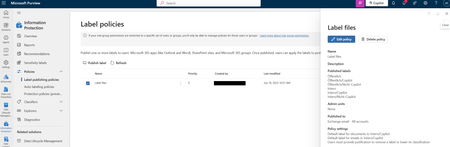
AlexReviewit du meinst vermutlich, wie du es schaffst, dass die Label "Alex Reviewit - Confidential" und "Alex Reviewit - Confidential View Only" genauso in Word, Outlook usw. Auftauchen, wie es bei den beiden Labeln "Alex Reviewit - Verschlüsselt" und "Public" der Fall ist? Wenn dem so ist, überprüfe bitte deine "Label publishing policies". Die findest du in Purview, unter Information Protection. Von dort nicht auf die Sensitivity Label, sondern auf den Punkt darunter, "Policies" und dann auf "Label publishing policies". Dort siehst du dann sofort welche Label veröffentlicht sind und für welchen Bereich diese veröffentlicht sind. (siehe Bild) Dann kann es etwas dauern bis sie überall auftauchen. Wenn das die Lösung auf deine Frage ist, markiere meinen Post gerne als Antwort. Ansonsten melde dich gerne mit weiteren Details.24Views0likes0CommentsRe: Reasoning Models in Microsoft Copilot: Who’s Doing the Thinking?
AndrewBettany Well, that's just my guess. Microsoft originally worked on different products. Bing Chat Enterprise, Copilot in Microsoft 365, and Copilot for personal use were roughly the names back then. I'm quite certain that these will be gradually consolidated. This will happen in parallel with the further development of the individual Copilots and their better integration into the various tools. The free version also serves as an appetizer for the larger paid version.257Views0likes1CommentRe: Reasoning Models in Microsoft Copilot: Who’s Doing the Thinking?
Hi Ayaka72 this isn't documented by Microsoft, so I can't share a link to it. I just listened to the comments of some Microsoft employees and some MVPs at events and noted what might be interesting to everyone but isn't available as an official resource. 🙂 My intention with this article was to share this with you, since everyone wants to know this, but it can't be found anywhere. 🙃337Views1like1CommentRe: Copilot Chat vsus. Microsoft 365 Copilot What's the difference?
But to clarify here. There is the Copilot Chat, included in the Enterprise and Business Micrsooft 365 licenses. If you use this and have no Microsoft 365 Copilot license activated for that user, you use o1. If you have an Microsoft 365 Copilot license activated for that user and use Copilot Chat, than you use o4.1.5KViews2likes0Comments
Groups

Microsoft Hero Community
Welcome to Microsoft Hero Community, an official Microsoft Learn Learning Room dedicated to empowering learners through a strong focus on Microsoft Cloud technologies. We regularly host sessions, events, webinars, and training programs to support your growth and success. Join us on your cloud journey, we’re here to help every step of the way!Latest Activity: Oct 15, 2025Recent Blog Articles
No content to show