macros and vba
6544 Topics
EXCEL 360 COMPATABLE WITH 2010 XLSM FILES? THE MACROS IN VBA?
EXCEL 360 COMPATABLE WITH 2010 XLSM FILES? THE MACROS IN VBA? I developed a complete workbook the excel 2010 for my business and was wondering if I can use the new version of excel? Hoping that all the macros will work... Thanks for any help !! DaveSolved42Views0likes1Comment
Macros open server file hyperlinks in 2nd instance
Macros open server file hyperlinks in 2nd instance, preventing macros from seeing and interacting with the newly opened file. Manual clicking of hyperlink opens the files in the same instance as expected. Users with fresh login have no trouble with the macros opening the files in the same instance. Esoteric macro and/or Microsoft 365 Active Directory problem. Macros using hyperlink in a cell to .follow them to open. Then the next line is a sheet selection of a sheet in the new workbook. Error thrown because the new workbook is not visible to the macro and does not see the sheet name. This works for everyone everywhere. Including on fresh logins. Recently User1 started having the 2nd instance problem. I thought it was isolated and fixed it by removing and recreating his profile. Worked fine for a week. Then it came back. Then User2 logged in on the same machine had the issue. Then the next day User3 on a separate machine had the issue. All 3 users have no issues if they just use a clean login on a different machine. If you manually open all the necessary files, THEN run the macro, it still errors because when it tries to open the already-open-file, it gives the standard Read only Notify me Cancel dialogue. It says [self user] is using it and the file is locked. So is it even a macro problem or is it a server problem? Our server admin says it's not his problem and he has no idea what's happening and it's probably our crappy macros. Yes, our macros are crappy, recorded decades ago. But they work as expected except in these rare but spreading cases, seemingly due to some background environment development.25Views0likes1Comment
VBA Code "Next" button. Should be so simple...
I have the following codes in the click event for a "next" and "prev" buttons on my userform. The prev button works fine, the next button will not advance to the next record in my table, and instead gives me the "Last record" message box (regardless of the active row). If I remove the If...Then loop it works fine. WHY is it looping to the "last record" msgbox when it is clearly not on the last record?? Any ideas greatly appreciated Dim LastFind As Range Dim CurrentRow As Long Private Sub CommandButton6_Click() If CurrentRow < LastRow Then CurrentRow = CurrentRow + 1 LoadRecord CurrentRow Else MsgBox "This is the last record." End If End Sub Private Sub CommandButton7_Click() If CurrentRow > 5 Then CurrentRow = CurrentRow - 1 LoadRecord CurrentRow Else MsgBox "This is the first record." End If End Sub112Views0likes2Comments
Hide rows based on Drop-down box selection
Hello, I have a drop-down box with different selections. One of which is "VPN to VPN Cloud-Based". If this is selected then I want to hide rows 36 through 239. Doing something wrong in my code, as it isn't doing anything when "VPN to VPN Cloud-Based" is select. Any ideas what I need to change? Attaching screenshot of the form and the VBA. Thanks.Solved89Views0likes3Comments
Help needed with IF and COUNTIFS Formulas
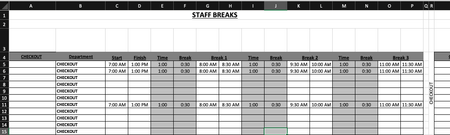
Is anyone able to advise the following formula: =COUNTIFS($B$5:$B$15,$R$4,$C5:$C15,"<=" & V3,$D5:$D15, ">" & V3)-COUNTIFS($B$5:$B$15,"="&$R$4,$G5:$G15,"<=" & V3,$H5:$H15, ">" & V3)-COUNTIFS($B$5:$B$15,"="&$R$4,$K5:$K15,"<=" & V3,$L5:$L15, ">" & V3)-COUNTIFS($B$5:$B$15,"="&$R$4,$O5:$O15,"<=" & V3,$P5:$P15, ">" & V3) Is there a way to simplify this? Is there a way to make this more accurate? Cells in column G & H, I & J, O & P are using the following format: =IF(C6="","",C6+E6) Cells in U4:CC4 are using the following format: =COUNTIFS($B$5:$B$15,$R$4,$C5:$C15,"<=" & U3,$D5:$D15, ">" & U3)-COUNTIFS($B$5:$B$15,"="&$R$4,$G5:$G15,"<=" & U3,$H5:$H15, ">" & U3)-COUNTIFS($B$5:$B$15,"="&$R$4,$K5:$K15,"<=" & U3,$L5:$L15, ">" & U3)-COUNTIFS($B$5:$B$15,"="&$R$4,$O5:$O15,"<=" & U3,$P5:$P15, ">" & U3) Cells in U5:CC15 are using the following format: =IF(U$4>=$T5,1,"") My issue is is when I put in the three break times, the mid break comes out at a shorter time. My other issue is is that when I put in the times in row 5,6and 11, the data is coming up as a combined data in rows 5, 6 and seven on the page two. Just for reference, "page two" is the same spreadsheet. What I need to happen is that I enter in the shift start time and finish time. This then populates through to Break 1, 2 and 3. The Time entry is the time the break starts. ie: 1 hour after start of shift, 1 hour after coming back from break, etc. The break entry is the duration of the break taken. ie: 30 minutes. Once all the info is put in, the relevant "Time Block" on "Page 2" shows a 1. What is happening at the moment is that when I enter all the time data, the time blocks are not populating correctly in accordance to the entry. Basically, If I have numerous people on shiftI need the time blocks to show where I have shortfalls in shift cover and not having too many people on break at the same time. IE: Link to Live Copy: https://www.dropbox.com/scl/fi/eur1j526htu1j8a4d4290/Staff-Breaks.xlsx?rlkey=r4tm9xts4tonofpa2th2cusfw&st=nueyk0d7&dl=0 Any ideas would be greatly appreciated.198Views0likes4Comments
How do I save an Excel Add-in (XLAM) file?
We had a new(er) version of Excel shoved on us and the result it it doens't do this, so we're sort of in a bad place. How do I save the add-in? We were probably on an old-ish version because it was stable and upgrades tend to break us - as they have here. I'm wondering how I save an add-in now. Right now our workflow is completely broken. When I go to File--> Save there is no xlam file type available now. I can still load an old xlam but I can't create a new one.Solved239Views0likes4CommentsExcel VBA – Target a specific named table when multiple ListObjects exist on each worksheet
My workbook has 12 sheets each having the name of a month. Each sheet contains a table named LotSize?? where ?? = number of the respective month as given below. Sheet name-Table name: January-LotSize01, February-LotSize02,...., December-LotSize12. Each of these tables have two columns named SCRIP and LotSize. I want a simple VBA code for following: 1] Clear the content of LotSize column of each such table from all 12 sheets. 2] Add text A, B, C, D, E in the cells of column SCRIP of each such table in all 12 sheets. I will later replace A, B, C, ...etc. with the actual scrip names as per requirement. Sub UpdateTables() Dim monthNames As Variant: monthNames = Array("January", "February", "March", "April", "May", "June", "July", "August", "September", "October", "November", "December") Dim vals As Variant: vals = Array("A", "B", "C", "D", "E") Dim ws As Worksheet Dim tbl As ListObject Dim lr As ListRow Dim i As Long Dim j As Integer For i = LBound(monthNames) To UBound(monthNames) Set ws = ThisWorkbook.Worksheets(monthNames(i)) If Not ws Is Nothing Then If ws.ListObjects.Count > 0 Then Set tbl = ws.ListObjects(1) With tbl If Not .DataBodyRange Is Nothing Then .DataBodyRange.Delete For j = 1 To 5 Set lr = .ListRows.Add lr.Range(tbl.ListColumns("SCRIP").Index) = vals(j - 1) Next j End With End If End If Set ws = Nothing Set tbl = Nothing Set lr = Nothing Next i End Sub Above code works only if each sheet has only one such table but I am having three different tables on each sheet with LotSize?? (?? = Month number) being one of them. How can we modify given code to incorporate this change so that the code operates on the desired table to achieve the stated objectives?Solved144Views0likes5CommentsI need help with userform create list of teams no repeated
I have a userform for the NFL playoffs. 14 combo boxes for wild card & Divisional only. I want to create a search with no repeat, and after I pick team, should not the list should not be repeated. Dark red is for AFC TEAMS and dark blue is for NFC TEAMS. I have listed teams on the teams info worksheet. I need help getting this working40Views0likes0Comments
Cannot delete a macro
Windows 10 desktop computer, Excel I recorded a macro, seems to have an error. Want to Delete it and try again. When I go into Macros, I see it listed and highlighted (it is the only one), try to click Delete, but get message : "Cannot edit a macro on a hidden workbook. Unhide the workbook using the Unhide command" Don't know what this means. I don't know of any hidden workbooks, never did anything to hide any workbook. Help for "unhide" says go to Home-->(Cells) Format-->Visibility-->Hide&Unhide, but when I go there, the entry for Unhide Sheet is grayed out. so cannot do that anyway. I just want to delete the macro I recorded before and try to record it again to get rid of whatever error it contains. This is a macro I intended to use in any Excel workbook and is listed as PERSONAL.XLSB!(name) and below the list of Macro names there is a box Macros in: All Open Workbooks It is the only macro listed, there are no others.5.7KViews0likes12Comments