compliance
914 TopicsSecurity Review for Microsoft Edge version 147
We have reviewed the new settings in Microsoft Edge version 147 and determined that there are no additional security settings that require enforcement. The Microsoft Edge version 139 security baseline continues to be our recommended configuration which can be downloaded from the Microsoft Security Compliance Toolkit. Microsoft Edge version 147 introduced 9 new Computer and User settings; we have included a spreadsheet listing the new settings to make it easier for you to find. Version 147 introduced the Control the availability of the XSLT feature policy (XSLTEnabled). This policy exists to support enterprise testing and transition scenarios while the Chromium project works toward deprecating and removing XSLT support from the browser due to security concerns associated with this legacy feature. XSLT support in modern browsers represents a disproportionate attack surface, and upstream Chromium has announced plans to disable and ultimately remove XSLT in a future release. As a result, organizations should treat continued reliance on client‑side XSLT as technical debt and plan migration accordingly. Additional details can be found here. Organizations are encouraged to proactively test setting XSLTEnabled = Disabled to identify application dependencies and remediation requirements ahead of any future default changes or removal of the feature. As a friendly reminder, all available settings for Microsoft Edge are documented here, and all available settings for Microsoft Edge Update are documented here. Please continue to give us feedback through the Security Baselines Discussion site or this post.Search and Purge using Microsoft Graph eDiscovery API
Welcome back to the series of blogs covering search and purge in Microsoft Purview eDiscovery! If you are new to this series, please first visit the blog post in our series that you can find here: Search and Purge workflow in the new modern eDiscovery experience Also, please ensure you have fully read the Microsoft Learn documentation on this topic as I will not be covering some of the steps in full (permissions, releasing holds, all limitations): Find and delete Microsoft Teams chat messages in eDiscovery | Microsoft Learn So as a reminder, for E5/G5 customers and cases with premium features enabled- you must use the Graph API to execute the purge operation. With the eDiscovery Graph API, you have the option to create the case, create a search, generate statistics, create an item report and issue the purge command all from the Graph API. It is also possible to use the Purview Portal to create the case, create the search, generate statistics/samples and generate the item report. However, the final validation of the items that would be purged by rerunning the statistics operation and issuing the purge command must be run via the Graph API. In this post, we will take a look at two examples, one involving an email message and one involving a Teams message. I will also look to show how to call the graph APIs. Purging email messages via the Graph API In this example, I want to purge the following email incorrectly sent to Debra Berger. I also want to remove it from the sender's mailbox as well. Let’s assume in this example I do not know exactly who sent and received the email, but I do know the subject and date it was sent on. In this example, I am going to use the Modern eDiscovery Purview experience to create a new case where I will undertake some initial searches to locate the item. Once the case is created, I will Create a search and give it a name. In this example, I do not know all the mailboxes where the email is present, so my initial search is going to be a tenant wide search of all Exchange mailboxes, using the subject and date range as conditions to see which locations have hits. Note: For scenarios where you know the location of the items there is no requirement to do a tenant wide search. You can target the search to the know locations instead. I will then select Run Query and trigger a Statistics job to see which locations in the tenant have hits. For our purposes, we do not need to select Include categories, Include query keywords report or Include partially indexed items. This will trigger a Generate statistics job and take you to the Statistics tab of the search. Once the job completes it will display information on the total matches and number of locations with hits. To find out exactly which locations have hits, I can use the improved process reports to review more granular detail on the locations with hits. The report for the Generate statistics job can be found by selecting Process manager and then selecting the job. Once displayed I can download the reports associated with this process by selecting Download report. Once we have downloaded the report for the process, we get a ZIP file containing four different reports, to understand where I had hits I can review the Locations report within the zip file. If I open the locations report and filter on the count column I can see in this instance I have two locations with hits, Admin and DebraB. I will use this to make my original search more targeted. It also gives me an opportunity to check that I am not going to exceed the limits on the number of items I can target for the purge per execution. Returning to our original search I will remove All people and groups from my Data Sources and replace it with the two locations I had hits from. I will re-run my Generate Statistics job to ensure I am still getting the expected results. As the numbers align and remain consistent, I will do a further check and generate samples from the search. This will allow me to review the items to confirm that they are the items I wish to purge. From the search query I select Run query and select Sample. This will trigger a Generate sample job and take you to the Sample tab of the search. Once complete, I can review samples of the items returned by the search to confirm if these items are the items I want to purge. Now that I have confirmed, based on the sampling, that I have the items I want to purge I want to generate a detailed item report of all items that are a match for my search. To do this I need to generate an export report for the search. Note: Sampling alone may not return all the results impacted by the search, it only returns a sample of the items that match the query. To determine the full set of items that will be targeted we need to generate the export report. From the Search I can select Export to perform a direct export without having to add the data to a review set (available when premium features are enabled). Ensure to configure the following options on the export: Indexed items that match your search query Unselect all the options under Messages and related items from mailboxes and Exchange Online Export Item report only If you want to manually review the items that would be impacted by the purge operation you can optionally export the items alongside the items report for further review. You can also add the search to a review set to review the items that you are targeting. The benefit of adding to the review set is that it enables to you review the items whilst still keeping the data within the M365 service boundary. Note: If you add to a review set, a copy of the items will remain in the review set until the case is deleted. I can review the progress of the export job and download the report via the Process Manager. Once I have downloaded the report, I can review the Items.csv file to check the items targeted by the search. It is at this stage I must switch to using the Graph APIs to validate the actions that will be taken by the purge command and to issue the purge command itself. Not undertaking these additional validation steps can result in un-intended purge of data. There are two approaches you can use to interact with the Microsoft Graph eDiscovery APIs: Via Graph Explorer Via the MS.Graph PS module For this example, I will show how to use the Graph Explorer to make the relevant Graph API calls. For the Teams example, I will use the MS.Graph PS Module. We are going to use the APIs to complete the following steps: Trigger a statistics job via the API and review the results Trigger the purge command The Graph Explorer can be accessed via the following link: Graph Explorer | Try Microsoft Graph APIs - Microsoft Graph To start using the Graph Explorer to work with Microsoft Graph eDiscovery APIs you first need to sign in with your admin account. You need to ensure that you consent to the required Microsoft Graph eDiscovery API permissions by selecting Consent to permissions. From the Permissions flyout search for eDiscovery and select Consent for eDiscovery.ReadWrite.All. When prompted to consent to the permissions for the Graph Explorer select Accept. Optionally you can consent on behalf of your organisation to suppress this step for others. Once complete we can start making calls to the APIs via Graph Explorer. To undertake the next steps we need to capture some additional information, specifically the Case ID and the Search ID. We can get the case ID from the Case Settings in the Purview Portal, recording the Id value shown on the Case details pane. If we return to the Graph Explorer we can use this CaseID to see all the searches within an eDiscovery case. The structure of the HTTPS call is as follows: GET https://graph.microsoft.com/v1.0/security/cases/ediscoveryCases/<caseID>/searches List searches - Microsoft Graph v1.0 | Microsoft Learn If we replace <caseID> with the Id we captured from the case settings we can issue the API call to see all the searches within the case to find the required search ID. When you issue the GET request in Graph Explorer you can review the Response preview to find the search ID we are looking for. Now that we have the case ID and the Search ID we can trigger an estimate by using the following Graph API call. POST https://graph.microsoft.com/v1.0/security/cases/ediscoveryCases/{ediscoveryCaseId}/searches/{ediscoverySearchId}/estimateStatistics ediscoverySearch: estimateStatistics - Microsoft Graph v1.0 | Microsoft Learn Once you issue the POST command you will be returned with an Accepted – 202 message. Now I need to use the following REST API call to review the status of the Estimate Statistics job in Graph Explorer. GET https://graph.microsoft.com/v1.0/security/cases/ediscoveryCases/{ediscoveryCaseId}/searches/{ediscoverySearchId}/lastEstimateStatisticsOperation List lastEstimateStatisticsOperation - Microsoft Graph v1.0 | Microsoft Learn If the estimates job is not complete when you run the GET command the Response preview contents will show the status as running. If the estimates job is complete when you run the GET command the Response preview contents will show you the results of the estimates job. CRITICAL: Ensure that the indexedItemCount matches the items returned in the item report generated via the Portal. If this does not match do not proceed to issuing the purge command. Now that I have validated everything, I am ready to issue the purge command via the Graph API. I will use the following Graph API call. POST https://graph.microsoft.com/v1.0/security/cases/ediscoveryCases/{ediscoveryCaseId}/searches/{ediscoverySearchId}/purgeData ediscoverySearch: purgeData - Microsoft Graph v1.0 | Microsoft Learn With this POST command we also need to provide a Request Body to tell the API which areas we want to target (mailboxes or teamsMessages) and the purge type (recoverable, permantlyDelete). As we are targeting email items I will use mailboxes as the PurgeAreas option. As I only want to remove the item from the user’s mailbox view I am going to use recoverable as the PurgeType. { "purgeType": "recoverable", "purgeAreas": "mailboxes" } Once you issue the POST command you will be returned with an Accepted – 202 message. Once the command has been issued it will proceed to purge the items that match the search criteria from the locations targeted. If I go back to my original example, we can now see the item has been removed from the users mailbox. As it has been soft deleted I can review the recoverable items folder from Outlook on the Web where I will see that for the user, it has now been deleted pending clean-up from their mailbox. Purging Teams messages via the Graph API In this example, I want to purge the following Teams conversation between Debra, Adele and the admin (CDX) from all participants Teams client. I am going to reuse the “HK016 – Search and Purge” case to create a new search called “Teams conversation removal”. I add three participants of the chat as Data sources to the search, I am then going to use the KeyQL condition to target the items I want to remove. In this example I am using the following KeyQL. (Participants=AdeleV@M365x00001337.OnMicrosoft.com AND Participants=DebraB@M365x00001337.OnMicrosoft.com AND Participants=admin@M365x00001337.onmicrosoft.com) AND (Kind=im OR Kind=microsoftteams) AND (Date=2025-06-04) This is looking for all Teams messages that contain all three participants sent on the 4 th of June 2025. It is critical when targeting Teams messages that I ensure my query targets exactly the items that I want to purge. With Teams messages (opposed to email items) there are less options available that enable us to granularly target the team items for purging. Note: The use of the new Identifier condition is not supported for purge options. Use of this can lead to unintended data to be removed and should not be used as a condition in the search at this time. If I was to be looking for a very specific phrase, I could further refine the query by using the Keyword condition to look for that specific Teams message. Once I have created my search I am ready to generate both Statistics and Samples to enable me to validate I am targeting the right items for my search. My statistics job has returned 21 items, 7 from each location targeted. This aligns with the number of items within the Teams conversation. However, I am going to also validate that the samples I have generated match the content I want to purge, ensuring that I haven’t inadvertently returned additional items I was not expecting. Now that I have confirmed, based on the sampling, that the sample of items returned look to be correct I want to generate a detailed item report of all items that are a match for my search. To do this I need to generate an export report for the search. From the Search I can select Export to perform a direct export without having to add the data to a review set (available when premium features are enabled). Ensure to configure the following options on the export: Indexed items that match your search query Unselect all the options under Messages and related items from mailboxes and Exchange Online Export Item report only Once I select Export it will create a new export job, I can review the progress of the job and download the report via the Process Manager. Once I have downloaded the report, I can review the Items.csv file to check the items targeted by the search and that would be purged when I issue the purge call. Now that I have confirmed that the search is targeting the items I want to purge it is at this stage I must switch to using the Graph APIs. As discussed, there are two approaches you can use to interact with the Microsoft Graph eDiscovery APIs: Using Graph Explorer Using the MS.Graph PS module For this example, I will show how to use the MS.Graph PS Module to make the relevant Graph API calls. To understand how to use the Graph Explorer to issue the purge command please refer to the previous example for purging email messages. We are going to use the APIs to complete the following steps: Trigger a statistics job via the API and review the results Trigger the purge command To install the MS.Graph PowerShell module please refer to the following article. Install the Microsoft Graph PowerShell SDK | Microsoft Learn To understand more about the MS.Graph PS module and how to get started you can review the following article. Get started with the Microsoft Graph PowerShell SDK | Microsoft Learn Once the PowerShell module is installed you can connect to the eDiscovery Graph APIs by running the following command. connect-mgGraph -Scopes "ediscovery.ReadWrite.All" You will be prompted to authenticate, once complete you will be presented with the following banner. To undertake the next steps we need to capture some additional information, specifically the Case ID and the Search ID. As before we can get the case ID from the Case Settings in the Purview Portal, recording the Id value shown on the Case details pane. Alternatively we can use the following PowerShell command to find a list of cases and their ID. get-MgSecurityCaseEdiscoveryCase | ft displayname,id List ediscoveryCases - Microsoft Graph v1.0 | Microsoft Learn Once we have the ID of the case we want to execute the purge command from, we can run the following command to find the IDs of all the search jobs in the case. Get-MgSecurityCaseEdiscoveryCaseSearch -EdiscoveryCaseId <ediscoveryCaseId> | ft displayname,id,ContentQuery List searches - Microsoft Graph v1.0 | Microsoft Learn Now that we have both the Case ID and the Search ID we can trigger the generate statistics job using the following command. Invoke-MgEstimateSecurityCaseEdiscoveryCaseSearchStatistics -EdiscoveryCaseId <ediscoveryCaseId> -EdiscoverySearchId <ediscoverySearchId> ediscoverySearch: estimateStatistics - Microsoft Graph v1.0 | Microsoft Learn Now I need to use the following command to review the status of the Estimate Statistics job. Get-MgSecurityCaseEdiscoveryCaseSearchLastEstimateStatisticsOperation -EdiscoveryCaseID <ediscoveryCaseId> -EdiscoverySearchId <ediscoverySearchId> List lastEstimateStatisticsOperation - Microsoft Graph v1.0 | Microsoft Learn If the estimates job is not complete when you run the command the status will show as running. If the estimates job is complete when you run the command status will show as succeeded and will also show the number of hits in the IndexItemCount. CRITICAL: Ensure that the indexedItemCount matches the items returned in the item report generated via the Portal. If this does not match do not proceed to issuing the purge command. Now that I have validated everything I am ready to issue the purge command via the Graph API. With this command we need to provide a Request Body to tell the API which areas we want to target (mailboxes or teamsMessages) and the purge type (recoverable, permantlyDelete). As we are targeting teams items I will use teamsMessages as the PurgeAreas option. Note: If you specify mailboxes then only the compliance copy stored in the user mailbox will be purged and not the item from the teams services itself. This will mean the item will remain visible to the user in Teams and can no longer be purged. When purgeType is set to either recoverable or permanentlyDelete and purgeAreas is set to teamsMessages, the Teams messages are permanently deleted. In other words either option will result in the permanent deletion of the items from Teams and they cannot be recovered. $params = @{ purgeType = "recoverable" purgeAreas = "teamsMessages" } Once I have prepared my request body I will issue the following command. Clear-MgSecurityCaseEdiscoveryCaseSearchData -EdiscoveryCaseId $ediscoveryCaseId -EdiscoverySearchId $ediscoverySearchId -BodyParameter $params ediscoverySearch: purgeData - Microsoft Graph v1.0 | Microsoft Learn Once the command has been issued it will proceed to purge the items that match the search criteria from the locations targeted. If I go back to my original example, we can now see the items has been removed from Teams. Congratulations, you have made it to the end of the blog post. Hopefully you found it useful and it assists you to build your own operational processes for using the Graph API to issue search and purge actions.Create historical reports using Azure Log Analytics and Microsoft Intune diagnostic data
By: Janusz Gal – Sr Product Manager | Microsoft Intune Azure Log Analytics gives Intune admins a flexible way to create custom reports from diagnostic data, especially when you need longer history or tailored calculations that go beyond what the Microsoft Intune admin center’s built-in reports provide. By using the Intune diagnostic data you’re already collecting, you can customize reporting for your organization’s unique requirements. In this post, you’ll walk through the steps to create a 30-day device compliance trend report. The resultant report can be run automatically, used in dashboards, or even further customized for a longer period or with additional data. Before we begin, if you haven’t configured a Log Analytics workspace in your tenant, review the following detailed information on the pre-requisites and costs on Microsoft Learn: Route logs to Azure Monitor using Microsoft Intune. In the Microsoft Intune admin center, navigate to Reports > Diagnostic settings, and add a new Diagnostic setting policy to send data to a Log Analytics workspace. Figure 1 Reports > Diagnostic settings, used to configure new or existing diagnostic settings. For a device compliance trend report, ensure the Devices log category is selected: Figure 2 Reports > Diagnostic settings > Selected configuration; Devices log selected. After configuring the setting, navigate to Reports > under Azure monitor, Log Analytics. Figure 3 Reports > Log Analytics; used to query log Analytics workspaces. In the New Query window, enter the following query: IntuneDevices | where TimeGenerated > ago(30d) | summarize Total = count(), Compliant = countif(CompliantState == "Compliant"), NonCompliant = countif(CompliantState == "Noncompliant"), InGracePeriod = countif(CompliantState == "InGracePeriod"), NotEvaluated = countif(CompliantState == "Not Evaluated" or CompliantState == ""), ConfigManager = countif(CompliantState == "ConfigManager") by bin(TimeGenerated, 1d) | extend ComplianceRate = round(100.0 * Compliant / Total, 2) | order by TimeGenerated asc This query will return daily device compliance trends over the past 30 days, from the IntuneDevice table. Figure 4 Reports > Log Analytics; results after running query. Select Chart > Chart type > Stacked Area to show a visual of the trending device state over time. Figure 5 Reports > Log Analytics > Chart > Stacked Area. If you’d like to create other reports but aren’t sure of the schema, one trick you can use is to run the following query in the above Log Analytics workspace to get all the column names: IntuneDevices | getschema Then to get all the values from those columns, you can modify the query to return the distinct values from a specific column such as CompliantState: IntuneDevices | distinct CompliantState Now that you have the query created in Log Analytics, you can save it to run anytime, pin it to a dashboard, or even create a new alert rule to let you know if compliance has gone below a certain threshold. To pin it as a dashboard, on the Query pane select the ellipsis (…) > Pin to > Azure dashboard. Figure 6 Reports > Log Analytics; pin query to dashboard flow. Then select the dashboard you’d like to use. Figure 7 Reports > Log Analytics; select dashboard to pin. Once pinned, simply navigate to Dashboard within the Intune admin center, and you’ll see the query pinned on the selected dashboard. Figure 8 Dashboard showing Log Analytics query. To show more than the past 24-hours, select the Customize Tile button and select Override the dashboard time settings at the tile level, with Timespan set to Past 30 days. Figure 9 Dashboard > Selected Query > Customize Tile button. If you’d like to always see the data in a chart form, select the edit icon on the pinned dashboard item and append the following to the end of the query: | render areachart with (kind=stacked) Figure 10 Dashboard > Selected query > Edit > modified query to show chart. After clicking Apply, the dashboard shows the following: Figure 11 Dashboard showing updated historical device compliance query as a stacked area chart. You’ve now seen end-to-end how to turn Intune diagnostic data into a 30-day device compliance trend report with diagnostic data and Log Analytics. From here, the next step is to operationalize it - save the query, extend the timeframe, join in additional diagnostic tables, or set an alert so you’re notified when compliance drops below your threshold. Better yet, see if you can pick one reporting gap your team is living with today and build it using this pattern. With the right tooling, Intune data can be shaped into views and insights that reflect your organization’s unique needs. Let us know if you have any questions by leaving a comment below or reach out on X @IntuneSuppTeam!918Views0likes0CommentsRegistration Open: Community-Led Purview Lightning Talks
Get ready for an electrifying event! The Microsoft Security Community proudly presents Purview Lightning Talks; an action-packed series featuring your fellow Microsoft users, partners and passionate Microsoft Security community members of all sorts. Each 3-12 minute talk cuts straight to the chase, delivering expert insights, real-world use cases, and even a few game-changing tips and tricks. Don’t miss this opportunity to learn, connect, and be inspired! Secure your spot now for the big day: April 30th at 8am Redmond Time. 💙 See agenda details below and follow this blog post (sign in and click the "follow" heart in the upper right) to receive notifications. We have more speaker details and community connection information coming soon! AGENDA The Day Offboarding Exposed Infinite Retention - Nikki Chapple nikkichapple A real-world discovery of orphaned OneDrives and retention debt caused by retain-only policies, and how Adaptive Scopes help prevent it. Topic: Data Lifecycle Management Securing Data in the Age of AI - Julio Cesar Goncalves Vasconcelos How Microsoft Purview enables organizations to accelerate AI adoption while maintaining security, compliance, and transparency. Topic: Purview for AI What’s In My Compliance Manager Toolbox - Jerrad Dahlager j-dahl7 A practical walkthrough of using Compliance Manager to map controls, track improvements, and simplify multi-framework compliance. Topic: Compliance Manager Why You Should Create Your Own Sensitive Information Types (SITs) - Niels Jakobsen Niels_Jakobsen An in-depth analysis of why built-in SITs are not one-size-fits-all, and how to tailor them for real enterprise needs. Topic: Information Protection Beyond eDiscovery – Purview DSI for Security Investigation - Susantha Silva How to turn DLP alerts and Insider Risk signals into structured data investigations without jumping between portals. Topic: Data Security (DSI) Four Labels Max for Daily Use: Which Ones & Why? - Romain Dalle Romain DALLE A minimalist sensitivity labeling baseline designed for real-world adoption and usability. Topic: Information Protection Elevating Purview DLP with a Real-World Use Case - Victor Wingsing vicwingsing Hardening Purview DLP beyond default configurations to close real-world data loss gaps. Topic: Data Loss Prevention (DLP) Stop, Think, Protect: Data Security in Real Life with Purview - Oliver Sahlmann Oliver Sahlmann A traffic-light approach showing how simple labels and DLP policies still deliver meaningful protection. Topic: Data Security The Purview Label Engine: Automated Classification & Documentation - Michael Kirst Neshva MichaelKirst1970 A scalable framework for rolling out Microsoft Purview labels across global, multilingual enterprises. Topic: Information Protection Data-Driven Endpoint DLP with Advanced Hunting - Tatu Seppälä tatuseppala Using KQL queries and usage patterns to refine endpoint DLP policies based on real behavior. Topic: Data Loss Prevention (DLP) Improving Discovery, Trust, and Reuse of Analytics with Purview Data Products - Craig Wyndowe CraigWyndowe How Purview Governance Domains and Data Products create a trusted, reusable analytics ecosystem. Topic: Data Governance From Zero to First Signal: Insider Risk Management Prerequisites That Matter - Sathish Veerapandian Sathish Veerapandian A focused look at the configurations required for Insider Risk Management to actually generate alerts. Topic: Insider Risk Management The Purview Hack No One Talks About: Container Sensitivity Labels - Nikki Chapple nikkichapple How container sensitivity labels instantly fix oversharing for Teams, Groups, and SharePoint sites. Topic: Information Protection Using Purview to Prevent Oversharing with AI Services - Viktor Hedberg headburgh How Information Protection and DLP prevent Copilot and AI services from exposing sensitive data. Topic: Information Protection & DLP How I Helped Customers Understand Their AI Usage (and Protect Data) - Bram de Jager Bram de Jager Exposing risky AI usage patterns and protecting sensitive data entered into public AI tools. Topic: Data Security Posture Management for AI Bulk Sensitivity Label Removal with Microsoft Purview Information Protection (MPIP) - Zak Hepler A practical demo on safely removing sensitivity labels at scale from SharePoint libraries. Topic: Information Protection Does M365 Support eDiscovery? (Mythbusting) - Julian Kusenberg Leprechaun91 A myth-busting session separating perception from reality in Microsoft 365 eDiscovery. Topic: eDiscovery385Views4likes0CommentsWelcome to the Microsoft Security Community!
Microsoft Security Community Hub | Protect it all with Microsoft Security Eliminate gaps and get the simplified, comprehensive protection, expertise, and AI-powered solutions you need to innovate and grow in a changing world. The Microsoft Security Community is your gateway to connect, learn, and collaborate with peers, experts, and product teams. Gain access to technical discussions, webinars, and help shape Microsoft’s security products. Get there fast To stay up to date on upcoming opportunities and the latest Microsoft Security Community news, make sure to subscribe to our email list. Find the latest skilling content and on-demand videos – subscribe to the Microsoft Security Community YouTube channel. Catch the latest announcements and connect with us on LinkedIn – Microsoft Security Community and Microsoft Entra Community. Read the latest in the the Microsoft Security Community blog. Upcoming Community Calls April 2026 CANCELLED: Apr. 14 | 8:00am | Microsoft Sentinel | Using distributed content to manage your multi-tenant SecOps Content distribution is a powerful multi-tenant feature that enables scalable management of security content across tenants. With this capability, you can create content distribution profiles in the multi-tenant portal that allow you to seamlessly replicate existing content—such as custom detection rules and endpoint security policies—from a source tenant to designated target tenants. Once distributed, the content runs on the target tenant, enabling centralized control with localized execution. This allows you to onboard new tenants quickly and maintain a consistent security baseline across tenants. In this session we'll walk through how you can use this new capability to scale your security operations. Apr. 23 | 8:00am | Security Copilot Skilling Series | Getting started with Security Copilot New to Security Copilot? This session walks through what you actually need to get started, including E5 inclusion requirements and a practical overview of the core experiences and agents you will use on day one. RESCHEDULED Apr. 28 | 8:00am | Security Copilot Skilling Series | Security Copilot Agents, DSPM AI Observability, and IRM for Agents This session covers an overview of how Microsoft Purview supports AI risk visibility and investigation through Data Security Posture Management (DSPM) and Insider Risk Management (IRM), alongside Security Copilot–powered agents. This session will go over what is AI Observability in DSPM as well as IRM for Agents in Copilot Studio and Azure AI Foundry. Attendees will learn about the IRM Triage Agent and DSPM Posture Agent and their deployment. Attendees will gain an understanding of how DSPM and IRM capabilities could be leveraged to improve visibility, context, and response for AI-related data risks in Microsoft Purview. Apr. 30 | 8:00am | Microsoft Security Community Presents | Purview Lightning Talks Join the Microsoft Security Community for Purview Lightning Talks; quick technical sessions delivered by the community, for the community. You’ll pick up practical Purview gems: must-know Compliance Manager tips, smart data security tricks, real-world scenarios, and actionable governance recommendations all in one energizing event. Hear directly from Purview customers, partners, and community members and walk away with ideas you can put to work right immediately. Register now; full agenda coming soon! May 2026 May 12 | 9:00am | Microsoft Sentinel | Hyper scale your SOC: Manage delegated access and role-based scoping in Microsoft Defender In this session we'll discuss Unified role based access control (RBAC) and granular delegated admin privileges (GDAP) expansions including: How to use RBAC to -Allow multiple SOC teams to operate securely within a shared Sentinel environment-Support granular, row-level access without requiring workspace separation-Get consistent and reusable scope definitions across tables and experiences How to use GDAP to -Manage MSSPs and hyper-scaler organizations with delegated- access to governed tenants within the Defender portal-Manage delegated access for Sentinel. Looking for more? Join the Security Advisors! As a Security Advisor, you’ll gain early visibility into product roadmaps, participate in focus groups, and access private preview features before public release. You’ll have a direct channel to share feedback with engineering teams, influencing the direction of Microsoft Security products. The program also offers opportunities to collaborate and network with fellow end users and Microsoft product teams. Join the Security Advisors program that best fits your interests: www.aka.ms/joincommunity. Additional resources Microsoft Security Hub on Tech Community Virtual Ninja Training Courses Microsoft Security Documentation Azure Network Security GitHub Microsoft Defender for Cloud GitHub Microsoft Sentinel GitHub Microsoft Defender XDR GitHub Microsoft Defender for Cloud Apps GitHub Microsoft Defender for Identity GitHub Microsoft Purview GitHub44KViews7likes13CommentsAuthorization and Governance for AI Agents: Runtime Authorization Beyond Identity at Scale
Designing Authorization‑Aware AI Agents at Scale Enforcing Runtime RBAC + ABAC with Approval Injection (JIT) Microsoft Entra Agent Identity enables organizations to govern and manage AI agent identities in Copilot Studio, improving visibility and identity-level control. However, as enterprises deploy multiple autonomous AI agents, identity and OAuth permissions alone cannot answer a more critical question: “Should this action be executed now, by this agent, for this user, under the current business and regulatory context?” This post introduces a reusable Authorization Fabric—combining a Policy Enforcement Point (PEP) and Policy Decision Point (PDP)—implemented as a Microsoft Entra‑protected endpoint using Azure Functions/App Service authentication. Every AI agent (Copilot Studio or AI Foundry/Semantic Kernel) calls this fabric before tool execution, receiving a deterministic runtime decision: ALLOW / DENY / REQUIRE_APPROVAL / MASK Who this is for Anyone building AI agents (Copilot Studio, AI Foundry/Semantic Kernel) that call tools, workflows, or APIs Organizations scaling to multiple agents and needing consistent runtime controls Teams operating in regulated or security‑sensitive environments, where decisions must be deterministic and auditable Why a V2? Identity is necessary—runtime authorization is missing Entra Agent Identity (preview) integrates Copilot Studio agents with Microsoft Entra so that newly created agents automatically get an Entra agent identity, manageable in the Entra admin center, and identity activity is logged in Entra. That solves who the agent is and improves identity governance visibility. But multi-agent deployments introduce a new risk class: Autonomous execution sprawl — many agents, operating with delegated privileges, invoking the same backends independently. OAuth and API permissions answer “can the agent call this API?” They do not answer “should the agent execute this action under business policy, compliance constraints, data boundaries, and approval thresholds?” This is where a runtime authorization decision plane becomes essential. The pattern: Microsoft Entra‑Protected Authorization Fabric (PEP + PDP) Instead of embedding RBAC logic independently inside every agent, use a shared fabric: PEP (Policy Enforcement Point): Gatekeeper invoked before any tool/action PDP (Policy Decision Point): Evaluates RBAC + ABAC + approval policies Decision output: ALLOW / DENY / REQUIRE_APPROVAL / MASK This Authorization Fabric functions as a shared enterprise control plane, decoupling authorization logic from individual agents and enforcing policies consistently across all autonomous execution paths. Architecture (POC reference architecture) Use a single runtime decision plane that sits between agents and tools. What’s important here Every agent (Copilot Studio or AI Foundry/SK) calls the Authorization Fabric API first The fabric is a protected endpoint (Microsoft Entra‑protected endpoint required) Tools (Graph/ERP/CRM/custom APIs) are invoked only after an ALLOW decision (or approval) Trust boundaries enforced by this architecture Agents never call business tools directly without a prior authorization decision The Authorization Fabric validates caller identity via Microsoft Entra Authorization decisions are centralized, consistent, and auditable Approval workflows act as a runtime “break-glass” control for high-impact actions This ensures identity, intent, and execution are independently enforced, rather than implicitly trusted. Runtime flow (Decision → Approval → Execution) Here is the runtime sequence as a simple flow (you can keep your Mermaid diagram too). ```mermaid flowchart TD START(["START"]) --> S1["[1] User Request"] S1 --> S2["[2] Agent Extracts Intent\n(action, resource, attributes)"] S2 --> S3["[3] Call /authorize\n(Entra protected)"] S3 --> S4 subgraph S4["[4] PDP Evaluation"] ABAC["ABAC: Tenant · Region · Data Sensitivity"] RBAC["RBAC: Entitlement Check"] Threshold["Approval Threshold"] ABAC --> RBAC --> Threshold end S4 --> Decision{"[5] Decision?"} Decision -->|"ALLOW"| Exec["Execute Tool / API"] Decision -->|"MASK"| Masked["Execute with Masked Data"] Decision -->|"DENY"| Block["Block Request"] Decision -->|"REQUIRE_APPROVAL"| Approve{"[6] Approval Flow"} Approve -->|"Approved"| Exec Approve -->|"Rejected"| Block Exec --> Audit["[7] Audit & Telemetry"] Masked --> Audit Block --> Audit Audit --> ENDNODE(["END"]) style START fill:#4A90D9,stroke:#333,color:#fff style ENDNODE fill:#4A90D9,stroke:#333,color:#fff style S1 fill:#5B5FC7,stroke:#333,color:#fff style S2 fill:#5B5FC7,stroke:#333,color:#fff style S3 fill:#E8A838,stroke:#333,color:#fff style S4 fill:#FFF3E0,stroke:#E8A838,stroke-width:2px style ABAC fill:#FCE4B2,stroke:#999 style RBAC fill:#FCE4B2,stroke:#999 style Threshold fill:#FCE4B2,stroke:#999 style Decision fill:#fff,stroke:#333 style Exec fill:#2ECC71,stroke:#333,color:#fff style Masked fill:#27AE60,stroke:#333,color:#fff style Block fill:#C0392B,stroke:#333,color:#fff style Approve fill:#F39C12,stroke:#333,color:#fff style Audit fill:#3498DB,stroke:#333,color:#fff ``` Design principle: No tool execution occurs until the Authorization Fabric returns ALLOW or REQUIRE_APPROVAL is satisfied via an approval workflow. Where Power Automate fits (important for readers) In most Copilot Studio implementations, Agents calls Power Automate (agent flows), is the practical integration layer that calls enterprise services and APIs. Copilot Studio supports “agent flows” as a way to extend agent capabilities with low-code workflows. For this pattern, Power Automate typically: acquires/uses the right identity context for the call (depending on your tenant setup), and calls the /authorize endpoint of the Authorization Fabric, returns the decision payload to the agent for branching. Copilot Studio also supports calling REST endpoints directly using the HTTP Request node, including passing headers such as Authorization: Bearer <token>. Protected endpoint only: Securing the Authorization Fabric with Microsoft Entra For this V2 pattern, the Authorization Fabric must be protected using Microsoft Entra‑protected endpoint on Azure Functions/App Service (built‑in auth). Microsoft Learn provides the configuration guidance for enabling Microsoft Entra as the authentication provider for Azure App Service / Azure Functions. Step 1 — Create the Authorization Fabric API (Azure Function) Expose an authorization endpoint: HTTP Step 2 — Enable Microsoft Entra‑protected endpoint on the Function App In Azure Portal: Function App → Authentication Add identity provider → Microsoft Choose Workforce configuration (enterprise tenant) Set Require authentication for all requests This ensures the Authorization Fabric is not callable without a valid Entra token. Step 3 — Optional hardening (recommended) Depending on enterprise posture, layer: IP restrictions / Private endpoints APIM in front of the Function for rate limiting, request normalization, centralized logging (For a POC, keep it minimal—add hardening incrementally.) Externalizing policy (so governance scales) To make this pattern reusable across multiple agents, policies should not be hardcoded inside each agent. Instead, store policy definitions in a central policy store such as Cosmos DB (or equivalent configuration store), and have the PDP load/evaluate policies at runtime. Why this matters: Policy changes apply across all agents instantly (no agent republish) Central governance + versioning + rollback becomes possible Audit and reporting become consistent across environments (For the POC, a single JSON document per policy pack in Cosmos DB is sufficient. For production, add versioning and staged rollout.) Store one PolicyPack JSON document per environment (dev/test/prod). Include version, effectiveFrom, priority for safe rollout/rollback. Minimal decision contract (standard request / response) To keep the fabric reusable across agents, standardize the request payload. Request payload (example) Decision response (deterministic) Example scenario (1 minute to understand) Scenario: A user asks a Finance agent to create a Purchase Order for 70,000. Even if the user has API permission and the agent can technically call the ERP API, runtime policy should return: REQUIRE_APPROVAL (threshold exceeded) trigger an approval workflow execute only after approval is granted This is the difference between API access and authorized business execution. Sample Policy Model (RBAC + ABAC + Approval) This POC policy model intentionally stays simple while demonstrating both coarse and fine-grained governance. 1) Coarse‑grained RBAC (roles → actions) FinanceAnalyst CreatePO up to 50,000 ViewVendor FinanceManager CreatePO up to 100,000 and/or approve higher spend 2) Fine‑grained ABAC (conditions at runtime) ABAC evaluates context such as region, classification, tenant boundary, and risk: 3) Approval injection (Agent‑level JIT execution) For higher-risk/high-impact actions, the fabric returns REQUIRE_APPROVAL rather than hard deny (when appropriate): How policies should be evaluated (deterministic order) To ensure predictable and auditable behavior, evaluate in a deterministic order: Tenant isolation & residency (ABAC hard deny first) Classification rules (deny or mask) RBAC entitlement validation Threshold/risk evaluation Approval injection (JIT step-up) This prevents approval workflows from bypassing foundational security boundaries such as tenant isolation or data sovereignty. Copilot Studio integration (enforcing runtime authorization) Copilot Studio can call external REST APIs using the HTTP Request node, including passing headers such as Authorization: Bearer <token> and binding response schema for branching logic. Copilot Studio also supports using flows with agents (“agent flows”) to extend capabilities and orchestrate actions. Option A (Recommended): Copilot Studio → Agent Flow (Power Automate) → Authorization Fabric Why: Flows are a practical place to handle token acquisition patterns, approval orchestration, and standardized logging. Topic flow: Extract user intent + parameters Call an agent flow that: calls /authorize returns decision payload Branch in the topic: If ALLOW → proceed to tool call If REQUIRE_APPROVAL → trigger approval flow; proceed only if approved If DENY → stop and explain policy reason Important: Tool execution must never be reachable through an alternate topic path that bypasses the authorization check. Option B: Direct HTTP Request node to Authorization Fabric Use the Send HTTP request node to call the authorization endpoint and branch using the response schema. This approach is clean, but token acquisition and secure secretless authentication are often simpler when handled via a managed integration layer (flow + connector). AI Foundry / Semantic Kernel integration (tool invocation gate) For Foundry/SK agents, the integration point is before tool execution. Semantic Kernel supports Azure AI agent patterns and tool integration, making it a natural place to enforce a pre-tool authorization check. Pseudo-pattern: Agent extracts intent + context Calls Authorization Fabric Enforces decision Executes tool only when allowed (or after approval) Telemetry & audit (what Security Architects will ask for) Even the best policy engine is incomplete without audit trails. At minimum, log: agentId, userUPN, action, resource decision + reason + policyIds approval outcome (if any) correlationId for downstream tool execution Why it matters: you now have a defensible answer to: “Why did an autonomous agent execute this action?” Security signal bonus: Denials, unusual approval rates, and repeated policy mismatches can also indicate prompt injection attempts, mis-scoped agents, or governance drift. What this enables (and why it scales) With a shared Authorization Fabric: Avoid duplicating authorization logic across agents Standardize decisions across Copilot Studio + Foundry agents Update governance once (policy change) and apply everywhere Make autonomy safer without blocking productivity Closing: Identity gets you who. Runtime authorization gets you whether/when/how. Copilot Studio can automatically create Entra agent identities (preview), improving identity governance and visibility for agents. But safe autonomy requires a runtime decision plane. Securing that plane as an Entra-protected endpoint is foundational for enterprise deployments. In enterprise environments, autonomous execution without runtime authorization is equivalent to privileged access without PIM—powerful, fast, and operationally risky.
Azure Key Vault Replication: Why Paired Regions Alone Don’t Guarantee Business Continuity
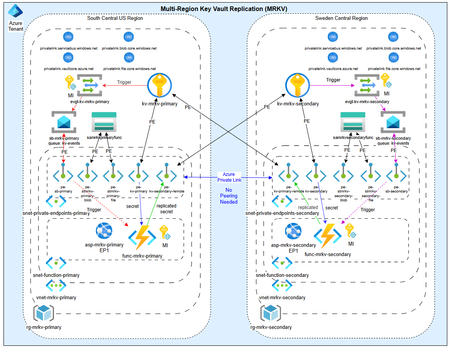
As customers modernize toward multi‑region architectures in Azure, one question comes up repeatedly: “If my region goes down, will Azure Key Vault continue to work without disruption?” The short answer: it depends on what you mean by “work.” Azure Key Vault provides strong durability and availability guarantees, but those guarantees are often misunderstood—especially when customers assume paired‑region replication equals full disaster recovery. In reality, Azure Key Vault replication is designed for survivability, not uninterrupted write access or customer‑controlled failover. This post explains: How Azure Key Vault replication actually works (per Microsoft Learn) Why paired‑region failover does not equal business continuity Two reference architectures that implement true multi‑region Key Vault availability, with Terraform How Azure Key Vault Replication Works (Per Microsoft Learn) Azure Key Vault includes multiple layers of Microsoft‑managed redundancy. In‑Region and Zone Resiliency Vault contents are replicated within the region. In regions that support availability zones, Key Vault is zone‑resilient by default. This protects against localized hardware or zone failures. Paired‑Region Replication If a Key Vault is deployed in a region with an Azure‑defined paired region, its contents are asynchronously replicated to that paired region. This replication is automatic and cannot be configured, observed, or tested by customers. Microsoft‑Managed Regional Failover If Microsoft declares a full regional outage, requests are automatically routed to the paired region. After failover, the vault operates in read‑only mode: ✅ Read secrets, keys, and certificates ✅ Perform cryptographic operations ❌ Create, update, rotate, or delete secrets, keys, or certificates This is a critical distinction. Paired‑region replication preserves access — not operational continuity. Why Paired‑Region Replication Is Not Business Continuity From a reliability and DR perspective, several limitations matter: Failover is Microsoft‑initiated, not customer‑controlled No write operations during regional failover No secret rotation or certificate renewal No way to test DR Accidental deletions replicate No point‑in‑time recovery without backups Microsoft Learn explicitly states that critical workloads may require custom multi‑region strategies beyond built‑in replication. For many customers, this means Azure Key Vault becomes a single‑region dependency in an otherwise multi‑region application design. The Multi‑Region Key Vault Pattern The two GitHub repositories below implement a common architectural shift: Multiple independent Key Vaults deployed in separate regions, with customer‑controlled replication and failover. Instead of relying on invisible platform replication, the vaults become first‑class, region‑scoped resources, aligned with application failover. Solution 1: Private, Locked‑Down Multi‑Region Key Vault Replication Repository: 👉 https://github.com/jclem2000/KeyVault-MultiRegion-Replication-Private Architecture Highlights Independent Key Vault per region Private Endpoints only No public network exposure Terraform‑based deployment Controlled replication using Event Based synchronization What This Enables ✅ Full read/write access during regional outages ✅ Continued secret rotation and certificate renewal ✅ Customer‑defined failover and RTO ✅ DR testing and validation ✅ Strong alignment with zero‑trust and regulated environments Trade‑offs Higher operational complexity Requires automation and application awareness of multiple vaults Solution 2: Low‑Cost Public Multi‑Region Key Vault Replication Repository: 👉 https://github.com/jclem2000/KeyVault-MultiRegion-Replication-Public Architecture Highlights Independent Key Vault per region Public endpoints Minimal networking dependencies Terraform‑based Controlled replication using Event Based synchronization Optimized for simplicity and cost What This Enables ✅ Full read/write availability in any region ✅ Clear and testable DR posture ✅ Lower cost than private endpoint designs ✅ Suitable for many non‑regulated workloads Trade‑offs Public exposure (mitigated via firewall rules, RBAC, and conditional access) Not appropriate for all compliance requirements Requires automation and application awareness of multiple vaults Azure Native Replication vs Customer‑Managed Multi‑Region Vaults Capability Azure Paired Region Multi‑Region Vaults Read access during outage ✅ ✅ Write access during outage ❌ ✅ Secret rotation during outage ❌ ✅ Customer‑controlled failover ❌ ✅ DR testing ❌ ✅ Isolation from accidental deletion ❌ ✅ Predictable RTO ❌ ✅ Azure Key Vault’s native replication optimizes for platform durability. The multi‑region pattern optimizes for application continuity. When to Use Each Approach Paired‑Region Replication Is Often Enough When: Secrets are mostly static Read‑only access during outages is acceptable RTO is flexible You prefer Microsoft‑managed recovery Multi‑Region Vaults Are Recommended When: Secrets or certificates rotate frequently Applications must remain writable during outages Deterministic failover is required DR testing is mandatory Regulatory or operational isolation is needed Closing Thoughts Azure Key Vault behaves exactly as documented on Microsoft Learn—but it’s important to be clear about what those guarantees mean. Paired‑region replication protects your data, not your ability to operate. If your application is designed to survive a regional outage, Key Vault must follow the same multi‑region design principles as the application itself. The reference architectures above show how to extend Azure’s native durability model into true operational resilience, without waiting for a platform‑level failover decision.112Views0likes0Comments
Feature Request: Extend Security Copilot inclusion (M365 E5) to M365 A5 Education tenants
Background At Ignite 2025, Microsoft announced that Security Copilot is included for all Microsoft 365 E5 customers, with a phased rollout starting November 18, 2025. This is a significant step forward for security operations. The gap Microsoft 365 A5 for Education is the academic equivalent of E5 — it includes the same core security stack: Microsoft Defender, Entra, Intune, and Purview. However, the Security Copilot inclusion explicitly covers only commercial E5 customers. There is no public roadmap or timeline for extending this benefit to A5 education tenants. Why this matters Education institutions face the same cybersecurity threats as commercial organizations — often with fewer dedicated security resources. The A5 license was positioned as the premium security offering for education. Excluding it from Security Copilot inclusion creates an inequity between commercial and education customers holding functionally equivalent license tiers. Request We would like Microsoft to: Confirm whether Security Copilot inclusion will be extended to M365 A5 Education tenants If yes, provide an indicative timeline If no, clarify the rationale and what alternative paths exist for education customers Are other EDU admins in the same situation? Would appreciate any upvotes or comments to help raise visibility with the product team.35Views2likes0CommentsAuthorization and Identity Governance Inside AI Agents
Designing Authorization‑Aware AI Agents Enforcing Microsoft Entra ID RBAC in Copilot Studio As AI agents move from experimentation to enterprise execution, authorization becomes the defining line between innovation and risk. AI agents are rapidly evolving from experimental assistants into enterprise operators—retrieving user data, triggering workflows, and invoking protected APIs. While many early implementations rely on prompt‑level instructions to control access, regulated enterprise environments require authorization to be enforced by identity systems, not language models. This article presents a production‑ready, identity‑first architecture for building authorization‑aware AI agents using Copilot Studio, Power Automate, Microsoft Entra ID, and Microsoft Graph, ensuring every agent action executes strictly within the requesting user’s permissions. Why Prompt‑Level Security Is Not Enough Large Language Models interpret intent—they do not enforce policy. Even the most carefully written prompts cannot: Validate Microsoft Entra ID group or role membership Reliably distinguish delegated user identity from application identity Enforce deterministic access decisions Produce auditable authorization outcomes Relying on prompts for authorization introduces silent security failures, over‑privileged access, and compliance gaps—particularly in Financial Services, Healthcare, and other regulated industries. Authorization is not a reasoning problem. It is an identity enforcement problem. Common Authorization Anti‑Patterns in AI Agents The following patterns frequently appear in early AI agent implementations and should be avoided in enterprise environments: Hard‑coded role or group checks embedded in prompts Trusting group names passed as plain‑text parameters Using application permissions for user‑initiated actions Skipping verification of the user’s Entra ID identity Lacking an auditable authorization decision point These approaches may work in demos, but they do not survive security reviews, compliance audits, or real‑world misuse scenarios. Authorization‑Aware Agent Architecture In an authorization‑aware design, the agent never decides access. Authorization is enforced externally, by identity‑aware workflows that sit outside the language model’s reasoning boundary. High‑Level Flow The Copilot Studio agent receives a user request The agent passes the User Principal Name (UPN) and intended action A Power Automate flow validates permissions using Microsoft Entra ID via Microsoft Graph Only authorized requests are allowed to proceed Unauthorized requests fail fast with a deterministic outcome Authorization‑aware Copilot Studio architecture enforces Entra ID RBAC before executing any business action. The agent orchestrates intent. Identity systems enforce access. Enforcing Entra ID RBAC with Microsoft Graph Power Automate acts as the authorization enforcement layer: Resolve user identity from the supplied UPN Retrieve group or role memberships using Microsoft Graph Normalize and compare memberships against approved RBAC groups Explicitly deny execution when authorization fails This keeps authorization logic: Centralized Deterministic Auditable Independent of the AI model Reference Implementation: Power Automate RBAC Enforcement Flow The following import‑ready Power Automate cloud flow demonstrates a secure RBAC enforcement pattern for Copilot Studio agents. It validates Microsoft Entra ID group membership before allowing any business action. Scenario Trigger: User‑initiated agent action Identity model: Delegated user identity Input: userUPN, requestedAction Outcome: Authorized or denied based on Entra ID RBAC { "$schema": "https://schema.management.azure.com/providers/Microsoft.Logic/schemas/2016-06-01/workflowdefinition.json#", "contentVersion": "1.0.0.0", "triggers": { "Copilot_Request": { "type": "Request", "kind": "Http", "inputs": { "schema": { "type": "object", "properties": { "userUPN": { "type": "string" }, "requestedAction": { "type": "string" } }, "required": [ "userUPN" ] } } } }, "actions": { "Get_User_Groups": { "type": "Http", "inputs": { "method": "GET", "uri": "https://graph.microsoft.com/v1.0/users/@{triggerBody()?['userUPN']}/memberOf?$select=displayName", "authentication": { "type": "ManagedServiceIdentity" } } }, "Normalize_Group_Names": { "type": "Select", "inputs": { "from": "@body('Get_User_Groups')?['value']", "select": { "groupName": "@toLower(item()?['displayName'])" } }, "runAfter": { "Get_User_Groups": [ "Succeeded" ] } }, "Check_Authorization": { "type": "Condition", "expression": "@contains(body('Normalize_Group_Names'), 'ai-authorized-users')", "runAfter": { "Normalize_Group_Names": [ "Succeeded" ] }, "actions": { "Authorized_Action": { "type": "Compose", "inputs": "User authorized via Entra ID RBAC" } }, "else": { "actions": { "Access_Denied": { "type": "Terminate", "inputs": { "status": "Failed", "message": "Access denied. User not authorized via Entra ID RBAC." } } } } } } } This pattern enforces authorization outside the agent, aligns with Zero Trust principles, and creates a clear audit boundary suitable for enterprise and regulated environments. Flow Diagram: Agent Integrated with RBAC Authorization Flow and Sample Prompt Execution: Delegated vs Application Permissions Scenario Recommended Permission Model User‑initiated agent actions Delegated permissions Background or system automation Application permissions Using delegated permissions ensures agent execution remains strictly within the requesting user’s identity boundary. Auditing and Compliance Benefits Deterministic and explainable authorization decisions Centralized enforcement aligned with identity governance Clear audit trails for security and compliance reviews Readiness for SOC, ISO, PCI, and FSI assessments Enterprise Security Takeaways Authorization belongs in Microsoft Entra ID, not prompts AI agents must respect enterprise identity boundaries Copilot Studio + Power Automate + Microsoft Graph enable secure‑by‑design AI agents By treating AI agents as first‑class enterprise actors and enforcing authorization at the identity layer, organizations can scale AI adoption with confidence, trust, and compliance.