ai
1221 TopicsSecuring and governing AI agents before deployment
April 30 | 2:00-3:00 PM (GTM +10) Join this live webinar to learn how to secure and govern AI agents before they go live. Explore how to provision agents with Entra Agent ID, manage identities and credentials, enforce least-privilege access, and prevent risks like Shadow AI and agent sprawl. Join to gain practical guidance on governing AI agents across their full lifecycle—so you can deploy with confidence. To view the session live, register here: Securing and Governing AI Agents Before They Go Live You can view previous Security for Software Development Company series sessions on demand here: Security for Software Development Company Series: Securing the Agentic EraIntroducing OpenAI's GPT-image-2 in Microsoft Foundry
Take a small design team running a global social campaign. They have the creative vision to produce localized imagery for every market, but not the resources to reshoot, reformat, or outsource that scale. Every asset needs to fit a different platform, a different dimension, a different cultural context, and they all need to ship at the same time. This is where flexible image generation comes in handy. OpenAI's GPT-image-2 is now generally available and rolling out today to Microsoft Foundry, introducing a step change in image generation. Developers and designers now get more control over image output, so a small team can execute with the reach and flexibility of a much larger one. What is new in GPT-image-2? GPT-image-2 brings real world intelligence, multilingual understanding, improved instruction following, increased resolution support, and an intelligent routing layer giving developers the tools to scale image generation for production workflows. Real world intelligence GPT-image-2 has a knowledge cut off of December 2025, meaning that it is able to give you more contextually relevant and accurate outputs. The model also comes with enhanced thinking capabilities that allow it to search the web, check its own outputs, and create multiple images from just one prompt. These enhancements shift image generation models away from being simple tools and runs them into creative sidekicks. Multilingual understanding GPT-image-2 includes increased language support across Japanese, Korean, Chinese, Hindi, and Bengali, as well as new thinking capabilities. This means the model can create images and render text that feels localized. Increased resolution support GPT-image-2 introduces 4K resolution support, giving developers the ability to generate rich, detailed, and photorealistic images at custom dimensions. Resolution guidelines to keep in mind: Constraint Detail Total pixel budget Maximum pixels in final image cannot exceed 8,294,400 Minimum pixels in final image cannot be less than 655,360 Requests exceeding this are automatically resized to fit. Resolutions 4K, 1024x1024, 1536x1024, and 1024x1536 Dimension alignment Each dimension must be a multiple of 16 Note: If your requested resolution exceeds the pixel budget, the service will automatically resize it down. Intelligent routing layer GPT-image-2 also includes an expanded routing layer with two distinct modes, allowing the service to intelligently select the right generation configuration for a request without requiring an explicitly set size value. Mode 1 — Legacy size selection In Mode 1, the routing layer selects one of the three legacy size tiers to use for generation: Size tier Description smimage Small image output image Standard image output xlimage Large image output This mode is useful for teams already familiar with the legacy size tiers who want to benefit from automatic selection without making any manual changes. Mode 2 — Token size bucket selection In Mode 2, the routing layer selects from six token size buckets — 16, 24, 36, 48, 64, 96 — which map roughly to the legacy size tiers: Token bucket Approximate legacy size 16, 24 smimage 36, 48 image 64, 96 xlimage This approach can allow for more flexibility in the number of tokens generated, which in turn helps to better optimize output quality and efficiency for a given prompt. See it in action GPT-image-2 shows improved image fidelity across visual styles, generating more detailed and refined images. But, don’t just take our word for it, let's see the model in action with a few prompts and edits. Here is the example we used: Prompt: Interior of an empty subway car (no people). Wide-angle view looking down the aisle. Clean, modern subway car with seats, poles, route map strip, and ad frames above the windows. Realistic lighting with a slight cool fluorescent tone, realistic materials (metal poles, vinyl seats, textured floor). As you can see, when using the same base prompt, the image quality and realism improved with each model. Now let’s take a look at adding incremental changes to the same image: Prompt: Populate the ad frames with a cohesive ad campaign for “Zava Flower Delivery” and use an array of flower types. And our subway is now full of ads for the new ZAVA flower delivery service. Let's ask for another small change: Prompt: In all Zava Flower Delivery advertisements, change the flowers shown to roses (red and pink roses). And in three simple prompts, we've created a mockup of a flower delivery ad. From marketing material to website creation to UX design, GPT-image-2 now allows developers to deliver production-grade assets for real business use cases. Image generation across industries These new capabilities open the door to richer, more production-ready image generation workflows across a range of enterprise scenarios: Retail & e-commerce: Generate product imagery at exact platform-required dimensions, from square thumbnails to wide banners, without post-processing. Marketing: Produce crisp, rich in color campaign visuals and social assets localized to different markets. Media & entertainment: Generate storyboard panels and scene at resolutions suited to production pipelines. Education & training: Create visual learning aids and course materials formatted to exact display requirements across devices. UI/UX design: Accelerate mockup and prototype workflows by generating interface assets at the precise dimensions your design system requires. Trust and safety At Microsoft, our mission to empower people and organizations remains constant. As part of this commitment, models made available through Foundry undergo internal reviews and are deployed with safeguards designed to support responsible use at scale. Learn more about responsible AI at Microsoft. For GPT-image-2, Microsoft applied an in-depth safety approach that addresses disallowed content and misuse while maintaining human oversight. The deployment combines OpenAI’s image generation safety mitigations with Azure AI Content Safety, including filters and classifiers for sensitive content. Pricing Model Offer type Pricing - Image Pricing - Text GPT-image-2 Standard Global Input Tokens: $8 Cached Input Tokens: $2 Output Tokens: $30 Input Tokens: $5 Cached Input Tokens: $1.25 Output Tokens: $10 Note: All prices are per 1M token. Getting started Whether you’re building a personalized retail experience, automating visual content pipelines or accelerating design workflows. GPT-image-2 gives your team the resolution control and intelligent routing to generate images that fit your exact needs. Try the GPT-image-2 in Microsoft Foundry today! Deploy the model in Microsoft Foundry Experiment with the model in the Image playground Read the documentation to learn more4.5KViews3likes1CommentDesign tenant linking to scale selling on Microsoft Marketplace
Designing tenant linking and Open Authorization (OAuth) directly shapes how customers onboard, grant trust, and operate your AI app or agent through Microsoft Marketplace. In this context, consent refers to the explicit authorization a customer tenant grants—via OAuth—for a publisher’s application or agent to access specific resources and perform defined actions within that tenant. This post explains how to design scalable, review‑ready identity patterns that support secure activation, clear authorization boundaries, and enterprise trust from day one. Guidance for multi‑tenant AI apps Identity decisions are rarely visible in architecture diagrams, but they are immediately visible to customers. In Microsoft Marketplace, tenant linking and OAuth consent are not background implementation details. They shape activation, onboarding, certification, and long‑term trust with enterprise buyers. When identity decisions are made late, the impact is predictable. Onboarding breaks. Permissions feel misaligned. Reviews stall. Customers hesitate. When identity is designed intentionally from the start, Marketplace experiences feel coherent, secure, and enterprise‑ready. This article focuses on how to design tenant linking and consent patterns that scale across customers, offer types, and Marketplace review—without rework later. You can always get a curated step-by-step guidance through building, publishing and selling apps for Marketplace through App Advisor. This post is part of a series on building and publishing well-architected AI apps and agents in Microsoft Marketplace. The series focuses on AI apps and agents that are architected, hosted, and operated on Azure, with guidance aligned to building and selling solutions through Microsoft Marketplace. Why identity across tenants is a first‑class design decision Designing identity is not just about authentication. It is about how trust is established between your solution and a customer tenant, and how that trust evolves over time. When identity decisions are deferred, failure modes surface quickly: Activation flows that cannot complete cleanly Consent requests that do not match declared functionality Over‑privileged apps that fail security review Customers who cannot confidently revoke access These are not edge cases. They are some of the most common reasons Marketplace onboarding slows or certifications are delayed. A good identity and access management design ensures that trust, consent, provisioning, and operation follow a predictable and reviewable path—one that customers understand and administrators can approve. Marketplace tenant linking requirements A key mental model simplifies everything that follows, separate trust establishment from authorization. Tenant linking and OAuth consent solve different problems. Tenant linking establishes trust between tenants OAuth consent grants permission within that trust Tenant linking answers: Which customer tenant does this solution trust? OAuth consent answers: What is this solution allowed to do once trusted? AI solutions published in Microsoft Marketplace should enforce this separation intentionally. Trust must be established before meaningful permissions are granted, and permission scope must align to declared functionality. Making this explicit distinction early prevents architectural shortcuts that later block certification. Throughout the rest of this post, tenant linking refers to trust establishment, not permission scope. Microsoft Entra ID as the identity foundation Microsoft Entra ID provides the primitives for identity-based access control, but the concepts only become useful when translated into publisher decisions. Each core concept maps to a choice you make early: Home tenant vs resource tenant Determines where operational control lives and how cross‑tenant trust is anchored. App registrations Define the maximum permission boundary your solution can ever request. Service principals Determine how your app appears, is governed, and is managed inside customer tenants. Managed identities Reduce long‑term credential risk and operational overhead. Understanding these decisions early prevents redesigning consent flows, re‑certifying offers, or re‑provisioning customers later. Marketplace policies reinforce this by allowing only limited consent during activation, with broader permissions granted incrementally after onboarding. Importantly, activation consent is not operational consent. Activation establishes the commercial and identity relationship. Operational permissions come later, when customers understand what your solution will actually do. OAuth consent patterns for multi‑tenant AI apps OAuth consent is not an implementation detail in Marketplace. It directly determines whether your AI app can be certified, deployed smoothly, and governed by enterprise customers. Common consent patterns map closely to AI behavior: User consent Supports read‑only or user‑initiated interactions with no autonomous actions. Admin consent Enables agents, background jobs, cross‑user access, and cross‑resource operations. Pre‑authorized consent Enables predictable, enterprise‑grade onboarding with known and approved scopes. While some AI experiences begin with user‑driven interactions, most AI solutions in Marketplace ultimately require admin consent. They operate asynchronously, act across resources, or persist beyond a single user session. Aligning expectations early avoids friction during review and deployment. Designing consent flows customers can trust Consent dialogs are part of your product experience. They are not just Microsoft‑provided UI. Marketplace reviewers evaluate whether requested permissions are proportional to declared functionality. Over‑scoped consent remains one of the most common causes of delayed or failed certification. Strong consent design: Requests only what is necessary for declared behavior Explains why permissions are needed in plain language Aligns timing with customer understanding Poor explanations increase admin rejection rates, even when permissions are technically valid. Clear consent copy builds trust and accelerates approvals. Tenant linking across offer types Identity design must align with offer type; a helpful framing is ownership: SaaS offers The publisher owns identity orchestration and tenant linking. Microsoft Marketplace reviewers expect this alignment, and mismatches surface quickly during certification. Containers and virtual machines The customer owns runtime identity; the publisher integrates with it. Managed applications Responsibility is shared, but the publisher defines the trust boundary. Each model carries different expectations for control, consent, and revocation. Designing tenant linking that matches the offer type reduces customer confusion. When consent happens in Marketplace lifecycle Many identity issues stem from unclear timing. A simple lifecycle helps anchor expectations: Buy – The customer purchases the offer Activate – Tenant trust is established Consent – Limited activation consent is granted Provision – Resources and configurations are created Operate – Incremental operational consent may be requested Revoke – Access and trust can be cleanly removed Making this sequence explicit in your design—and in your documentation—dramatically reduces confusion for customers and reviewers alike. How tenant linking shapes Marketplace readiness Identity tends to leave a lasting impression as it is one of the first architectural design choices encountered by customers. Strong tenant linking and consent design lead to: Faster certification (applies to SaaS offer only) Fewer conditional approvals Lower onboarding drop‑off Easier enterprise security reviews These outcomes are not accidental. They reflect intentional design choices made early. What’s next in the journey Tenant identity sets the foundation, but it is only one part of Marketplace readiness. In upcoming guidance, we’ll connect identity decisions to commerce, SaaS Fulfillment APIs, and operational lifecycle management—so buy, activate, provision, operate, and revoke will work together as a single, coherent system. Key Resources See curated, step-by-step guidance to help you build, publish, or sell your app or agent (no matter where you start) in App Advisor Quick-Start Development Toolkit can connect you with code templates for AI solution patterns Microsoft AI Envisioning Day Events How to build and publish AI apps and agents for Microsoft Marketplace Get over $126K USD in benefits and technical consultations to help you replicate and publish your app with ISV Success129Views1like0CommentsAI apps and agents: choosing your Marketplace offer type
Choosing your Marketplace offer type is one of the earliest—and most consequential—decisions you’ll make when preparing an AI app for Microsoft Marketplace. It’s also one of the hardest to change later. This post is the second in our Marketplace‑ready AI app series. Its goal is not to push you toward a specific option, but to help you understand how Marketplace offer types map to different AI delivery models—so you can make an informed decision before architecture, security, and publishing work begins. You can always get a curated step-by-step guidance through building, publishing and selling apps for Marketplace through App Advisor. This post is part of a series on building and publishing well-architected AI apps and agents in Microsoft Marketplace. The series focuses on AI apps and agents that are architected, hosted, and operated on Azure, with guidance aligned to building and selling solutions through Microsoft Marketplace. Why offer type is an important Marketplace decision Offer type is more than a packaging choice. It defines the operating model of your AI app on Marketplace: How customers acquire your solution Where the AI runtime executes Determining the right security and business boundaries for the AI solution and associated contextual data Who operates and updates the system How transactions and billing are handled Once an offer type is selected, it cannot be changed without creating a new offer. Teams that choose too quickly often discover later that the decision creates friction across architecture, security boundaries, or publishing requirements. Microsoft’s Publishing guide by offer type explains the structural differences between offer types and why this decision must be made up front. How Marketplace offer types map to AI delivery models AI apps differ from traditional software in a few critical ways: Contextual data may need to remain in a specific tenant or geography Agents may operate autonomously and continuously Control over infrastructure often determines trust and compliance How the solution is charged and monetized, including whether pricing is usage‑based, metered, or subscription‑driven (for example, billing per inference, per workflow execution, or as a flat monthly fee) The buyer’s technical capability, including the level of engineering expertise required to deploy and operate the solution (for example, SaaS is generally easier to consume, while container‑based and managed application offers often require stronger cloud engineering and DevOps skills) Marketplace offer types don’t describe features. They define responsibility boundaries—who controls the AI runtime, who owns the infrastructure, and where customer data is processed. At a high level, Marketplace supports four primary delivery models for AI solutions: SaaS Azure Managed Application Azure Container Virtual Machine Each represents a different balance between publisher control and customer control. The sections below explain what each model means in practice. Check out the interactive offer selection wizard in App Advisor for decision support. Below, we unpack each of the offer types. SaaS offers for AI apps SaaS is the most common model for AI apps and agents on Marketplace—and often the default starting point. With a SaaS offer, the AI service runs in the publisher’s Azure environment and is accessed by customers through a centralized endpoint. This model works well for: Multi‑tenant AI platforms and agents Continuous model and prompt updates Rapid experimentation and iteration Usage‑based or subscription billing Because the service is centrally hosted, publishers retain full control over deployment, updates, and operational behavior. For multi-tenant AI apps, this also means making early decisions about Microsoft Entra ID configuration—such as how customers are onboarded, whether access is granted through tenant-level consent or external identities, and how user identities, roles, and data are isolated across tenants to prevent cross-tenant access or data leakage. For official guidance, see the SaaS section of the Marketplace publishing guide and the AI agent overview, which describes SaaS‑based agent deployments. Plan a SaaS offer for Microsoft Marketplace. Azure Managed Applications for AI solutions In this model, the solution is deployed into the customer’s Azure subscription, not the publisher’s. There are two variants: Managed applications, where the publisher retains permissions to operate and update the deployed resources Solution templates, where the customer fully manages the deployment after installation This model is a strong fit when AI workloads must run inside customer‑controlled environments, such as: Regulated or sensitive data scenarios Customer‑owned networking and identity boundaries Infrastructure‑heavy AI solutions that can’t be centralized Willingness or need on part of the customer or IT team to tailor the app to the needs of the end customer specific environment Managed Applications sit between SaaS and fully customer‑run deployments. They offer more customer control than SaaS, while still allowing publishers to manage lifecycle aspects when appropriate. Marketplace guidance for Azure Applications is covered in the publishing guide. For more information, see the following links: Plan an Azure managed application for an Azure application offer. Azure Container offers for AI workloads With container offers, the customer runs the AI workload—typically on AKS—using container images supplied by the publisher. This model is best suited for scenarios that require: Strict data residency Air‑gapped or tightly controlled environments Customer‑managed Kubernetes infrastructure The publisher delivers the container artifacts, but deployment, scaling, and runtime operations occur in the customer’s environment. This shifts operational responsibility, risk and compute costs away from the publisher and toward the customer. Container offer requirements are covered in the Marketplace publishing guide. Plan a Microsoft Marketplace Container offer. Virtual Machine offers for AI solutions Virtual Machine offers still play a role, particularly for specialized or legacy AI solutions. VM offers package a pre‑configured AI environment that customers deploy into their Azure subscription. Compared to other models, they offer: Updates and scaling are more tightly scoped Iteration cycles tend to be longer The solution is more closely aligned with specific OS or hardware requirements They are most commonly used for: Legacy AI stacks Fixed‑function AI appliances Solutions with specialized hardware or driver dependencies VM publishing requirements are also documented in the Marketplace publishing guide. Plan a virtual machine offer for Microsoft Marketplace. Comparing offer types across AI‑specific decision dimensions Rather than asking “which offer type is best,” it’s more useful to ask what trade‑offs you’re making. Key lenses to consider include: Who operates the AI runtime day‑to‑day Where customer data and AI prompts inputs and outputs are processed and stored How quickly models, prompts, and logic can evolve The balance between publisher control and customer control How Marketplace transactions and billing align with runtime behavior SaaS Container (AKS / ACI) Virtual Machine (VM) Azure Managed Application What it is Fully managed, externally hosted app integrated with Marketplace for billing and entitlement Containerized app deployed into customer-managed Azure container environments VM image deployed directly into the customer’s Azure subscription Azure native solution deployed into the customer’s subscription, managed by the publisher Control plane Publisher‑owned Customer owned Customer owned Customer owned (with publisher access) Operational model Centralized operations, updates, and scaling Customer operates infra; publisher provides containers Customer operates infra; publisher provides VM image Per customer deployment and lifecycle Good fit scenarios • Multi‑tenant AI apps serving many customers • Fast onboarding and trials • Frequent model or feature updates • Publisher has full runtime control • AI apps or agents built as microservices • Legacy or lift-and-shift AI workloads • Enterprise AI solutions requiring customer owned infrastructure Avoid when • Customers require deployment into their own subscription • Strict data residency mandates customer control • Offline or air‑gapped environments are required • Customers standardize on Kubernetes • Custom OS or driver dependencies • Tight integration with customer Azure resources Typical AI usage pattern Centralized inference and orchestration across tenants • Portability across environments is important • Specialized runtime requirements • Strong compliance and governance needs Different AI solutions land in different places across these dimensions. The right choice is the one that matches your operational reality—not just your product vision. Note: If your solution primarily delivers virtual machines or containerized workloads, use a Virtual Machine or Container offer instead of an Azure Managed Application. Supported sales models and pricing options by Marketplace offer type Marketplace offer types don’t just define how an AI app and agent is deployed — they also determine how it can be sold, transacted, and expanded through Microsoft Marketplace. Understanding the supported sales models early helps avoid misalignment between architecture, pricing, and go‑to‑market strategy. Supported sales models Offer type Transactable listing Public listing Private offers Resale enabled Multiparty private offers Azure IP Co‑sell eligible SaaS Yes Yes Yes Yes Yes Yes Container Yes Yes Yes No Yes Yes Virtual Machine Yes Yes Yes Yes Yes Yes Azure Managed Application Yes Yes Yes No Yes Yes What these sales models mean Transactable listing A Marketplace listing that allows customers to purchase the solution directly through Microsoft Marketplace, with billing handled through Microsoft. Public listing A listing that is discoverable by any customer browsing Microsoft Marketplace and available for self‑service acquisition. Private offers Customer‑specific offers created by the publisher with negotiated pricing, terms, or configurations, purchased through Marketplace. Resale enabled Using resale enabled offers, software companies can authorize their channel partners to sell their existing Marketplace offers on their behalf. After authorization, channel partners can independently create and sell private offers without direct involvement from the software company. Multiparty private offers Private offers that involve one or more Microsoft partners (such as resellers or system integrators) as part of the transaction. Azure IP Co‑sell eligible When all requirements are met this allows your offers to contribute toward customers' Microsoft Azure Consumption Commitments (MACC). Pricing section Marketplace offer types determine the pricing models available. Make sure you build towards a marketplace offer type that aligns with how you want to deploy and price your solution. SaaS – Subscription or flat‑rate pricing, per‑user pricing, and usage‑based (metered) pricing. Container – Kubernetes‑based offers support multiple Marketplace‑transactable pricing models aligned to how the workload runs in the customer’s environment, including per core, per core in cluster, per node, per node in cluster, per pod, or per cluster pricing, all billed on a usage basis. Container offers can also support custom metered dimensions for application‑specific usage. Alternatively, publishers may offer Bring Your Own License (BYOL) plans, where customers deploy through Marketplace but bring an existing software license. Virtual Machine – Usage-based hourly pricing (flat rate, per vCPU, or per vCPU size), with optional 1-year or 3-year reservation discounts. Publishers may also offer Bring Your Own License (BYOL) plans, where customers bring an existing software license and are billed only for Azure infrastructure. Azure Managed Application – A monthly management or service fee charged by the publisher; Azure infrastructure consumption is billed separately to the customer. Note: Azure Managed Applications are designed to charge for management and operational services, not for SaaS‑style application usage or underlying infrastructure consumption. Buyer‑side assumptions to be aware of For customers to purchase AI apps and agents through these sales models: The customer must be able to purchase through Microsoft Marketplace using their existing Microsoft procurement setup Marketplace purchases align with enterprise buying and governance controls, rather than ad‑hoc vendor contracts For private and multiparty private offers, the customer must be willing to engage in a negotiated Marketplace transaction, rather than pure self‑service checkout Important clarification Supported sales models are consistent across Marketplace offer types. What varies by offer type is how the solution is provisioned, billed, operated, and updated. Sales flexibility alone should not drive offer‑type selection — it must align with the architecture and operating model of the AI app and agent. How this decision impacts everything that follows Offer type decisions ripple through the rest of the Marketplace journey. They directly shape: Architecture design choices Security and compliance boundaries Fulfillment APIs and billing integration Publishing and certification requirements Cost, scalability, and operational responsibility Follow the series for updates on new posts. What’s next in the journey With the offer type decision in place, the focus shifts to turning that choice into a production‑ready solution. This includes designing an architecture that aligns with your delivery model, establishing clear security and compliance boundaries, and preparing the operational foundations required to run, update, and scale your AI app or agent confidently in customer environments. Getting these elements right early reduces rework and sets the stage for a smoother Marketplace journey. See the next post in the series: Designing Production‑Ready AI App and Agent Architectures for Microsoft Marketplace. Key resources See curated, step-by-step guidance to help you build, publish, or sell your app or agent (no matter where you start) in App Advisor Quick-Start Development Toolkit can connect you with code templates for AI solution patterns Microsoft AI Envisioning Day Events How to build and publish AI apps and agents for Microsoft Marketplace Get over $126K USD in benefits and technical consultations to help you replicate and publish your app with ISV Success179Views4likes0CommentsSuccess with AI apps and agents on Marketplace: the end-to-end
Preparing an AI app or agent for Microsoft Marketplace requires solving a broader set of problems—ones that extend beyond the model and into architecture, security, compliance, operations, and commerce. These requirements often surface late, when teams are already moving toward launch. Teams often reach the same milestone: the AI works, the demo is compelling, and early customers are interested. But when it’s time to publish, transact, and operate that solution through Marketplace, gaps emerge—around security, compliance, reliability, operations, or commerce integration. Whether you are demo ready or starting with a great AI idea, this series is designed to address those challenges through a connected, end‑to‑end journey. It brings together the decisions and requirements needed to build AI apps and agents that are not only functional, but Marketplace‑ready from day one. You can always get a curated step-by-step guidance through building, publishing and selling apps for Marketplace through App Advisor. This post is part of a series on building and publishing well-architected AI apps and agents on Microsoft Marketplace. The series focuses on AI apps and agents that are architected, hosted, and operated on Azure, with guidance aligned to building and selling solutions through Microsoft Marketplace. Why an end‑to‑end journey matters A working AI app does not automatically mean a Marketplace‑ready AI app. Marketplace readiness spans far more than model selection or prompt engineering. It requires a holistic approach across: Architecture and hosting design Security and AI guardrails Compliance and governance Operational maturity Commerce, billing, and lifecycle integration While guidance exists across each of these areas, it is often fragmented. This series connects those pieces into a single, reusable mental model that software companies can use to design, build, publish, and operate AI apps and agents with confidence. This first post frames the journey. Each subsequent post goes deep into one stage. The marketplace‑ready AI app and agent lifecycle At a high level, Marketplace‑ready AI apps and agents follow this lifecycle: Define how the AI app and agent will be delivered Identify industry compliance and regulatory requirements Design a production‑ready AI architecture Embed security and AI guardrails into the design Validate compliance and governance Build and test an MVP with potential customers Build for quality, reliability, and scale Integrate with Marketplace commerce Prepare for publishing and go‑live Operate, monitor, and evolve safely Promoting your AI app and agent to close initial sales This lifecycle is intentionally introduced once, at a high level. Decisions made early will shape everything that follows. Throughout the series, this lifecycle serves as a shared reference point. Step 1: Decide how your AI app and agent will be packaged and delivered The first decision is how the AI app and agent will be delivered through Marketplace. Offer types—such as SaaS, Azure Managed Applications, Containers, and Virtual Machines—are not just listing formats. They are delivery models that directly impact: Identity and authentication Billing and metering Deployment responsibilities Operational ownership Customer onboarding experience Supported sales models Choosing an offer type early helps avoid costly redesigns later. Step 2: Design a production‑ready AI architecture Marketplace AI apps and agents are expected to meet enterprise customer expectations for performance, reliability, and security. Architecture decisions must account for: Customer business, compliance, and security needs Offer‑specific hosting best practices For example, SaaS offers typically require: Tenant isolation Environment separation Strong identity boundaries Architecture must also support both AI behavior and Marketplace lifecycle events, such as provisioning, subscription changes, and entitlement checks. Step 3: Secure the AI app and agent and define guardrails Security cannot be treated as a certification checklist at the end of the process. AI introduces new risks beyond traditional applications, including expanded attack surfaces through prompts and inputs. Frameworks such as the OWASP GenAI Top 10 provide a useful lens for identifying these risks. Guardrails must be enforced: At design time through architecture and policy decisions At runtime through monitoring, enforcement, and response AI‑specific incident response must also factor in privacy regulations and customer trust. Step 4: Treat AI agents as compliance‑governed systems AI agents and their data are first‑class compliance subjects. This includes: Prompts and responses Contextual and training data Actions taken by the agent These artifacts must be auditable and governed inline, not retroactively. At the same time, publishers must balance compliance with intellectual property protection by enabling explainability and transparency without exposing proprietary logic. Step 5: Build for quality, reliability, and scale Marketplace buyers expect predictable behavior. AI apps and agents should formalize: Quality and evaluation frameworks Reliability and performance targets Scaling and cost optimization strategies Quality, reliability, and performance directly influence customer trust and satisfaction. Step 6: Integrate with Marketplace commerce and lifecycle APIs Marketplace is not “just a listing.” For transactable offers that help you sell globally direct to customers or through channel and allow customers to count sales of your app against their cloud commitments, Marketplace becomes an operational contract. Subscription state, entitlements, billing, and metering are runtime responsibilities of the application. For SaaS offers, SaaS Fulfillment APIs define the source of truth for subscription lifecycle events. Integrate Marketplace lead flows with your CRM using the Marketplace lead connector for CRM Step 7: Prepare for publishing, certification, and go‑live Publishing requires more than code completion. Marketplace certification validates: Security posture Customer experience Operational readiness Using templates, checklists, and tooling such as Quick Start Development Toolkit, Marketplace Rewards resources, and App Advisor reduces friction and rework. Step 8: Operate and evolve safely after go‑live Launch is not the end of the journey. AI apps and agents evolve continuously, making: Safe deployment strategies CI/CD discipline Rollback and monitoring practices This is essential for protecting both customers and publishers. Operational maturity also includes maintaining Marketplace offer assets (store images) as the product evolves. Use this framework to help you build a production ready AI app and agent, well architected, secured, reliable, scalable and integrated with Microsoft Marketplace global commerce engine. Step 9: Promote your AI app and agent Becoming Marketplace‑ready does not end at publication. AI app and agent success also depends on how effectively the solution is discovered, evaluated, and trusted by customers within Microsoft Marketplace and the broader Microsoft ecosystem. Promotion in Microsoft Marketplace is tightly integrated with how customers discover and purchase solutions. AI apps and agents are surfaced through Marketplace search, categories, and in‑product experiences, and once your AI app or agent becomes Azure IP co-sell eligible - the purchase of your offer can count towards your customers' Microsoft Azure Consumption Commitments (MACC) motivating customers to buy your offer. This reduces buying friction and accelerates evaluation‑to‑purchase transitions. Top activities to grow your sales: Optimize your listing once you publish your app, by getting an agentic review of your published listing in seconds, based on Marketplace listing best practices and expert Microsoft editorial guidance. Promote your Marketplace offer and track your engagement following best practices. Manage and nurture leads from trials to purchase, and from purchase to higher level SKUs. Private offers, which allow publishers to create customer-specific or negotiated offers directly through Marketplace, including multiparty private offers involving Microsoft channel partners Sell through channel, use resale enabled offers to enable resellers and channel partners to sell your app to their customers, Co-sell motions, where eligible AI apps and agents are sold jointly with Microsoft sellers and count toward customer cloud consumption commitments Effective customer engagement depends on alignment between how the AI app and agent is positioned and how it is delivered. Clear descriptions, accurate architectural boundaries, and transparent operational expectations help customers move confidently from discovery to production adoption. For publishers, programs such as ISV Success provide guidance and tooling to help align technical readiness, Marketplace requirements, and go‑to‑market execution as AI apps and agents scale through Microsoft Marketplace. Sales don't happen by accident, it's essential you engage in promoting your marketing. When promotion is treated as a first‑class step in the lifecycle, it reinforces trust, accelerates evaluation, and increases the likelihood that an AI app and agent transitions from initial interest to sustained use. How to use this series This series is designed to be used in two ways: Read sequentially to understand the full Marketplace‑ready journey Use individual posts alongside Microsoft Learn content, App Advisor, and Quick Start resources for deeper implementation guidance This series provides a structured, end‑to‑end view of what it takes to move from a working AI app and agent to a solution that customers can trust, deploy, and buy through Marketplace. It is designed to complement hands‑on implementation guidance, including Microsoft Learn resources such as Publishing AI agents to the Microsoft marketplace, and to help software companies navigate Marketplace readiness with fewer surprises and less rework. The upcoming post is about choosing your marketplace offer type which defines the operating model of your AI app or agent on Marketplace and influences key architectural decisions for your app or agent. Key resources See curated, step-by-step guidance to help you build, publish, or sell your app or agent (no matter where you start) in App Advisor, Quick-Start Development Toolkit Microsoft AI Envisioning Day Events How to build and publish AI apps and agents for Microsoft Marketplace Get over $126K USD in benefits and technical consultations to help you replicate and publish your app with ISV Success261Views2likes0CommentsWhen cloud apps become a weak link: How FortiAppSec Cloud in Microsoft Marketplace bridges the gap
In this guest blog post, Srija Reddy Allam, Cloud Security/DevOps Architect, Fortinet, discusses the increase of attacks targeted at web applications and APIs and how FortiAppSec Cloud in Microsoft Marketplace provides a layer of adaptive security to address the challenge.51Views2likes0CommentsFrom access to adoption: Unlock the power of Microsoft 365
Change is the only constant, but adapting to change isn't always easy. If we consider the celestial speed at which technology is evolving, keeping up with every trending tool can be daunting. An ecosystem like Microsoft 365 designed to simplify work by bringing many tools into one connected workspace can also feel overwhelming. That is why you are invited to join us at the Microsoft 365 Community Conference, where you can connect with Microsoft leaders, product experts, and peers to drive adoption forward and deliver business results. Rolling out Microsoft 365 is only the beginning. Real success happens when people understand the value, adopt new ways of working, and feel confident using the tools every day. That’s why Adoption and Change Management sessions are a cornerstone of the Microsoft 365 Community Conference. These sessions focus on the human side of transformation—helping organizations move from deployment to sustained impact through practical strategies, real-world lessons, and community tested approaches. Whether you’re leading adoption for Microsoft 365 Copilot, driving collaboration change with Teams and SharePoint, or building Champions across your organization, these sessions are designed to meet you where you are. We know from our research that organizations who have a strong Champions program and invest in peer learning have accelerated business results. At the Microsoft 365 Community Conference, adoption sessions go beyond theory. They’re built around: What actually works in the real world Lessons learned from failed or stalled rollouts How to scale change across large, distributed organizations How community-led approaches drive long-term success You’ll hear directly from practitioners, Microsoft experts, and community leaders who have led adoption efforts inside enterprises, public sector organizations, and fast-moving teams. Check out these can't miss adoption and change management sessions Adoption power skills – Building a Champion Program with Karuana Gatimu, Director, Customer Advocacy - AI & Collaboration and Tiffany Lee, Customer Experience Product Manager, Microsoft Collaboration 2026 – The next generation of Teams experiences with Nicole Enders, Microsoft 365 MVP, Managing Consultant - Microsoft Solutions, CONET Solutions GmbH Community in the age of AI – Humans at the center of Copilot adoption with Allison Michels, Sr. Program Manager, Viva Engage, Microsoft, Sarah Lundy, Sr. Customer Experience Program Manager, Viva Engage, Microsoft, and Alex Snyder, Product Manager, Copilot Adoption, Footlocker Demystifying Copilot and AI experiences on Windows with Anupam Pattnaik, Microsoft How Microsoft does IT: Driving adoption of M365 Copilot and agents across Microsoft with Cadie Kneip, Senior Business Program Director and Copilot Champ Community Lead, Microsoft and Stephan Kerametlian, Senior Director, Microsoft Digital, Microsoft From pilot to copilot: Building a scalable AI adoption framework with Tiffany Songvilay, AI Workforce Lead, Avanade Leading workforce transformation: The art and science of skilling your people with Karuana Gatimu, Director, Customer Advocacy - AI & Collaboration and Jessie Hwang, Customer Experience PM, Microsoft 365 Customer Advocacy Group, AI & Collaboration, Microsoft OneDrive, SharePoint, Viva Engage, and Teams… Oh my! Understanding the many collaboration solutions with David Drever, Microsoft 365 MVP - Compliance, Data Protection, and M365 Specialist, Protiviti Start your adoption journey with adoption.microsoft.com with Jessie Hwang, Customer Experience PM, Microsoft 365 Customer Advocacy Group, AI & Collaboration, Microsoft Tools and best practices for accelerating Copilot & agent adoption with Jojo Wright, AI Business Solutions Architect, Microsoft and Karuana Gatimu, Director, Customer Advocacy - AI & Collaboration Be sure to check the Whova app for other meetups and experiences around Adoption and Microsoft 365 Champions. Master the art of adoption at the Microsoft 365 Community Conference Boost your adoption strategy by joining subject matter experts in Orlando, FL, for the Microsoft 365 Community Conference on April 21–23, 2026. Discover how Microsoft is shaping the future of work by empowering teams to achieve more than ever. When the world is moving quickly, with the right technology, we want you to lead the way!918Views0likes1CommentDiscover new ways to innovate—read the State of the Partner Ecosystem blog
The AI industry has rapidly moved from experimentation to production, and Microsoft partners play a critical role in helping organizations deploy AI responsibly and at scale. Today’s customers expect secure, governed, outcome-driven solutions from their providers. To support the partner ecosystem, Microsoft invests in offerings like incentives, skilling, and go-to-market resources, so partners can continue to innovate and grow. Microsoft also tracks emerging AI trends and insights—synthesizing them to keep you informed and pointing you toward program offerings you can use to capture market opportunity. Explore the State of the Partner Ecosystem blog to learn about the latest AI developments and the investments Microsoft makes to empower partners to lead the way in Frontier Transformation. Visit the blog73Views0likes0CommentsClaim your IQ Series: Foundry IQ badge
The IQ Series kicked off with three Foundry IQ episodes, each paired with a hands-on cookbook. If you've worked through all three or you're planning to, there's now a digital badge waiting for you to claim! What the badge represents The IQ Series: Foundry IQ badge recognizes developers who've completed the full Foundry IQ curriculum end-to-end: not just watched the episodes, but deployed the Azure resources, run every notebook, and built working knowledge bases against live data. Earners have: Deployed AI Search, Azure OpenAI, a Foundry project, and Azure Blob Storage with seeded sample data Connected structured and unstructured sources into Foundry IQ Built and queried multi-source AI knowledge bases Grounded agent responses in permission-aware enterprise knowledge Badges are issued by the Global AI Community, so you'll want an account there before you submit. What the three episodes cover Episode 1 — Unlocking Knowledge for Your Agents. Introduces Foundry IQ and the core ideas behind it. The episode explains how AI agents work with knowledge and walks through the main components of Foundry IQ that support knowledge-driven applications. Episode 2 — Building the Data Pipeline with Knowledge Sources. Focuses on Knowledge Sources and how different types of content flow into Foundry IQ across SharePoint, Fabric, OneLake, Azure Blob Storage, Azure AI Search, and the web. Episode 3 — Querying the Multi-Source AI Knowledge Bases. Dives into Knowledge Bases and how multiple knowledge sources can be organized behind a single endpoint. The episode demonstrates how AI systems query across these sources and synthesize information to answer complex questions. Each episode is paired with a cookbook for you to learn hands-on and each of them reuses the same Azure deployment, so you set up once and build across all three. How to claim the badge Four steps, in order: Fork the IQ Series repo and work through all three episode cookbooks in your fork. Commit your notebooks with cell outputs saved! That's the proof of completion. Capture a final output screenshot for each episode. Your GitHub username or Azure resource name needs to be visible in the screenshot. Submit a badge request issue. The template walks you through fork URLs, screenshots, and one brief technical takeaway per episode. Complete the badge form. This step is required. Without the form, we can't issue the badge. Why this badge is worth your time The IQ Series recognizes your hands-on learning with real infrastructure, real indexed data, real agents and queries. If you're working on enterprise AI (grounding, retrieval, knowledge-aware agents), this is a concrete artifact that says: I've built this, end to end, on the actual platform. Work IQ and Fabric IQ are coming next, and each phase will have its own badge. Foundry IQ is your head start on the full IQ Series. 👉 Start with Episodes or jump straight to the cookbooks if you prefer to learn by doing. Questions along the way? Create and issue in the repo or drop into our Discord. The Foundry IQ team and community are there to help.
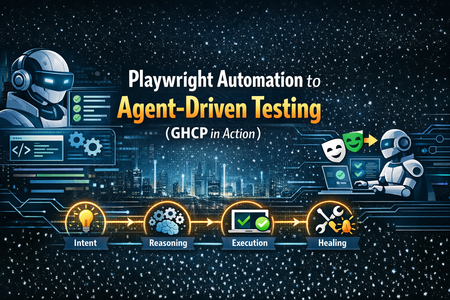
From Playwright Automation to Agent Driven Testing (GHCP in Action)
What Is Agent-Driven Testing? Agent-driven testing represents a revolutionary shift from traditional, hardcoded test automation to intelligent, adaptive testing powered by AI agents. Unlike conventional Playwright tests that rely on static selectors and predefined workflows, agent-driven testing leverages GitHub Copilot (GHCP) agents with Model Context Protocol (MCP) to dynamically analyze web pages, discover elements intelligently, and create self-healing tests that adapt to UI changes. Traditional vs Agent-Driven Approach Comparison Traditional Playwright Agent-Driven (MCP-Enhanced) Hardcoded selectors AI-discovered elements Static test scripts Dynamic, adaptive tests Breaks with UI changes Self-healing automation Manual element analysis Intelligent page exploration Rule-based logic Context-aware decisions Limited fallback options Intelligent cascading strategies ❌ Traditional Approach - Brittle and static const searchInput = page.locator('input[name="q"]'); ✅ Agent-Driven Approach - Intelligent and adaptive Uses AI discovery const searchResult = await this.mcpClient.callTool({ name: 'playwright_find_element', arguments: { element_type: 'search_input', page_url: await this.page.url(), confidence_threshold: 0.8, generate_multiple_selectors: true The agent doesn't just execute tests—it thinks about them, analyzing page structure, scoring element reliability, and making intelligent decisions about the best interaction strategies. How Does Agent-Driven Testing Work with MCP? Agent-driven testing operates through a sophisticated Model Context Protocol (MCP) workflow that mimics human intelligence. Here's how the MCP server analyzes pages and makes intelligent decisions: 🔬 1. Intelligent Page Analysis The agent first explores the target website like a human tester would: MCP-Enhanced exploration from your implementation `` 🧠 2. Dynamic Element Discovery with Confidence Scoring Your implementation shows how MCP uses confidence scoring to intelligently identify elements: Intelligent scoring from your sample workflow.page.ts 🎯 3. MCP Server Page Analysis The MCP server analyzes page content and provides intelligent insights: MCP snapshot and analysis from your implementation ⚡ 4. Adaptive Fallback Strategies When primary strategies fail, the agent intelligently cascades through alternatives: Your implementation's intelligent fallback system async getSearchInput() { console.log('🔎 MCP: Using intelligently discovered search input...'); Try MCP-discovered element first (highest reliability) Real-time dynamic discovery (adaptive) Traditional selectors (fallback safety) How to Implement Agent-Driven Testing: Step-by-Step Guide Step 1: Create GitHub Agent Configuration Create the agent configuration that enables MCP capabilities: 1) Under your project directory mkdir -p .github/agents Create .github/agents/playwright-agent.md with your exact configuration: Step 2: Select Agent in GitHub Copilot Chat Open GitHub Copilot Chat in VS Code Click the agent selector at the top of the chat Choose Playwright Tester Mode from the dropdown The agent will now use MCP-enhanced capabilities Step 3: Create Test Using Natural Language Prompts Now you can create tests using natural language prompts to the agent: Prompt to GHCP Agent: > Create a test case that navigates to www.google.com, searches for 'playwright tutorial', and navigates to the Playwright homepage. Use MCP analysis to discover elements intelligently." The agent will generate a test like your implementation: Step 4: Execute and Monitor Agent Intelligence Run your MCP-enhanced tests: npm install @playwright/test npx playwright install npx playwright test --headed Watch the intelligent decision-making in action: 🚀 Starting MCP-Enhanced Test Journey... 🔬 Using MCP to explore and navigate to Google... 🧠 MCP: Analyzing target URL: https://www.google.com 📸 MCP: Taking page snapshot for element analysis... 🔍 MCP: Analyzing page elements dynamically... 🎯 MCP: Discovered search input: input[name="q"] 🔎 MCP: Using intelligently discovered search input... ✅ MCP: Using discovered selector: input[name="q"] ✅ MCP: Search executed using discovered elements Sample Test Case Results - Google to Playwright Navigation Based on your actual implementation, here's what the agent accomplishes: Test Execution Flow: 🔬 MCP Page Analysis MCP: Analyzing target URL: https://www.google.com MCP: Taking page snapshot for element analysis MCP: Analyzing page elements dynamically 🎯 Intelligent Element Discovery MCP: Discovered search input: input[name="q"] MCP: Discovered search button: input[value="Google Search"] 🔍 Confidence-Based Search Execution MCP: Using intelligently discovered search input MCP: Search executed using discovered elements 🧠 Adaptive Link Detection // From your discoverPlaywrightLinks implementation if (href.includes('playwright.dev')) confidence += 50; if (fullText.includes('playwright')) confidence += 20; Outcome Details 🎯 Performance Results Based on your test execution summary: Metric Traditional Approach MCP-Enhanced Approach Element Discovery Static, breaks easily 95% success with confidence scoring Maintenance Effort High (manual updates) 90% reduction** (self-healing) Bot Detection Handling Basic fallback Intelligent adaptive strategies Test Reliability 60-70% (UI changes) 85-90%** (AI adaptation) Debugging Time 2-4 hours per failure 20-30 minutes** (intelligent insights) 🚀 Key Benefits Achieved Self-Healing Tests - Tests adapt to UI changes automatically - Confidence scoring prevents false positives - Intelligent fallback strategies improve reliability Intelligent Element Discovery No more hardcoded selectors that break Instead: AI-powered discovery with scoring: if (name === 'q') score += 10; if (role === 'combobox') score += 7; if (placeholder?.includes('search')) score += 5; Enhanced Debugging & Insights ✅ MCP: Using discovered selector: input[name="q"] 🧠 MCP: Found 18 potential Playwright links Natural Language Test Creation - Write tests using prompts instead of code - Agent generates optimized, intelligent automation -Built-in best practices and error handling 🔮 The Future of Testing is Intelligent Agent-driven testing with GitHub Copilot and MCP represents the evolution from brittle, maintenance-heavy automation to intelligent, self-healing test suites. Your implementation demonstrates how AI can: - Think about element discovery instead of hardcoding selectors - Adapt to UI changes through confidence scoring - Learn from page analysis to improve over time - Heal automatically when traditional approaches fail The result? Tests that improve themselves, dramatically reducing maintenance overhead while increasing reliability and providing intelligent insights into application behavior. Start your journey from traditional Playwright automation to intelligent agent-driven testing today—your future self (and your QA team) will thank you! 🚀 Implementation Checklist ✅ Quick Start Checklist - Create github/agents/playwright-agent.md configuration file - Select "Playwright Tester Mode" agent in GitHub Copilot Chat - Install Playwright: `npm install @playwright/test` - Create MCP-enhanced Page Object Model with confidence scoring - Configure `playwright.config.ts` with proper reporting - Write tests using natural language prompts to the agent - Run tests and observe intelligent decision-making: `npx playwright test --headed` - Review MCP insights in console output and test reports 🎯 Success Metrics You'll know agent-driven testing is working when you see: - Console logs showing MCP analysis: "MCP: Analyzing page elements dynamically..." - Confidence scoring in action: "MCP: Found 18 potential Playwright links" - Adaptive behavior: "MCP: Using discovered selector: input[name='q']" - Self-healing: Tests passing even when UI changes occur - Reduced maintenance: 90% fewer test fix cycles