Forum Discussion

Sharepoint Online, number column NOT aligned right
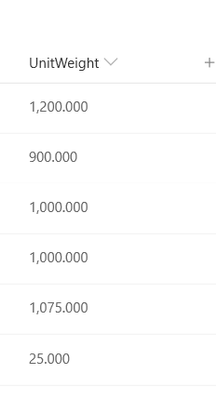
 Mar 04, 2020
Yes, you need to replace the formula:
=TEXT([Column],"###,###.00")
This type of modification doesn’t have any impact on the original column
Thanks
I'm sorry but it takes more steps!
Sharepoint doesn't have the possibility to set decimal numbers.
As first thing to do you need to create a column, computed with the following formula:
=TEXT([column],".00")
Then insert the following code
{
"$schema": "https://developer.microsoft.com/json-schemas/sp/column-formatting.schema.json",
"elmType": "div",
"style": {
"display": "table",
"width": "100%"
},
"children": [
{
"elmType": "div",
"txtContent": "@currentField",
"style": {
"display": "table-cell",
"text-align": "right",
"vertical-align": "middle"
}
}
]
}
Thanks

Again, many thanks for taking time to help me with my question. I tried it and it is very close. The only missing part is now the thousand separator: Is that possible?
And will I be still able to make number calculations with this type of column?
Cheers
Sinan
- Mike_HoneyFeb 04, 2021Brass Contributor
Sinan621 - I've stumbled across a cleaner solution to keep the thousands formatting (or any other formatting you have set) - just add .displayValue after @currentField. That returns a formatted string, using the columns format settings.
For example:
{
"$schema": "https://developer.microsoft.com/json-schemas/sp/column-formatting.schema.json",
"elmType": "div",
"style": {
"display": "table",
"width": "100%"
},
"children": [
{
"elmType": "div",
"txtContent": "@currentField.displayValue",
"style": {
"display": "table-cell",
"text-align": "right",
"vertical-align": "middle"
}
}
]
}- Sinan621Feb 04, 2021Copper Contributor
Mike_Honey Thanks for sharing, I have applied you formatting proposal to a number column, then numbers just "disappear", when I remove the formatting the numbers are visible again but not formatted as desired. Maybe this is applicable for "calculated columns" only?
- Mike_HoneyFeb 05, 2021Brass Contributor
Sinan621 - my tests so far are regular number columns, so it can work. Sorry it didn't work for you. .displayValue is mentioned on this page:
https://docs.microsoft.com/en-us/sharepoint/dev/declarative-customization/column-formatting
If I find out more I'll post back here.
- FabioO365GoDMar 04, 2020Brass Contributor
Yes, you need to replace the formula:
=TEXT([Column],"###,###.00")
This type of modification doesn’t have any impact on the original column
Thanks
- Sinan621Mar 04, 2020Copper Contributor
You rock! It works, many many thanks 🙂
For the benefit of all, here comes a summary of the steps:
- create a new calculated column with this formula: =TEXT([Column],"###,###.00")
- format this new calculated column with:
{
"$schema": "https://developer.microsoft.com/json-schemas/sp/column-formatting.schema.json",
"elmType": "div",
"style": {
"display": "table",
"width": "100%"
},
"children": [
{
"elmType": "div",
"txtContent": "@currentField",
"style": {
"display": "table-cell",
"text-align": "right",
"vertical-align": "middle"
}
}
]
} markikavJul 09, 2020Copper Contributor
This is great information but does it mean that the user has to enter the value in one column and then we use this calculated column to present the data right aligned?
So then the users would have to be aware of this if making any edits afterwards?
When I created a new column called "Amount" and entered the formula =TEXT([Amount],"###,###.00")
I get an error saying the column doesn't exist?
Thanks!

