Forum Discussion

Anonymous
Apr 17, 2018How to Demote News page from Team site and Remove it from Hub News Rollup
With SharePoint hub sites being live for some time now, a few questions have come up on how you can demote news or remove it from a News Webpart without deleting it, and or also remove it from a Hub ...

Keren Hopkins
Mar 04, 2019Brass Contributor
A custom view had been set to the default, which was the one I was trying to use.
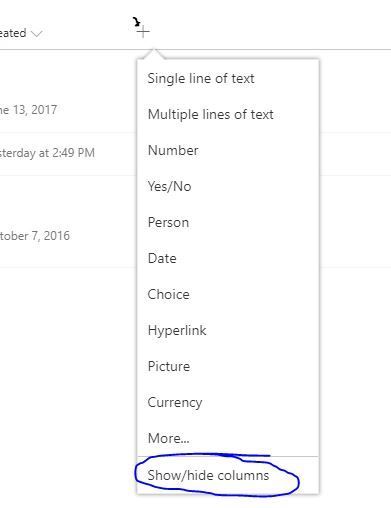
Went to the original default view which seems to be "By Author". Made it default. Followed the steps to show the Promoted State column. But the quick edit button is not visible on the "By Author" view.
Tried grouping by Promoted State column, but cannot drag pages between Promoted State groupings.

Mar 04, 2019
By Author one doesn't work, needs to be the all items view. You'll have to find a view that has the quick edit button enabled, and start from that one by just adding that column and saving, then it should allow it, if not you can refresh after saving and it should allow quick edit.
- Keren HopkinsMar 06, 2019Brass Contributor
Ok, tried on the All Pages view. This had been edited beforehand, so not in an "out of the box" state. Followed the steps above.
So Quick Edit is available. In Quick Edit I can edit the Name and Title properties only. The Promoted State is still greyed out.
I refreshed the page a few times, both in library view and Quick Edit view, and still not working.