Forum Discussion

Microsoft Teams Desktop on Mac Stuck in Login Loop
 May 01, 2020
I’ve got this login loop after I logged in with me private MS account in Teams. I stucken in a login loop when I tried to log with my company account in Teams. Close your Teams application and go to $HOME//Library/Application Support/Microsoft/Teams in files browser and delete/move the Teams folder to Teams_old for example.
Start your Teams application, the Teams folder will created and the Login window appears.
For me it works, when I delete the $HOME//Library/Application Support/Microsoft/Teams folder after I was logged in with me private MS account.
Heiko

https://www.uvm.edu/it/kb/article/clearing-teams-cache/
Its a 5 step process:
1. Fully close Microsoft Teams.
2. Copy and paste the following into the Go to Folder box, then click Go:
~/Library/Application Support/Microsoft
3. Right click the Teams folder, then click Move to Trash.
4. Using Spotlight Search (accessed by clicking the magnifying glass on the macOS menu bar), enter “Keychain” and select Keychain Access. Search for Microsoft Teams keys in keychain. Within Keychain, search for “Microsoft Teams” to find the Microsoft Teams Identities Cache entry. Right (two finger) click this item and select the delete option, then close the Keychain Access app.
5. Relaunch Microsoft Teams. You should now be prompted to sign back into Teams.

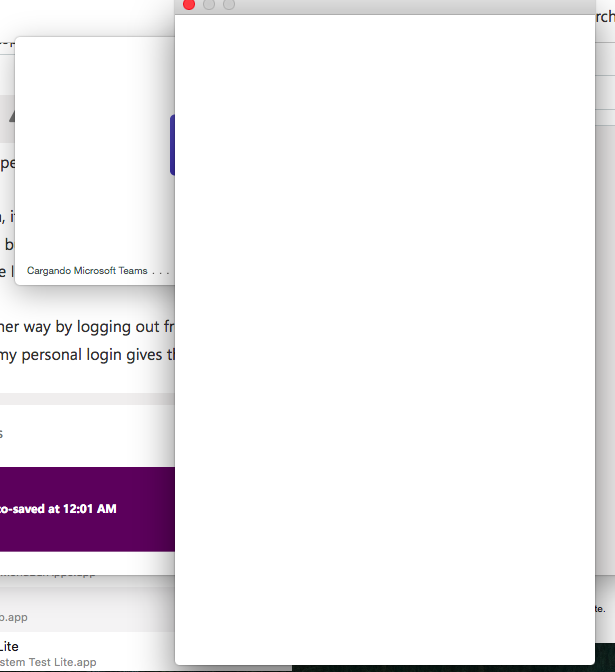
I had the same symptoms but with a personal account I regularly use with Teams. I have the habit to switch back and forth personal and professional accounts, as both use different email addresses. Professional account works fine, but personal account gives a blank popup and never loads further. If I close the blank popup manually, Teams complains about an error, and gives Error code 1:403 at the bottom of the screen.
ARBattaseI did just that:
- removed everything that was coming up with EasyFind using the "Teams" keyword, including logs and (except one folder related to third-party content on "how best to use Teams" (ironic) and the .pkg installer itself).
- Using AppCleaner to remove the executable itself (can't do that from EasyFind).
- Emptying the trash can from the command line.
- Checking there is nothing in the Keychain Access.
- Downloaded & installed a previous version of Teams as per @computerninja
Result:
Logging in with the institutional account works just fine.
Trying to switch to a personal account using the menu opens up a web page, but keeps on loading, then fails.
I log out manually, takes a while, then I try once again from the desktop application, and now I am presented with the choice to either Download the desktop version (which I already have open and running at this point) or use the Web version (See attached).
If I click the first button, it starts downloading the client. If I click the second link, it correctly starts the Web version, but never acknowledges the installed desktop application, which is rather annoying since I use it mostly for video calls, one function that isn't available from a Web browser.
Trying to switch the other way by logging out using the Teams menu gives the first login screen. Entering my personal login gives the white popup and never loads further.
I know my personal account has no issue: it logs in just fine on iOS Teams, on Teams for Windows, on Teams for the Web.
A full reinstall won't fix it…