Forum Discussion

Platform SSO for macOS not working
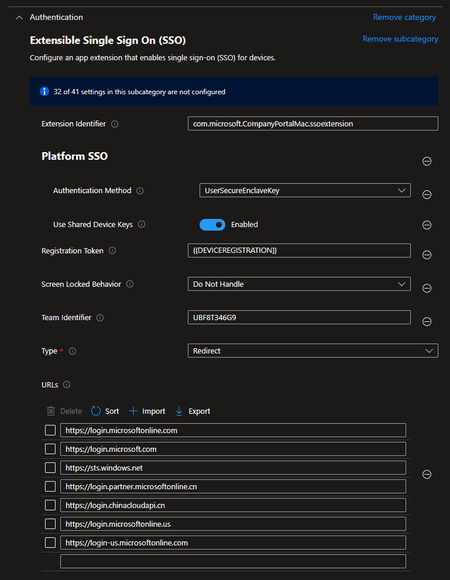

First of all, thanks to PatrickF11 for the URL solution.
Hello good
After a week of dealing with the password synchronization issue on the local MacOS account, I found the solution to have the Mac sync the ID password. I modified the following parameter:
Authentication Method: UserSecureEnclaveKey to Password
After changing the option on the Mac, I went to:
Users & Groups > Network Account Server and clicked on Repair to re-register the device. Then, the notification appeared, and I registered the password synchronization. Now, it is synchronized correctly.

I properly got the registration popup and after authenticating the message that my password was updated to match the Entra ID one.
One thing that is still unclear to me. I thought that doing this would create a new user profile utilizing the Entra ID rather than syncing the user profile created during automated enrollment.
The concern I have is the created profile is an admin user rather than standard user. Are my expectations wrong about a 2nd user account being created?
Is my only option to change the created user from admin to standard manually when I add an admin account for myself?
 PlatformerAug 23, 2024Copper ContributorI also fell for this mistake at the beginning.
The first account created on the Mac is ALWAYS an admin account. If the user should only have standard rights, then you must “downgrade” them after the setup: https://github.com/microsoft/shell-intune-samples/blob/master/macOS/Config/Manage%20Accounts/downgradeUsertoStandard.sh
But don't forget you should still have an admin account on the computer for possible remote support.
I am currently trying to configure this myself.- DanEngelsmeierAug 23, 2024Brass ContributorSorry. I just looked at the other scripts in the Github and see just what I need. Now I'm off to try it. Thanks for your help!
- DanEngelsmeierAug 23, 2024Brass ContributorActually, I just read some of the comments in the script and see I can specify an existing account to NOT be downgraded. Do you know if there is a script I can run during onboarding to create a separate admin account for myself which I could then exempt from the downgrade script?
- nhtkidAug 29, 2024Iron Contributor
Hi DanEngelsmeier, you are asking all the right questions and I have the same issue here.
Currently there is no good way. You need to use a script to downgrade onboarding user to Standard, coz that's your staff user account. Then you need another script to create a local admin if required and remove it afterwards. It's not a good solution. Also, if you keep a separate local account on the device all the time, I don't think that's good idea either.
Also the script can only be applied once the device is registered in Intune. The quickest way is to apply to All Devices with a filter, do not use a Dynamic Group. But when exactly does the script will be applied and create that local account for you, nobody knows. There is no gradually control.
The best thing Intune could happen, is while waiting for the final confirmation, the script will be executed during the holding stage so once user is logged in, everything is ready.
But that is just a nice wish. It never worked for me, which means when the user is logged in, it is still an admin and he/she will have enough time to create another local admin before the script downgrade his/her account. This is a pretty big security gap!
On the topic of local admin, what do you guys think about this?
https://support.apple.com/en-au/guide/deployment/depca092ad96/web
It clearly said that Apple now supports a remotely managed admin accounts and Intune just needs to build it in.
- DanEngelsmeierAug 23, 2024Brass ContributorI haven't done a script via Intune yet. Can I create it in there and just run it on demand?
Any chance there is one to create that admin user for myself after downgrading the others?
