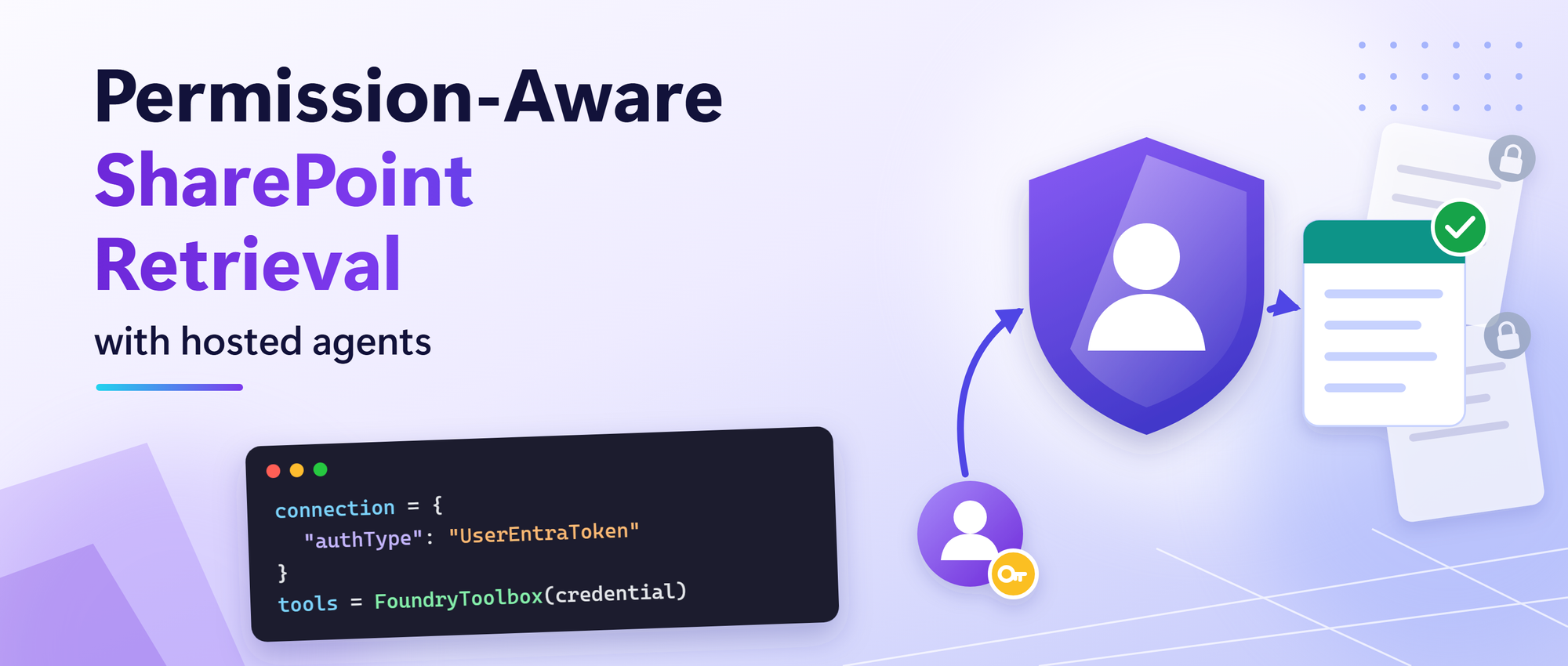
This article shows how to build hosted agents in Foundry Agent Service, published to Microsoft teams that retrieve SharePoint content on behalf of each signed-in user, using a Foundry IQ knowledge base and the Foundry toolbox, so every answer reflects what each person is allowed to see.
Organizations increasingly publish agents to Microsoft Teams and Microsoft 365 Copilot that answer questions using internal knowledge sources. SharePoint is a very common source for this information; where many times access is different for every user. A finance employee, HR employee, and project manager may all ask the same question but have access to different documents. When an agent is hosted in Foundry Agent Service, the agent itself runs under its own identity. This creates an important challenge: how can retrieval respect the permissions of the person asking the question rather than the permissions of the agent? This post shows how to do that with built-in capabilities: a Foundry IQ knowledge base with a remote SharePoint knowledge source, connected to the agent through the Foundry toolbox.
Foundry IQ is the knowledge layer for agents, built on Azure AI Search. A knowledge base is its top-level resource: it orchestrates retrieval across one or more knowledge sources, which are connections to indexed or remote content. In this solution the only knowledge source is SharePoint, queried live as the signed-in user through the On-Behalf-Of (OBO) pattern, and the agent reaches the knowledge base through a toolbox.
Why agent identity is not enough
- Hosted agents run as their own agent identity. When Foundry Agent Service runs your Microsoft Agent Framework agent as a hosted agent, it authenticates as the agent, not as the person chatting with it.
- SharePoint permissions belong to users. Two people asking the same question may be allowed to see different documents.
- So grounded answers (RAG) need per-user retrieval. If retrieval runs as the agent, SharePoint can't check the asking user's access. Results are either empty or not filtered for that user.
- Therefore the user's token has to reach the retrieval step. Changing the model or the prompt can't fix this. The architecture has to carry the user's identity all the way to SharePoint.
This is the key architectural principle behind this solution. The hosted agent keeps using its own identity for model inference, while retrieval runs with the signed-in user's identity.
What you'll build
- A hosted agent, published to Microsoft Teams, that answers from one or more SharePoint sites.
- Answers limited to what each user can open in SharePoint, using On-Behalf-Of (identity passthrough) retrieval.
- Clickable citations back to the source documents.
- Built on out-of-the-box Foundry IQ and Foundry toolbox capabilities: no custom server to host, and no client secrets in the retrieval path.
The complete sample is on GitHub: SharePoint knowledge base sample
The sample repository contains the setup scripts and agent code used in this walkthrough. Before we run them, let’s trace how the user’s identity flows through the architecture and why it matters for permission trimming.
Note: Remote SharePoint knowledge sources in Foundry IQ were in preview at the time this article was written.
How it works
The agent runs as itself. Retrieval runs as the user. Three pieces carry the user's identity end to end:
FoundryToolboxin the agent sends the per-request call ID with each tool call, so Foundry knows which user the call belongs to.- A
UserEntraTokenconnection passes that user's Microsoft Entra ID token to the Foundry IQ knowledge base on Azure AI Search. This is identity passthrough (On-Behalf-Of): every request downstream runs as the signed-in user. - A remote SharePoint knowledge source queries SharePoint live through the Microsoft 365 Copilot Retrieval API as that user, scoped to the site paths you choose. Nothing is copied into an index.
Why not Work IQ?
Work IQ is a good choice when an agent should reason over a user’s broader Microsoft 365 work context. This pattern is intended for scenarios where the agent should answer from specific SharePoint sites, treating those sites as a defined knowledge boundary.
Use Work IQ when broad Microsoft 365 context is appropriate. Use this pattern when retrieval should be limited to selected SharePoint content. The right choice depends on the scope and behavior your scenario requires.
Before building the sample, let’s check the services and permissions the setup requires.
Before you start
You need a Foundry project with a model deployment, an Azure AI Search service and a SharePoint site containing the content you want the agent to use.The Search service must be in a region that supports agentic retrieval, in the same Microsoft Entra tenant as Microsoft 365.
Make sure the following permissions are in place:
| Role | Required permissions |
|---|---|
| Setup user | Search Service Contributor on the Azure AI Search service, and rights to create connections and toolboxes in the Foundry project |
| End users | Search Index Data Reader on the Search service, Foundry Agent Consumer on the agent, a Microsoft 365 Copilot licence, and access to the documents in SharePoint |
With the concepts established, let's build the end-to-end solution.
Build it in four steps
Clone the sample repository before running the setup scripts. The commands below assume you are running them from the repository root:
git clone https://github.com/Heenanl/hosted-agent-sharepoint-knowledge-base.git
Set-Location hosted-agent-sharepoint-knowledge-base
python -m pip install -r setup/requirements.txt
Copy-Item setup/.env.example setup/.env
Fill in setup/.env with your Foundry project, Azure AI Search, and SharePoint knowledge source values. The repository README contains the complete configuration and deployment instructions. The steps below highlight the key settings and decisions.
1. Create the knowledge base
Run setup/create_knowledge_base.py. It creates a remote SharePoint knowledge source and a knowledge base. The setting that limits retrieval to your site is:
"filterExpression": "Path:\"https://<TENANT>.sharepoint.com/sites/<SITE>/\""2. Connect it to Foundry with the user's identity
Run setup/create_connection.py. It registers the knowledge base's MCP endpoint as a Foundry connection. The setting that matters most in the whole architecture is:
"authType": "UserEntraToken"With UserEntraToken, Foundry forwards the signed-in user's token instead of a shared identity, so SharePoint can apply that user's permissions. Then run setup/create_toolbox.py. It wraps the connection in a toolbox that exposes only knowledge_base_retrieve.
3. Build the agent
The agent itself is small. The key line is tools=FoundryToolbox(credential):
agent = Agent(
    client=FoundryChatClient(project_endpoint=endpoint, model=model, credential=credential),
    instructions=INSTRUCTIONS,
    tools=FoundryToolbox(credential),
)
Two instructions in the agent's prompt made a visible difference in Teams:
- Cite every source as a markdown link, using the Title and uri fields the tool returns.
- If the tool returns nothing relevant, say that the available sources do not contain the answer. Do not guess.
The first gives users clickable citations. The second stops the model from filling gaps when a user can't see a document.
4. Deploy and publish to Teams
Follow the sample README to initialize the agent with azd ai agent init, set the required environment values, and deploy it with azd up. After deployment, publish the agent to Microsoft Teams and Microsoft 365 Copilot. The repository includes a publishing script, including support for Foundry projects on a private network. Users do not need a separate, tool-specific consent flow.
Prove the permission trimming
A good answer doesn't prove the right permissions were used. Test with two users and one document that only one of them can open:
| User | SharePoint access | Result in Teams |
|---|---|---|
| A | Can open the document | Answer from the document, with a citation link |
| B | Cannot open the document | "The available sources do not contain the answer." |
In our testing, both users' requests reached the knowledge base, but only user A got content from the document, because the Microsoft 365 Copilot Retrieval API ran as each user. Run the test in separate conversations, and repeat it after any permission change.
Common pitfalls
Using a managed identity for the connection
The retrieval runs as the agent's managed identity, so SharePoint has no user to check permissions against. In our testing, a ProjectManagedIdentity connection failed with x-ms-query-source-authorization is invalid. Use UserEntraToken.
Forgetting Search Index Data Reader
Because each user's own token reaches Azure AI Search, every user needs this role, not just you. Otherwise the user can reach the agent, but retrieval fails for them. Assign the role to a security group once, replacing SEARCH_SERVICE, RESOURCE_GROUP and $GROUP_ID with your own values:
$SEARCH_ID = az search service show -n SEARCH_SERVICE -g RESOURCE_GROUP --query id -o tsv
az role assignment create --assignee $GROUP_ID --role 'Search Index Data Reader' --scope $SEARCH_ID
Using a custom MCP client instead of FoundryToolbox
A hand-built MCP client that attaches only the agent's credential drops the per-request call ID, which links a tool call to its user. In our testing with another OAuth tool, every user ended up running as whoever had consented first. FoundryToolbox fixed it.
Building a custom MCP proxy
A custom On-Behalf-Of (OBO) proxy can work, but you then own its hosting, secrets, token checks and patching. The knowledge base gives the same per-user retrieval with built-in components.
Once the setup and permission checks are complete, use the sample repository to try the full flow in your own environment. The links below provide more detail on the Foundry IQ and toolbox building blocks.
Get started
- Try it: clone the sample and follow the README end to end.
- Learn the building blocks:
- Validate before rollout: use the two-user isolation checklist.
- Share your scenario: open an issue on the repo.
Acknowledgements
Thanks to Mahya Gheini and Linda Li from the Microsoft Foundry product team for their guidance on toolboxes and knowledge bases.

 Microsoft

