Forum Discussion

Xlookup - not found on the desktop version
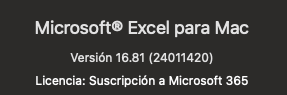

If you have confirmed that you are using a version of Microsoft Excel that should support the XLOOKUP function (Excel 2019 or later, including Excel for Microsoft 365), and you are still experiencing issues, there are a few additional steps you can take:
1. Check Formula Language:
- Ensure that you are using the correct formula language. Formulas can sometimes be language-specific. The correct syntax for XLOOKUP in English is:
=XLOOKUP(lookup_value, lookup_array, return_array, [if_not_found], [match_mode], [search_mode])
Or in Portuguese…
=PROCX(lookup_value; lookup_array; return_array; [if_not_found]; [match_mode]; [search_mode])
- Make sure that your Excel language settings are set to English if in Portuguese use the second formula.
2. Language Settings:
- Go to "Excel" > "Preferences."
- Under "International," check the "Preferred languages" settings.
- Check your Excel language settings to make sure it is set to a language that supports the XLOOKUP function.
3. Test with New Workbook:
- Create a new, blank workbook and try using the XLOOKUP function. This helps determine if the issue is specific to your existing files.
4. Repair Excel Installation:
- Close Excel.
- Open the "Applications" folder and find the "Microsoft Excel" application.
- Hold down the "Control" key and click on "Microsoft Excel."
- Choose "Show Package Contents."
- Navigate to "Contents" > "Library" > "Application Support" > "Microsoft" > "Office."
- Run the "Office Setup Assistant" or "Microsoft Database Utility" and choose the option to repair Excel.
- Try repairing your Excel installation:
I hope one of these steps helps resolve the issue. The text and the steps with the help of AI.
My answers are voluntary and without guarantee!
Was the answer useful? Mark as best response and Like it!
This will help all forum participants.

Now Microsoft makes that formula available to Microsoft365 users only.
It happened the same to me, and now it does not work.