Forum Discussion

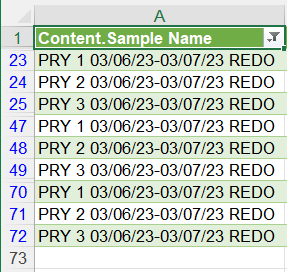
Shifting Text within Cell
- May 25, 2023
Save the workbook.
Press Alt+F11 to activate the Visual Basic Editor.
Select Insert > Module.
Copy/paste the code into the module window.
With the insertion point anywhere in the code, press F5 to run it.
Switch back to Excel.
If you don't like the result, close the workbook without saving.
If it does do what you want, and if you'd like to re-run the macro later on, save the workbook as a macro-enabled workbook (*.xlsm).
If you don't need the macro anymore, you can save the workbook and ignore the warning that Excel displays.

You could run this macro:
Sub MoveREDO()
    Dim m As Long
    Dim c As Range
    Dim s As String
    Dim p As Long
    Application.ScreenUpdating = False
    m = Range("A" & Rows.Count).End(xlUp).Row
    For Each c In Range("A2:A" & m)
        s = c.Value
        p = InStr(s, " REDO")
        If p > 0 Then
            s = "REDO " & Left(s, p - 1)
            c.Value = s
        End If
    Next c
    Application.ScreenUpdating = True
End Sub
 JaycootMay 25, 2023Copper Contributor
To achieve your goal, you can manipulate the data using a series of functions and copy-and-paste methods, even without relying on Power Query, macros, or VBA codes. Here's a step-by-step guide:
1. Insert a new column (Column B) where you will duplicate the data from Column A. This allows you to manipulate the data without affecting the original values.
2. Insert another column (Column C) and paste the following function into the first cell (B2): `=IF(RIGHT(B2,5)=" REDO","REDO","")`. This function adds the string "REDO" to the column if the last 5 characters in Column B are " REDO". Copy this function to other cells in Column C as needed.
3. Now, remove the string " REDO" from Column B by using the Find and Replace command.
4. Insert an additional column (Column D) to combine the last column with the previous one. This step introduces "REDO" as the leading string in the data. Use the following formula in the first cell (D2): `=TRIM(D2&" "&B2)`.
5. Following these steps should give you the desired result. Remember to copy and paste the values from Column D to remove any dependencies on the earlier columns during the string manipulation process (in case you want to delete the help columns).
Please note that the above solution assumes you are using a version of Office older than Office 365. If you have Office 365, a different approach utilizing more powerful functions would be more efficient. Additionally, this approach is designed to be beginner-friendly, enabling users with basic skills to perform these manipulations effectively.
- HansVogelaarMay 25, 2023MVP
Save the workbook.
Press Alt+F11 to activate the Visual Basic Editor.
Select Insert > Module.
Copy/paste the code into the module window.
With the insertion point anywhere in the code, press F5 to run it.
Switch back to Excel.
If you don't like the result, close the workbook without saving.
If it does do what you want, and if you'd like to re-run the macro later on, save the workbook as a macro-enabled workbook (*.xlsm).
If you don't need the macro anymore, you can save the workbook and ignore the warning that Excel displays.
- Mighty_AlMay 25, 2023Copper ContributorThank you for showing me new ways of using excel!