Forum Discussion

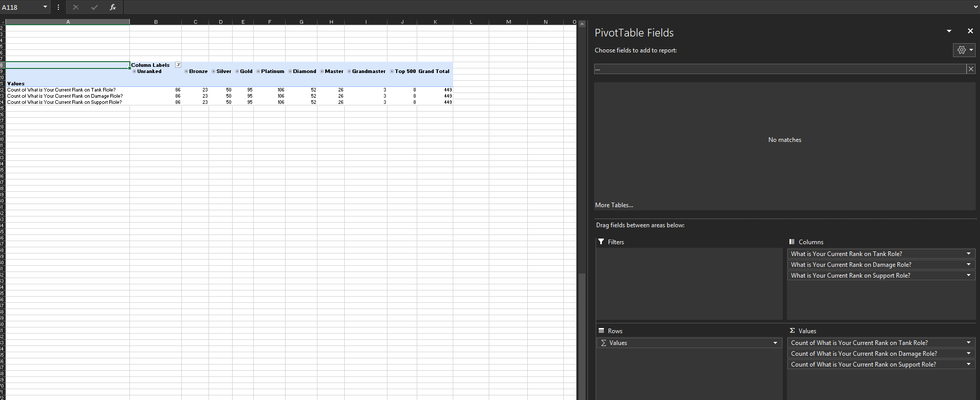
How to use a PivotTable with unique columns?
- Sep 15, 2019
Since your data on Responses Tab was already in pivoted form, I used Power Query to transform and UnPivot the data on Responses Tab to create a Pivot Table on a New Sheet (Green Tab).
To do that, I converted the data on Responses Tab into an Excel Table and named it "Responses", loaded the data into the Power Query, removed the TimeStamp column as it was not required in the Pivot Table to be created, UnPivoted all the columns, renamed the columns and loaded as a Pivot Table Report on a New Sheet.
See if this is what you were trying to achieve.

You're welcome!
If you convert your data on Responses Tab into an Excel Table and name it "Responses", you can create a blank query and in the Advanced Editor, you may paste the following query and load it as Pivot Table Report on a New Sheet.
Just remember to change the name of the Table on Responses Tab in the first line of the query below...
Source = Excel.CurrentWorkbook(){[Name="Responses"]}[Content],
let
    Source = Excel.CurrentWorkbook(){[Name="Responses"]}[Content],
    #"Changed Type" = Table.TransformColumnTypes(Source,{{"Timestamp", type datetime}, {"What is Your Current Rank on Tank Role?", type text}, {"What is Your Current Rank on Damage Role?", type text}, {"What is Your Current Rank on Support Role?", type text}}),
    #"Removed Columns" = Table.RemoveColumns(#"Changed Type",{"Timestamp"}),
    #"Unpivoted Columns" = Table.UnpivotOtherColumns(#"Removed Columns", {}, "Attribute", "Value"),
    #"Renamed Columns" = Table.RenameColumns(#"Unpivoted Columns",{{"Attribute", "Roles"}, {"Value", "Rank"}})
in
    #"Renamed Columns"

Beautiful!
Alright, thank you to everyone who helped me out here! I've got all my Pivots working and now have a little bit of a better understanding of Power Query. Going to finally go to sleep now, thanks again guys!
- Subodh_Tiwari_sktneerSep 15, 2019Silver Contributor