Forum Discussion

How to use a PivotTable with unique columns?
- Sep 15, 2019
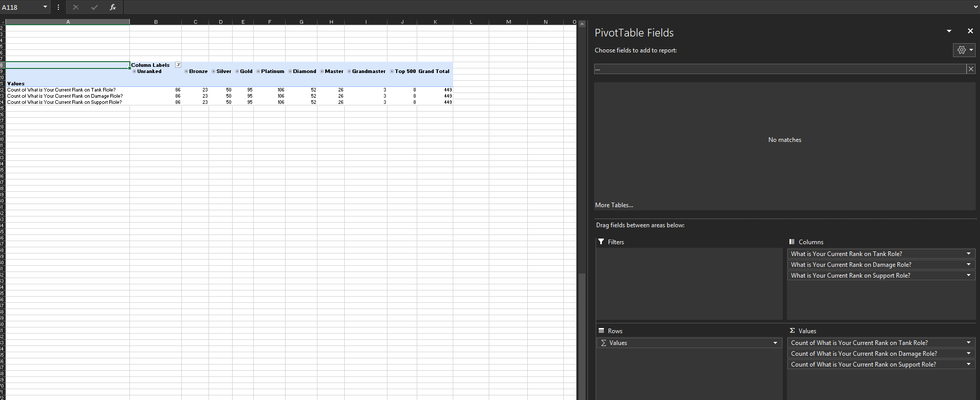
Since your data on Responses Tab was already in pivoted form, I used Power Query to transform and UnPivot the data on Responses Tab to create a Pivot Table on a New Sheet (Green Tab).
To do that, I converted the data on Responses Tab into an Excel Table and named it "Responses", loaded the data into the Power Query, removed the TimeStamp column as it was not required in the Pivot Table to be created, UnPivoted all the columns, renamed the columns and loaded as a Pivot Table Report on a New Sheet.
See if this is what you were trying to achieve.


Got it! Your data is already in a table format. Then, to my knowledge, you can't use a pivot tables to rearrange the date. Use COUNTIF instead. Added the formulae to your sheet. Would this work for you?

Kind of sucks that it's not possible to use a PivotTable to achieve the same result, but oh well. I do have one last question, for setting up a COUNTIF like this table, is there any easy way to do it if I had let's say 100 ranks? Or just a quick way to set it up. Right now I only really know how to manually type in the COUNTIF command and copy/paste the cells around, I never have really used it before.
- Riny_van_EekelenSep 15, 2019Platinum Contributor
You can expand the table I created by inserting columns. Then just drag the formulas across. Just try it. It's a good way to learn new things 🙂
If you really want to use PivotTable, you need to "unpivot" your data as suggested by Detlef_Lewin.