Forum Discussion

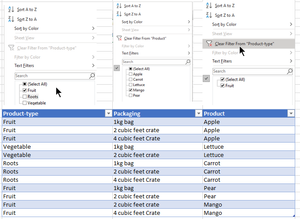
How to get intended result, issue with clear-filter not working correctly/as expected in tables.
- Mar 14, 2023
Hi ArnoldH99
yes, it's really worth to have a closer look at slicers, because they are much more user friendly then regular filters.
There are also some options to customize them, so you could arrange them also horizontally by specifying the number of columns that you want to have in a row:
So if you reserve a few rows above you table and also freeze the panes to keep the header row visible, you should have always access to the slicers.
There is even a way to hide/unhide them. Just activate the selection pane (menu "Home | Find & Select | Selection Pane...").
This pane will not only show slicers, but any other objects like charts or shapes. By clicking on the little eye-icon you can hide or unhide the object:

Thanks for pointing me to the slicer functionality.
Really have to get used to this way of filtering.
Run into another inconvenience.
Have a table(s) with many rows, and many columns, slicer windows/popups block my view.
Have Freeze Panes on for headers.
Putting slicers in top row makes the filter view selection disappear when scrolling.
Putting slicers NOT in top row makes the filter view selection move out of sight when scrolling.
It works, don't know yet if it is going to help me better.
Yes it solves the issue , not showing the expected results.
Working with it I think I will spending a lot of time moving the slicers out of the way to see the data.
Could use a 'hide slicers' and 'show slicers' . is that available?

Hi ArnoldH99
yes, it's really worth to have a closer look at slicers, because they are much more user friendly then regular filters.
There are also some options to customize them, so you could arrange them also horizontally by specifying the number of columns that you want to have in a row:
So if you reserve a few rows above you table and also freeze the panes to keep the header row visible, you should have always access to the slicers.
There is even a way to hide/unhide them. Just activate the selection pane (menu "Home | Find & Select | Selection Pane...").
This pane will not only show slicers, but any other objects like charts or shapes. By clicking on the little eye-icon you can hide or unhide the object:
- ArnoldH99Mar 14, 2023Copper ContributorThanks again, now it is getting useful, changing to new ways of working only becomes relevant when ease of use is shown/proved, you helped me with that very well.
Didn't find any reference to the use of slicers when looking for alternatives/options for my filter-options/issues. Consider myself as reasonable good finder (:-)).