Forum Discussion

Freezing multiple rows
 Feb 28, 2019
Absolutely brilliant. Thank you so much. I've used Excel for more than 20 years and I'm pretty sure this method is new - or, at least, newish. But it's great to find out there really is a way. Thank you for pointing the way.

I have used excel for well over 40 years and I am advanced in excel and I use to be able to freeze what ever columns and rows I wanted and with my office 365 I have not been able to....I really think this needs a 2nd look at fixing the problem. My 365 will ONLY freeze the 1st row and that is a real problem for me. Can you take a 2nd look please.
Thank you, Patty

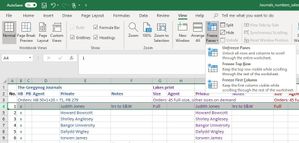
The trick is that if you want to select multiple ROWS only, you need to go to the row beneath those you wish to freeze. Ex. If you want to freeze rows 1 and 2, then go to A3 (not any other column) and select the first option, which is to freeze both rows and columns (NOT just rows, as one would logically think to be correct). Since you are in A3, there are no columns to the left to freeze, and then rows 1 and 2 will be frozen.
Best of luck to all!