Forum Discussion

Export Data From Power Query into Multiple Excel Sheets based on criteria
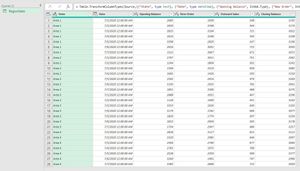

Unfortunately, PowerQuery doesn't support output of one query to multiple sheets.
If your version of Excel supports Dynamic Arrays and the FILTER function, you can use this code:
Option Explicit

Public Sub SplitTableToSheets()

Dim full_data_listobject As ListObject
Dim selected_range As Range
Dim selected_data As Variant
Dim selected_data_header As String
Dim items_sheet As Worksheet
Dim items_range As Range
Dim item As String
Dim i As Integer
Dim new_item_sheet As Worksheet

DeleteSheetWithoutWarning "items"

Set full_data_listobject = ThisWorkbook.Worksheets("full data").ListObjects(1)


' get the range currently selected
Set selected_range = Selection
selected_data_header = Selection.Offset(-1, 0).Cells(1, 1)

Set items_sheet = ThisWorkbook.Worksheets.Add

items_sheet.Name = "items"

selected_range.Copy

items_sheet.Range("A1").PasteSpecial xlValues

Set items_range = items_sheet.Range("A1").CurrentRegion

items_range.RemoveDuplicates 1, xlNo

'loop through each item and create a new sheet with the filtered data
For i = 1 To items_range.Rows.Count
    If items_range.Cells(i, 1) <> "" Then
        item = items_range.Cells(i, 1)

        DeleteSheetWithoutWarning item

        Set new_item_sheet = ThisWorkbook.Worksheets.Add

        With new_item_sheet
            .Name = item
            .Range("A1").Formula2 = "=" & full_data_listobject.Name & "[#Headers]"
            .Range("A2").Formula2 = "=FILTER(" & full_data_listobject.Name & _
                                            "," & full_data_listobject.Name & "[" & selected_data_header & "] = """ & item & """)"

            ''optionally uncomment these two lines to paste the results as values in the destination sheet
            '.Range("A1").CurrentRegion.Copy
            '.Range("A1").PasteSpecial xlPasteValues
        End With

    Else
        Exit For
    End If
Next i


End Sub


Private Sub DeleteSheetWithoutWarning(sheet_name As String)

Application.DisplayAlerts = False
On Error Resume Next
ThisWorkbook.Worksheets(sheet_name).Delete
On Error GoTo 0
Application.DisplayAlerts = True

End Sub
Select a column in your data that contains the items you want to split by, then run the SplitTableToSheets sub-procedure.
The benefit of this is that it will keep the sub-sheets up to date when the data on the main sheet refreshes.
You can test it with my dataset using the attached file.
If this doesn't work for you because you don't have access to the FILTER function, let me know. There are other ways to do it.

Thank you the help.
I am using office 365 and am able to use Dynamic arrays. I tried using your sample sheet on my system and seem to have run into a error here.
I am not VBA aware, sharing here with you the debug screen shot for runtime error 1004.
Do please help further on this.
Kind Regards
Dhritiman
- OwenPriceJul 20, 2020Iron Contributor
Please make sure you have selected just the data rows in the column and not the entire column. It should be like this (i.e. the header is not selected):
To do this, you hover your cursor over the column header until you see the black arrow to select the column, then select and it will just select the data and not the header.
This is wrong (entire column is selected):
Please try this and let me know how you get on.
- DhritimanLJul 20, 2020Copper Contributor