Forum Discussion

khsayeed
Nov 24, 2022Copper Contributor
How to setup Templates in Word 365 and Outlook 365
Hello: I am a new user of this discussion forum. So please bear with me. I have used the feature of Templates extensively in my last Office version (Office 2007). I have now upgraded to Offic...
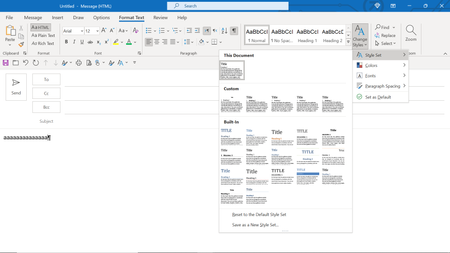

Nov 27, 2022
khsayeed To display the Developer tab on the ribbon, go to File>Options>Customize Ribbon and check the box for Developer on the right hand side of the dialog

khsayeed
Nov 29, 2022Copper Contributor
2022-11-29
Thank you for your last reply Doug Robbins:
I am sorry for the delay in replying to your last response.
I have been trying get a version of Office 2007 o a laptop so that I can take screen prints and show the sequence of screens which would illustrate what I am after from Word 365. Unfortunately, since I have already moved to Microsoft 365 on my laptop, I do not want to go back to Office 2007 to show what I was able to do before in Office 2007. Presently, I am trying load Office 2007 on an old laptop running XP, so that I can go through the screen print sequence with you.
I wonder if you would have access to an Office 2007 system, so that we can work on the procedure used in it remotely.
RE. THE PROCEDURE YOU SUGGESTED:
==========================
I have tried the procedure you outlined and have been able to attach another template (in addition to the Normal Template which is automatically attached) file (.dotx) to the new Word document that I had on screen.
However, I shall to visualize and document what was possible in Word or OUtlook 2007, from memory:
1. Assume you have a document open in either Outlook or Word 2007, eith a new document or an existing document. It already has Normal.dotx loaded iand attached to it.
2. To attach and (override) the normal a custiom template that you have already created and put in a specific directory, the following procedure would be used:
2.1 Click of either Home or Format menu item (depending on whether you are in Outlook or Word).
2.2 One of the items on the Ribbon would be, if I recall correctly, Select or Find or Set Styles.
2.3 Upon clicking a pop-up would display, showing among other items, a list of named Template files (which will be found in a specific directory (eg. QuickStyles, or Templates or other), I do not recall exactly which one, and which are stored as named dotx or dotm files).
2.4 You are now at liberty to click on one of those Template names to select the template you would like to attach, so as to modify the "style set" to be used in your open document.
2.5 After this is done, with the cursor on a line in the open document, the clicking on one of the particular styles displayed in the ribbon will cause the format of the line to reflect the format in the Template file that you had selected when you attached the specific template to the open document on your screen, e.g.
2.6 If your text line in the document had the paragraph format Normal, and you clicked on the ribbon item say Header 1, the format of the line would change to the following:
Say, if it was the first selection, it would display as
1. sacAcsdvcsadvasdv
If you clicked on the second line, it would display as
2. asdAFafASDCSA
2.7. A similar scenario would apply to the application of other styles such as Header 2, Header 3, List Style, etc., which would all be selected from the ribbon (the ribbon would only display the name of style and not any sample description, contrary to the scheme used in Office 365, which provides a sample of the applicable format below the style name). Note that the style format in each case would be derived from the Template document that you had attached to the document, which could be changed very simply by selecting a different Template name from the list of Templates, using the procedure described earlier.
Dioug Robbins, I hope I have described what I was able to do in Office 2007
and am not carrying "Coals to Newcastle" in describing the features of Office 2007.
I shall still try to send you a set of the screen prints I mentioned earlier in this email.
Meanwhile, if you can come up with an Office 2007 package and try out its Template attachment features for Outlook and Word, it may clarify the scenario better than the above rudimentary description of it.
Thank you for your patience. Regards.
Thank you for your last reply Doug Robbins:
I am sorry for the delay in replying to your last response.
I have been trying get a version of Office 2007 o a laptop so that I can take screen prints and show the sequence of screens which would illustrate what I am after from Word 365. Unfortunately, since I have already moved to Microsoft 365 on my laptop, I do not want to go back to Office 2007 to show what I was able to do before in Office 2007. Presently, I am trying load Office 2007 on an old laptop running XP, so that I can go through the screen print sequence with you.
I wonder if you would have access to an Office 2007 system, so that we can work on the procedure used in it remotely.
RE. THE PROCEDURE YOU SUGGESTED:
==========================
I have tried the procedure you outlined and have been able to attach another template (in addition to the Normal Template which is automatically attached) file (.dotx) to the new Word document that I had on screen.
However, I shall to visualize and document what was possible in Word or OUtlook 2007, from memory:
1. Assume you have a document open in either Outlook or Word 2007, eith a new document or an existing document. It already has Normal.dotx loaded iand attached to it.
2. To attach and (override) the normal a custiom template that you have already created and put in a specific directory, the following procedure would be used:
2.1 Click of either Home or Format menu item (depending on whether you are in Outlook or Word).
2.2 One of the items on the Ribbon would be, if I recall correctly, Select or Find or Set Styles.
2.3 Upon clicking a pop-up would display, showing among other items, a list of named Template files (which will be found in a specific directory (eg. QuickStyles, or Templates or other), I do not recall exactly which one, and which are stored as named dotx or dotm files).
2.4 You are now at liberty to click on one of those Template names to select the template you would like to attach, so as to modify the "style set" to be used in your open document.
2.5 After this is done, with the cursor on a line in the open document, the clicking on one of the particular styles displayed in the ribbon will cause the format of the line to reflect the format in the Template file that you had selected when you attached the specific template to the open document on your screen, e.g.
2.6 If your text line in the document had the paragraph format Normal, and you clicked on the ribbon item say Header 1, the format of the line would change to the following:
Say, if it was the first selection, it would display as
1. sacAcsdvcsadvasdv
If you clicked on the second line, it would display as
2. asdAFafASDCSA
2.7. A similar scenario would apply to the application of other styles such as Header 2, Header 3, List Style, etc., which would all be selected from the ribbon (the ribbon would only display the name of style and not any sample description, contrary to the scheme used in Office 365, which provides a sample of the applicable format below the style name). Note that the style format in each case would be derived from the Template document that you had attached to the document, which could be changed very simply by selecting a different Template name from the list of Templates, using the procedure described earlier.
Dioug Robbins, I hope I have described what I was able to do in Office 2007
and am not carrying "Coals to Newcastle" in describing the features of Office 2007.
I shall still try to send you a set of the screen prints I mentioned earlier in this email.
Meanwhile, if you can come up with an Office 2007 package and try out its Template attachment features for Outlook and Word, it may clarify the scenario better than the above rudimentary description of it.
Thank you for your patience. Regards.