Forum Discussion

How to add a new field to existing XML Mapping
 Dec 09, 2025
Thank you very much, Charles_Kenyon!
All great contents, they absolutely got me there! What actually got me to the answer was https://learn.microsoft.com/en-us/answers/questions/5029965/xml-location-of-document-properties-in-quick-partsthat%20list%20-%20Sharepoint mensioned in https://addbalance.com/word/MappedControls.htm.
The solution for this is simply explained https://sharepointmaven.com/how-to-add-sharepoint-metadata-to-word-documents-using-quick-parts-document-properties/ as well, which is:- create a SharePoint Team page
- add a Documents Library
- create a Word doc at the library (or upload an existing one as I did)
- add new columns/properties to the Documents Library
- these properties can now be inserted in Word with Quick Parts's Document Properties, keeping the mapping function
- you can also download the file with those properties built-in or make some template from it
That's neat! Better and simpler than what I was expecting.

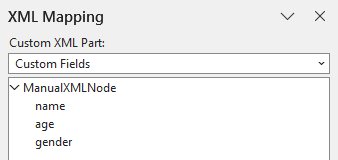
When an XML file is imported through the XML Mapping Pane, Word registers it as a completely new custom XML part. Consequently, re‑importing an edited version does not update the existing mapping but instead creates a duplicate entry, please try below to add new fields:
- Edit the XML file externally
- Add the new elements/fields you want in your XML schema or data file.
- Save the updated XML.
- Replace the existing Custom XML Part instead of adding a new one
- Open the Developer tab → XML Mapping Pane.
- Right‑click the existing XML part.
- Choose Delete to remove the old mapping.
- Now use Add new part… to import your updated XML file.
- This ensures you only have one XML part with the new fields.
- Re‑map your content controls
- After re‑importing, the new fields will appear in the XML Mapping Pane.
- Insert new Plain Text Content Controls and bind them to the new fields.
- Existing controls bound to unchanged fields will continue to work.
Hi, Kidd_Ip! Thank you for your reply.
I've just tried to do it as you said but right-clicking the added part in XML Mapping Pane didn't give me any option to Delete. In fact, it does nothing for me. Could you tell me if some selection pane shows up when you right-click an XML part on XML Mapping Pane in your Word instance?