Forum Discussion

svohio
Dec 02, 2025Copper Contributor
How do I correct heading numbering?
UPDATE: I couldn't remove this post, after I discovered the issue. Thanks! I need to update heading numbering within an old document. Custom headings were made (as pictured) but I need the headin...
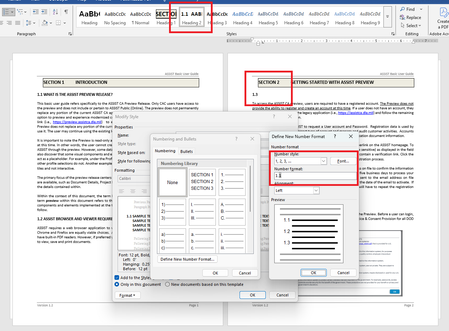
- Dec 03, 2025
Try this:
- Use Built-In Heading Styles
Ensure Word built-in Heading 1, Heading 2, and Heading 3. This is crucial for multilevel numbering to work properly.
- Apply Multilevel List
- Go to the Home tab.
- In the Paragraph group, click the Multilevel List icon.
- Choose “Define New Multilevel List…” at the bottom.
- Configure Each Level
In the dialog box:
- Level 1:
- Number format: Type Section before the number (e.g., Section 1)
- Link level to style: Heading 1
- Number style: 1, 2, 3, ...
- Level 2:
- Number format: Leave as 1.1
- Include level number from: Level 1
- Link level to style: Heading 2
- Number style: 1, 2, 3, ...
- Level 3:
- Number format: Leave as 1.1.1
- Include level numbers from: Levels 1 and 2
- Link level to style: Heading 3
- Number style: 1, 2, 3, ...
Make sure to check “Restart list after” for each level to ensure numbering resets correctly under each parent.
- Apply Styles to Your Document
- Select each heading in your document and apply the correct style (Heading 1, Heading 2, etc.).
- The numbering should now reflect the hierarchy: Section 2, 2.1, 2.1.1, etc.
Number your headings - Microsoft Support

Kidd_Ip
Dec 03, 2025MVP
Try this:
- Use Built-In Heading Styles
Ensure Word built-in Heading 1, Heading 2, and Heading 3. This is crucial for multilevel numbering to work properly.
- Apply Multilevel List
- Go to the Home tab.
- In the Paragraph group, click the Multilevel List icon.
- Choose “Define New Multilevel List…” at the bottom.
- Configure Each Level
In the dialog box:
- Level 1:
- Number format: Type Section before the number (e.g., Section 1)
- Link level to style: Heading 1
- Number style: 1, 2, 3, ...
- Level 2:
- Number format: Leave as 1.1
- Include level number from: Level 1
- Link level to style: Heading 2
- Number style: 1, 2, 3, ...
- Level 3:
- Number format: Leave as 1.1.1
- Include level numbers from: Levels 1 and 2
- Link level to style: Heading 3
- Number style: 1, 2, 3, ...
Make sure to check “Restart list after” for each level to ensure numbering resets correctly under each parent.
- Apply Styles to Your Document
- Select each heading in your document and apply the correct style (Heading 1, Heading 2, etc.).
- The numbering should now reflect the hierarchy: Section 2, 2.1, 2.1.1, etc.
Number your headings - Microsoft Support
 svohioDec 05, 2025Copper Contributor
Thanks! I appreciate the detailed response. I wlll give this a shot for sure.