Forum Discussion

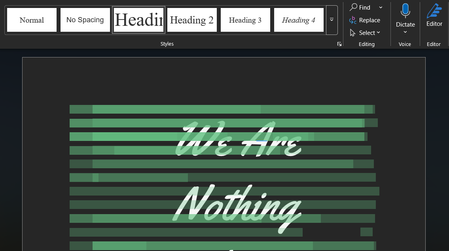
green bars in Word document

Hi Angela,
Thanks for connecting with Microsoft.
I wanted to share some troubleshooting steps for the known Word display glitch that shows up as solid color bars/blocks covering text. This is usually linked to hardware graphics acceleration issues and can happen on both Windows and Mac. Here are some solutions to try:
1. Disable hardware graphics acceleration
Go to File > Options > Advanced, scroll to the 'Display' section, and check 'Disable hardware graphics acceleration'. This is often the most common fix, as Word's rendering engine can conflict with certain GPU drivers.
2. Update your graphics driver
On PC, go to Device Manager > Display adapters, right-click your GPU, and choose 'Update driver'. Outdated drivers can frequently cause this issue.
3. Turn off Track Changes markup display
Go to the Review tab and check if 'All Markup' is selected. Try switching to 'No Markup' temporarily to see if the bars disappear.
4. Check for conflicting add-ins
Go to File > Options > Add-ins, select 'COM Add-ins' at the bottom, and disable any third-party add-ins like ProWritingAid.
5. Try Safe Mode
Hold Ctrl while opening Word to launch in Safe Mode. If the bars don’t appear, it confirms an add-in or acceleration issue.
6. Test on a new blank document
If you see the bars in a new document, it indicates a broader issue rather than a document-specific problem.
7. Repair Office
On Windows, navigate to Settings > Apps > Microsoft Office > Modify > Quick Repair. For Mac, you can use Microsoft AutoUpdate to ensure you have the latest build.
Thanks for your time and cooperation on this conversation. Please feel free to reply to me if you have any concern