Forum Discussion

Windows randomly changes my screen brightness even though automatic brightness is disabled—why?

Adaptive brightness is not the only feature that can change screen brightness. Windows content-based brightness, Intel display power saving, monitor controls and third-party utilities can all do it independently.
First, watch the Windows brightness slider when the screen changes:
- If the slider also moves, an application or Windows setting is changing the brightness.
- If the slider stays in the same position, the change is more likely coming from the graphics driver, monitor firmware or a dynamic-contrast feature.
Check these settings:
- Open Settings > System > Display > Brightness.
- Set Change brightness based on content to Off, if shown. This is separate from ambient-light adaptive brightness.
- Open Intel Graphics Command Center and go to System > Power.
- Turn off Display Power Savings or similarly named power-saving options under both plugged-in and battery modes.
- Restart the computer.
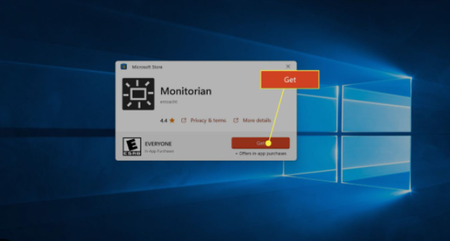
Next, close any brightness utilities, including Monitorian, from the system tray and disable them under Settings > Apps > Startup. If the problem stops, uninstall the utility or leave it disabled.
For an external monitor, also turn off Dynamic Contrast, Eco mode, Smart Energy or similar settings in the monitor menu. As a test, disable DDC/CI as well. This prevents Windows applications from sending brightness commands to the monitor.
If none of this helps, install the graphics and chipset drivers from the computer manufacturer. If the problem began after a driver update, try rolling that driver back. On OLED displays, dimming that happens mainly with large bright areas may be the panel’s built-in brightness limiter rather than a Windows setting.