Forum Discussion

Windows 11 Computer Is Unusually Slow; Task Manager Shows Abnormal Behavior
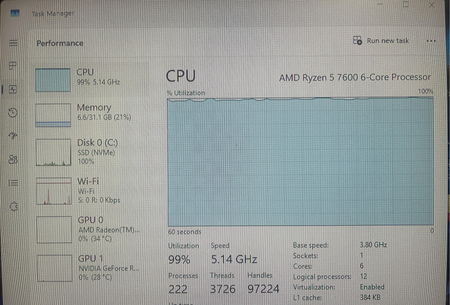

Your screenshot shows sustained 99% CPU use and 100% disk activity, while memory use is only about 21%. That points the investigation toward the processes consuming CPU and storage; it does not identify a failing component or prove corrupted Windows files. Open Task Manager’s Processes page while the slowdown is occurring. Click CPU to sort descending and record the leading processes, then sort Disk and record those as well. Expand grouped applications so the responsible process is visible. Check Windows Update for an active installation, and let a legitimate update complete before judging the idle state. If a nonessential application repeatedly dominates, close it normally and compare responsiveness. Review its entry under Startup apps if the problem starts after sign-in. Please add the process names, usage figures, Windows build and whether activity settles after several minutes. Those details are more diagnostic than the Performance graph alone.