Forum Discussion

SGL
Oct 23, 2026Copper Contributor
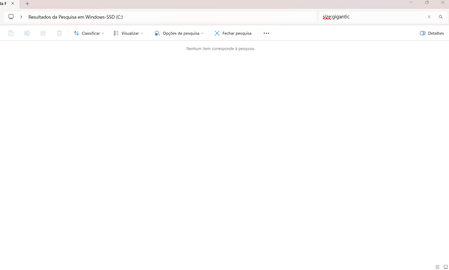
why cant my computer search for gigantic files?
whenever i try to search for gigantic files by entering "size:gigantic" onto the search bar, it gives me nothing; how can i fix this? im positive there are files somewhere

WinEndpointOps
Oct 24, 2026Brass Contributor
The size:gigantic filter is real, but it only works in File Explorer's search box, not in the taskbar or Start search, and it only finds files that are in the search index (or that you ask Explorer to search without the index). Some things to check:
- Search from File Explorer. Open the folder or drive you want to search (This PC for everything), click the search box at the top right, and type size:gigantic. In Explorer, gigantic means files larger than 128 MB.
- If it still returns nothing, the folder is probably not indexed. After you search, click the three dots (or the Search options) and tick Include non-indexed files, or check Settings > Privacy & security > Searching Windows and look at which folders are included in the index. Searching a whole drive without the index is slower but works.
- Make sure you typed the filter with no space after the colon, and try size:>1GB instead, which is usually more useful and works the same way (size:>500MB also works).
- If you are not sure the files exist, sort the folder by Size (View > Details, click the Size column), or run the Storage settings view (Settings > System > Storage > Other or Large files) to see them.
As a bonus, you can combine filters, for example size:>1GB kind:video or size:>1GB datemodified:last year to find the big old files you can delete.