Forum Discussion

What is this new button in Windows 11 Task View?
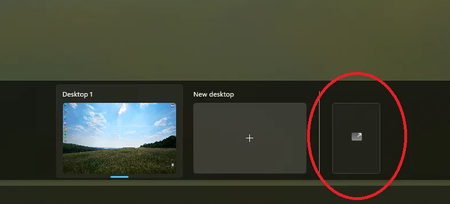

The circled tile is the Connect to Cloud PC entry for Windows 365 Switch. It is not another local virtual desktop. This feature places an assigned Windows 365 Cloud PC beside Desktop 1 and New desktop, allowing users to switch between the local PC and Cloud PC through Task View.
If your organization has assigned you a Cloud PC:
- Open Windows App and sign in with the work or school account that has the Windows 365 license.
- Find the assigned Cloud PC, open its three-dot menu, and select Add to Task view.
- Open Task View again. The tile should display the Cloud PC information and allow you to connect.
If you do not have a Cloud PC, the blank tile has no useful function. The missing label, missing tooltip, and unresponsive button suggest that Windows has displayed the placeholder before the feature was fully configured, or that a recent staged update introduced a Task View UI bug.
- Install the latest Windows and Windows App updates, then sign out and back in.
- If a Cloud PC was previously added, remove it through its three-dot menu in Windows App.
- If the blank tile remains, report it through Feedback Hub and include the Windows build shown by winver.
There is currently no normal Task View setting for hiding this incomplete placeholder. It is harmless, so registry changes are not recommended.