Forum Discussion

The hidden files and folders that I have difficulty locating

Hello!
Enabling "Show hidden items" in the standard File Explorer view only reveals files with the basic hidden attribute toggled on. However, Windows 11 also conceals deeply nested system files, cache directories, and application data that are protected by the operating system by default.
To uncover everything, you need to go a step further:
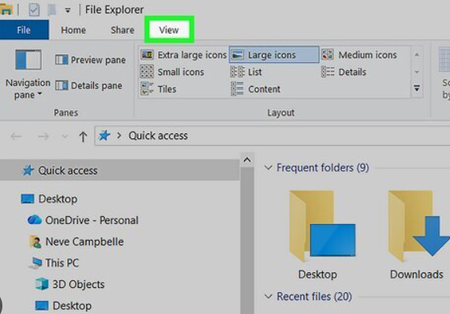
- Open File Explorer, click the View menu at the top, select Show, and make sure Hidden items is checked.
- Next, click the three dots (...) and open Options (Folder Options).
- Go to the View tab, scroll down, and uncheck the box that says "Hide protected operating system files (Recommended)".
- Select "Show hidden files, folders, and drives" and hit Apply.
Once you make these adjustments, deeper system directories and AppData subfolders will become visible. If you are looking to streamline how you organize or manage files and assets across different system directories without getting bogged down by clutter, you can https://www.daltaios.com/delta-ipa about managing system file structures effectively.
Be very careful modifying or deleting files once protected system items are visible, as altering the wrong directory can impact system stability!