Forum Discussion

System dialog boxes unreadable
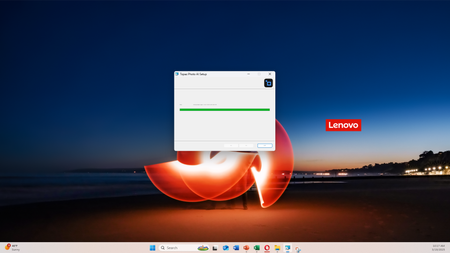

1. To adjust the High DPI scaling settings: Right-click on the Topaz installer → select Properties.
Go to the Compatibility tab → Click Change High DPI settings.
Check Alternative High DPI Scaling Behavior → Select Application or System (Enhanced).
Apply the settings and re-run the installer.
2. To update the graphics card driver: Press Win + X → select Device Manager.
Expand Display Adapters → Right-click on the graphics card → Update Driver.
Select Search for updates automatically, or go to the official website of the graphics card manufacturer to download the latest driver and install it manually.
3. Repair system files: Open Command Prompt as administrator and enter the following command and press Enter:
bash
sfc /scannow
When you are done, continue to run:
bash
DISM /Online /Cleanup-Image /RestoreHealth
Restart your computer and test if the problem is solved.
4. Clear Font Cache: Open Run (Win + R) → Enter services.msc → Find Windows Font Cache Service.
Right-click to stop the service.
Go to the folder C:\Windows\ServiceProfiles\LocalService\AppData\Local and delete the files beginning with FontCache.
Restart the service and reboot the computer.
5. Check software compatibility: Visit Topaz Lab website to confirm the software supports Windows 11.
Download and install the latest version of the installer.
If the problem persists, contact Topaz technical support for feedback on the screenshots and system environment during installation.
6. Adjust the system display settings:
Right-click Desktop → Display Settings → Check if Scaling and Layout is the recommended value (150%).
Try temporarily lowering the resolution to 1080p and observe if the dialog box is displayed properly.
7. Create a new user account: Go to Settings → Accounts → Family & Other Users → Add New User.
Log in with the new account and test if the installer works properly.
If it works, the original user's configuration may be corrupted and you need to migrate the data or repair the account.