Forum Discussion

I cannot connect Outlook on Windows 11
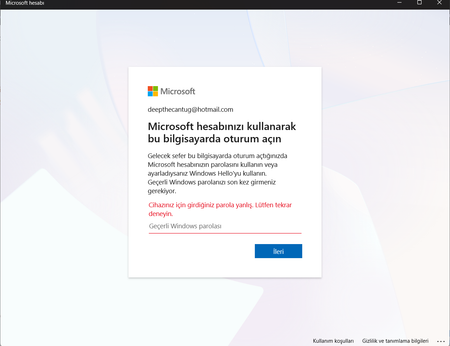

This usually happens because Microsoft retired older basic password logins for Hotmail and Outlook.com accounts in favor of Modern Authentication, or because Windows has an old login token stuck in the cache.
Try these three quick checks to get past the password loop:
1. Clear cached Microsoft login entries
Open the Start menu, search for Credential Manager, and select Windows Credentials. Expand any entries listed under MicrosoftOffice16, Live:Device, or your Hotmail address and click Remove, then restart your PC.
2. Check your Two-Step Verification or App Password
Sign into account.microsoft.com in your web browser first to make sure the password works there and there is no security lock on the account. If you have Two-Step Verification enabled and are adding the account to an older mail view, generate an App Password under Security > Additional security options and paste that into Windows instead of your normal password.
3. Add the account through the new Outlook app first
Instead of adding it directly inside Windows Settings, open the new Outlook for Windows app from the Start menu and sign in there. That forces the modern browser-style login prompt to appear, which usually registers the account on Windows properly.
Let us know if you are adding it under Settings > Accounts > Email & accounts or directly inside the Outlook desktop app.