Forum Discussion

How to remove the default folders from the left pane of File Explorer in Windows11
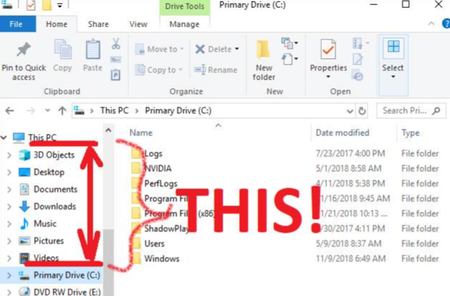

To completely hide or remove default folders like 3D Objects, Desktop, Documents, Downloads, Music, Pictures, and Videos from the left navigation pane of File Explorer in Windows 11, you can use the Registry Editor. Here's how:
- Open Registry Editor
Press Win + R, type regedit, and press Enter. - Navigate to the CLSID Key
Go to: HKEY_LOCAL_MACHINE\SOFTWARE\Microsoft\Windows\CurrentVersion\Explorer\MyComputer\NameSpace - Delete CLSID Entries for Unwanted Folders
- Also Check the WOW6432Node (for 64-bit systems)
If you're on a 64-bit version of Windows 11, repeat the same step 3 for:
HKEY_LOCAL_MACHINE\SOFTWARE\WOW6432Node\Microsoft\Windows\CurrentVersion\Explorer\MyComputer\NameSpace - Restart File Explorer
Press Ctrl + Shift + Esc to open Task Manager.
Find Windows Explorer, right-click it, and choose Restart.
Important Warning!
Editing the registry can affect system behavior. Always back up your registry before making changes.
These steps apply to Windows 11 Home and Pro editions.
 Jan_WijninckxDec 10, 2025Brass Contributor
Hi Shahab,
I am at my wits end, nothing works to get rid of these Views like Videos in the navigation pane of explorer.
I have tried:; Videos - this sort of thing used to work in Windows 10
[HKEY_LOCAL_MACHINE\SOFTWARE\Microsoft\Windows\CurrentVersion\Explorer\FolderDescriptions\{35286a68-3c57-41a1-bbb1-0eae73d76c95}\PropertyBag]
"ThisPCPolicy"="Hide"
[HKEY_LOCAL_MACHINE\SOFTWARE\Wow6432Node\Microsoft\Windows\CurrentVersion\Explorer\FolderDescriptions\{35286a68-3c57-41a1-bbb1-0eae73d76c95}\PropertyBag]
"ThisPCPolicy"="Hide"
Computer\HKEY_LOCAL_MACHINE\SOFTWARE\Microsoft\Windows\CurrentVersion\Explorer\MyComputer\NameSpace\{A0953C92-50DC-43bf-BE83-3742FED03C9C}
Computer\HKEY_LOCAL_MACHINE\SOFTWARE\WOW6432Node\Microsoft\Windows\CurrentVersion\Explorer\MyComputer\NameSpace\{A0953C92-50DC-43bf-BE83-3742FED03C9C}
(Default) REG_SZ CLSID_ThisPCMyVideosRegFolder
HiddenByDefault REG_DWORD 1
HideIfEnabled REG_DWORD 1 some say 22ab9b9 - no diff
System.IsPinnedToNameSpaceTree REG_DWORD 0HKEY_CURRENT_USER\Software\Classes\CLSID\{A0953C92-50DC-43bf-BE83-3742FED03C9C}
System.IsPinnedToNameSpaceTree REG_DWORD 0I have tried what you wrote and deleted them
I looked in group policy but nothing there.
Any ideas?
Looking forward to your thoughts. AI is out of its depth I need real intelligence :)
(added)
I have now also setComputer\HKEY_CLASSES_ROOT\CLSID\{A0953C92-50DC-43bf-BE83-3742FED03C9C}
Computer\HKEY_CLASSES_ROOT\WOW6432Node\CLSID\{A0953C92-50DC-43bf-BE83-3742FED03C9C}
System.IsPinnedToNameSpaceTree REG_DWORD 0And no change from that either (had to change the permissions for this)