Forum Discussion

How to fix 'Windows 11 installation has failed' issue?
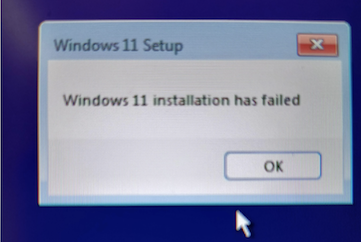

If you are encountering the "Windows 11 installation has failed" error message during the installation process, there are several troubleshooting steps you can take to try and resolve the issue. Here's a guide on how to fix "Windows 11 installation has failed" issues:
1. If the upgrade fails, download the Windows 11 ISO file and use it to create a bootable USB drive. You can use tools like Rufus or the Windows Media Creation Tool.
2. Run the Windows 11 Setup in Clean Boot Mode
- Perform a Clean Boot to minimize background services:
- Press Win + R, type msconfig, and press Enter.
- In the System Configuration window, select the Services tab.
- Check "Hide all Microsoft services", then click "Disable all".
- Go to the Startup tab and click "Open Task Manager". Disable all startup items.
- Restart the computer and try the installation again.
3. Run a system file check to identify and fix any corruption that might be causing the issue:
- Open Command Prompt as Administrator.
- Run the command: sfc /scannow.
4. If the installation fails, you can check the Windows Update logs for errors:
- Go to C:\Windows\Panther\ and look for the setup log files to identify any specific issues.
5. If the installation files are corrupted, use the DISM tool to repair the Windows image:
- Open Command Prompt as Administrator.
- Run the command: DISM /Online /Cleanup-Image /RestoreHealth.
 EssieAcquahApr 15, 2026Copper Contributor
OhioValley I completed suggestions 3 and 2 and I was finally able to complete the install. Thx!